



 Ping Pong
 is a table tennis game you play online, live, with another person. Watch the table from straight above in 2D or in 3D perspective. Your paddle follows your mouse or finger, and the way you swing as you meet the ball picks the shot.
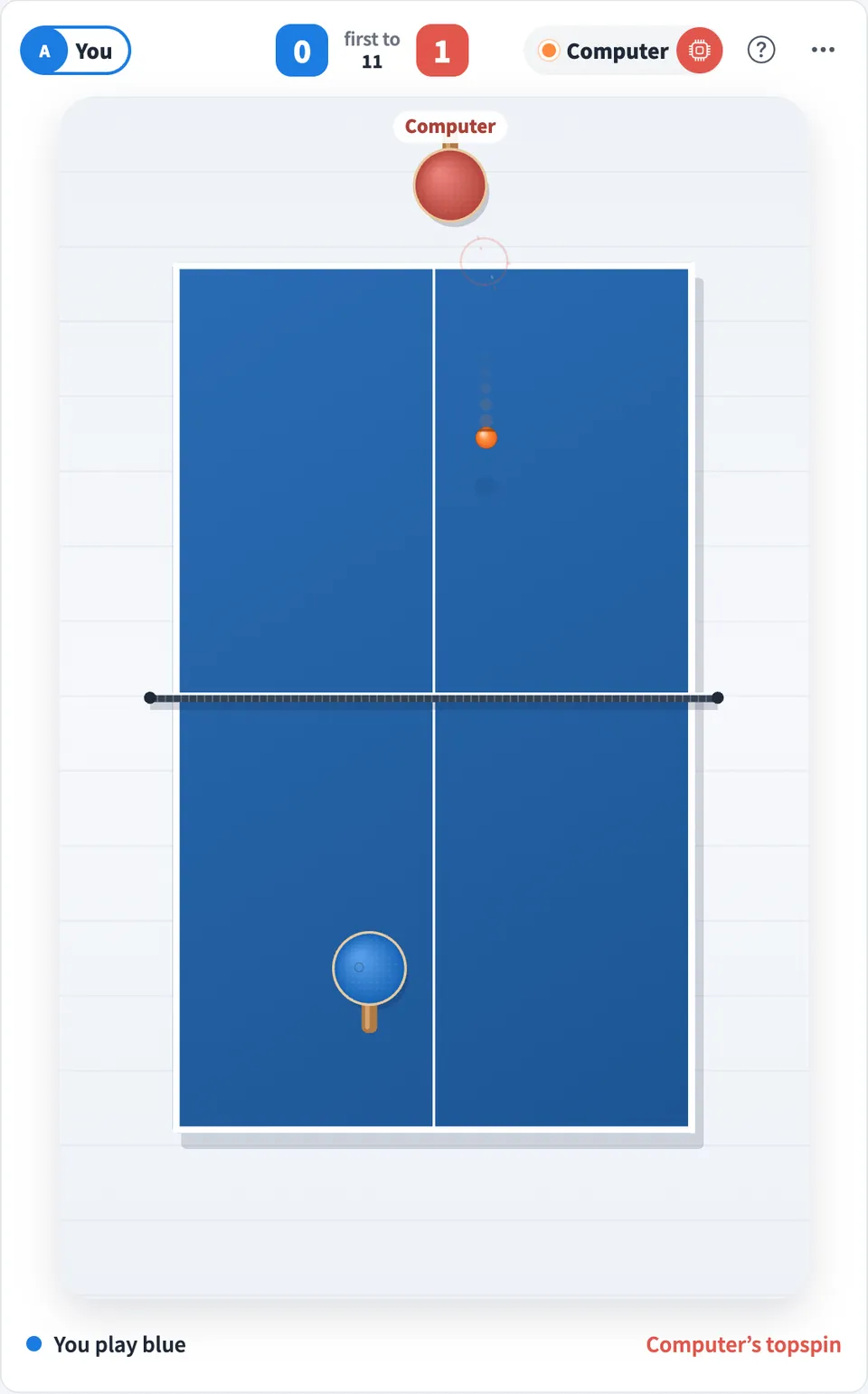
Play Ping Pong online together.
Two people take the blue and red ends and rally to 11, win by 2. On your own, play the computer. Everyone else on the board watches the match live, and the whole board can run a knockout tournament.
It runs on a shared MockFlow board, so a quick game sits right next to the work, ready for a break between meetings.
- 2D or 3D view. Play from straight above or switch to a 3D perspective of the table. Each player chooses their own view, and the match is the same either way.
- Shots from your swing. No extra buttons: the paddle's movement at contact makes a block, topspin, drop shot or sidespin, and the footer names the shot.
- Spin you can read. A spinning ball shows a turning stripe. Block topspin and it flies long; touch backspin and it drops toward the net.
- Play the computer. No opponent around? Pick a color and play a match against the computer.
- Knockout tournaments. Open sign-up from the menu. Once at least three people join, the organizer starts a random draw, free passes fill the gaps, and winners go through until one champion is left.
- Live for the whole board. Everyone else on the board watches the rally as it happens.
- Leaderboard. Finished matches go on the leaderboard. Wins against people rank first, and games against the computer are counted on their own.
- Mouse and touch. Play with a mouse on a computer or with a finger on a phone or tablet.
How to play Ping Pong.
Pick an end
Choose Play blue or Play red to take an end of the table. Your end is always at the bottom of your screen. On your own, choose Play the computer.
Choose a view
Pick 2D for a true overhead view or 3D for perspective. In 2D, the ball grows and pulls away from its shadow as it rises, so aim at the orange ball itself. In 3D, meet the ball at paddle height after a bounce. Each player picks their own view and can switch during a match.
Move your paddle
Move the mouse over the table, or drag a finger on a phone. Your paddle follows and stays on your side of the net.
Serve and hit
Let the ball bounce on your side, then swing up through it. A faster swing sends it deeper; swing too hard and it flies long.
Aim for the corners
Hit the ball off the edge of the paddle to send it toward a corner.
Choose your shot
Hold the paddle still for a soft block, swing forward fast for topspin, pull back as the ball arrives for a drop shot with backspin, or swing sideways for sidespin.
Win points
You win the point when the other player misses, hits the net, hits it off the table or lets it bounce twice. The serve changes every 2 points.
Win the match
First to 11 points wins, and you must win by 2. From 10 to 10 the serve changes every point.
Who uses Ping Pong.
Two teammates on a break
Play a quick game to 11 without leaving the board you are working on.
A team planning a friendly competition
Open a ping pong tournament for the whole board and follow the bracket to the final.
Someone with a few minutes alone
Play the computer and practice topspin and drop shots.
A remote team after a long meeting
Two people rally while the rest of the team watches every point on the board.
An office that misses its table tennis table
Keep the leaderboard going over the week and see who ends on top.
Add Ping Pong to your board.
Use on a board opens a new board with Ping Pong already on it. To add it to a board you already have, follow these steps. Each copy keeps its own data, so a vote on one board never changes another.
Open your board
Open the MockFlow board you want to use it on.
Add it from the Artifact Library
Click Add anything (the plus button) in the toolbar at the bottom of the board, switch to Artifacts and pick Ping Pong under Games. Adding it does not use AI credits.
Use it together
Click Interact with Component (the hand button), or switch the board to Play mode. Everyone on the board uses the same app, and Reset shared data clears it for the next session.










 Brainstorm with MockFlow MCP


