 Battleship
Battleship Online is the classic naval guessing game, drawn as a real fleet on a ten by ten ocean. Two captains hide five ships each, then take turns calling squares until one fleet is sunk.
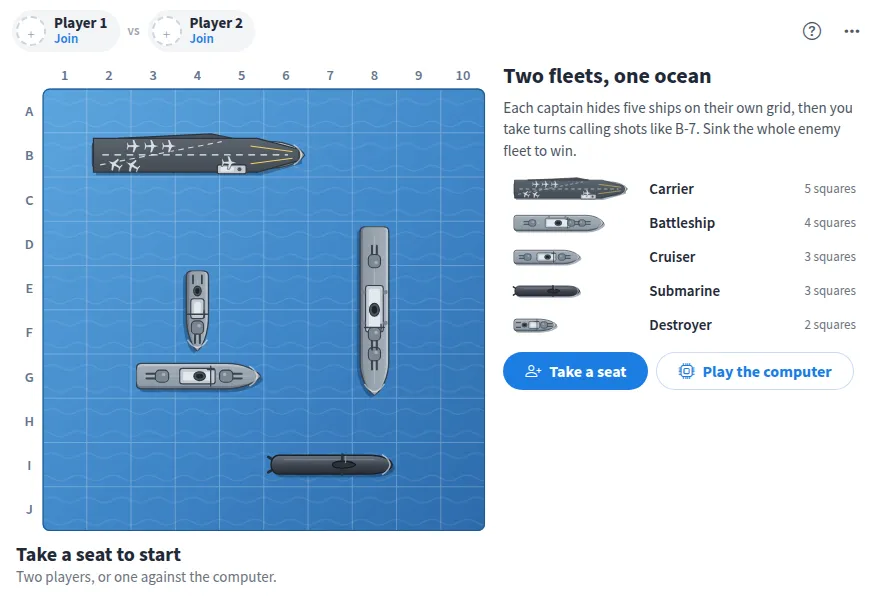
Play Battleship online together.
Play a teammate on the same board, or let the computer take the open seat. Your ships show only on your own screen, everyone else on the board can watch the battle, and wins and accuracy go on a shared leaderboard.
It runs on a shared MockFlow board, so a quick game sits right next to the work and everyone sees the same match at once.
- The classic fleet. Carrier, 5 squares. Battleship, 4. Cruiser, 3. Submarine, 3. Destroyer, 2. All drawn as ships on the water.
- Play the computer. A computer captain that weighs where the unsunk ships can still lie, so it hunts down a fleet instead of firing at random.
- Hidden fleets. Your ships show only on your screen. Enemy ships appear as they sink, and the whole fleet is revealed when the game ends.
- Watch the battle. Board members without a seat watch both oceans as the shots land.
- Shot callouts. Every shot is called out with its square and result: miss, hit, or which ship it sank.
- Leaderboard. Finished games count toward wins and accuracy on a leaderboard in the more actions menu.
- Concede and rematch. Concede a game you cannot win, then start a rematch with the same seats.
How to play Battleship.
Take a seat
Press Join as Player 1 or Join as Player 2. Each person plays one seat.
Deploy your fleet
Pick a ship, then tap the water where its stern goes. Press R or Rotate to turn it, tap a placed ship to move it, or press Random to lay out the whole fleet. Ships never overlap.
Press Ready
Once all five ships are placed, press Ready and wait for an opponent.
Find an opponent
Anyone on the board can take the open seat, or press Play the computer to play right away.
Fire
Player 1 fires first, then you take turns calling one square, like E-5. Fire marks a hit and a white ring marks a miss.
Sink the fleet
When every square of a ship is hit it sinks, and both captains see which ship went down. Sink the whole enemy fleet to win.
Play again
Rematch keeps the same seats and starts a new deployment. New game from the more actions menu opens both seats.
Who uses Battleship.
A remote team on a Friday break
Two teammates play a game on the team board while everyone else watches and cheers.
A team building session
Run a friendly tournament and let the leaderboard keep the score.
Someone waiting for a meeting to start
Play the computer for a quick round without waiting for an opponent.
A teacher with a class
Use Battleship to practice grid coordinates, with pairs taking the two seats.
Add Battleship to your board.
Use on a board opens a new board with Battleship already on it. To add it to a board you already have, follow these steps. Each copy keeps its own data, so a vote on one board never changes another.
Open your board
Open the MockFlow board you want to use it on.
Add it from the Artifact Library
Click Add anything (the plus button) in the toolbar at the bottom of the board, switch to Artifacts and pick Battleship under Games. Adding it does not use AI credits.
Use it together
Click Interact with Component (the hand button), or switch the board to Play mode. Everyone on the board uses the same app, and Reset shared data clears it for the next session.









 Brainstorm with MockFlow MCP