



 Done List
 is a reverse to do list for your team. Instead of planning tasks up front, everyone adds what they finished, after they finish it. The list only grows, so nothing sits there waiting to be ticked off.
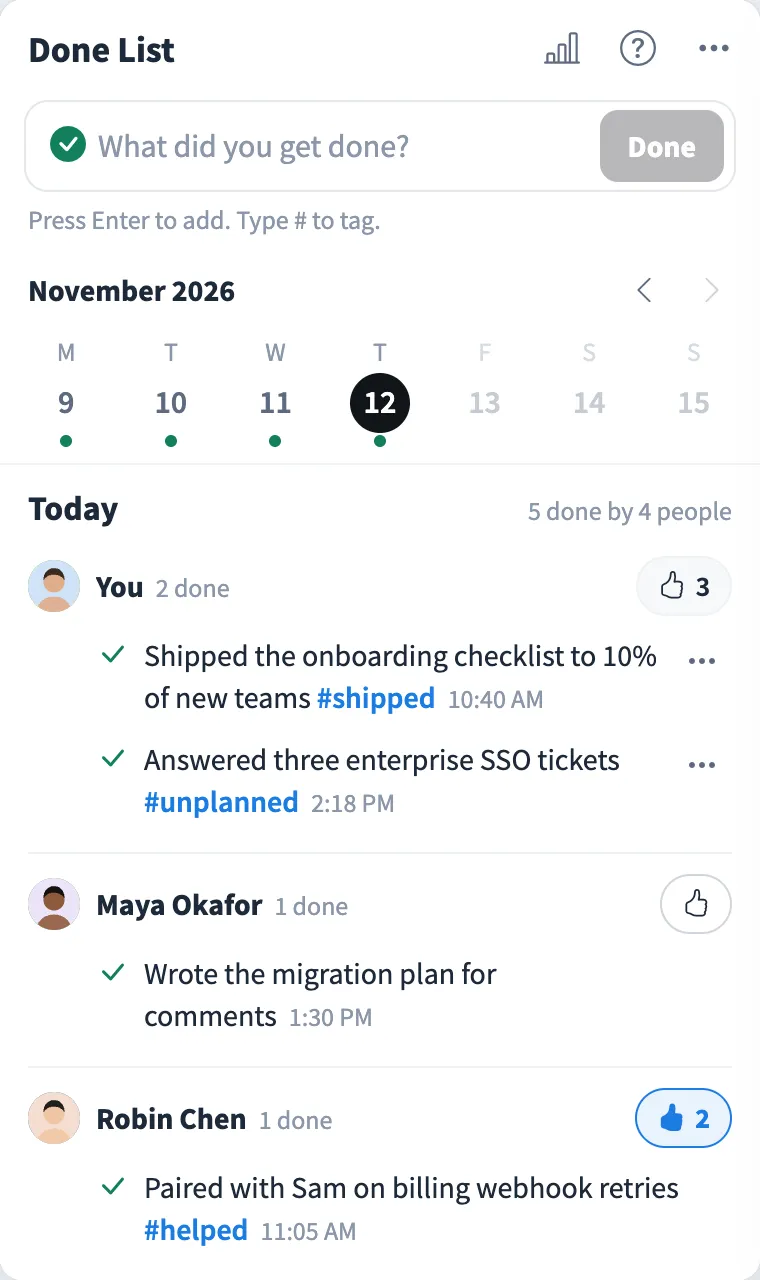
Use Done List together on your board.
It sits on a shared MockFlow board next to your work. Everyone on the board adds to the same list at once and sees each other's entries appear live, grouped by person for each day. At the end of the week, the weekly wrap turns it all into a summary you can paste into a standup or a status update.
- A list that only grows. Every entry is something already done, so the list shows progress instead of a backlog.
- Grouped by person. Each day shows who did what, with each person's entries together under their name and photo.
- Hashtags with suggestions. Tag entries inline with # and pick from suggestions with the arrow keys or a click. Tags are highlighted in the list.
- Week strip with history. Green dots mark the days with entries, and you can step back week by week to see what was done before.
- Cheers. A thumbs up for each person's day, so the team can recognise good work in one tap.
- Weekly wrap. Totals for the week, including how many entries were tagged #unplanned, and a one-tap copy for standups and status updates.
- Edit and undo. Edit or remove your own entries from the menu next to each one, and undo a remove or an addition from the message that follows.
- Private public view. Someone opening the board from a public link sees the entries without any names or photos, and cannot add or change anything.
How to use Done List.
Add it to a board
Open Add anything with the plus button in the bottom toolbar, choose Artifacts and add Done List. Use on a board on this page opens a new board with it already on.
Name your list
Tap the title to rename it for everyone on the board, such as Design team wins. Clearing the name brings back Done List.
Add what you finished
Type what you got done in the box at the top and press Enter. It is saved with your name and the time, under today.
Tag it
Type # anywhere in the line to add a tag such as #shipped, #fixed, #helped, #learned or #unplanned. Suggestions appear as you type, including tags your team has already used.
Look back day by day
The week strip shows Monday to Sunday, with a green dot under every day where something was done. Tap a day to see it, use the arrows for earlier weeks, and tap Today to come back.
Cheer your teammates
Each person's day has a thumbs up button. Tap it to cheer them, and the count shows how many people did.
Share the week
Open the weekly wrap to see everything done this week, grouped by person, with totals. Copy summary puts it on your clipboard as plain text.
Who uses Done List.
A remote team before standup
Everyone adds what they finished yesterday, so the standup starts with the list on screen instead of people trying to remember.
A manager writing a weekly update
Open the weekly wrap on Friday, copy the summary and paste it into the status update, already grouped by person.
A sprint team tracking unplanned work
Tag hotfixes and customer calls with #unplanned, then see in the weekly wrap how much of the week went to work nobody planned.
A team that wants more recognition
Small wins get noticed when they are written down, and teammates cheer each other's days with a tap.
Anyone who ends the day feeling behind
A done list shows what you actually got through, which a to do list never does.
Add Done List to your board.
Use on a board opens a new board with Done List already on it. To add it to a board you already have, follow these steps. Each copy keeps its own data, so a vote on one board never changes another.
Open your board
Open the MockFlow board you want to use it on.
Add it from the Artifact Library
Click Add anything (the plus button) in the toolbar at the bottom of the board, switch to Artifacts and pick Done List under Planning. Adding it does not use AI credits.
Use it together
Click Interact with Component (the hand button), or switch the board to Play mode. Everyone on the board uses the same app, and Reset shared data clears it for the next session.







 Brainstorm with MockFlow MCP


