Skip to content
MockFlow DocsGet an API key

Changes to MockFlow, newest first.

Every change to MockFlow, newest first. Subscribe by RSS to follow along.

addedapi

MockFlow Developer Platform: the Boards API, OAuth apps and webhooks

Build boards from your own code. Create spaces and boards, add kanbans, timelines and mind maps, ask Mida to build a board, let your customers connect their MockFlow accounts and hear back when boards change.

A server sends POST /v1/boards with a prompt, MockFlow replies with the new board and a running job, Mida builds a kickoff board with a goals mind map, a launch timeline and a task kanban, and a job.succeeded webhook reaches the server

The MockFlow Developer Platform opens your visual boards to your own code. The Boards API is a REST API for everything you do in MockFlow by hand: create spaces and boards, place items such as kanbans, mind maps, timelines, charts, flowcharts and wireframes, read boards back as text or images, share spaces and ask Mida, the AI assistant, to build a board from a sentence. OAuth apps let your customers connect their own MockFlow accounts to your product, and webhooks tell your server when boards change.

Everything starts in the developer console, where you create API keys, register OAuth apps, add webhooks and try every call in the browser before you write any code.

What teams build with the MockFlow API

  • An agency starts every client with a workshop board. When a client signs, the agency's server sends the brief to MockFlow with a prompt such as "Kickoff workshop for a booking app: goals mind map, launch timeline, task kanban", and the board is ready before the first call.

  • A course planning tool sends each term to a teacher's board. Teachers click Connect MockFlow in the tool, approve it, and the tool creates a term board in their own account with a timeline and the topic for each week.

  • A marketing team gets a fresh results board every Monday. A script reads last week's numbers and draws them as charts and a table on a new board, ready for the weekly review.

  • An IT team sets up spaces for new projects. When a project opens in their tracker, a script creates a space named after it and shares it with the project team as editors and the client as reviewers.

  • A product team keeps a wall of new boards. A webhook reports each new board in the design space, and a script reads its outline and posts a picture of it to the team channel.

  • An internal assistant answers questions from planning boards. Asked "what did we decide for the Q3 launch?", it finds the board with search and reads it as text, sections and items in reading order.

Three ways to connect: API keys, OAuth apps and webhooks
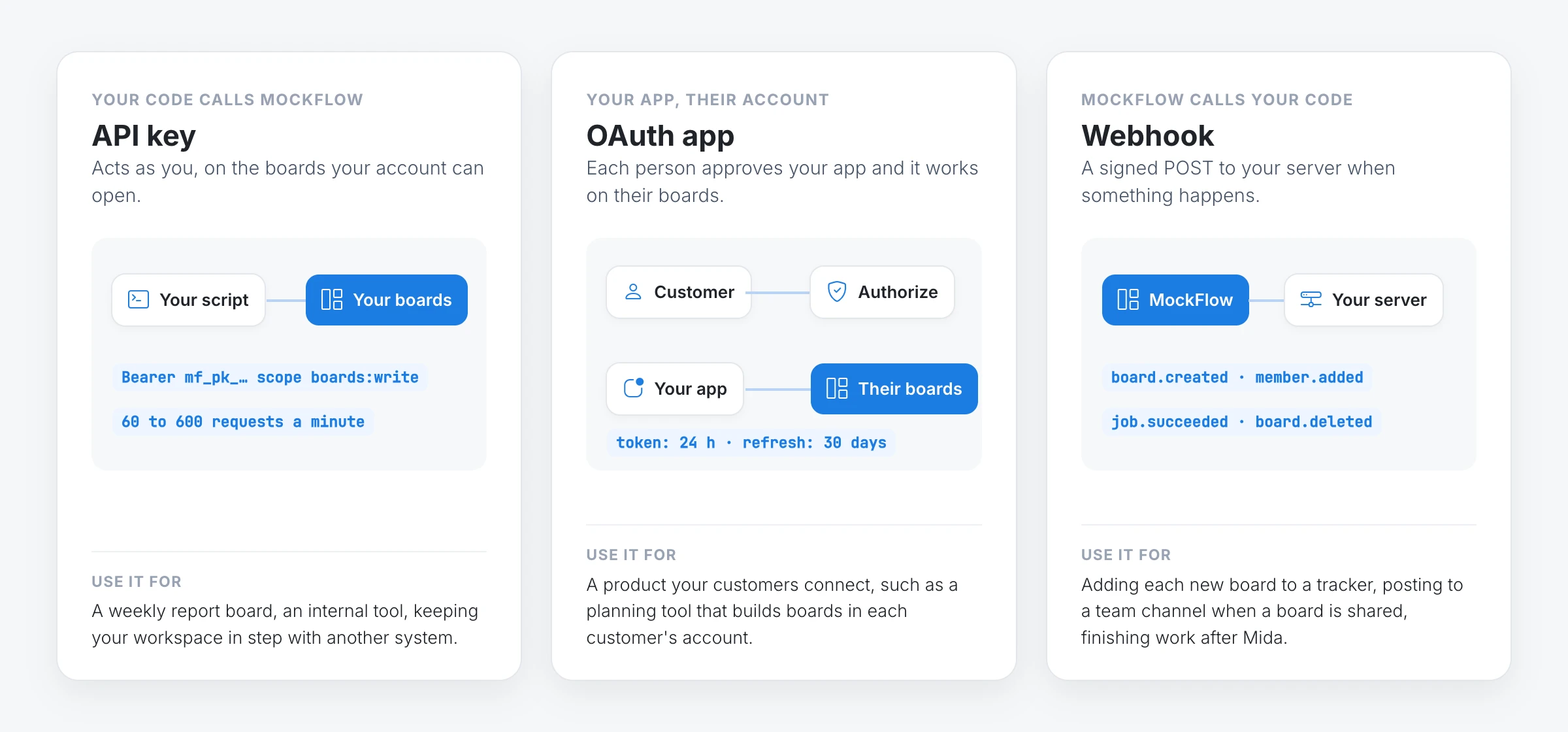
Three cards: an API key acts as you on your own boards, an OAuth app acts for each person who approves it on their boards, and a webhook is MockFlow sending a signed POST to your server when boards are created, shared or finished
  • API key: acts as you, on the boards your account can open. Use it for your own scripts, servers and internal tools. You choose its scopes, when it expires and, optionally, the only IP addresses it works from. A workspace owner can also make a key that belongs to the workspace, so it keeps working after the person who made it leaves.

  • OAuth app: acts for each person who connects it, on their boards, with the scopes they approved. Use it for a product your customers connect to their own accounts.

  • Webhook: MockFlow calls your server when a board is created, renamed, locked, moved, trashed or restored, when someone gains or loses access, and when a job you started finishes. Each request is signed, retried for a day if your server is down and kept in a seven day delivery log with a Replay button.

How to make your first request with an API key

  1. Open the developer console and sign in to MockFlow.

  2. On the API keys tab, click Create key, give it a name and tick the scopes it needs, such as user:read, boards:read and boards:write.

  3. Copy the key. It is shown once, because MockFlow keeps only a hash of it.

  4. Call the API from a terminal with the commands below.

Keep the key in an environment variable on your server, never in code that runs in a browser:

export MOCKFLOW_API_KEY="paste your key here"
curl https://api.mockflow.com/v1/me -H "Authorization: Bearer $MOCKFLOW_API_KEY"

Create a board and let Mida build it from a prompt. The answer comes back at once with the board's link and a job:

curl -X POST https://api.mockflow.com/v1/boards \
  -H "Authorization: Bearer $MOCKFLOW_API_KEY" \
  -H "Content-Type: application/json" \
  -d '{"title": "Northwind kickoff", "prompt": "Kickoff workshop for a booking app: goals mind map, launch timeline, task kanban"}'

Check the job until its status is succeeded, or add a callbackUrl to the request and MockFlow tells your server when the board is ready:

curl https://api.mockflow.com/v1/jobs/JOB_ID -H "Authorization: Bearer $MOCKFLOW_API_KEY"

Prompts need the ai:generate scope as well. To place items yourself instead, add them with POST /boards/{boardId}/items, or many at once with POST /boards/{boardId}/items:batch. Each item type page shows the data a kanban, mind map, timeline or chart takes. The Quickstart walks through the whole flow.

Let your customers connect MockFlow with OAuth apps

A teacher clicks Connect MockFlow in a course planning app, approves it on the MockFlow consent screen that lists what the app may do, the app's server exchanges the code for tokens, and the app creates a term board in the teacher's own MockFlow account

An OAuth app lets your product work in other people's MockFlow accounts, with their permission. Each person sees your app's name, logo and description on the MockFlow consent screen, with one line for everything the token will be allowed to do, and chooses Authorize or Deny.

  1. On the OAuth apps tab of the developer console, click Register an app. Give it a name, a description, a logo, your redirect URI and the scopes it may ask for.

  2. Send each person to https://mockflow.com/mcp-oauth/ with your client ID, redirect URI, scopes and a random state. They sign in with Google, Microsoft or their email and approve your app.

  3. MockFlow sends them back to your redirect URI with a one time code. Your server exchanges it for an access token and a refresh token.

  4. Call the API with the access token exactly as you would with a key. It works on that person's boards only.

curl -X POST https://mockflow.com/mcp-oauth/token \
  -H "Content-Type: application/x-www-form-urlencoded" \
  -d grant_type=authorization_code \
  -d code=AUTHORIZATION_CODE \
  -d redirect_uri=https://yourapp.com/callback \
  -d client_id=YOUR_CLIENT_ID \
  -d client_secret=YOUR_CLIENT_SECRET \
  -d code_verifier=YOUR_CODE_VERIFIER

A new app starts in development, so you and the people in your workspace can connect it while you build. When it is ready, press Publish in the console and anyone with a MockFlow account can connect it. Apps that run on people's devices, such as desktop, mobile or command line apps, are registered as unable to keep a secret and sign in with PKCE. People can disconnect any app themselves under Connected apps in their MockFlow account settings. The OAuth apps guide covers every step.

Hear back with webhooks

Add a webhook on the Webhooks tab of the developer console, or from code, with your server's https address and the events you want:

curl -X POST https://api.mockflow.com/v1/webhooks \
  -H "Authorization: Bearer $MOCKFLOW_API_KEY" \
  -H "Content-Type: application/json" \
  -d '{"url": "https://yourapp.com/mockflow/webhook", "events": ["board.created", "member.*"]}'

Check the MockFlow-Signature header on each request before you trust it, answer within 10 seconds, then do the work. The Webhooks guide has signature checks in JavaScript and Python.

API limits on each MockFlow plan

Every plan can use the API, and the API follows the same rules as the app: a call is refused exactly when the same action would be refused in MockFlow.

Basic

Plus

Max

Requests a minute, per key

60

300

600

Boards

3, trashed ones included

Unlimited

Unlimited

Spaces

1

Unlimited

Unlimited

Generate, modify and review with Mida

Not available

With AI credits

With AI credits

Share a space

As reviewer, up to 5 per space

Admin, editor or reviewer

Admin, editor or reviewer

Trash, restore and move boards between spaces

Not available

Yes

Yes

What the API does not do

  • A key reaches only what its account can open. A scope is necessary, not sufficient: a key with boards:write still cannot change a board its owner cannot open.

  • Webhooks do not fire for each edit to the items on a board. They report boards being created, changed, shared, trashed and restored, and jobs finishing.

  • Tokens and codes expire. OAuth access tokens last 24 hours and refresh tokens 30 days, and an authorization code must be exchanged within 10 minutes.

  • Published OAuth apps need a real domain. Publishing needs a description, a logo and an https redirect on your own domain rather than localhost.

  • A workspace can have up to 25 OAuth apps and 25 webhooks.

Many other parts of MockFlow, such as live presence, team chat and board exports, are also available through the API. The API reference lists every operation and the scope it needs.

Start building

To work on your boards from an AI assistant such as Claude or Cursor instead of your own code, use the MockFlow MCP server.
Link to this change
boards

New Table component: typed fields, votes and sticky notes on your board

Organize ideas, plans and comparisons in rows and columns right on the canvas. Use typed fields, let the team vote, drop sticky notes into cells, or ask Mida to build the table.

A MockFlow table is generated from a prompt with Idea, Impact, Effort, Votes and Customer feedback fields, the team votes on rows, and the table is sorted by votes


The new Table component brings structured rows and columns to your MockFlow board. Each column is a typed field, so a table can hold text, numbers, dates, people and status labels side by side with team votes and sticky notes. It sits on the same visual canvas as your mind maps, diagrams and wireframes, so the list you are discussing stays next to the work it is about.

You can start from a template, paste a grid from a spreadsheet, import a CSV file or simply ask Mida to build the table for you.

Typed fields for every kind of data

Every column has a field type that decides how its cells look and behave:

  • Record fields: Text, Number, Single select, Multi select, Date, Person, Checkbox, URL, Media and Icon. Number fields can show currency, percentages or units and add a total at the bottom.

  • Board fields: Votes lets everyone on the board vote on a row, with an optional limit per person. Stickies turns a cell into a small area for sticky notes, so a table can work like a structured brainstorm.

Rows can be sorted by any field, and the table style can be changed from clean and minimal to a bold header or a hand-drawn sketchy look.

What you can do with tables on the board

  • Prioritise features with votes: list ideas, rate impact and effort with select fields, assign an owner and let the team vote. Sort by votes to see what the team wants first.

  • Plan a content calendar: one row per post with a Date field for the publish day, a select field for the channel, a Person field for the writer and a Media field for the cover image.

  • Compare vendors or tools: put the options in columns and the criteria in rows, such as price, strengths, weaknesses and best fit, then add a votes column to decide together.

  • Run a sprint retro: use the Retro template with Went well, To improve and Action items as sticky note columns, and let everyone add notes during the session.

  • Organize a class schedule: list sessions with Date, Person for the teacher, a select field for the room and a Checkbox for "materials ready".

How to add a table to your board

  1. Open the add component menu on your board and search for Table.

  2. Place it on the canvas. A new table starts with a few text columns to fill in.

  3. Click Templates in the table toolbar to start from a ready layout instead: Blank table, Prioritise ideas, Impact / effort 2ร—2, SWOT, Retro or Comparison.

  4. Use Add field to add a column and choose its field type, and Add row to add rows.

  5. Click a cell to type in it, pick an option or cast a vote.

To bring in existing data, paste a range copied from Google Sheets or Excel straight into the table, or open Import and export in the table toolbar and choose Import a file for a CSV or TSV file. From the same menu you can download a CSV, save an image of the table, or copy it for Google Sheets, Excel or as Markdown for docs, Notion, Slack or GitHub.

Generate and fill tables with Mida AI

Ask Mida in your own words and it builds the table with the right fields and options. Example prompts:

  • "Prioritise our Q4 feature ideas by impact and effort, with owners and votes"

  • "Make a content calendar for October with date, channel, writer and status"

  • "Compare Notion, Confluence and Google Docs for a 20 person team"

  • "Create a weekly class schedule for a design course"

AI also works inside an existing table. A field's menu offers Fill with AI for its empty cells, Add field offers Create with AI for a new field that is named, typed and filled for every row, and a row's menu offers Fill row with AI. People fields, votes and media are left for your team to fill in.

Availability

The Table component is available on every MockFlow plan. Generating or filling tables with Mida uses AI credits, or runs on your own agent with MockFlow Bridge.

Link to this change
boards

The new MockFlow workspace: your boards, spaces and a board starter beside the canvas

Find every board and space in a sidebar right inside the editor, start new boards from a board starter, and manage spaces without leaving the canvas.


The new MockFlow workspace: open a board from the sidebar, click New board, choose how to start, add a Mind map frame, and open a space's settings menu in place

MockFlow has a new workspace. Your boards and spaces now live in a sidebar right inside the editor, so you can switch boards, start something new and organize spaces without going back to a separate dashboard. Every new board opens with a board starter that helps you begin with AI, a template, a Concept Builder or a ready-made frame.

The new workspace is the default for accounts created from 1 October 2026. If your account is older, you can switch to it from a banner on your dashboard and switch back at any time.

A workspace sidebar beside your canvas

The workspace sidebar sits on the left of the board editor. It keeps everything you make one click away while you work on the canvas:

  • Favorites lists the boards you have starred, so the ones you return to every day stay at the top.

  • Recents lists the boards updated most recently, so you can pick up work in progress.

  • Private boards holds boards that only you can see.

  • Spaces lists the spaces you own and the spaces others have shared with you. Inside a shared space, a line such as You are an editor shows your role.

  • Search projects filters boards and spaces by name as you type.

The footer shows your plan and AI credits, and the account menu holds your account settings, subscriptions, API keys and the What's new link. Close the sidebar for more canvas room and bring it back from the tab on the left edge of the window.

Start every board with the board starter

Click New board (the pencil button at the top of the sidebar) and MockFlow creates a blank board straight away and opens it. A panel asks How do you want to start? and offers:

  • Generate with AI: describe your idea and Mida builds the board for you.

  • Templates: start from a ready-made board.

  • Concept Builder: chat with a guided AI assistant to shape an idea step by step.

  • Add a frame: place a frame such as a wireframe, diagram, whiteboard, mind map, table, kanban, timeline or floor plan on the canvas, ready to fill in.

  • Classic WireframePro: open a project in the previous editor instead.

You can also close the panel and start on the empty canvas.

Space settings without leaving the board

Hover over a space in the sidebar and open its More options menu. Everything you need to manage the space opens in place, on top of the board you are working on:

  • Share space and Copy member link to bring people in.

  • Rename space and Change ownership.

  • Space activity to see what changed and who changed it, on the Plus and Max plans.

  • Create space link to publish a public link to the space's public boards, which visitors browse in a public space viewer.

  • Import project file to bring an existing project into the space.

Boards have the same menu: add them to favorites, rename, change the icon, duplicate, lock, or Send copy to another MockFlow user.

Everyday ways to use the new workspace

  • Move between boards during a meeting: keep a retro, a roadmap and a wireframe in Favorites and switch between them without losing your place.

  • Start a workshop in seconds: click New board, choose Generate with AI and describe the session, for example "a kickoff board for our spring campaign".

  • Plan a product screen: click New board and add a Wireframe frame, then sketch the screen right away.

  • Organize work by team or client: create a space for each class, product area or client, and manage members and links from the sidebar.

  • Share finished work publicly: create a space link so clients or students can browse the public boards in the space.

How to switch to the new workspace and back

Accounts created from 1 October 2026 use the new workspace only. For older accounts:

  1. Open your MockFlow dashboard.

  2. In the banner Try the new layout: your boards and spaces in a sidebar, right inside the editor, click Switch to new layout.

  3. MockFlow opens your boards with the workspace sidebar.

  4. To go back, open the account menu at the bottom of the sidebar and choose Switch to old layout.

Learn more in the docs

Link to this change
boards

New Wireframe frame: design app and web screens right on your board

Sketch app and web screens on the board with a full widget library and AI, switch the look in a click, and export to Figma, an AI coding prompt or WireframePro.


Wireframe frame workflow: add a Wireframe frame, describe the screen, Mida draws it, switch the look, export a build prompt

The new Wireframe frame brings wireframing onto the MockFlow board. You can design app and web screens right beside the ideas, notes and diagrams they come from, using a full widget library or AI. Then restyle them, render them, link them into a prototype and export them, all in the same place.

Each Wireframe frame holds one screen. A board can hold as many as you need, so a whole app flow, a landing page and its mobile version can sit side by side with the research that shaped them.

What you can do with the Wireframe frame

  • Turn an app idea into screens. Brainstorm the idea with sticky notes or a mind map, then ask Mida for the screens next to it. A login, onboarding or settings screen is on the board in seconds, ready to edit.

  • Plan a landing page. Describe the page, such as a navbar, a hero with two buttons and a pricing section, and get a desktop wireframe with fixed width that grows down as a scrolling page.

  • Redesign an existing page. Capture any web page with MockFlow Clippy, our Chrome extension, and it arrives on the board as an editable wireframe, ready to redesign.

  • Review with a client. Switch the screen from Sketchy for early ideas to Hi-fi when it is time to show a polished version, and collect comments on the same board.

  • Hand off to AI coding tools. Export a build prompt that describes the screen and paste it into Claude Code, Codex or Cursor as the first message.

  • Present a finished look. Convert a screen into a hi-fi image, where AI keeps your layout and text and fills every placeholder with real pictures and content.

How to create a wireframe on your board

  1. Open the Frames menu in the board's top menu and choose Wireframe. An empty screen is added to the board.

  2. Click the AI button on the frame's toolbar and choose Generate new.

  3. Describe the screen, pick the device (phone, tablet or desktop) and generate. You can also attach a screenshot or sketch to recreate.

  4. Edit the result with the widget library: drag in buttons, forms, cards, navigation, charts and more, and change any text in place.

For example, a prompt like this gives a complete mobile login screen:

Mobile login screen with email and password fields, a remember-me toggle,
a sign-in button and a link to create an account

The frame's AI menu also offers Modify with AI to change a screen you already have, Create new screen to add another screen of the same app in the same style, and Fill images with AI to replace image placeholders with real pictures. You can also ask Mida for a whole app, and it plans one frame per screen.

Switch the look in a click

Every screen can be shown in Outline, Sketchy, Hi-fi, Blueprint, Liquid glass, Fluent or Android style, in light or dark mode, with your own brand colour and font. Your layout and content stay the same, so you can move from a rough sketch to a polished screen without redrawing anything.

Choose Fixed size for one screen with no scrolling, Fixed width for a page that grows down as it scrolls, or Free size to fit the content. Switch between Real text and Placeholder blocks when you want reviewers to focus on layout rather than copy.

Prototype and convert your screens

One click on Prototype links the screens into a clickable prototype, which you can play full screen or preview on your phone. Convert to turns a screen into a flowchart, customer journey, mind map, spec, code block or kanban of tasks, placed right beside it.

Export options for wireframes

Open Export on the frame's toolbar to choose a format:

  • Image: a picture of the screen as PNG.

  • SVG: a vector drawing in the current style, device frame included.

  • Hi-fi image: a finished design of the screen with placeholders filled with real content.

  • JSON: the widget data, which you can import again later.

  • Copy to Figma: editable layers with auto layout, pasted into Figma through the MockFlow Figma plugin.

  • AI prompt: a build prompt for Claude Code, Codex, Cursor and similar tools.

  • WireframePro: paste the screen into a WireframePro project as editable components, when you want the full UI design editor with UI packs, symbols and pages.

To build the screen with an AI coding tool, choose AI prompt, then paste it into the tool as the first message and refine with follow-ups. For example, in a terminal:

claude
# paste the copied build prompt as your first message

Availability on each plan

The Wireframe frame is included on every plan, including Basic. AI generation uses your monthly AI credits. Copy to Figma, AI prompt and Hi-fi image are part of the paid plans, Plus and Max. See pricing for details, and Frames to learn how frames work on the board.

Link to this change
boards

Floor Plan frame: sketch rooms, furniture and layouts on your board with AI

Plan an office move, an event, a shop or a home on your MockFlow board. Draw rooms, walls, doors and furniture on a grid, start from a template, or let Mida draw the plan from a prompt.


A Floor Plan frame on a MockFlow board: Generate with AI opens the AI menu, an office prompt is typed and sent, and Mida draws a startup office floor plan with rooms, doors, windows and furniture

The new Floor Plan frame lets you sketch a space right on your MockFlow board. Draw rooms on a grid, add walls, doors and windows, and drop in furniture. Start blank, pick a starter template, or describe the space and Mida draws the whole plan for you.

It is a thinking tool, not CAD software. The goal is a clear layout in minutes that your team can discuss next to the wireframes, notes and plans already on the board.

What you can plan with the Floor Plan frame

  • Office move or desk plan: seat four teams together, put the manager near the window and keep quiet rooms away from the kitchen, then share the board with everyone moving.

  • Event layout: lay out a wedding reception with a head table, round tables, a dance floor and a bar, or plan a trade-show booth or exhibition hall before you book it.

  • Retail store, cafรฉ or restaurant: place the counter, display, tables and stock room, and compare two layouts side by side on the same board.

  • Home renovation: sketch the apartment as it is today, then ask Mida for a version with the kitchen opened up to the living room, and review both with your family or contractor.

  • Classroom or clinic: arrange desks in groups, a reading corner and a teacher's desk, or plan treatment rooms and a waiting area for a practice.

How to create a floor plan from a template

  1. On your board, open the components menu and choose Floor Plan from the Design frames group.

  2. The frame asks What are you planning? Pick a starter: Apartment, House, Office, Retail or Event.

  3. Edit the starter to match your space, or choose Start blank to draw your own from an empty grid.

How to generate a floor plan with AI

  1. In a new Floor Plan frame, click Generate with AI, or simply ask Mida for a floor plan on any board.

  2. Describe the space: its size, the rooms you need and anything that matters, such as how many people it seats.

  3. Mida draws the rooms, furniture, doors and windows inside the frame. Every part stays editable.

To change an existing plan, use Modify with AI in the frame's AI menu and describe the change, for example "swap the kitchen and dining room and add a balcony". The whole change is one undo step.

The prompt box offers ready-made starter prompts for homes, offices, events, shops, and clinics and classrooms. Example prompts you can use:

  • "Create a floor plan for a 150 mยฒ startup office with 12 hot desks, a glass meeting room for 6, two phone booths, a lounge and a kitchen with a breakfast bar"

  • "Create a floor plan for a 60 mยฒ cafรฉ with a service counter, 8 tables, a small kitchen, a customer toilet and a rear stock room"

  • "Create a floor plan for a wedding reception in a 15 ร— 10 m hall with a head table, round tables for guests, a dance floor and a bar"

  • "Create a floor plan for a primary school classroom for 24 students with desks in groups of four, a teacher's desk and a reading corner"

  • "Sketch a hand-drawn floor plan for a desk move on a 20-person office floor with four teams kept together"

How to edit rooms, walls and furniture

The floating toolbar inside the frame has a tool for each part of the plan, each with a keyboard shortcut:

  • Room (R): drag a rectangle. It snaps to the grid and gets a label you can rename. Choosing a room type, such as Bedroom or Kitchen, colors it.

  • Door (D) and Window (W): click on a wall to place one.

  • Furniture palette (F): drag desks, tables, chairs, sofas, beds and more onto the plan. Press R to rotate a piece.

  • Label (T) for free text, and Measure (M) to drag a measurement between two points.

Switch the look with Change Theme: Soft (the default, with room colors by type), Blueprint, or Marker for a hand-drawn sketch. For large plans, Enter Focus Mode to edit full screen with its own pan and zoom.

Share and export your floor plan

Teammates and reviewers see the plan on the board and can pan, zoom and comment. To use it elsewhere, open Export Floor Plan:

  • Export as Image for a PNG picture of the plan

  • SVG for a vector drawing in the current theme

  • JSON for the plan data, which you can import into another Floor Plan frame

  • AI Render for a realistic, isometric or illustrated picture of the space

Availability

The Floor Plan frame is available on every MockFlow plan. Generating, modifying and rendering a plan with Mida uses AI credits, like other AI generations. See pricing for the credits in each plan.

Link to this change
boards

Clippy 3.0: clip many pages and import them together with the clip box

MockFlow Clippy now collects clips from page after page in a clip box. Open any board, tick the clips you want, pick what each becomes and import them together.


MockFlow Clippy clips a pricing page as a wireframe and a brand page as colors into the clip box, then the board's Clip box imports all three clips onto the board together

MockFlow Clippy, the Chrome extension that saves web pages onto your board, now works the way research actually happens: across many pages, over a whole browsing session. Clippy 3.0 adds the clip box. Every page you clip waits in the box until you are ready, and you then import them together into the board you choose.

The clip box appears on the dashboard and inside the board editor, so your clips are always one click away from the board you are working on.

Clip ten pages, import once

You can clip page after page as you browse, up to ten clips in the box, and decide later where they go and what they become.

  • Clip at your own pace. Clip a pricing page, a signup form and a brand palette from three different sites without leaving them to open MockFlow.

  • Decide at import time. In the clip box, tick the clips to bring in and pick what each one becomes: an image, a video, a bookmark, a doc, a color palette, an editable wireframe, a prototype, a moodboard or an AI board.

  • Land them together. The ticked clips arrive on the open board in one import, in the order you chose, and leave the box.

  • Your clips stay private until you import. Clips are kept in your own browser, not uploaded, until you bring them into a board.

Better screen recordings

Video clips are more dependable in Clippy 3.0. The recording bar now shows the elapsed time against the limit and turns amber shortly before it, the recording stops cleanly however you end it (the Stop button, Chrome's own sharing bar or the time limit), and Clippy brings you back to the tab to watch the clip before you keep it. Thumbnails are taken from the live recording, so a clip never shows a blank first frame on the board.

Ways to use the clip box

  • Competitor research: clip the pricing, signup and onboarding pages of the products you are compared with. Import them side by side into one board, as full page images to mark up or as editable wireframes to redesign.

  • Design inspiration: collect the palettes, layouts and details you keep coming back to across a week of browsing, then import them together as a moodboard for the next project.

  • References for a client: gather the sites your client mentioned, the brand pages they admire and a recording of the flow they want to change. Bring everything into the client's board in one step, ready for the kickoff call.

  • Reading for a meeting: clip a long report or documentation page as an AI board and import it as a mind map, kanban or summary next to the other material.

How to clip pages and import them from the clip box

  1. Install MockFlow Clippy from the Chrome Web Store and sign in to MockFlow.

  2. On any page, click the Clippy icon. Under Clip as, choose Image, Video, Bookmark, Colors, Doc, Wireframe or AI Board. Clippy confirms with Added to your clip box.

  3. Repeat on as many pages as you need. The Clip box count in the Clippy panel shows how many are waiting.

  4. Open MockFlow. On the dashboard, the clip box lists your clips and your recent boards: open one to import into, or open any board, since the box follows you there.

  5. In the board editor, click Clippy in the top bar. The Clip box opens with every clip listed.

  6. Tick the clips to bring into this board and pick what each one becomes. For wireframes, choose Lo-fi or Hi-fi and whether to Include images.

  7. Click Import. The clips land on the board together and the box is emptied. Use Clear box to discard clips you no longer need.

You can also start the import from the extension: Import in MockFlow in the Clippy panel opens MockFlow so you can pick a board.

Clip box on each plan

Clippy is free with any MockFlow account. On Basic the clip box holds up to three clips for import, and video clips can be up to 10 seconds. Plus and Max import the full box, include images in rebuilt wireframes, and allow recordings up to three minutes. See pricing for details.

Link to this change
boards

MockFlow Clippy: clip any web page into your board

The MockFlow Chrome extension is now Clippy. Clip any web page into a board as a screenshot, recording, doc, bookmark, color palette, editable wireframe or AI-built board.


MockFlow Clippy turns a picked part of a web article into an AI board: choose Convert to AI Board with the Mindmap only preset, pick the article on the page, import it, and a mind map of the article lands on the board

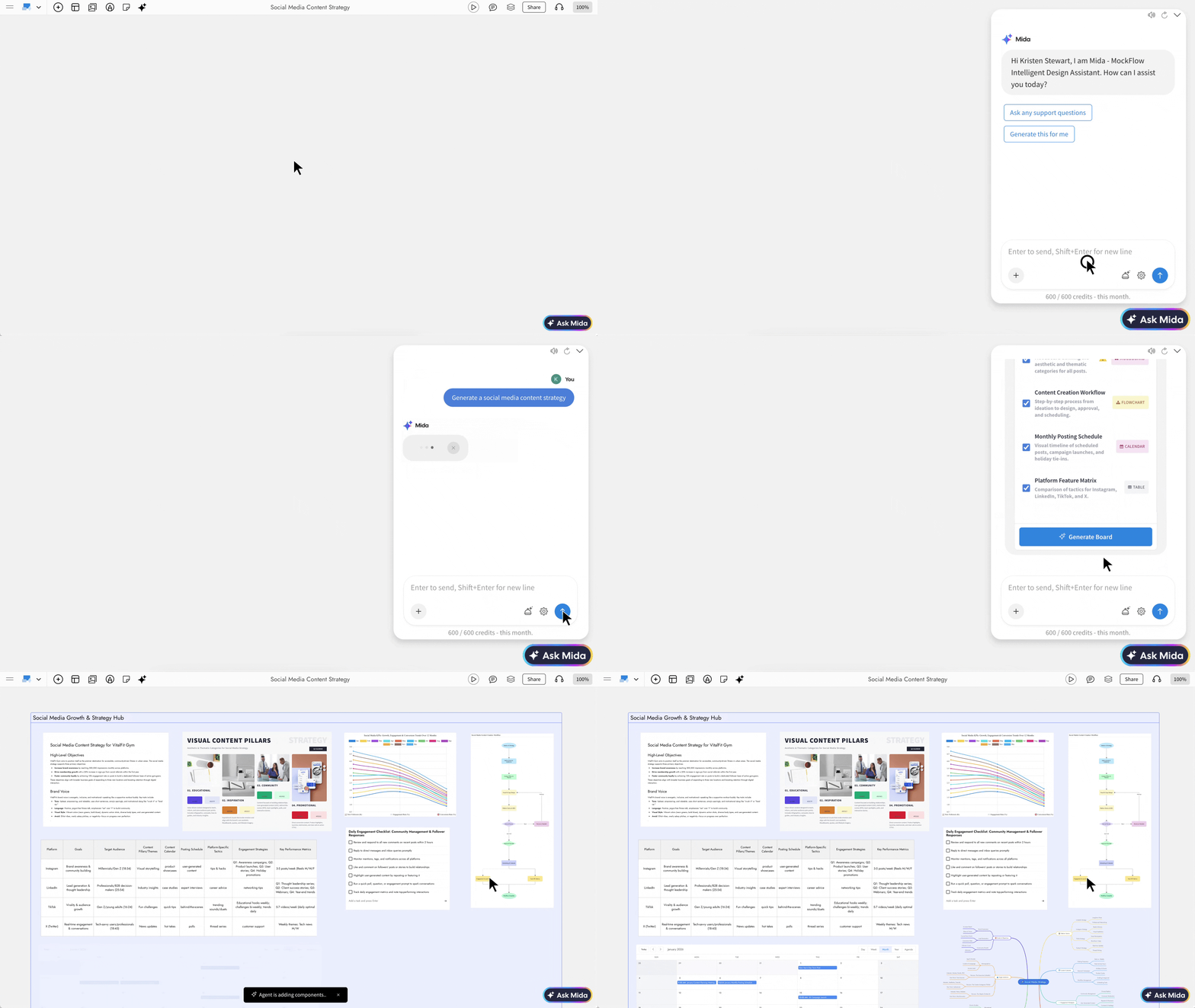
The MockFlow Chrome extension has been rebuilt and renamed MockFlow Clippy. Clippy saves any web page, all of it or just the part you need, straight into a MockFlow board. Before you clip, you choose what the page should become: a screenshot, a screen recording, a doc, a bookmark, a color palette, an editable wireframe or a board built by AI.

It works on websites and web apps alike, including internal tools behind a login, so research and references from the web land on the same visual canvas where your team already works.

What Clippy can turn a web page into

Take the whole page, or draw a rectangle around the part that matters, then pick the output:

  • Image: a full-page screenshot stitched top to bottom, or just the region you draw, at full size on the board.

  • Video: a recording of the tab, with its audio and your microphone if you want. Watch it back and decide whether to keep it before anything is saved. On the board it plays as a video player beside the screens it is about.

  • Doc: the page's text as an editable, searchable document you can quote, cut and comment on.

  • Bookmark: a link card with the page title, so a board of references reads as references.

  • Colors: the palette the page really uses, taken from its styles.

  • Wireframe: the page rebuilt as an editable wireframe. Keep its images or strip them, then redesign what exists.

  • WireframePro: sketchy, hand-drawn wireframes in WireframePro, for work that should look unfinished on purpose.

  • AI board: the page as a mind map, flowchart, kanban, timeline, table or summary, from a preset or your own prompt.

Use cases for the Clippy web clipper

  • Competitor research: clip the pricing pages of the products you are compared with. They land side by side at full size, ready to mark up with sticky notes.

  • Redesign a live page: clip your own signup page as a Wireframe and start moving things. Cut the nav, simplify the form, rethink the hero. Nobody redraws anything.

  • Read a long document together: point Clippy at an analyst report, RFC or strategy doc and choose AI board with a mind map. The meeting starts at the interesting part.

  • Arrive at kickoff with the work sorted: clip a requirements page as a kanban board, so the cards exist before the call does.

  • Build a moodboard from real brands: capture the colors a site actually uses and the exact sections your client keeps pointing at.

  • Compare options and decide: clip the same component, such as a date picker, from several products and vote on it on one canvas.

  • Report a bug or explain a flow: record the tab while you reproduce the problem and keep the recording on the board next to the screens it affects.

  • Collect scattered feedback: clip the support thread, the reviews and the survey write-up, and set them side by side on one wall.

How to install Clippy and clip a page

  1. Add MockFlow Clippy to Chrome from the Chrome Web Store.

  2. Sign in with Google, Microsoft or Apple, or create a free MockFlow account.

  3. Open the page you want to keep and click the Clippy icon in the Chrome toolbar. The Clippy panel opens on the page.

  4. Under Clip as, choose what the page should become, such as Image, Video, Colors, Wireframe or AI board.

  5. Under Save to, pick the project the clip should go to, or a new one.

  6. Choose Whole page, or Region and draw a rectangle around the part you need.

  7. Click the clip button, then Import now. Your board opens with the clip on it.

You can also clip without opening the panel: right-click the page and choose MockFlow Clippy, or press Alt + Shift + C. While a video is recording, Alt + Shift + R stops it.

Clippy on each plan

Clippy is free and works with a free MockFlow account. Images, docs, bookmarks, colors and wireframes are free on every plan. The AI board output uses your plan's AI credits. Screen recordings can be up to 10 seconds per clip on Basic and up to 3 minutes per clip on paid plans. See pricing and the Clippy page for details.

Link to this change
boards


New MockFlow plans: Basic, Plus and Max

MockFlow now has three simple plans. Basic is free forever, Plus puts your team on the board, and Max adds connectors, Build mode and enterprise security. WireframePro is included on every plan.

The MockFlow pricing page switching to yearly billing, adding editors to Plus, then showing what Basic, Plus and Max each include and their monthly AI credits

MockFlow now has three plans: Basic, Plus and Max. They replace the previous plans, which were split across separate products, with one clear path: start free, add your team, then add the tools a business needs.

Three things are the same on every plan:

  • WireframePro is included. Wireframing and prototyping happen right on your board, and WireframePro, the dedicated UI design tool with its own kits, layouts and templates, sits inside MockFlow for when you want to go deeper. It is never a separate purchase.

  • One AI credit balance and one seat list. Your board, Mida and WireframePro all draw from the same monthly AI credits, and your team's editor seats are managed in one place.

  • Viewers join free. Pricing is per editor. Teammates, clients and stakeholders can open shared projects, react and comment without using a seat.

Which MockFlow plan fits your team

Basic, for individuals getting started. Basic is free forever, with no credit card and no trial clock. You get every brainstorming format (diagrams, mind maps, flowcharts, moodboards, storyboards and more), cloud diagrams, UI kits, templates, wireframing with WireframePro, Mida, MockFlow Clippy, and 100 AI credits every month. Bridge runs Claude Code on one board with 20 generations a day. Basic covers 1 editor and 5 reviewers, 4 projects with up to 500 components, and 7 days of revision history. It is for personal and nonprofit use; commercial work needs a paid plan.

Plus, for teams that ideate together. Plus removes every limit and puts your team on the board with you:

  • Unlimited boards, components and viewers, with no file upload cap

  • Team chat, audio comments, audio meetings and sharing by role

  • Collaborative components such as live polls, voting, spinners and timers for workshops and sprints

  • Artifacts, mini whiteboard apps and games for your team

  • MockFlow inside Google Meet and Microsoft Teams

  • Concept Builders, AI collaborators that build a game, product or software concept with your team over time

  • Bridge Pro: Claude Code, Codex, opencode or BridgeAI behind your board AI, unlimited and across several boards, with local file access

  • 800 AI credits per editor each month and 60 days of revision history

Max, for businesses that take the work further. Max includes everything in Plus and adds:

  • Video meetings with a live presenter, and video comments

  • Connectors that pull data from business apps such as Jira, GitHub and Notion straight onto the board

  • Export wireframes to Figma, or to production code with Build mode

  • Custom team UI kits and team artifacts

  • SSO, SAML and SCIM, plus license management and data migration

  • The offline desktop app for Windows and macOS

  • Bridge Pro with your connected data sources, advanced AI model options and 2,000 AI credits per editor each month

What changed for existing customers

If you subscribed to one of the previous plans, you did not need to do anything. Your subscription, price and renewal date stay the same, and your plan now appears under its new name:

  • Team whiteboarding plans became Plus.

  • WireframePro team, product design and bundle plans became Max.

Where you previously had separate AI credits and seats for the whiteboard and for WireframePro, they are now combined. Any credit packs you bought from either side were added together, so nothing you paid for was lost, and your monthly allowance started fresh on the new plan. If your company bought both products separately, your seats now appear together in one license console.

How to upgrade or change your plan

  1. Open MockFlow pricing, or click Upgrade inside MockFlow.

  2. Choose Monthly or Yearly billing. Yearly saves 25%.

  3. Pick Plus or Max and complete checkout. Payment is handled securely by Paddle, by credit or debit card.

  4. Add or remove editor seats at any time from your dashboard.

You can upgrade, downgrade or cancel whenever you like, with no contracts or cancellation fees. Switching between monthly and yearly billing takes effect on your next billing cycle.

MockFlow plan questions

How do AI credits work? Every plan includes a monthly pool of AI credits, spent when you generate with AI. A quick text generation uses a few credits and a video render uses more. Credits reset at the start of each billing month, and you can top up with credit packs from your dashboard. Anything you build through Bridge or MCP runs on your own AI and costs no credits.

What happens to my projects if my subscription ends? Nothing is deleted. Your projects are archived securely at no cost and restored exactly as you left them when you upgrade again.

Do you offer special pricing? Yes. There are dedicated Startup, Education and Enterprise licenses, each with its own pricing and terms.

Prefer a private board on your Mac? MockFlow: Personal Whiteboard for Mac runs fully offline, saves to ordinary files you keep and is a one-time purchase on the Mac App Store.

Compare every feature on the pricing page.

Link to this change
boards

New Zapier actions, Microsoft sign-in for Teams and Office, and ratings for AI results

Generate moodboards, wireframes and multi-item boards from any Zapier trigger, update board items automatically, sign in with Microsoft in Teams and Office, and rate what Mida generates.


A Zap sends a new form response to MockFlow, which replies with the board link and generates a moodboard in the Marketing space

This update makes MockFlow easier to reach from the tools your team already works in. Zapier can now generate complete boards for you, Microsoft Teams and the Office add-in let you sign in with the account you already use, and every item Mida generates can be rated with a thumbs up or down.

New MockFlow actions in Zapier

The MockFlow app in Zapier now generates boards with AI from any trigger in the apps you connect to Zapier. You choose the space, pass in a piece of text such as a brief, a ticket or a form answer, and MockFlow builds the board.

  • Create a board with several items: describe a project and MockFlow plans and builds a board with the items it needs, the same way Mida does inside the editor.

  • Create one type of item: ask for a specific format such as a moodboard, mind map, timeline, kanban, flowchart or customer journey.

  • Create a wireframe: generate screens in a WireframePro project from a written description.

  • Update an item: change an existing item on a board, for example add new entries to a mind map when a record changes.

Zapier gets the board link back right away, while the board itself is generated in the background. You can pass that link to the next step in the Zap, for example to post it in a channel or attach it to a ticket.

Zapier automation ideas

Each example below pairs a trigger with a MockFlow action:

  • Creative brief to moodboard: a new response in your campaign brief form creates a moodboard in the Marketing space, ready for the design review.

  • Feature request to wireframe: a new feature request in your tracker generates a first wireframe of the screen, so the discussion starts from something visual.

  • New client to kickoff board: a deal marked as won in your CRM creates a kickoff board with goals, a timeline and a plan for the first weeks.

  • New course to lesson plan: a new course added to a spreadsheet creates a mind map of its modules and topics.

  • Meeting notes to action board: a new document in a shared folder becomes a board of decisions, owners and next steps.

  • Changing record to updated board: when an item changes in your project tool, Zapier updates the matching item on the board so it stays current.

How to set up a MockFlow Zap

  1. In Zapier, create a Zap and choose the app and event that should start it, for example a new form response.

  2. Add an action step, search for MockFlow and pick the action you want, such as creating a moodboard.

  3. Connect your MockFlow account when Zapier asks.

  4. Choose the space where new boards should go.

  5. Map the text field to the part of the trigger that describes what to build, such as the brief or the request description.

  6. Test the step, then turn the Zap on.

Once the Zap is on, every new trigger creates or updates a board in that space, and the board link is available to the following steps of the Zap.

Microsoft sign-in for Teams and Office

Signing in no longer needs a separate MockFlow password inside Microsoft apps:

  • Microsoft Teams channels: the Connect your MockFlow account with Microsoft Teams screen now has a Sign in with Microsoft button, so you can add a board to a channel with your work account.

  • Office add-in: in Word and the other Office desktop apps, the MockFlow add-in now offers both Microsoft and Google sign-in, and the sign-in completes inside the add-in and returns you to where you were.

Rate the items Mida generates

When Mida adds an item to your board, the link card for that item in the chat now shows a thumbs up and a thumbs down. One click tells us whether the result was good, and the chosen thumb stays filled in so you know your feedback was saved. Ratings go straight to the team working on generation quality and help improve future results for every board format.

Availability

AI generations from Zapier count against the AI credits of your MockFlow plan, the same as generations made in the editor. See pricing for credit details.

Link to this change
boards

Artifacts: AI-built mini apps and games your team uses together on the board

Describe a tool or a game and Mida builds it as a working mini app on your board. Everyone uses it together live, and the Artifact Library lets your team add it to any board without spending AI credits.

A team creates an Artifact by describing an offsite poll, Mida builds it on the board, three teammates vote in it live, and it is published to the Artifact Library with Fill with AI

Artifacts bring small working apps onto your MockFlow board. Describe a tool or a game in a sentence and Mida builds it as a mini app that runs right on the canvas. Everyone on the board uses the same app together, live: votes, turns and scores stay in sync because the app knows who is on the board.

Once an artifact works the way your team likes, publish it to the Artifact Library. Anyone on your team can then add it to any board in one click, without generating it again and without spending AI credits.

What you can build with Artifacts

An artifact fits anywhere a board session needs something interactive. A few examples of what teams describe:

  • Team decisions: "Dot voting for what we build next, three dots each" or "A quick poll on where to hold the offsite."

  • Planning sessions: "Planning poker for the stories in this sprint" or "A tracker for who owns each action item."

  • Facilitation: "A five minute timer for silent brainstorming" or "A speaker queue so everyone gets a turn in standup."

  • Workshops and classes: "A ten question quiz on our brand guidelines" or "A trivia round about the product launch."

  • Check-ins: "A mood check-in for the start of the retro."

  • Team breaks: "Connect Four we can play against each other" or "An emoji movie quiz for Friday."

  • Small utilities: "A converter between story points and days" or "A cost calculator for the three pricing options on this board."

The library groups apps into categories such as Games, Voting & Polls, Planning, Timers, Quizzes and Utilities, so you can find a ready-made app before building one.

How to create an Artifact on your board


  1. Open the add-component menu and choose Artifact under Interactive frames. It is described as "Mini collaborative apps and games".

  2. Click Generate with AI on the new tile and describe the app you want, for example "Dot voting for what we build next, three dots each".

  3. Mida builds the app while the tile shows Building your artifact. When it is ready, it runs on the board for everyone.

  4. To change it, ask again from the artifact's AI menu, for example "Add a reset button" or "Let each person vote four times". The app updates in place.

Each artifact keeps its own data, such as votes or scores, with the board. Teammates see every change as it happens, just like the rest of the canvas.

How to publish to the Artifact Library

When an artifact is worth reusing, share it with your team:

  1. Select the artifact and click the Publish to Artifact Library button on its toolbar.

  2. In Publish to Artifact Library, give it a name, a description and a category. Fill with AI can write the description and search tags for you.

  3. Leave Visibility set to Team and click Publish.

The published app appears in the add-component menu under Your team, next to the ready-made apps from MockFlow. Adding it to a board places a fresh copy with its own data, so a vote on one board never changes another. If someone modifies their copy with AI, a new copy is made for them and your library entry stays as it is.

Add library apps without spending AI credits

Installing an app from the Artifact Library costs no AI credits, because nothing is generated again. Build a good facilitation kit once, such as a timer, a vote and a check-in, and your whole team can drop it into every workshop, retro or class.

Since launch, artifact generation has also improved: Mida now plans larger apps in steps, includes generated images and assets where an app needs them, and reviews the result before it lands on the board.

Artifacts on each plan

Artifacts and the Artifact Library are part of the collaborative features in the Plus and Max plans. See pricing for details.

Link to this change
boards

MockFlow Bridge: use your own AI agent on your MockFlow board

Connect Claude Code, Codex, opencode or BridgeAI to your board. Your agent reads your local files, draws live on the canvas and spends no MockFlow AI credits.

MockFlow Bridge is started on a project folder, the board is paired with the code from the terminal, and Mida, now running on Claude Code, reads the local payment files and draws them as a mind map on the board

MockFlow Bridge connects the AI agent you already use to your MockFlow board. Claude Code, Codex, opencode or the built-in BridgeAI becomes the engine behind Mida. You keep working on the board as usual, while your own agent does the thinking on your computer and the result is drawn live on the canvas.

Two things make this different from asking Mida directly:

  • It can read your local files. Point Bridge at a folder and your agent can build boards from your source code, specs, notes and transcripts. The files are read on your computer and are never uploaded. Only the finished drawing is saved to your board.

  • It spends no MockFlow AI credits. The work runs on your own AI plan, so you are limited only by that plan.

What you can do with MockFlow Bridge

Most uses start with something already on your machine. Here are examples of what teams ask for, in their own words:

  • Understand an unfamiliar codebase: "Make a mind map of how the payments module is structured." The map is drawn from the real source, not from an old wiki page.

  • Draw architecture that matches what is deployed: "Draw the cloud architecture from our Terraform in infra/." The diagram comes from the files that define the infrastructure, so it is correct on the day you draw it.

  • Lay out a database you inherited: "Read the migrations in db/ and lay out the entity relationships."

  • Trace a request across services: "Draw a swimlane of what happens between checkout and fulfilment."

  • Wireframe a screen from its spec: "Wireframe the notification settings screen from docs/notifications.md." An editable wireframe is on the board in under a minute, ready to mark up.

  • Prepare an incident review: "Build a timeline of what happened from these log excerpts."

  • Turn a meeting into decisions: "Here is the transcript from this morning's planning call. Turn it into a board of decisions, owners and open questions."

  • Think through a new idea: "I am considering a subscription tier for small teams. Help me think it through visually." Delete the branches that do not fit and ask it to go deeper on the rest.

  • Map anything with geography in it: "Map our accounts from customers.csv, then draw the three sales territories we are considering."

You do not need to name a component. Describe what you are working out and the agent picks the right form: a mind map, flowchart, kanban, timeline, chart, wireframe or map. Follow-up requests such as "add a Blocked column to that kanban" change the existing item in place instead of drawing a second copy.

How to set up MockFlow Bridge

You need Node.js 18 or newer, a MockFlow board open in your browser, and one AI to do the thinking. Claude Code, Codex and opencode are fully supported. If you do not use any of them, BridgeAI is built into Bridge and works with an API key from a provider such as OpenRouter.

1. Install Bridge once. Open Terminal (macOS) or Command Prompt (Windows) and run:

npm i -g @mockflow/mockflow-bridge

2. Start Bridge. Run it every time you want to use it, and leave the window open. It shows a pairing code.

mockflow-bridge


3. Pair your board. On the board, open Ask Mida, click Connect Local Agent at the top and enter the pairing code. The button turns green and names the connected agent. You pair once per computer.

4. Ask Mida as usual. The reply and the drawing now come from your own agent.

How to let your agent read local files

File access is off by default, so the agent cannot see anything on your computer until you choose a folder. To give it one folder, such as a repo or a folder of meeting notes, start Bridge with --workspace:

mockflow-bridge --workspace ~/Documents/my-project

The terminal confirms it with File access is ON and the folder it can read. Then ask about the files in plain words:

  • "Read this folder and draw the project structure as a mind map"

  • "Turn the meeting notes in this folder into a summary board"

  • "Read the README and wireframe the main screens it describes"

The agent reads only that folder, only on your computer. Nothing in it is uploaded to MockFlow; only what it draws on the board is saved. To read a different folder, stop Bridge with Ctrl + C and start it again with the new path.

Everyday Bridge commands

mockflow-bridge status    # is it running, which boards are connected
mockflow-bridge agent     # show or change which AI answers
mockflow-bridge update    # install the newest version
mockflow-bridge help      # all commands and options

If more than one assistant is installed, the first start asks which one to use and remembers your choice. You can switch at any time without pairing again.

Use the board from Claude Code or Codex

If you prefer to work in your terminal, the MockFlow plugins for Claude Code and Codex connect those assistants to the same Bridge. Think an idea through in the conversation and watch the mind map, plan, architecture or screens appear on your board. The assistant reads the board too, so you can rearrange items, delete a branch or add a note, then ask it to continue from what is there.

Install the Claude Code plugin:

/plugin marketplace add mockflow/mockflow-claude-plugin
/plugin install mockflow@mockflow

Install the Codex plugin:

codex plugin marketplace add mockflow/mockflow-codex-plugin
codex plugin add mockflow@mockflow

What you end up with is an ordinary MockFlow board. Share the link and teammates open it in the browser, move things around and leave comments, with no plugin or terminal needed.

MockFlow Bridge on each plan

Bridge is free to install. On Basic it runs Claude Code on one board, with 20 generations a day. Bridge Pro, included in Plus and Max, removes the limit and adds every agent, several boards at once and local file access. On Max your agent can also reach your connected data sources, for example "Pull my open Jira tickets and lay them out as a kanban". See pricing for details.

Link to this change
boards

Mida now researches the web and reads your board

Ask Mida can search the web, read any public page, take a website's colors and fonts for your wireframes, and find and read anything already on your board.

Mida searches the web with Search The Web, builds a sourced Specialty Coffee Trends 2026 mind map on the board, then answers where the cold coffee findings are with a Found on board chip that jumps to the map

Mida, the AI assistant in MockFlow, now works with real information instead of only what it already knows. When a request depends on current facts, Mida searches the live web, reads the pages it finds and uses them to build your diagrams, wireframes and boards. It can also visit a website you name and match its colors, fonts and corner styles, and it can search and read everything already on your board.

The same abilities are available in Concept Builders, and in WireframePro, where Mida reads the wireframe page you have open.

What Mida can now do on your visual canvas

  • Search the live web: Mida decides on its own when a request needs current information, such as products, competitors, trends, statistics or best practices, and runs short, focused searches.

  • Read a web page in depth: paste a URL or name a site, and Mida reads the page and grounds its content in what is actually there.

  • Match a website's design: ask for screens "in the style of" a site, and Mida pulls its brand colors, fonts, corner radii and shadows into the wireframes it generates.

  • Import images from a website: ask Mida to grab a site's logo or images. It shows what it found as a grid in the chat, and only the images you click are added to your image library.

  • Search and read your board: Mida can find any item on the board by its content, read a mind map, kanban, table or document in full, and summarize the whole board.

  • Point you to the right item: ask where something is and Mida answers with clickable cards. Click a card to jump straight to that item on the canvas.

Use cases for Mida web research

  • Competitive research: "Compare the onboarding flows of the top three project management tools and lay them out side by side."

  • Brand-matched wireframes: "Wireframe a pricing page for our CRM in the style of yourbrand.com."

  • Up to date content: "Make a mind map of the current accessibility guidelines for mobile apps."

  • Learning and teaching: "Build a timeline of the history of space exploration, with sources."

  • Event and travel planning: "Research venues for a 200 person conference in Lisbon and put the options on a comparison board."

  • Marketing: "Read this landing page and turn its messaging into a positioning map." followed by the page URL.

  • Brand assets: "Grab the logo and product images from our website so I can use them on this moodboard."

Use cases for reading your board

  • Summaries: "Summarize this board for someone who missed the workshop."

  • Find anything: "Where are the pricing tiers?" or "Which sticky notes mention onboarding?"

  • Build on existing work: "Read the user research notes and turn them into a customer journey map."

  • Check consistency: "Does the sitemap match the screens in the wireframe?"

  • WireframePro pages: "Find the hero section on this page and rewrite its headline."

How to use web research with Ask Mida

  1. Open Ask Mida on your board.

  2. Type your request. Mention a website, paste a URL, or ask for research in your own words.

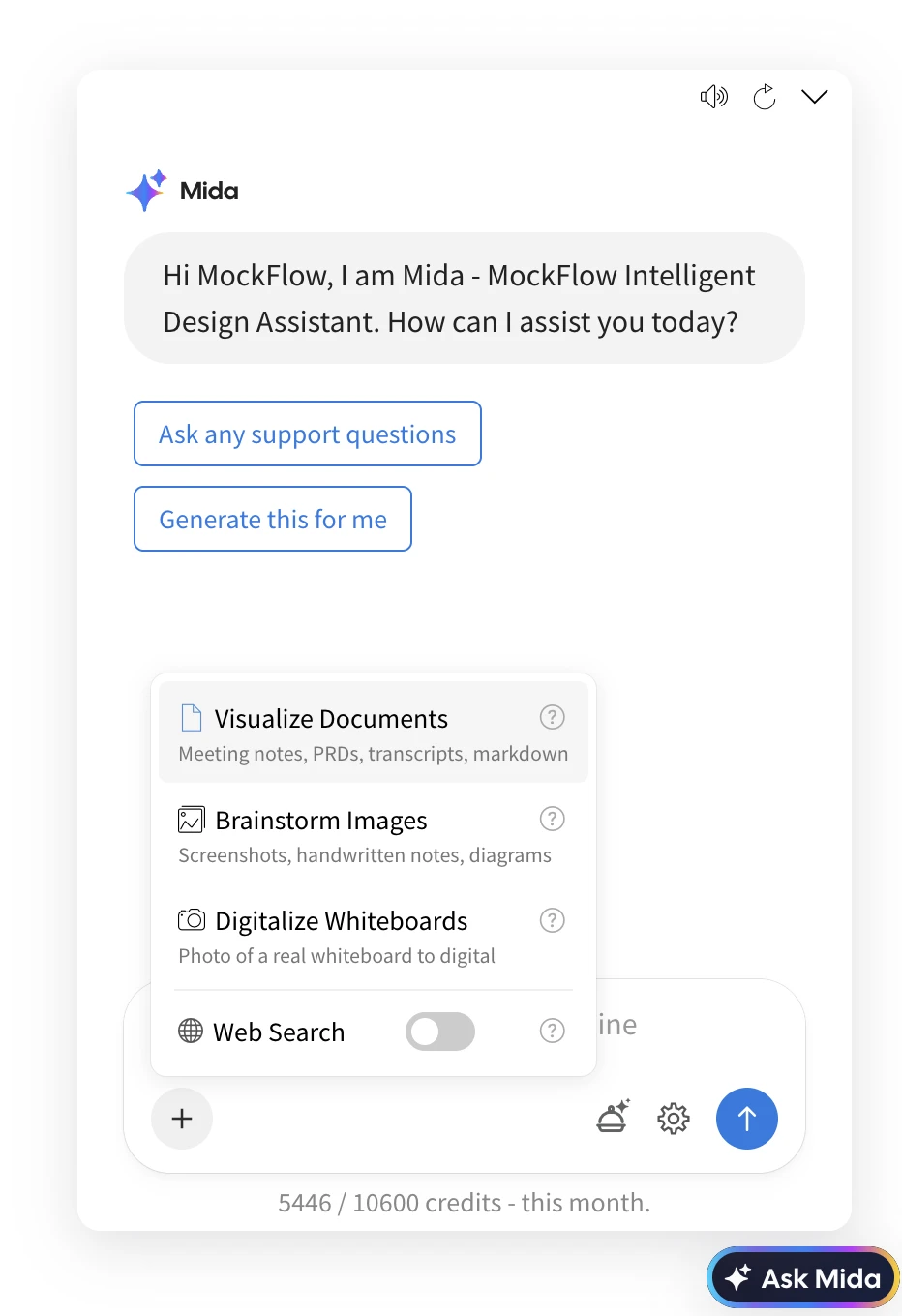
  3. To make sure Mida searches, click the + button next to the message box and choose Search The Web. It adds "(search the web)" to your message.

  4. Send the message. The chat shows each step as Mida works, such as searching, reading a page or analyzing a site's styles, and then the result appears on the board.

To ask about your board, just type the question in Ask Mida, for example "What is on this board?" or "Where is the launch checklist?". Mida scans the board and replies with an answer and, when it helps, cards that take you to the items.

Plans and AI credits

Reading and searching your board is free and uses no AI credits. Each web search uses a small amount of AI credits from your plan's monthly pool. The Search The Web option in the + menu is available on the Plus and Max plans. See pricing for plan details.

Link to this change
boards

Prototype frame: turn wireframes into an interactive prototype with AI

Add a Prototype frame to your board and AI links your wireframe screens into a clickable prototype. Play it full screen, preview it on your phone or export it as HTML code.


Three phone wireframes on a MockFlow board are converted into a linked, clickable prototype in a Prototype frame, clicked through from class list to booking confirmation, then previewed on a phone by QR code with Export to code ready in the toolbar

The new Prototype frame turns wireframe screens on your board into an interactive prototype, wired automatically by AI. Select the screens you have sketched, and AI works out how they connect: which button opens which screen, what a form submits to, where the back link goes. You get a clickable prototype in a device frame, right next to the wireframes, notes and diagrams that led to it.

There is no hotspot wiring to do by hand. Once the prototype exists, you can click through it on the canvas, play it full screen, open it on your own phone with a QR code, change any part of it with AI, and export it to HTML code.

What you can use interactive prototypes for

  • Test a flow before anyone builds it: convert the sign up, onboarding or checkout screens you wireframed and click through them to find dead ends and missing steps early.

  • Run quick usability sessions: send the phone preview link to a tester and watch them try the flow on a real device.

  • Present an idea to stakeholders: play the prototype full screen in a review meeting instead of walking through static screens.

  • Prototype from a prompt: describe an app, such as "a booking app for a yoga studio with class list, class details and checkout", and get a working prototype without wireframing first.

  • Hand a working draft to developers: export the prototype to code and give the team standalone HTML with the screen links already in place.

  • Keep design work in one place: show an existing Figma prototype on the board by pasting its link, beside the research and plans it came from.

How to convert wireframes into a prototype

  1. Wireframe your screens on the board, or ask Mida to generate them.

  2. Add a Prototype frame from the components menu. You can also choose Interactive prototypes when you start with AI.

  3. Click the empty frame and choose Convert wireframes.

  4. In Convert wireframes to a prototype, tick the screens to include and click Convert.

  5. Wait while MockFlow shows Building your prototype. The screens appear in the frame, linked together.

To start without wireframes, choose Generate with AI instead and describe the prototype. Turn on With images for a higher fidelity result with photos (this uses extra AI credits).

Click through, preview on your phone and edit with AI

  • Interact: click buttons and links inside the frame to move between screens, or use the screen slider under it.

  • Device frame: switch between Mobile, Tablet and Desktop.

  • Play full screen: present the prototype without the board around it.

  • Preview on your phone: scan the QR code to open the live prototype on your phone, or copy the link to share it.

  • Edit with AI: turn on Select to edit, pick an element and choose Modify element, Modify screen or Add screen to generate a new screen linked from the one you are on.

Export the prototype to code

Choose Export to code in the frame's settings to download the prototype as a ZIP file. It contains standalone HTML with the screen navigation built in, plus a README.md. Images and icons load from their public URLs, so nothing else is needed. Open it locally or host it anywhere:

unzip Sign_up_flow_code.zip -d sign-up-flow    # the ZIP is named after your prototype
open sign-up-flow/index.html

Export to code is available for prototypes generated in MockFlow. Embedded Figma links stay on the board as a live view.

Availability

The Prototype frame is available on every plan, as part of wireframing and prototyping on your board. Generating and editing a prototype with AI uses AI credits; see pricing for the credits included in each plan.

Link to this change
wireframepro

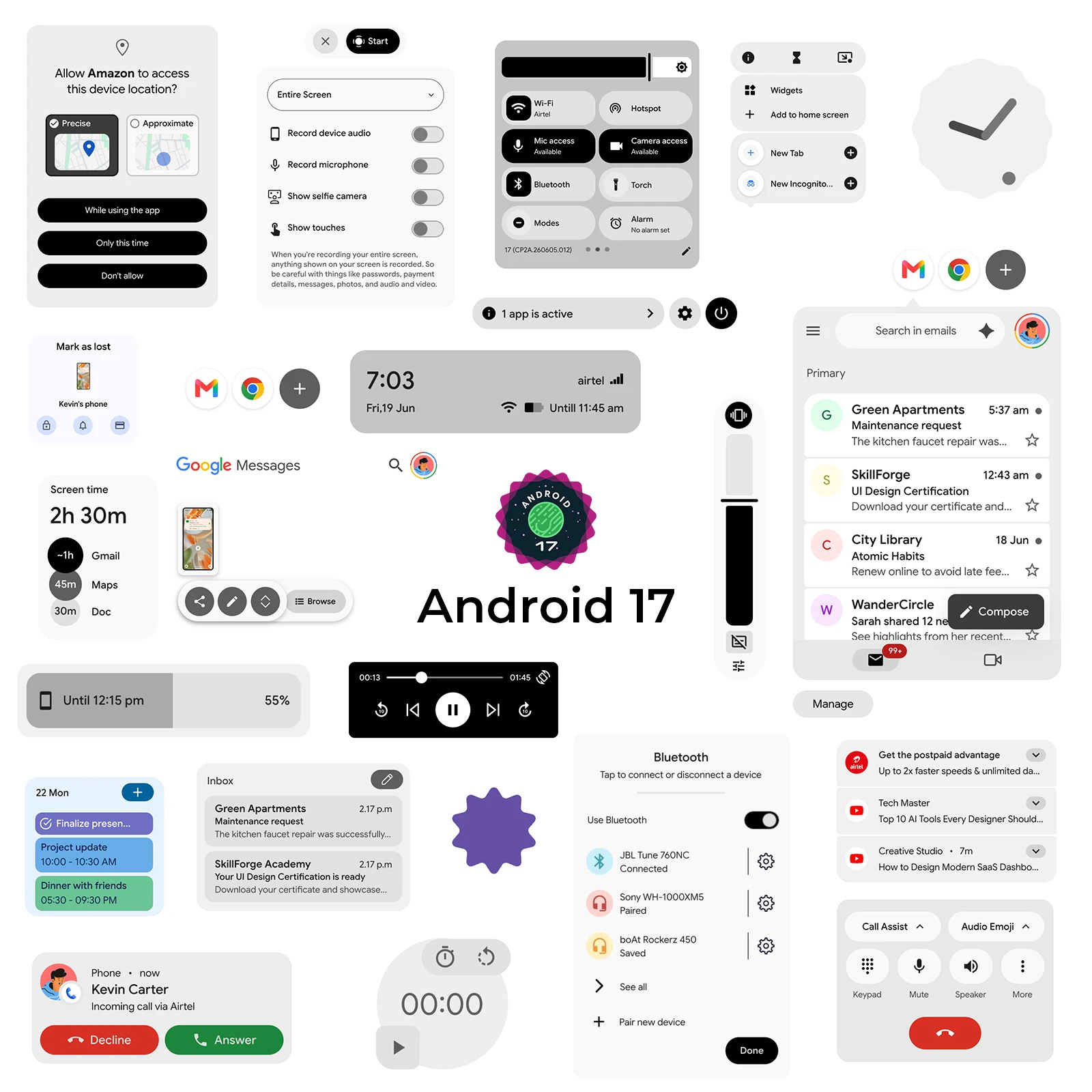
Android 17 wireframe UI kit for MockFlow

Android 17 wireframe UI kit for MockFlow

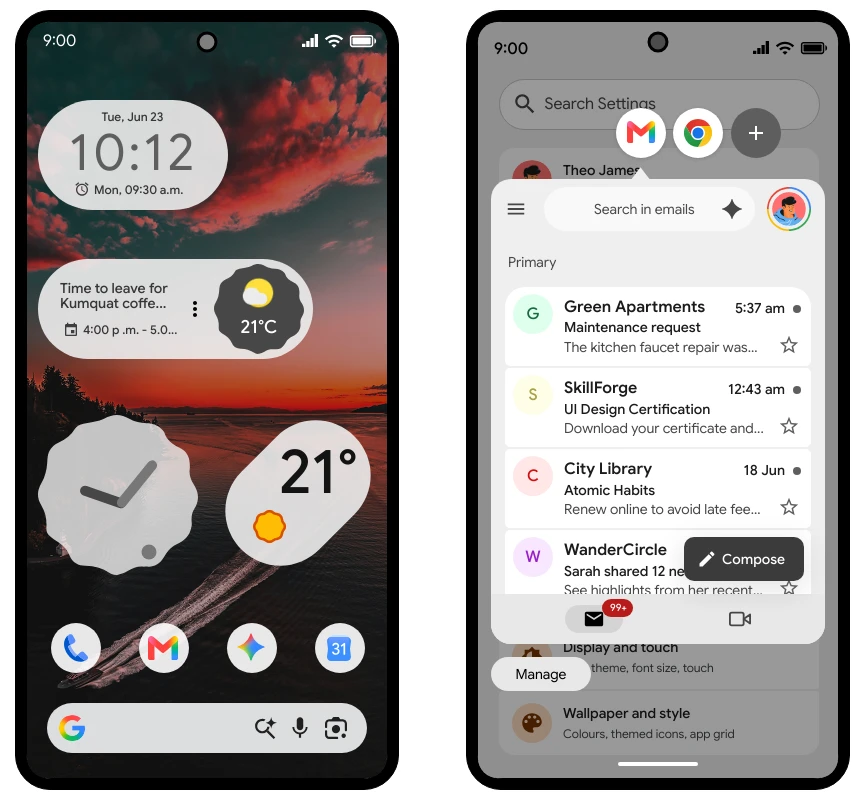
Now ideate and wireframe apps for Android 17 OS faster. With 150 ready-to-use components, this kit helps you quickly plan mobile app screens that follow the latest Android interface patterns.

android.png

Whether you are sketching early app ideas, building product flows, or creating detailed wireframes for development handoff, the Android 17 OS UI Kit gives you a complete set of native-style elements to bring your concepts to life.

The kit includes components across the following categories:

  1. Frames & Keypad

  2. Top navigation

  3. Bottom navigation

  4. Buttons

  5. Icons

  6. Notification & Widgets

  7. List & Popup

  8. Form elements

  9. Tabs & Loaders

  10. Page elements

  11. Other elements

  12. UI Screens

From app frames and navigation bars to forms, buttons, notifications, widgets, tabs, loaders, popups, and complete UI screens, this new kit provides everything needed to visualize Android app experiences with speed and clarity.

Before moving into high-fidelity design or development, it is important to map out your app structure and user flows in a native mobile format. With MockFlow's Android 17 OS UI Kit, teams can brainstorm layouts, iterate faster, and communicate app ideas more effectively โ€” all without starting from a blank canvas.

Once you are done with Android wireframing you can either export to code with our integrated build-mode or use MCP server to integrate with Android Studio. If you want further prototype based refinements and animations you can export the wireframes to Figma directly.

Link to this change
boards

New! MockFlow Board Connectors: Brainstorm your data from tools like Slack, Jira, Notion, GitHub...

New! MockFlow Board Connectors: Brainstorm your data from tools like Slack, Jira, Notion, GitHub...

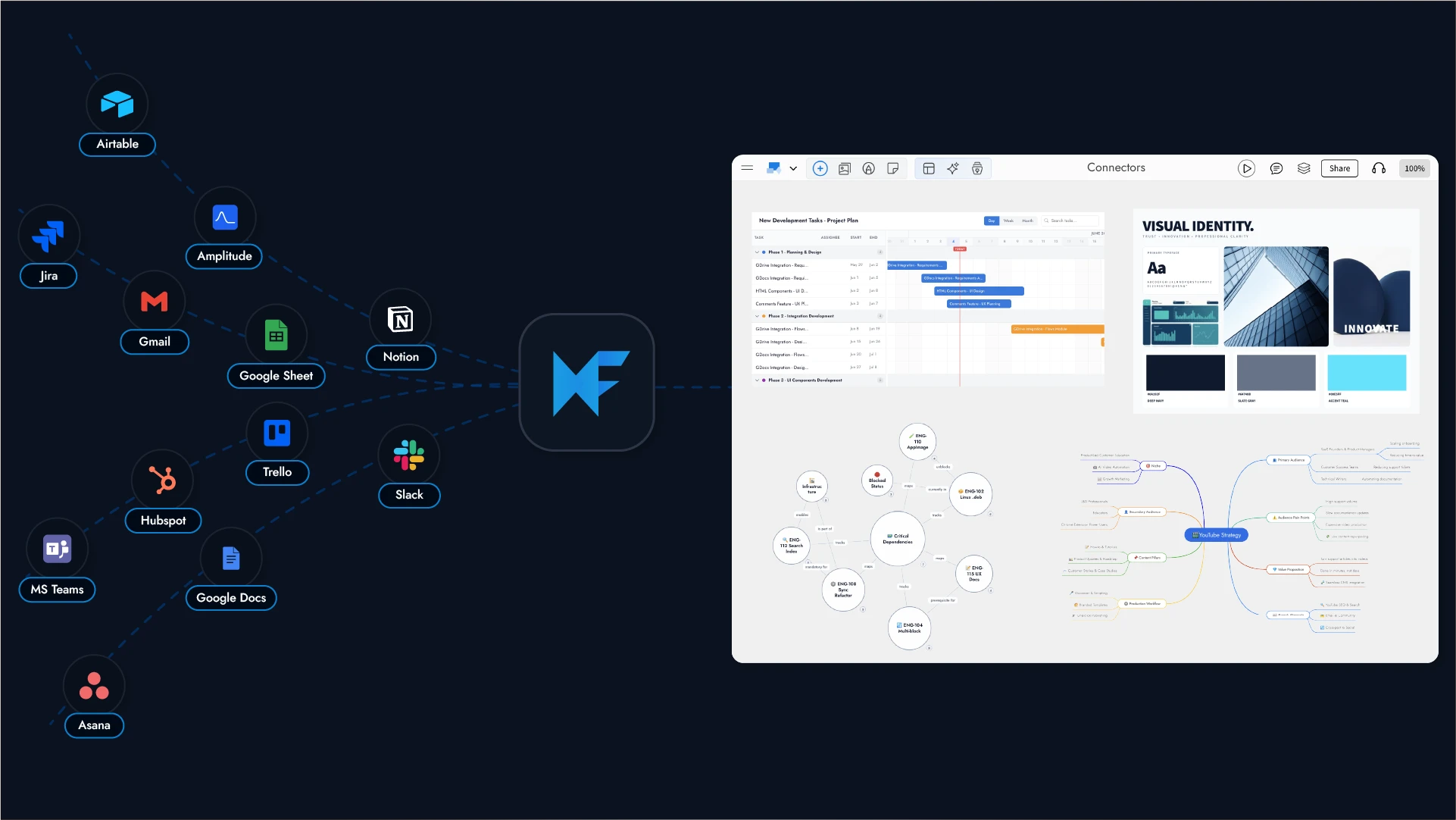
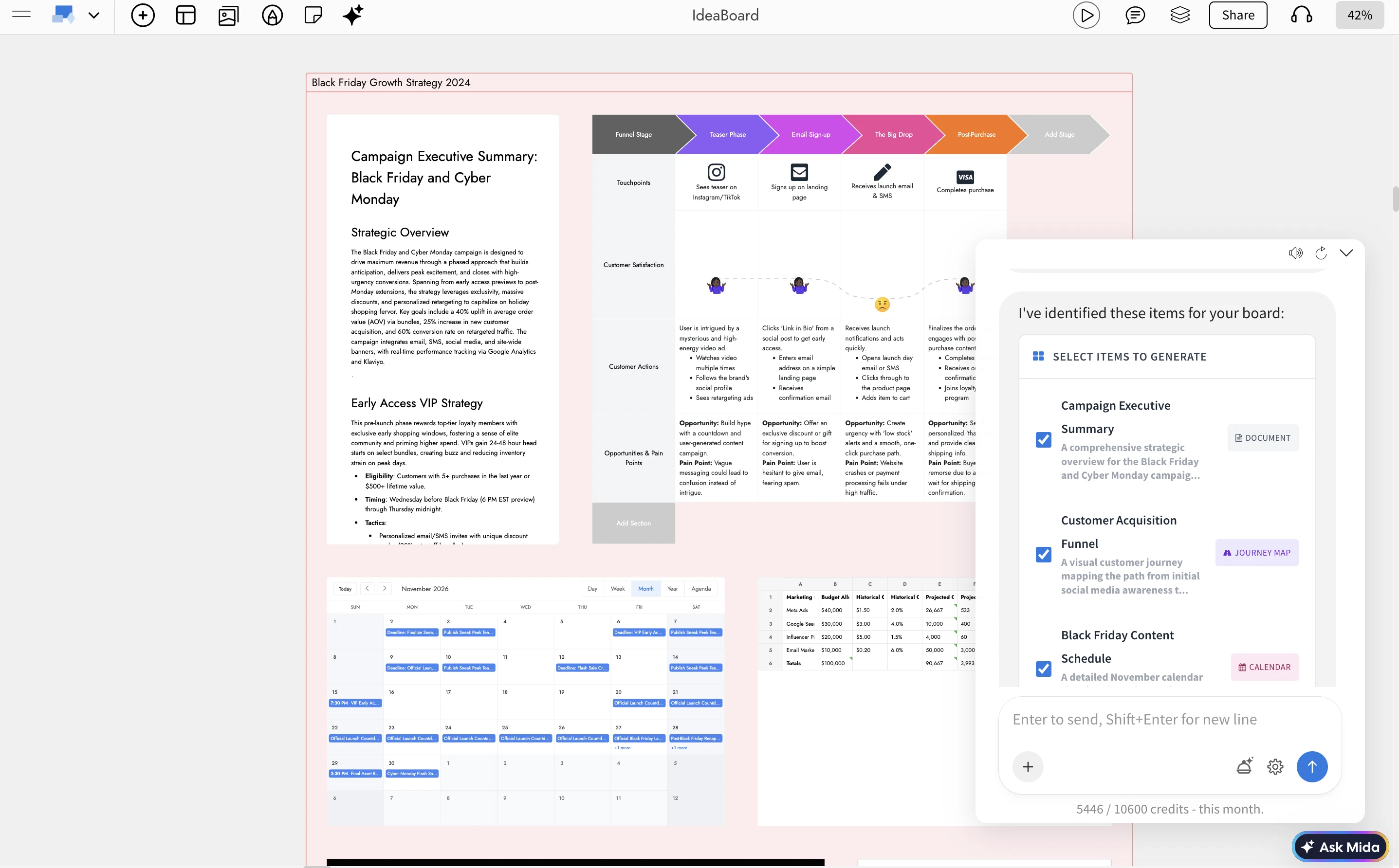
Bring data from the tools your team already uses onto a live MockFlow Board, then brainstorm it visually with Ask Mida AI on an infinite whiteboard. Connect Slack, GitHub, Notion, Jira, Linear, Google Drive, Gmail, Trello, Fathom and more.

Screenshot 2026-06-09 at 6.06.49โ€ฏPM.png

Why this matters

connectors.gif

Some things are easier to think about when you can see them in a better way. A Jira sprint laid out as a mindmap. A Notion document opened up into a knowledge graph. Github code visualized as flowcharts.

Connectors take the data from a tool you already use and turn it into exactly that , a visual you can brainstorm on, right on your MockFlow Board with your teammates and AI agents.

Just connect a tool, ask Mida AI in plain language, and it reads your live data and lays it out as visual board for better brainstorming.

It's the fastest way to turn the data you already have into a picture you can think with.

What you can connect

Connect the tools your team uses every day, including:

  1. Communication: Slack, Gmail, Microsoft Teams, Outlook

  2. Project management: Jira, Linear, Trello, Asana

  3. Docs and databases: Notion, Google Drive, Google Docs, Google Sheets, Airtable

  4. Code: GitHub

  5. Meetings and analytics: Fathom, Google Calendar, Google Analytics, Mixpanel, Amplitude, PostHog

  6. CRM: HubSpot

We add new connectors regularly. For the current, complete list, visit mockflow.com/connectors.

How it works

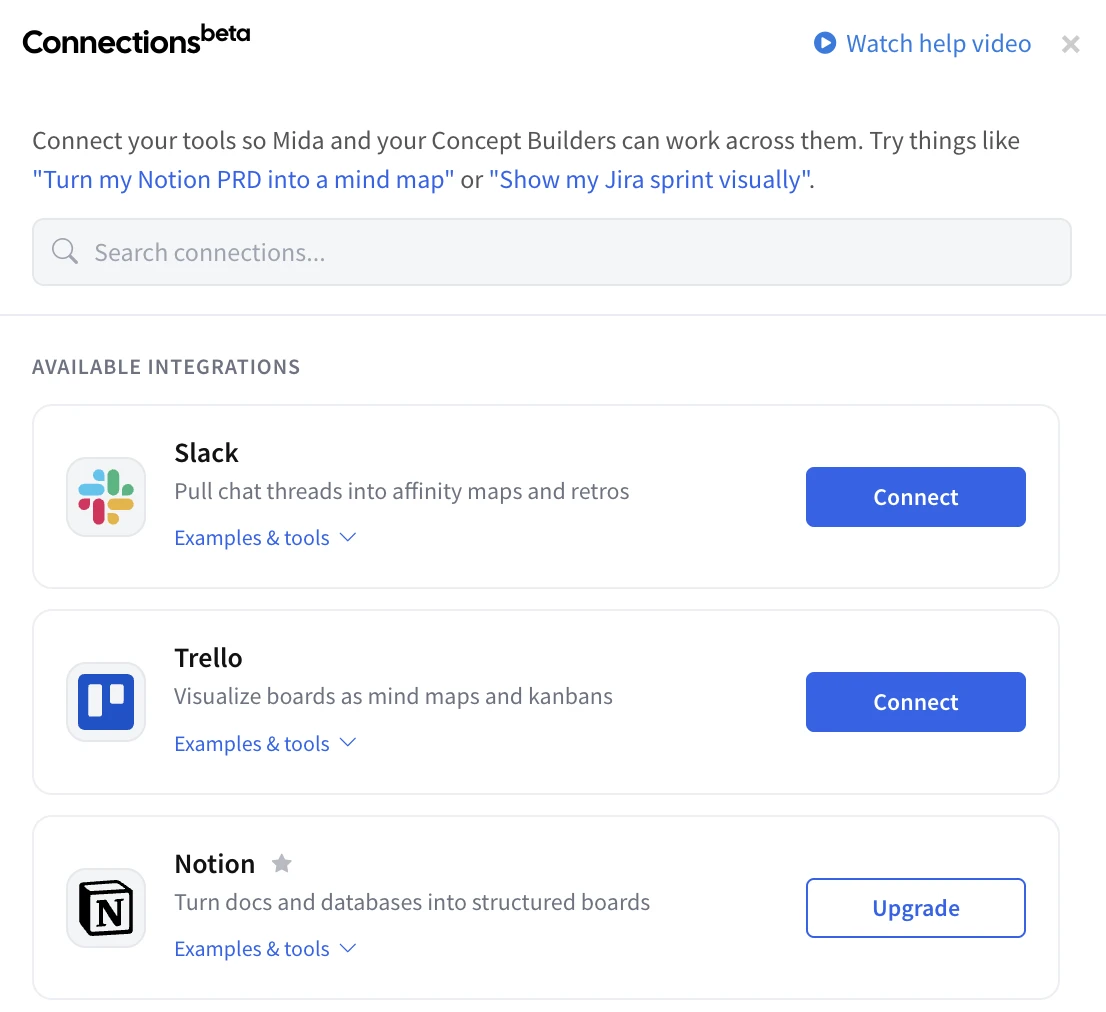
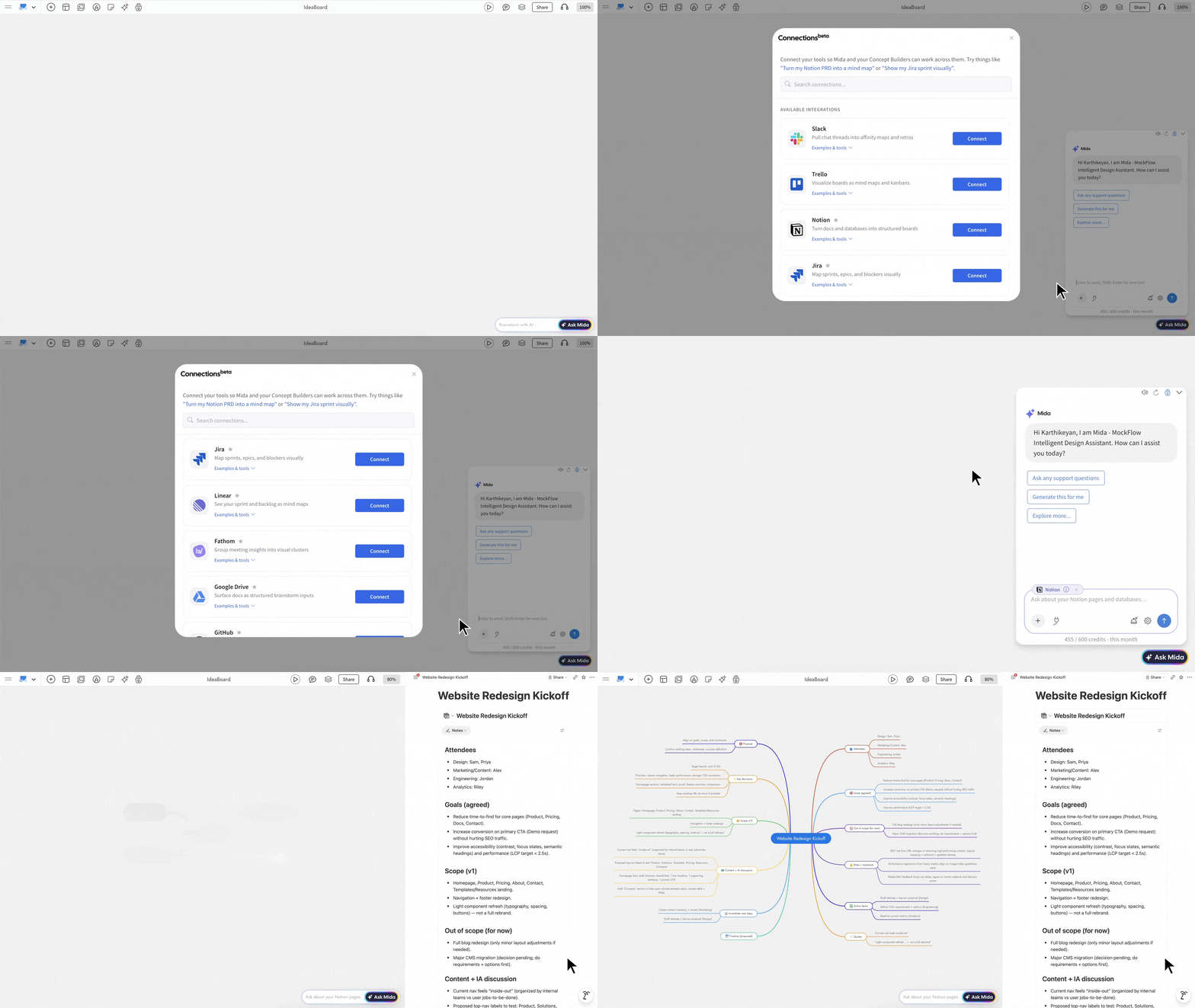
  1. Connect. Open the Connections panel in Ask Mida AI and link a tool in one click. Most connectors use secure OAuth and you authorize MockFlow directly with the tool. A few simply take an API key.

  2. Ask. Apply your connected tool, then type what you want in plain language for example, "Visualize my Notion document as a MindMap."

  3. Generate. Mida reads your live data and places real, editable components like sticky notes, mind maps, kanbans, flowcharts and more directly on your infinite canvas.

What you can do with it

It's not about the data it's what you do once you can see it.

A marketing manager asks Mida to "turn my Notion campaign brief into a mind map" and a long doc becomes a branching map of channels and messages her team can build on.

A product manager asks to "show my current Jira sprint as a timeline" and walks into standup with one shared board instead of a list of tickets.

An engineering lead asks to "show open GitHub PRs as a kanban" turning a wall of pull requests into a clear view of what's ready and what's stuck.

A founder asks to "turn my Notion PRD into a structured board" making gaps and open questions obvious before engineering starts.

Security and privacy you can trust

  1. MockFlow doesn't store your raw data. Mida reads your data live to build each visual, then moves on we keep only your secure connection, never the contents of your messages, issues, or documents.

  2. MockFlow doesn't train AI on your data. It's used only to fulfill your request.

  3. SOC2 and ISO 27001 compliant infrastructure, hosted on AWS with firewalls, intrusion detection, and DDoS protection.

  4. Read-only and isolated per user and workspace โ€” access is never shared across teams.

Get started

Connectors are available now inside Ask Mida AI on your MockFlow Board. Open the Connections panel, link your first tool, and ask Mida to brainstorm your data visually.

Explore the full list at mockflow.com/connectors as we're adding more all the time.

Note Free Basic users have access to Slack and Trello connectors. All other connectors requires a paid MockFlow Board license.

Link to this change
boards

MockFlow Board for Microsoft Teams: Free AI-Powered Visual Collaboration inside MS Teams

Transform conversations into visuals with MockFlow Board for Microsoft Teams. Enjoy AI-powered visual brainstorming, flowcharts, and mind maps directly inside your workspace without switching apps.

MockFlow Board for Microsoft Teams: Free AI-Powered Visual Collaboration inside MS Teams

Now brainstorm visually inside Microsoft Teams to generate diagrams, mind maps, and flowcharts and more in your channels and meetings, without switching apps..

Your team's best ideas happen in conversation. But conversations are linear as they scroll, they get buried, and they rarely capture the full picture.

MockFlow Board for Microsoft Teams changes that by embedding a full AI-powered whiteboard directly inside the platform where your team already communicates, plans, and makes decisions.

No new tabs. No shared links to external tools. No context switching. Just open MockFlow Board inside Teams, and start thinking visually together.

ideaboard-ms-teams-8mb.gif

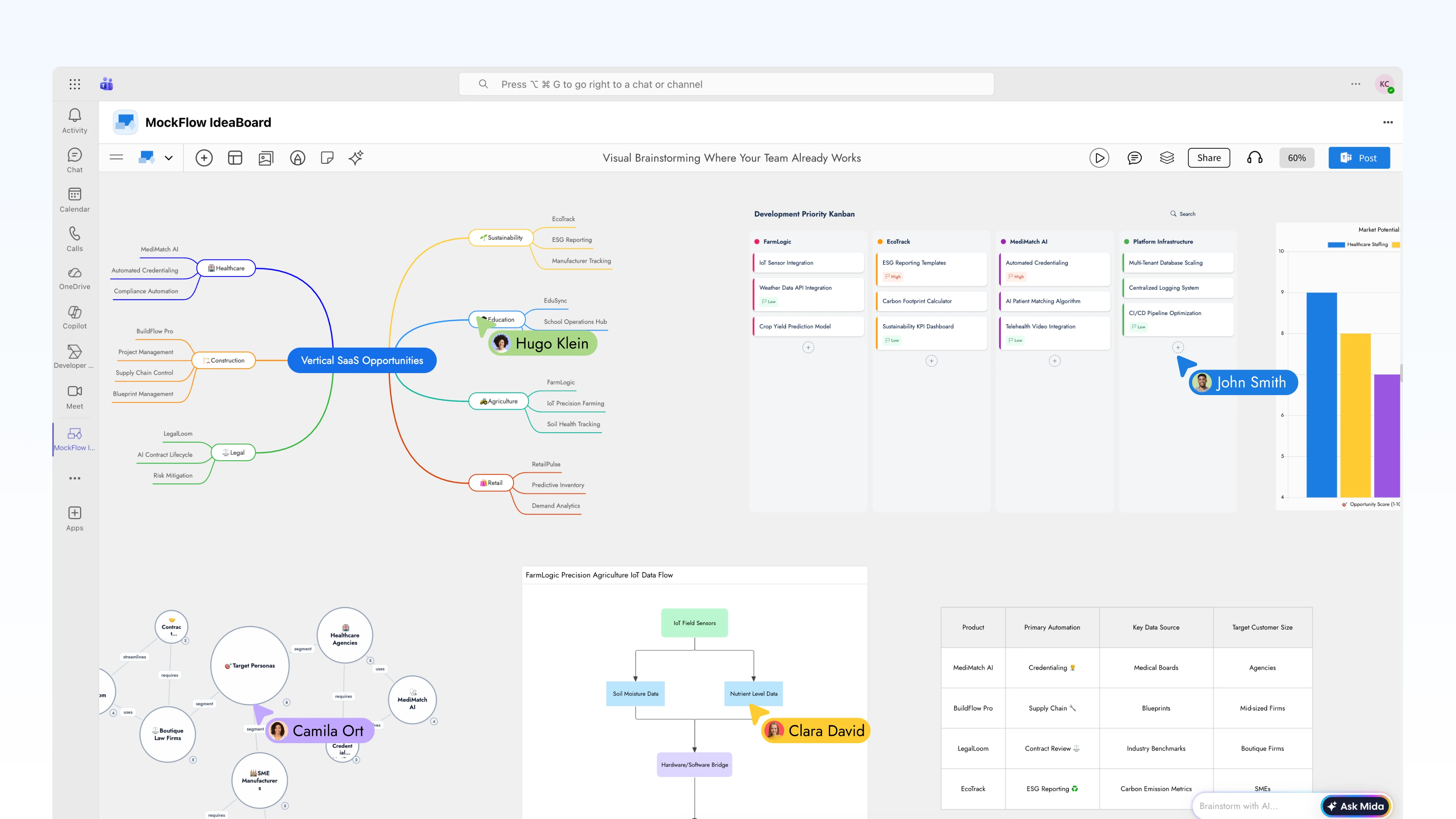
Visual Brainstorming Where Your Team Already Works

MockFlow Board integrates natively into Microsoft Teams as a first-class app. It lives inside your channels, your meetings, and your personal workspace. Whether you're in a sprint planning call or an async strategy thread, your visual workspace is always one click away.

Every board created inside Teams is a fully functional MockFlow Board canvas, complete with AI generation, real-time collaboration, and the full component library that includes flowcharts, mind maps, architecture diagrams, Kanban boards, customer journey maps, storyboards, documents, charts, and more

Asset-2.png

AI That Turns Conversations into Visuals

The real power of MockFlow Board inside Teams isn't just a whiteboard , it's an AI-powered whiteboard. Mida, MockFlow Board's built-in AI agent, generates structured visuals from natural language prompts in seconds.

Generate from text prompts:

  • "Create a flowchart for our user onboarding process"

  • "Draw an AWS architecture diagram for our payment microservice"

  • "Build a mind map breaking down Q3 marketing strategy"

  • "Map the customer journey from trial signup to paid conversion"

Instant format conversion:

  • Turn a mind map into a structured flowchart

  • Convert a brainstorming board into a Kanban with prioritized tasks

  • Transform meeting notes into a timeline or Gantt chart

  • Reshape a list of ideas into a knowledge graph

This means the AI does the heavy lifting of structuring ideas while your team focuses on thinking, deciding, and refining.

Three Deep Integration Points in MS Teams

1. Channel Tabs โ€” Persistent Visual Workspaces

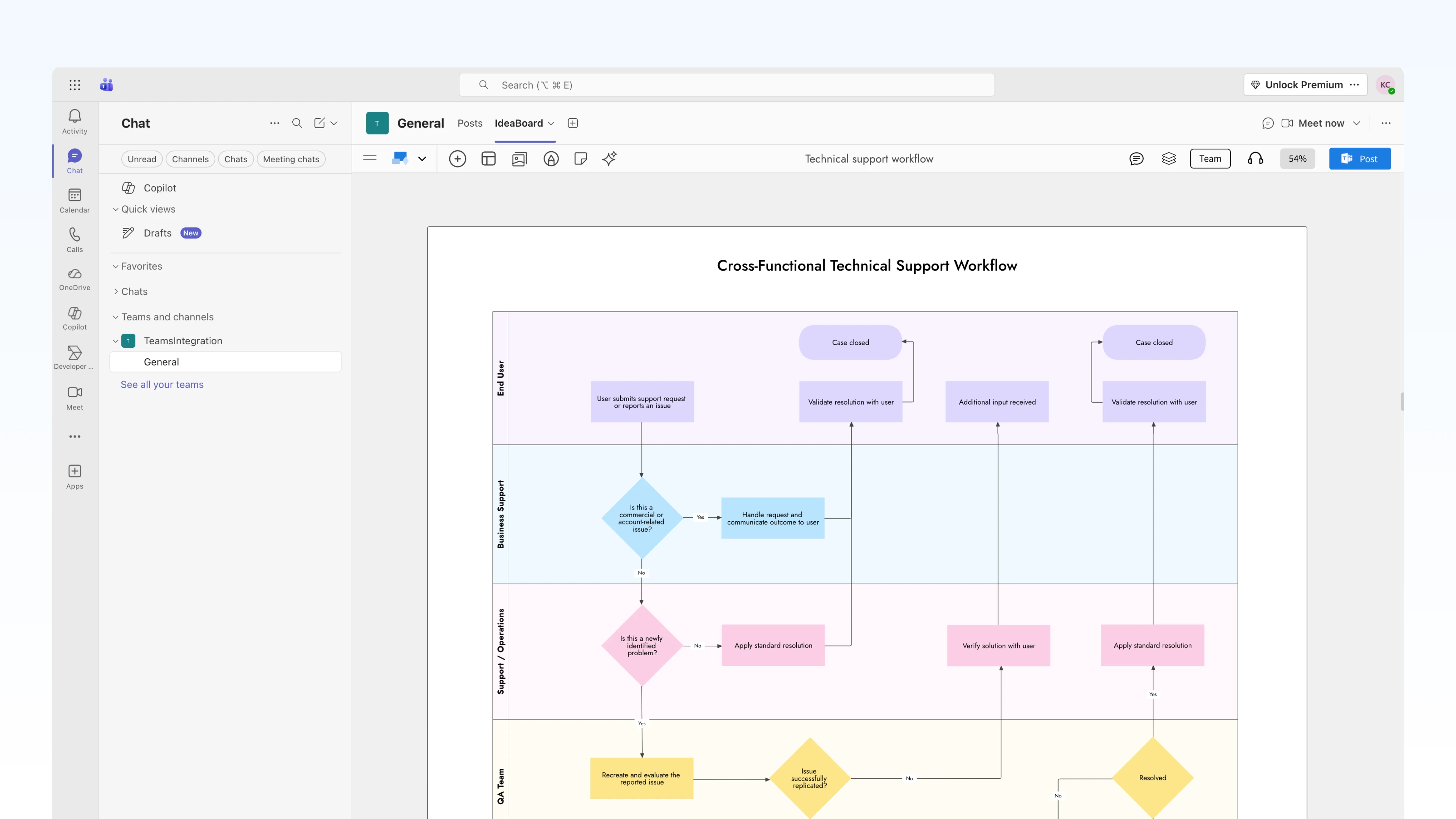
Pin MockFlow Board directly to any Teams channel as a tab. The board becomes a shared, always-accessible workspace for that channel , visible to everyone, editable by anyone with access.

2. Live in Meetings โ€” Brainstorm in Real Time

Open MockFlow Board during any Teams meeting and collaborate on the canvas as a group, live. Every participant sees the board, every participant can contribute, and the AI is available to generate and transform visuals as the conversation unfolds.

3. Channel Updates โ€” Visual Snapshots for Async Teams

Not every team works synchronously. For distributed teams across time zones, MockFlow Board lets you export whiteboard snapshots directly into Teams channels. Post a visual update โ€” a diagram, a status board, a mind map as a rich visual message that everyone sees without opening another tool.

Getting Started

1. Go to the

https://marketplace.microsoft.com/en-gb/product/WA200010542

2. Click Add to Teams

3. Pin MockFlow Board as a tab in any channel, or access it from the personal apps sidebar

4. Sign in with your MockFlow account (or create a free one)

5. Start brainstorming โ€” create a new board or open an existing MockFlow Board

For meetings, simply open the MockFlow Board app during any Teams call from the apps panel, select or create a board, and invite participants to collaborate in real time.

Availability

MockFlow Board for Microsoft Teams is available on all MockFlow plans. The integration works across Microsoft Teams desktop, web.

Link to this change
wireframepro

WireframePro MCP Server: Turn Any AI Assistant Into a Wireframing & Design-to-Code Engine

Discover WireframePro MCP Server, which integrates with AI assistants like Claude and VS Code to streamline wireframing and design-to-code processes. Enhance productivity with contextual wireframing and custom design skills for seamless design automation.

WireframePro MCP Server: Turn Any AI Assistant Into a Wireframing & Design-to-Code Engine

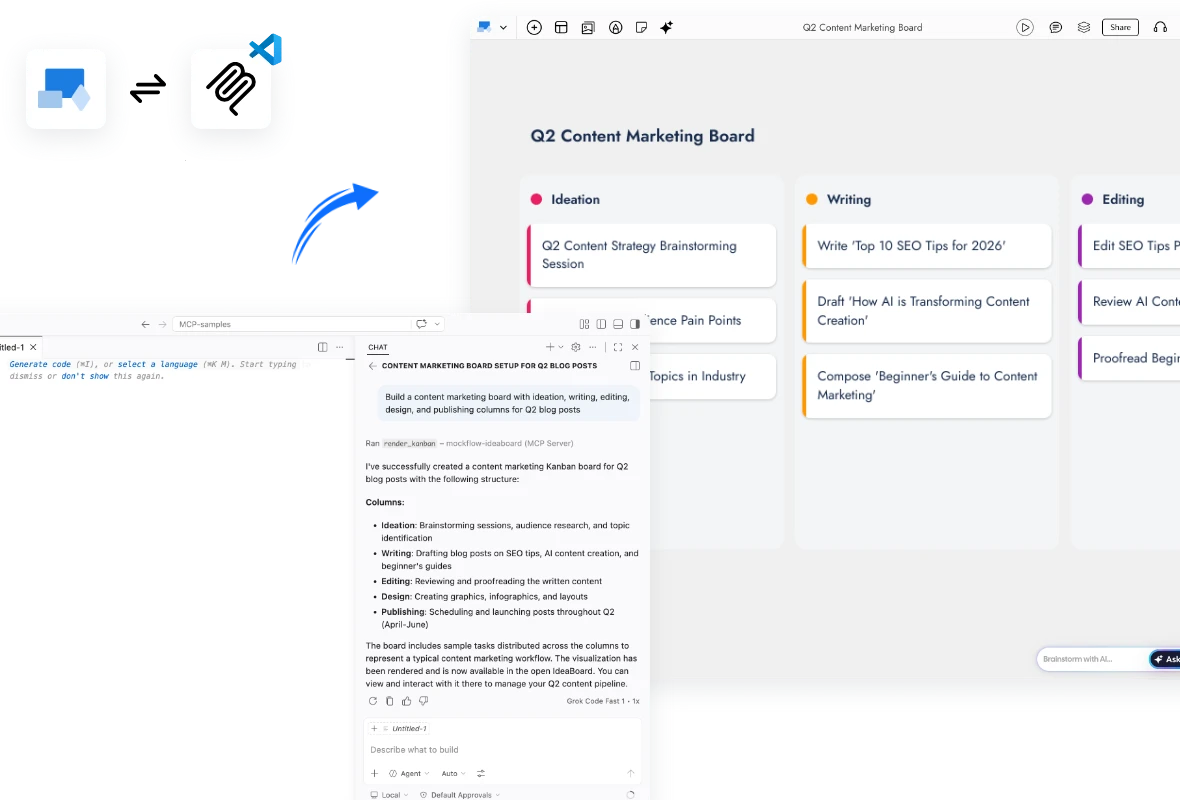
Draft wireframes from a prompt, generate them contextually from your existing code, specs, or requirement docs, and convert wireframes into code all from Claude, Cursor, VS Code, and any MCP-compatible AI assistant.

Why this matters

WireframePro now speaks the Model Context Protocol (MCP) โ€” Anthropic's open standard for connecting AI assistants to external tools. Any MCP-compatible AI client can now call WireframePro directly to render a wireframe, read a wireframe, and convert it to code, without ever leaving the assistant.

And uniquely in our Desktop App edition, the workflow is twoโ€‘way:

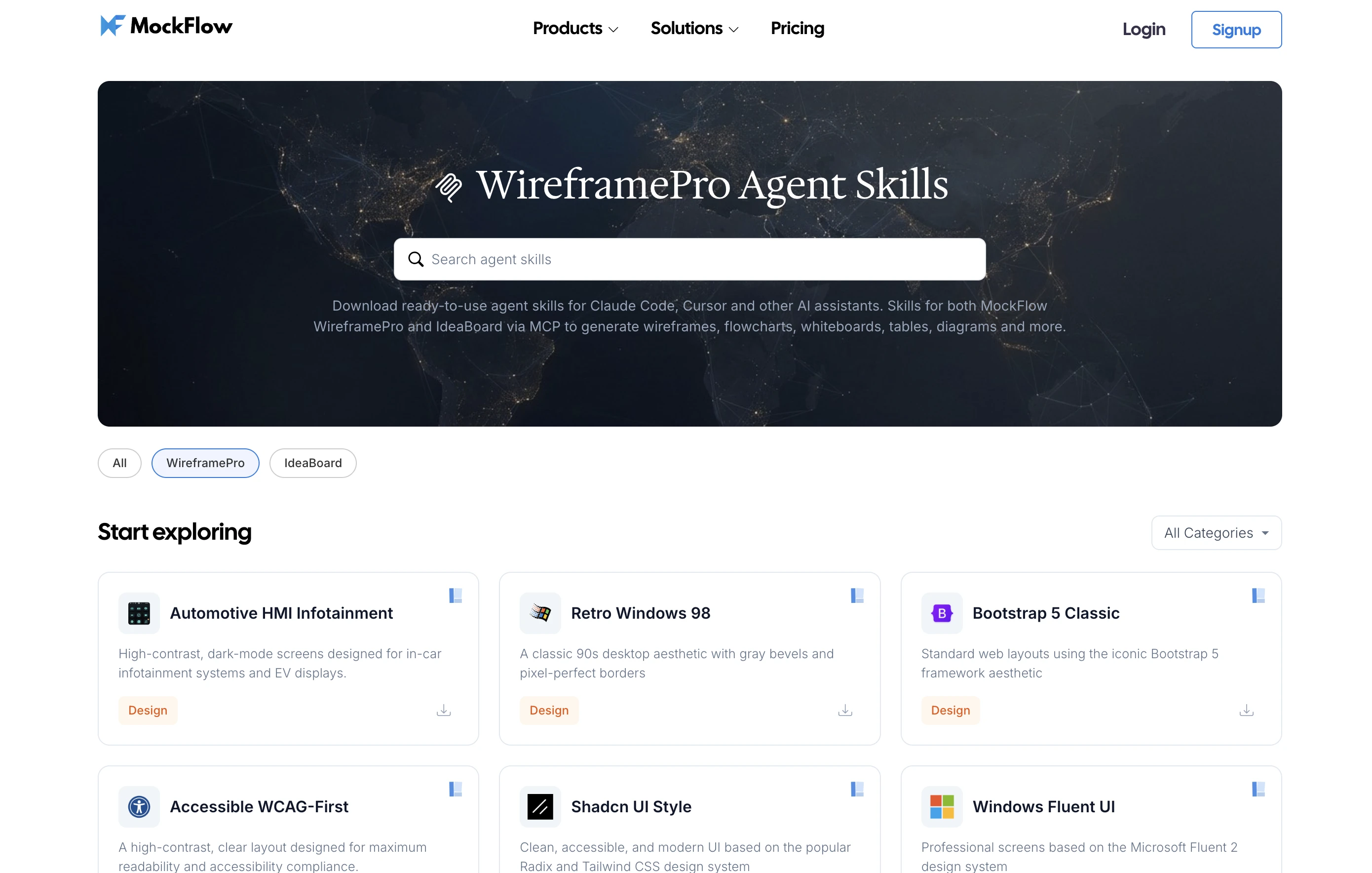
  1. Prompt โ†’ Wireframe โ€” describe a screen in natural language, and the AI builds it as an editable wireframe on your canvas (not a static image).

  2. Wireframe โ†’ Code โ€” point the AI at any existing canvas in your project and generate productionโ€‘ready React, Vue, Next.js, Tailwind, or plain HTML/CSS from it.

The real unlock: contextual wireframing

Since WireframePro now plugs into an AI agent that already has access to your codebase, specs, tickets, PRDs, API schemas, and design docs, the agent can do the translation work for you and use WireframePro purely as the rendering surface. The MCP server is the bridge; the agent is the designer.

A few workflows that simply weren't possible before:

- "Wireframe this PRD." Drop a product requirements doc into Claude or Cursor. The agent reads the entire spec, identifies every screen and state it implies, and renders a complete

multiโ€‘screen wireframe set on your WireframePro canvas, already organized by user flow.

  • "Wireframe the settings page from our existing codebase." The agent reads your React/Vue source, understands the component tree and routing, and produces a wireframe that faithfully reflects what ships in production today, ideal for audits, redesigns, and onboarding new designers.

  • "Generate wireframes for every endpoint in this OpenAPI spec." The agent parses the schema, infers the CRUD screens each resource needs, and lays them out as a connected flow. What used to be a week of design work becomes a single prompt.

  • "Turn this Jira epic into a UI wireframe." The agent pulls the ticket, reads the acceptance criteria, drafts screens, and iterates with you in natural language all while the

canvas updates live.

  • "Redesign our checkout to match our new brand guidelines." The agent reads your existing checkout code and your brand style guide, then renders a proposed redesign using a custom Design Skill that encodes your tokens.

  • "Document this legacy app." Point the agent at an old codebase with no design files. It reverseโ€‘engineers the UI into wireframes so the team finally has a visual source of truth to plan

migrations against.

The pattern is the same in every case: the AI agent does the heavy lifting of understanding context : code, docs, specs, tickets and WireframePro MCP is the tool it reaches for whenever the output needs to be visual. You stop being the middleman between written requirements and visual design, and become the editor of an AIโ€‘produced first draft.

This is why shipping MCP and especially the twoโ€‘way Desktop edition โ€” is bigger than "another AI feature." It's a new category of design work: contextual, sourceโ€‘aware wireframing, where the distance between "a spec exists" and "a wireframe exists" drops from days to seconds.

Two ways to connect

We've shipped the MCP server across every WireframePro surface so teams can adopt it on their own terms.

1. Desktop App MCP โ€” the full twoโ€‘way experience

Built directly into the MockFlow Desktop App (macOS, Windows). Open any WireframePro project, register the local MCP endpoint in your AI client, and start designing:

claude mcp add --transport http -s user mockflow-wireframepro http://localhost:21194/mcp

  • Works offline โ€” the MCP server runs locally, so your canvas, prompts, and generated code never leave your machine.

  • Both directions โ€” this is the only edition that ships read_wireframe, enabling wireframeโ€‘toโ€‘code conversion.

  • Live canvas rendering โ€” wireframes appear on the active page of your open project in real time, so you can edit as the AI builds.

Best for: Product designers, UX teams, and engineering teams that want wireframeโ€‘toโ€‘code in a secure, local environment.

2. CLI / npm MCP Server โ€” for developer workflows

A standalone npm package for developers who live in their terminal and IDE:

npm install -g @mockflow/wireframepro-mcp

mockflow-wireframepro-mcp login

mockflow-wireframepro-mcp

OAuthโ€‘based login to your MockFlow account; wireframes are saved to your cloud workspace so they're shareable with the rest of the team. Ideal for engineers scaffolding UIs from inside

Claude Code, Cursor, or VS Code Copilot. Developers who want to auto-generate wireframe designs as part of their process continously. Can be integrated part of the AI assistant based API.

Supported AI clients

WireframePro MCP works with every major MCPโ€‘compatible assistant:

  • Claude.ai and Claude Code

  • Cursor

  • VS Code + GitHub Copilot

  • OpenCode, Cline, and other MCP clients

Design Skills โ€” teach your AI a design language

mcp-skill-help-video.gif

Out of the box, AIโ€‘generated UI tends to look generic because the model has no opinion about visual style. Design Skills solve that: they're reusable style recipes your AI assistant loads

as agent skills, instructing it to render wireframes in a specific design language โ€” Material, Fluent, iOS, Shadcn, Bootstrap, retro Windows 98 style, Cyberpunk UI and more.

WireframePro MCP ships with a growing library of curated Design Skills, with new styles added regularly.

Screenshot 2026-04-15 at 11.17.00โ€ฏPM.png

Custom Design Skills โ€” your brand, your design system

Paid users can go a step further and author their own Design Skills that encode their company's brand guidelines or internal design system like tokens, typography, spacing, component library, voice and then instantly share them with their team. Once published, every designer, PM, and engineer on the team can load the skill inside their AI assistant and produce wireframes that match the house style on the first try, with zero manual styling.

Browse the full catalog and learn how to publish a custom skill at https://mockflow.com/skills/wireframepro.

Business use cases

Product Management

  • Turn a PRD or Jira ticket into a clickable wireframe in under a minute.

  • Generate multiple screen variations during discovery without a designer in the loop.

  • Attach interactive mockups to specs so engineering estimates are grounded in visuals.

Software Engineering

  • Scaffold a new feature UI straight from your IDE โ€” Claude Code reads the ticket, calls render_wireframe, and you refine on canvas.

  • Point the AI at an existing wireframe and generate the React/Vue/Tailwind component tree that matches it โ€” cutting UI implementation time dramatically.

  • Reverseโ€‘engineer UIs from existing code โ€” point the agent at a legacy screen and get a clean wireframe back, ready for redesign discussions.

  • Document API flows with render_flowchart and solution architectures with render_cloudarchitecture, all from the same assistant.

Design & UX Teams

  • Use AI as a rapid ideation partner while keeping every output fully editable in WireframePro. - Lock generated output to your design system via custom Design Skills.

  • Move seamlessly from handโ€‘sketched ideas to codeโ€‘ready specs without leaving the canvas.

Startups & Founders

  • Go from idea โ†’ interactive mockup โ†’ shippable frontend code in a single working session.

  • Validate product concepts with investors and early users without hiring a designer.

Agencies & Consultancies

  • Respond to RFPs with wireframes generated during the sales call itself.

  • Produce clientโ€‘ready deliverables โ€” wireframe packs, user flows, and architecture diagrams โ€” from a single promptโ€‘driven workflow.

Enterprise & Regulated Teams

  • The Desktop App edition keeps every prompt, wireframe, and generated code local, meeting the security posture required in finance, healthcare, and government environments.

  • Pair with an onโ€‘prem Claude/Cursor setup for a fully airโ€‘gapped designโ€‘toโ€‘code pipeline.

Education

  • Teach UI/UX fundamentals by having students prompt, critique, and refine AIโ€‘generated wireframes live in class.

  • Use Design Skills to demonstrate the visual differences between Material, Fluent, and iOS design languages.

Plans & availability

Basic plan: allows 10 tool calls for 30 minutes

Paid plan: allows 30 tool calls per minute

For more information visit:

https://mockflow.com/mcp/wireframepro

https://mockflow.com/skills/wireframepro

Link to this change
boards

MockFlow Board MCP Server: Bring MockFlow's Visual Brainstorming to Claude, Cursor, and Any AI Assistant

Transform your AI assistant into a visual brainstorming powerhouse with the MockFlow Board MCP Server. Create flowcharts, mind maps, and more directly from AI tools like Claude, Cursor, and VS Code Copilot. Leverage MockFlow's tools seamlessly within your existing workflow.
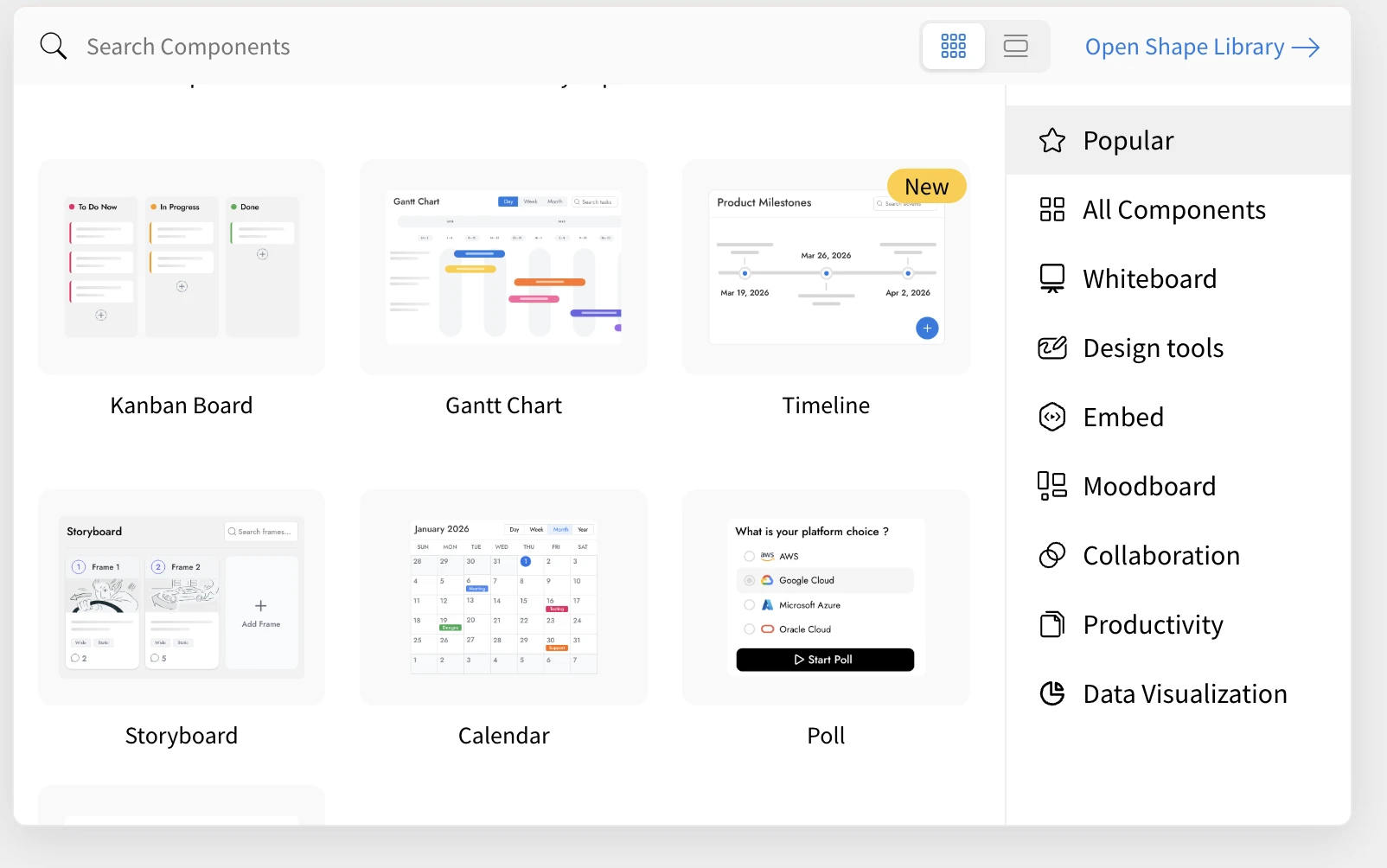
MockFlow Board MCP Server: Bring MockFlow's Visual Brainstorming to Claude, Cursor, and Any AI Assistant

Turn any AI assistant into a visual brainstorming powerhouse. Create contextual flowcharts, mind maps, knowledge graphs, architecture diagrams, and more visualization types directly from Claude, Cursor, or VS Code Copilot without leaving your workflow or spending MockFlow AI credits.

The MockFlow Board MCP Server opens up MockFlow's full visual brainstorming toolkit to the AI assistants you already use every day. Instead of switching to MockFlow to create a diagram, you can now ask Claude, Cursor, or VS Code Copilot to generate flowcharts, mind maps, storyboards, Gantt charts, architecture diagrams, customer journey maps, and more , all rendered as fully editable MockFlow Board projects.

MCP (Model Context Protocol) is an open standard created by Anthropic Inc; that lets AI assistants connect directly to external tools. Think of it as a universal plug that lets your AI talk to MockFlow. With the MockFlow Board MCP Server, your AI assistant gains specialized tools that go far beyond what text-based brainstorming can offer.
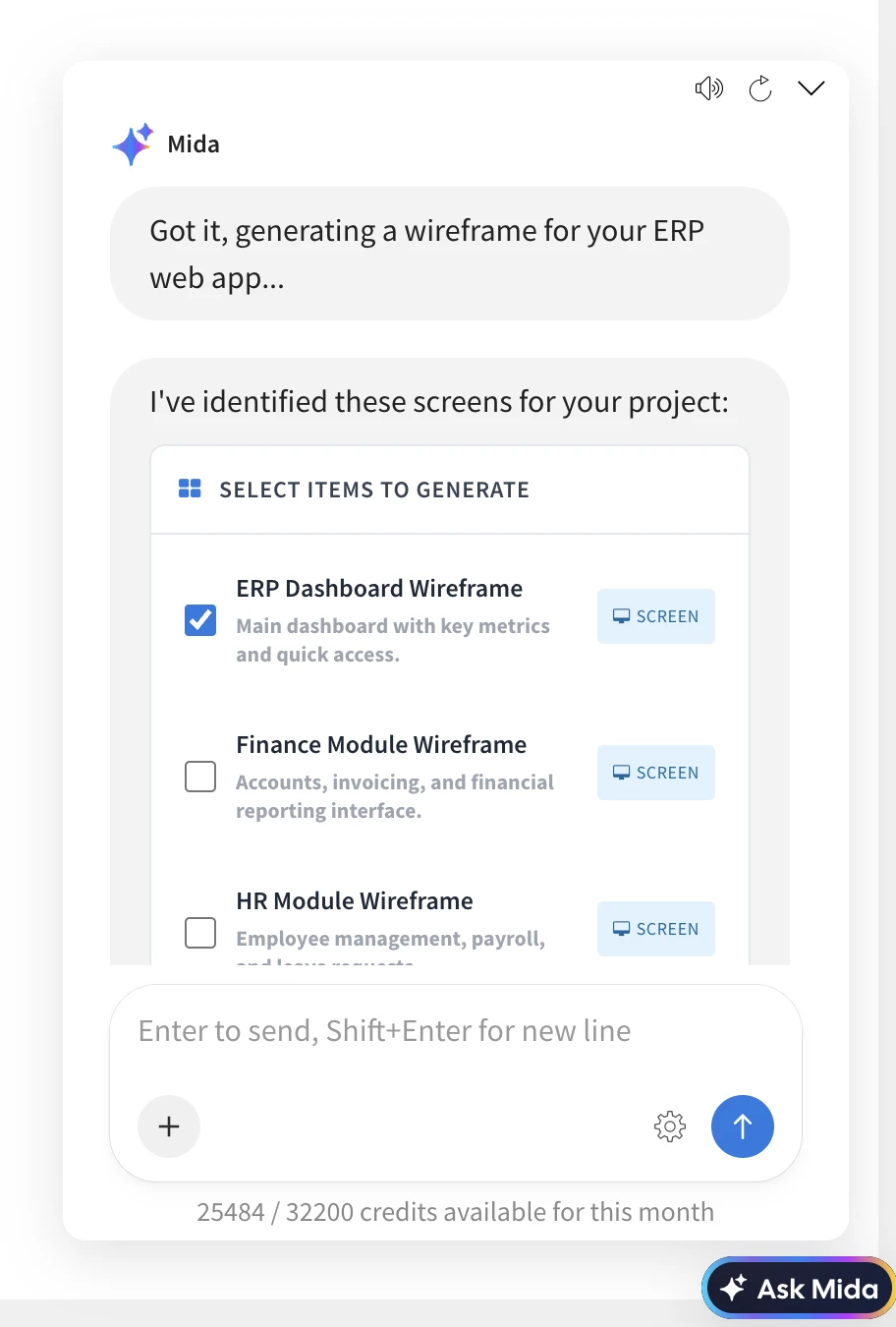
Why MCP Matters for Visual Brainstorming

MockFlow already has Mida AI, our built-in AI assistant that lives inside MockFlow Board. Mida generates, modifies, and transforms content directly on your canvas with full context of your project. It is the complete AI experience when you are working inside MockFlow, and it uses your plan's AI credits.

But the MCP Server solves a different problem. Many users brainstorm where they already are โ€” in a terminal analyzing code, in an IDE reviewing architecture, in a Claude chat discussing strategy, or working with local documents and datasets. The MCP Server brings MockFlow's

powerful brainstorming components to those environments.

The key advantages of using MockFlow Board via MCP:

Contextual brainstorming โ€” Your AI can read local files, codebases, spreadsheets, meeting transcripts, PRDs, and datasets on your machine, then visualize the insights directly. You never need to copy-paste or upload content to MockFlow.

Use your own AI credits โ€” MCP uses your AI tool's credits (Claude, Cursor, Copilot), not your MockFlow plan's AI credits. This is especially valuable for teams that want unlimited visual brainstorming without consuming their MockFlow allocation.

No context switching โ€” Stay in your terminal, IDE, or AI chat. The visualization appears as a shareable URL or renders directly on your open MockFlow Board canvas (Desktop App).

Full editability โ€” Every generated visualization is a real MockFlow Board component. Open it to edit, collaborate with your team, present, or export.

In short: Mida AI is the full experience inside MockFlow. MCP brings MockFlow's visualization tools with powerful contextual engine to wherever your AI already is.

mcp-ideaboard.png

What does it provide?

While the component set in MockFlow Board is growing fast, currently it offers generations in these broad categories.

Flowcharts and Diagrams

render_flowchart โ€” Create flowcharts across 11 distinct diagram categories: default, sketchy hand-drawn, 3D isometric, bio/medical, circuit, piping and instrumentation (P&ID), UML, sketchy UML, cloud isometric, web layout, and mobile layout. Supports decision nodes, process steps, start/end terminators, and conditional branching.

render_swimlane โ€” Cross-functional process flows with horizontal swim lanes for different actors, roles, or departments. Ideal for mapping business processes that span multiple teams.

render_database โ€” Entity-relationship diagrams with tables, columns, primary key and foreign key marking, and relationship arrows between tables. Describe your data model and get a proper ER diagram.

Brainstorming and Ideation

render_mindmap โ€” Hierarchical mind maps with balanced left-right branching, multi-level nesting, and emoji support. Perfect for breaking down complex topics, brainstorming features, or mapping knowledge areas.

render_whiteboard โ€” Freeform brainstorming boards with sticky notes in pastel colors, sections for grouping, and text labels. Captures the feel of a physical whiteboard session.

render_knowledgegraph โ€” Bubble network graphs (similar to Obsidian-style knowledge graphs) with weighted nodes and directed edges with labels. Visualize relationships between concepts, dependencies, or interconnected systems.

Planning and Project Management

render_kanban โ€” Project management boards with customizable columns, cards with priority levels, due dates, assignees, and color-coded labels. Columns use topic-relevant categories rather than generic statuses.

render_gantt โ€” Project timeline charts with phases, tasks, progress tracking (0-100%), start and end dates, dependencies between tasks, and priority levels.

render_calendar โ€” Event calendars with support for timed events, all-day events, multiple event colors, and reminders.

render_timeline โ€” Chronological event visualization in two modes: date-based (for real historical dates or project milestones) and label-based (for stages, phases, or abstract sequences).

Data and Analysis

render_chart โ€” Eight chart types: pie, vertical bar, horizontal bar, line, area, scatter, bubble, and radar. Accepts CSV-formatted data with formula support.

render_table โ€” Structured data tables with headers and flexible columns. Clean tabular output from any dataset.

render_spreadsheet โ€” Full spreadsheets with formula support including SUM, AVERAGE, MAX, MIN, COUNT, IF, and ROUND.

Architecture and Infrastructure

render_cloudarchitecture โ€” Cloud infrastructure diagrams with native support for AWS, Azure, GCP, and Cisco service icons. Supports VPC and subnet grouping, security group containers, and standard cloud architecture notation.

Customer Experience and Storytelling

render_customerjourney โ€” Customer journey maps with stages, activities with icons, satisfaction metrics on a 0-4 emotion scale, experiences, expectations, and pain points at each stage.

render_storyboard โ€” Film and video storyboards with cinematic frame descriptions, camera angles, lighting notes, sequence numbers, metadata fields, and AI-generated cover images for each frame.

Content and Geography

render_markdown โ€” Rich text documents with full Markdown syntax and optional AI-generated images via a prompt field.

render_map โ€” Geographic maps with location markers using GeoJSON coordinates and emoji markers.

Desktop Exclusive

layout_board โ€” After creating multiple visualizations, call this tool to automatically arrange them into a professional bento-box grid layout with a titled section wrapper. This is only available when using the MockFlow Desktop App or MockFlow Board for Mac, where the AI creates visuals directly on your open canvas.

mcp-ideaboard.gif

Four Ways to Connect

The MockFlow Board MCP Server is available in four configurations, each designed for a different workflow.

1. Loginless Web MCP โ€” Easiest: No Install, No Login

Add https://app.mockflow.com/ideaboard/mcp as a connector in Claude.ai or ChatGPT. No installation, no MockFlow account, no setup. A new board is created for each visualization and you get a shareable URL.

How to set up:

  1. Open Claude.ai โ†’ Settings โ†’ Connectors

  2. Paste: https://app.mockflow.com/ideaboard/mcp

  3. Ask Claude to create a flowchart โ€” done.

Best for: Managers, marketers, and anyone who uses Claude.ai or ChatGPT in the browser. No technical knowledge needed.

2. MockFlow Desktop App โ€” Most Powerful: Direct on Canvas

Built into the MockFlow Desktop App. Your AI creates visuals directly on your open MockFlow Board canvas in real time โ€” no URLs, no waiting. This is the most powerful option because it includes all tools plus the exclusive layout_board tool for bento grid layouts, and it works with both cloud projects and local file-mode (.board) projects.

How to set up:

  1. Open the MockFlow Desktop App โ†’ open a MockFlow Board

  2. In Claude Code or Cursor, run: claude mcp add --transport http -s user mockflow-ideaboard http://localhost:21193/mcp

  3. Ask your AI to create any visualization โ€” it appears directly on your canvas.

Best for: Designers, product teams, and daily MockFlow users.

3. MockFlow Board for Mac (Standalone) โ€” Native Mac Experience

The standalone https://apps.apple.com/in/app/mockflow-ideaboard/id6751854527?mt=12 includes the same built-in MCP server as the full Desktop App. Get a dedicated, lightweight brainstorming application with full MCP support โ€” including layout_board and direct-on-canvas rendering. This is ideal if you want MockFlow Board as a focused visual thinking tool that does not use MockFlow servers and is fully offline. And also one-time payment.

Available at: localhost:21193/mcp (same as Desktop App)

Best for: Mac users who want a lightweight, focused brainstorming app with full AI integration.

4. CLI npm Package โ€” For Developers: Saved to Your Account

Install from npm, authenticate via browser (OAuth), and all boards are saved to your MockFlow account.

How to set up:

  1. npm install -g @mockflow/ideaboard-mcp

  2. mockflow-ideaboard-mcp login

  3. mockflow-ideaboard-mcp

Best for: Developers using Claude Code, Cursor, or VS Code Copilot who want boards saved to their workspace.

Works With Your Favorite AI Tools

The MockFlow Board MCP Server works with any MCP-compatible AI assistant:

  • Claude.ai โ€” Add as a connector in Settings โ†’ Connectors

  • Claude Code โ€” Add via claude mcp add command

  • Cursor โ€” Configure as an MCP server in settings

  • VS Code Copilot โ€” Connect via MCP configuration

  • ChatGPT โ€” Configure as an MCP server in settings

  • OpenAI Codex โ€” Configure as an MCP server in settings

AI Recipes โ€” Now Downloadable as Agent Skills

One of the most powerful aspects of the MockFlow Board MCP Server is the AI Skills system. MockFlow Board's AI Recipes โ€” the same pre-configured AI workflow templates available inside MockFlow Board's Recipe Library โ€” can now be exported and downloaded as Agent Skills for Claude Code and other AI assistants.

Screenshot 2026-04-06 at 10.43.31โ€ฏPM.png

What are AI Recipes?

AI Recipes are curated, ready-to-use AI gen templates inside MockFlow Board. Each recipe is a fully configured AI Prompt Box that includes a title, system instructions, output type, placeholder guidance, model preferences, and an icon. Previously, these lived only inside MockFlow Board.

Now, any recipe can be exported as a skill file that your AI assistant understands natively.

How Skills Work

Each skill is a lightweight configuration file (SKILL.md) that teaches your AI assistant how to use a specific MockFlow Board MCP tool for a specific task. Install a skill once, and it triggers automatically when your AI detects a matching intent. You can also invoke skills directly.

For example, with the Decision Flowchart skill installed, simply asking Claude Code "Should I use React or Vue for this project?" automatically triggers the skill, which calls render_flowchart to create a structured yes/no decision tree โ€” no manual tool selection needed.

Browse and Download from https://mockflow.com/skills

Create Your Own Skills

Screenshot 2026-04-06 at 10.45.19โ€ฏPM.png

You can also create custom skills inside MockFlow Board using the AI Prompt Box component. Configure a Prompt Box with your specific instructions, output type, and system prompt, then export it as a Claude Code skill. This means your team's custom brainstorming workflows โ€” tailored to your industry, brand, or process โ€” become reusable AI skills that any team member can install and use from their terminal or IDE.

Use Cases โ€” MockFlow Board MCP for Every Team

Product Management

  • Scan a PRD document on your machine and generate a sprint kanban board with prioritized tasks, assignees, and due dates

  • Convert meeting transcripts into structured mind maps of decisions, action items, and open questions

  • Create roadmap Gantt charts from project plans and track dependencies across workstreams

  • Map customer onboarding journeys directly from user research notes

Software Engineering

  • Analyze your codebase and generate architecture diagrams showing how services, databases, and APIs connect

  • Create ER diagrams from database migration files or schema definitions

  • Visualize authentication flows, CI/CD pipelines, or microservice communication as flowcharts

  • Generate AWS, Azure, or GCP infrastructure diagrams from Terraform files or deployment configs

Design and UX

  • Create customer journey maps from user interview transcripts

  • Generate storyboards for product walkthroughs, onboarding flows, or demo videos

  • Map cross-functional swimlane diagrams for design review processes

  • Build moodboards and brainstorming whiteboards from creative briefs

Marketing and Strategy

  • Turn campaign strategy documents into content calendars with scheduled dates and categories

  • Create customer journey maps for specific personas from research data

  • Generate competitive analysis charts and comparison tables from market research

  • Build mind maps from brand strategy documents to align teams on positioning

Film and Media

  • Generate cinematic storyboards from scripts with camera angles, shot types, and scene descriptions

  • Create shot lists as kanban boards organized by scene and priority

  • Build production schedules as Gantt charts with crew assignments and dependencies

  • Plan editorial calendars for content production pipelines

Education and Research

  • Convert lecture notes or textbooks into structured mind maps for study guides

  • Create flowcharts for scientific processes, algorithms, or historical decision trees

  • Generate quiz content and study plans from curriculum documents

  • Build knowledge graphs from research papers showing concept relationships

Data Teams

  • Visualize CSV files and datasets as charts, tables, or spreadsheets with calculated fields

  • Create geographic visualizations from location data

  • Generate timeline visualizations from event logs or historical data

  • Convert raw data into presentation-ready charts with eight visualization types

How MockFlow Board MCP Compares to Other Whiteboarding MCP Servers

The whiteboarding MCP space is still emerging. Most available options are either generic drawing tools or text-based diagram renderers. MockFlow Board MCP is the first purpose-built visual brainstorming MCP server with specialized tools for each visualization type.

Get Started Now

The MockFlow Board MCP Server brings MockFlow's visual brainstorming tools to wherever your AI already is. Brainstorm contextually, visualize your data contextually, and collaborate visually โ€” all without leaving your workflow. MCP is available on free plans also but with rate limits.

For more information visit: https://mockflow.com/mcp

Link to this change
boards

Transform Any Idea, Prompt, Document, or Image into a Multi-Visual Board with Mida AI

Discover how Mida AI and MockFlow Board convert ideas, documents, and images into organized visual workspaces. Generate multi-component boards like flowcharts, Kanban boards, and more with AI-powered automation.

Transform Any Idea, Prompt, Document, or Image into a Multi-Visual Board with Mida AI

MockFlow Board now introduces a powerful way to convert raw ideas, documents, and conversations into fully structured visual workspaces using AI.

With a single prompt, you can generate a complete multi-component board that includes flowcharts, Kanban boards, Gantt charts, mind maps, spreadsheets, calendars, and more, all automatically organized into a clean, structured layout.

Screenshot 2026-03-24 at 3.22.45โ€ฏPM.png

How It Works

1. Describe, Paste, or Upload

Start with any type of input inside MockFlow Board:

  1. A short prompt such as planning a company trip or launching a product

  2. A long document such as a meeting transcript, PRD, or strategy notes

  3. An image such as handwritten notes, whiteboard captures, or screenshots

Mida AI supports large inputs and understands both structured and unstructured content.

Screenshot 2026-03-24 at 3.26.09โ€ฏPM.png

2. AI Analysis and Planning

Mida analyzes your input and creates a structured plan for visualization:

  1. Detects intent to determine whether a single component or a multi-component board is needed

  2. Extracts key elements such as tasks, timelines, decisions, risks, and stakeholders

  3. Optionally enriches content using real-time web data when required

  4. Generates a curated plan with multiple visual components tailored to your input

Screenshot 2026-03-24 at 3.28.32โ€ฏPM.png

3. Review and Customize

Before generating the board, you can review and refine the plan:

  1. Select or deselect individual components

  2. Modify the plan using natural language instructions

  3. Preview AI credit usage for advanced components

This ensures full control before generation.

4. Generate the Board

With one click, MockFlow Board generates all components and arranges them into a structured layout.

Each board is automatically organized using a bento-style grid, with balanced spacing, aligned sections, and a clear visual hierarchy. The result is a ready-to-use workspace that can be shared and edited collaboratively.

Screenshot 2026-03-24 at 3.31.46โ€ฏPM.png

23 Visual Component Types Supported

Screenshot 2026-03-24 at 3.33.16โ€ฏPM.png

Mida can generate a wide range of visual components within a single board:

Planning and Tracking

Kanban boards, Gantt charts, timelines, calendars, to-do lists

Brainstorming and Ideation

Mind maps, whiteboards, mood boards, voting boards

Data and Analysis

Charts, spreadsheets, tables, polls

Process and Architecture

Flowcharts, swimlane diagrams, cloud architecture diagrams, customer journey maps

Content and Design

Markdown documents, storyboards, graphic layouts, AI-generated visuals

Location and Interactive

Maps with pins, spinning decision wheels

The system selects the most relevant combination based on your input.

Built for Real Workflows

This feature is designed to support practical, everyday use cases across teams:

Meeting transcripts to action plans

Convert discussions into structured boards with tasks, timelines, and ownership

PRDs to project dashboards

Transform product documents into visual execution plans with timelines and tracking

Quick ideas to structured plans

Expand simple prompts into comprehensive multi-component workspaces

Images to organized boards

Convert handwritten notes or whiteboard photos into structured visual layouts

Intelligent Layout Engine

Generated components are automatically arranged using a layout system that:

  1. Organizes components into balanced rows based on size

  2. Optimizes spacing to reduce empty areas

  3. Maintains visual alignment for clarity

  4. Avoids overlap with existing board content

  5. Applies consistent styling with titles and color themes

Conversational Refinement

You can continuously refine your board using natural language:

  1. Add or remove components

  2. Replace one visualization with another

  3. Adjust focus areas such as marketing, product, or operations

Mida updates the board plan dynamically based on your instructions.

Availability

Multi-component board generation is now available in MockFlow Board for all paid plans. Some advanced component types may use additional AI credits, which are shown during the planning stage.

Link to this change
wireframepro

Multi-Screen AI in WireframePro โ€” From One Prompt to a Complete Design Plan

Discover how Multi-Screen AI in WireframePro revolutionizes product ideation by detecting multi-screen intent and generating complete design plans, including wireframes, flowcharts, architecture, and database diagrams with MIDA.

Multi-Screen AI in WireframePro โ€” From One Prompt to a Complete Design Plan

Ideating an entire product in WireframePro no longer means prompting one screen at a time. MockFlow AI now detects multi-screen intent, plans every wireframe, flowchart, architecture diagram, and database schema your project needs, and generates them all in one go.

Now WireframePro intelligently understands the scope of your idea. When your prompt describes something that naturally requires multiple screens like an ecommerce website, a SaaS dashboard, or a mobile app , Mida (MockFlow Intelligent Design Assistant) automatically enters Plan Mode before generating anything. Instead of jumping straight to a single wireframe, it first thinks through what your project actually needs.

multi-page-9mb.gif

Plan Mode: AI That Thinks Before It Designs

When MIDA detects a multi-screen intent in your prompt, it pauses generation and presents a structured design plan with a curated list of 5 to 10 deliverables that a designer would typically produce for that project. This isn't limited to wireframe screens. MIDA plans across four types of design artifacts:

  1. Wireframe Screens โ€” the core UI pages your product needs (Homepage, Dashboard, Product Listing, Settings, Profile, etc.)

  2. Flowcharts โ€” process and workflow diagrams that map user journeys (Checkout Flow, User Onboarding, Approval Workflow)

  3. Architecture Diagrams โ€” system-level views of how things connect (Cloud Infrastructure, Microservices Layout, API Gateway)

  4. Database Diagrams โ€” entity relationship and schema diagrams that define the data layer (Table Structures, Entity Relationships)

The plan appears as an interactive checklist directly inside the Mida chat. Each item shows its name, a brief description, and a type badge so you can see the mix of deliverables at a glance. You select what you want, deselect what you don't , giving you full control over what gets generated.

Choose How Your Screens Are Laid Out

Before generating, you can choose between two layout modes:

  • Separate Pages โ€” each selected item is generated on its own WireframePro page, making it easy to organize and present as a multi-page project

  • Same Page โ€” all selected items are placed side by side on a single canvas, useful for comparing screens or creating overview presentations

One Click, Consistent Ideation

Once you've reviewed the plan and made your selections, hit Generate. MIDA produces all selected wireframes, flowcharts, architecture diagrams, and database schemas in one go. Every generated screen shares a unified design system , the same color palette, typography, navigation patterns, and component styles carry across all pages, so your wireframes look like they belong to one product, not a patchwork of separate prompts.

Screenshot 2026-03-10 at 5.56.44โ€ฏAM.png

Single-Screen Prompts Still Work Instantly

This new behavior is entirely automatic and contextual. Prompts that describe a specific screen โ€” like "create a login page" or "design a pricing table" continue to generate immediately, exactly as before. Plan Mode only activates when MIDA recognizes that your idea needs more than one screen to fully express.

Wireframing Is Ideation, Not Just Layout

The purpose of wireframing has always been to explore ideas quickly to figure out what a product needs before investing in high-fidelity design or code.

Multi-screen ideation in MockFlow with AI takes that further. Instead of wireframing one screen at a time and mentally tracking the bigger picture, you can now describe an entire concept and let MIDA map out the full scope with screens, flows, systems, and data , so you can focus on refining the idea rather than assembling the pieces.

Note: Multi-screen AI is available only on WireframePro and Bundle plans. Basic plan users can add additional flow diagram with generation.

Link to this change
Earlier changes
27 Feb 2026Instantly Export MockFlow Wireframes as Native Figma Designs19 Feb 2026Introducing "AI prompt box" as a whiteboard component along with ๐Ÿฒ AI recipes11 Feb 2026Brainstorm with the New Storyboard Component in MockFlow Board4 Feb 2026Export wireframes as AI visual prompt for agentic tools like claude code30 Jan 2026MockFlow Board for Google Meet : Real-Time Brainstorming Without Leaving Your Meeting27 Jan 2026Improved Generation and New AI Features in WireframePro Mida16 Jan 2026Export Wireframes as Interactive PDF with Clickable Navigation2 Jan 2026Auto-Generated Style Guide for Wireframes in Specs Mode22 Dec 2025Create, Brainstorm 3D Models in MockFlow Board โ€“ Games, Objects, Film & More11 Dec 2025ChatGPT app for MockFlow Board - now visualize without AI limits or signups4 Dec 2025Now reshape, modify and transform your ideas with MockFlow Board AI26 Nov 2025WireframePro Chrome Ext Update โ€” Now wireframe redesigns faster21 Nov 2025Live Presentations 2.0 in MockFlow โ€” In-Sync View, Voice Support & Greater Control10 Nov 2025Now create Non-Linear Presentations with Interactions in MockFlow Board1 Nov 2025Enhanced Data Editor for Charts in WireframePro22 Oct 2025New maps component with AI for Whiteboard7 Oct 2025Express Beyond Text: Add Video and Voice Comments in MockFlow Ideaboard24 Sep 2025Introducing Mini-Mode in WireframePro: A Smarter, Faster Way to Wireframe16 Sep 2025MockFlow Board launches as an offline whiteboard app, work seamlessly without servers9 Sep 2025New Keyboard Shortcuts for Faster Wireframing and Whiteboarding in MockFlow29 Aug 2025Generate dashboards, analytics, chart based wireframes with AI26 Aug 2025Bring Your Whiteboard to Life with Custom Backgrounds in MockFlow Board13 Aug 2025New: Visual prompting for generating code in Visual Studio5 Aug 2025Introducing the Android 16 UI Kit for Wireframing โ€“ Now Available1 Aug 2025MockFlow Board now adds free whiteboarding directly inside Atlassian Trello30 Jul 2025Free UI kits for MacOS 26, iPadOS 26, and watchOS 26 now available in MockFlow23 Jul 2025Create Documents the Visual Way with the New Docs Component27 Jun 2025Introducing AI toolbox for brainstorming in MockFlow Board20 Jun 2025Free wireframe kit for ideating iOS 26 liquid glass apps for iPhone16 Jun 2025Wireframe UI kit for Tailwind v4 released for websites and webapps10 Jun 2025New in Build Mode: Select framework version during code export3 Jun 2025MockFlow Board File mode - makes whiteboard data on-premise and git-integrated20 May 2025New! Build mode - Convert wireframes into production code19 Feb 2025New Minimap in the Editor for Effortless Navigation7 Feb 2025Now experience Dark Mode in MockFlow Dashboard and Editor26 Nov 2024Updated UI kit for Android to version 1514 Nov 2024Now track team activity in Design Spaces30 Oct 2024AI Feature series 4: Convert Website/Webapp to Wireframes18 Oct 2024AI Feature series 3: Whiteboard to Wireframe10 Oct 2024AI Feature series 2: Screenshot to Wireframe7 Oct 2024AI Feature series: Text to Wireframe8 Sep 2024Update: Real-Time Call Alerts for Video Meetings in MockFlow2 Sep 2024New Wireframing UI Kit for shadcn/ui: 190+ Components24 Jul 2024Copy and Paste Component Styles in Wireframe Editor16 Jul 2024Speed Up Your Wireframing with Symbols8 Jul 2024Now track all activities within your project20 Jun 2024Wireframe iPhone apps with iOS 18 UI Kit18 Jun 2024Feature Update: Mark Design Feedback as Resolved10 Jun 2024Introducing "Docs" mode for UI design28 May 2024Update: Visually Suggest Design Changes, Not Just Comments27 Mar 2024Get your wireframes reviewed and rated by AI12 Feb 2024Improved insights for DesignSpace6 Feb 2024Update: Create Sketchy UI Flows, Flowcharts, and Diagrams26 Jan 2024Now brainstorm apps for Apple Vision Pro11 Jan 2024New UI kit for drawing sketchy mobile interfaces19 Dec 2023Launching Flow App for Flowcharts, Diagrams, and More29 Nov 2023Introducing new "Flow mode" in WireframePro23 Oct 2023Wireframe UI kit for MacOS 14 Sonoma is now available22 Sep 2023MockFlow New AI Update: Generate Color Palettes with Prompts18 Sep 2023Wireframe UI Kits for iPhone iOS 17 & iPadOS 17 Now Available12 Sep 2023Introducing "AI Co-pilot" for brainstorming UI6 Sep 2023Wireframe UI kit for Shopify Polaris29 Aug 2023Introducing Illustration Packs in MockFlow WireframePro21 Aug 2023Wireframe UI kit for Microsoft Fluent 2 Design System18 Aug 2023New layout for SiteMap app - "PageFrame"15 Aug 2023New UI Pack for brainstorming AI based software4 Aug 2023Generate sitemaps for any website type with AI28 Jul 2023Launching our next iteration of MockFlow Dashboard7 May 2023Now create BYOC components in MockFlow with AI12 Apr 2023New UI Style for Wireframes: Block UI Pack4 Apr 2023Update: OTT UI Packs for Web & Mobile Media Apps18 Mar 2023New UI Pack for Brainstorming Apps with AWS Amplify27 Feb 2023New UI Pack for Brainstorming Slack Apps20 Feb 2023New Powerup: Replace Wireframe Placeholders with Real Images15 Feb 2023Check out our new Video Promo about MockFlow ๐ŸŽ‰13 Feb 2023Updated Desktop UI Packs for Windows 11 & macOS Ventura6 Feb 2023New Powerup: AI Text Content Generation for Wireframes10 Jan 2023Introducing PrevJS: Simple Static Builder from MockFlow28 Nov 2022Redesigned MockStore: UI Kits, Templates & Powerups13 Sep 2022New Tailwind v3 UI Pack: 150+ Wireframe Components19 Jul 2022New Placeholder UI Packs for Images and Logos12 Jul 2022UI Pack for iPadOS 16 has been released7 Jul 2022Introducing Component level themes in MockFlow27 Jun 2022iOS 16 UI pack for iPhone is now available in MockFlow13 Apr 2022Build your Customer Journey Map inside MockFlow!7 Mar 2022MockFlow partners with Mobile UX London14 Feb 2022Now On-board designs and UI for your stakeholders13 Jan 2022Now Build Your Own Component (BYOC) in MockFlow27 Dec 2021Introducing live embed for UI drawings29 Nov 2021Android 12 component UI pack now available in MockStore23 Nov 2021Secure your wireframe project links with pass key15 Nov 2021Know CSS? Now style wireframes with css code29 Oct 2021๐ŸŽ‰ ๐Ÿ“‰ Introducing analytics for design space20 Oct 2021Updated Chart Components: 8 Types in Regular & Sketchy21 Jun 2021Power-up Shortcuts - Now access related powerups at the right places19 May 2021Turn UI designs to product mockups with Frames Powerup14 May 2021Bringing centralised Two-Factor Authentication for teams3 May 2021New! Safeguard .wire design files with password protection26 Apr 2021Now localize your UI with i18n internationalization powerup11 Mar 2021Identify WCAG accessiblity issues with this new Powerup17 Feb 2021New Powerup to manage and export "Design Tokens" for UI3 Feb 2021SpellChecker Powerup: With this new addon correct spelling mistakes in wireframe14 Jan 2021New UI Pack for wireframing Data grids and tables
Was this page helpful?

Sign in to MockFlow

The same account you use in the app and on the API.

Forgot your password?
or
Continue with GoogleContinue with MicrosoftContinue with Apple