
Transform Any Idea, Prompt, Document, or Image into a Multi-Visual Board with Mida AI
Discover how Mida AI and MockFlow Board convert ideas, documents, and images into organized visual workspaces. Generate multi-component boards like flowcharts, Kanban boards, and more with AI-powered automation.
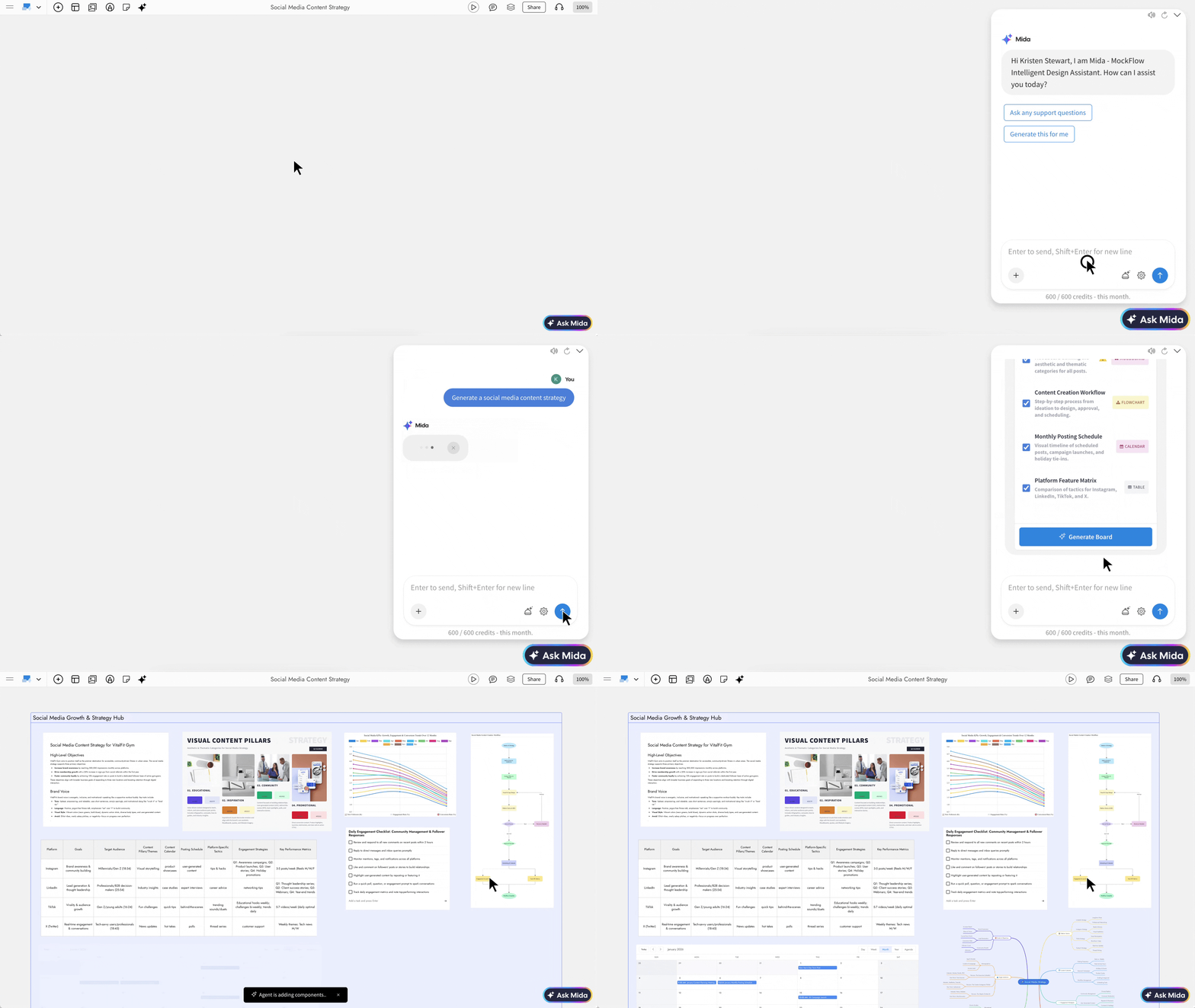
MockFlow Board now introduces a powerful way to convert raw ideas, documents, and conversations into fully structured visual workspaces using AI.
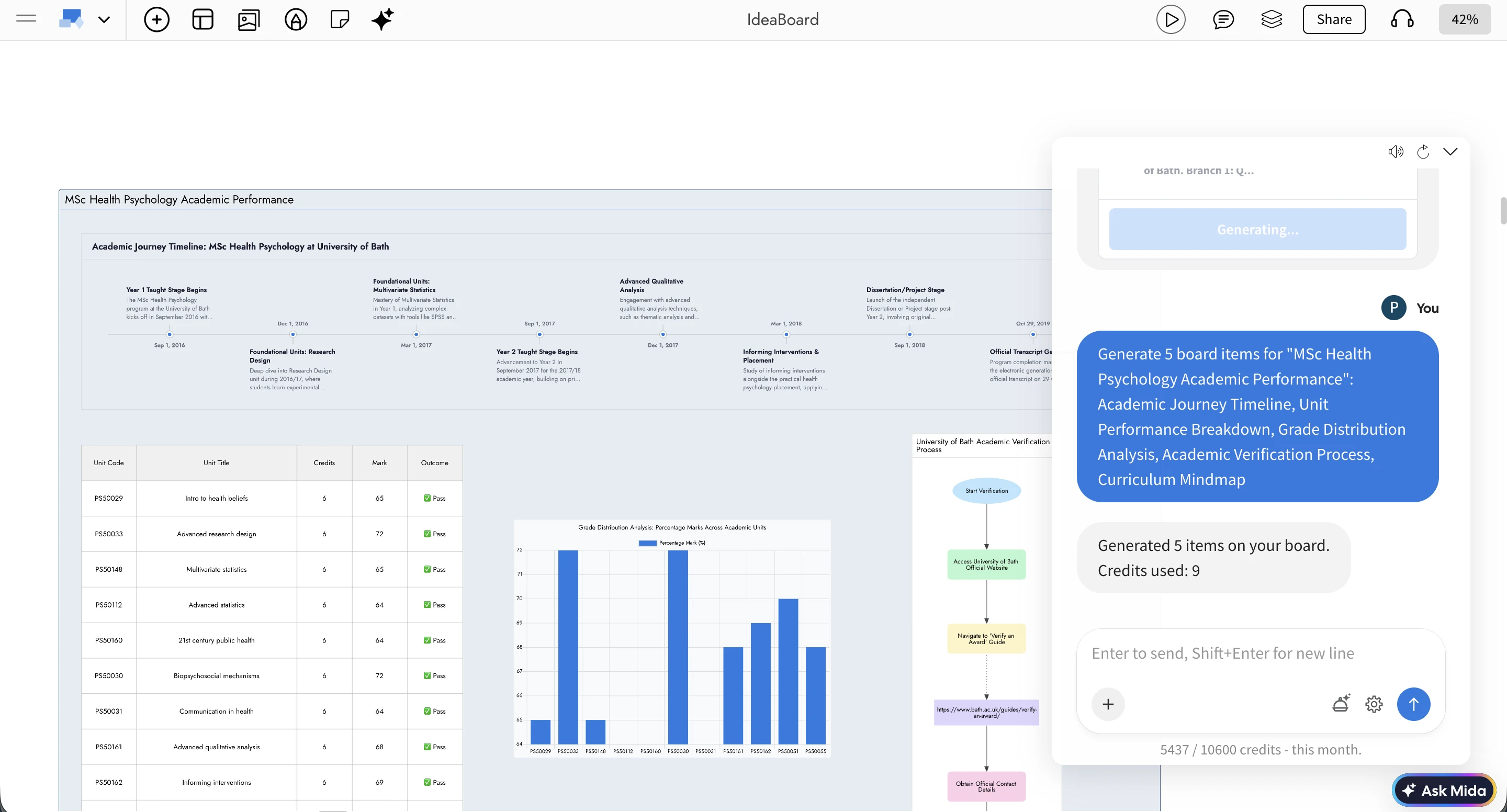
With a single prompt, you can generate a complete multi-component board that includes flowcharts, Kanban boards, Gantt charts, mind maps, spreadsheets, calendars, and more, all automatically organized into a clean, structured layout.
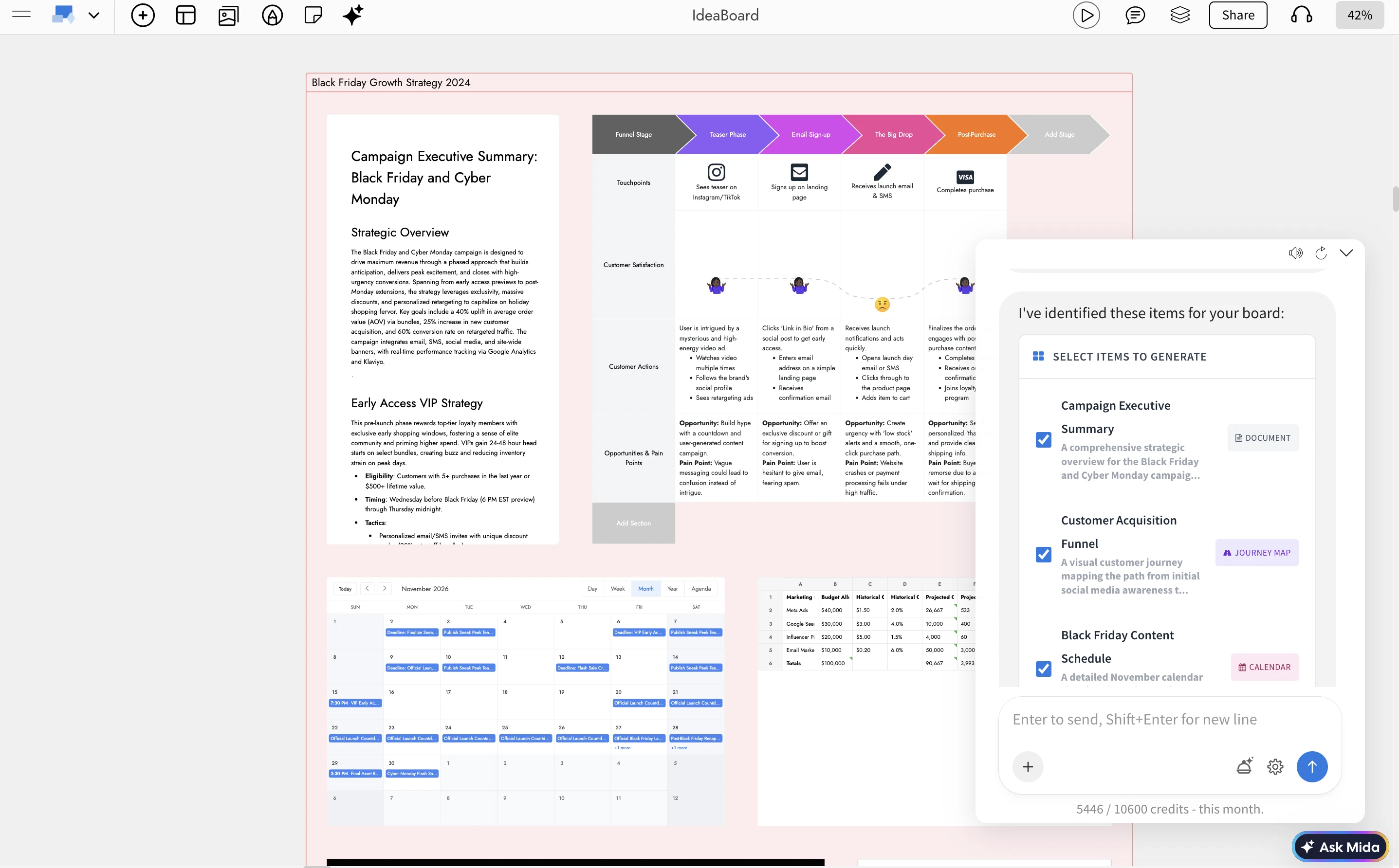
How It Works
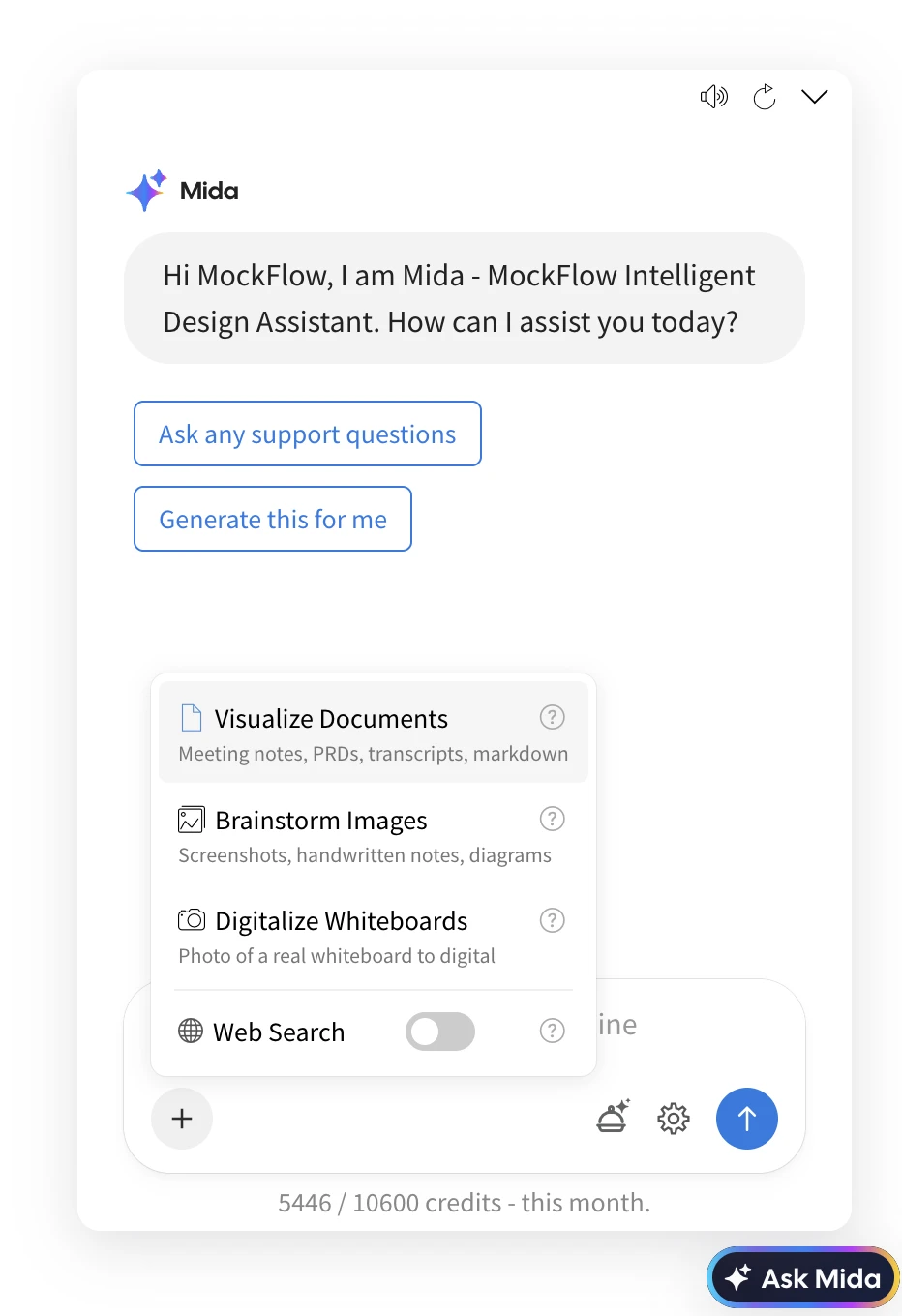
1. Describe, Paste, or Upload
Start with any type of input inside MockFlow Board:
A short prompt such as planning a company trip or launching a product
A long document such as a meeting transcript, PRD, or strategy notes
An image such as handwritten notes, whiteboard captures, or screenshots
Mida AI supports large inputs and understands both structured and unstructured content.
2. AI Analysis and Planning
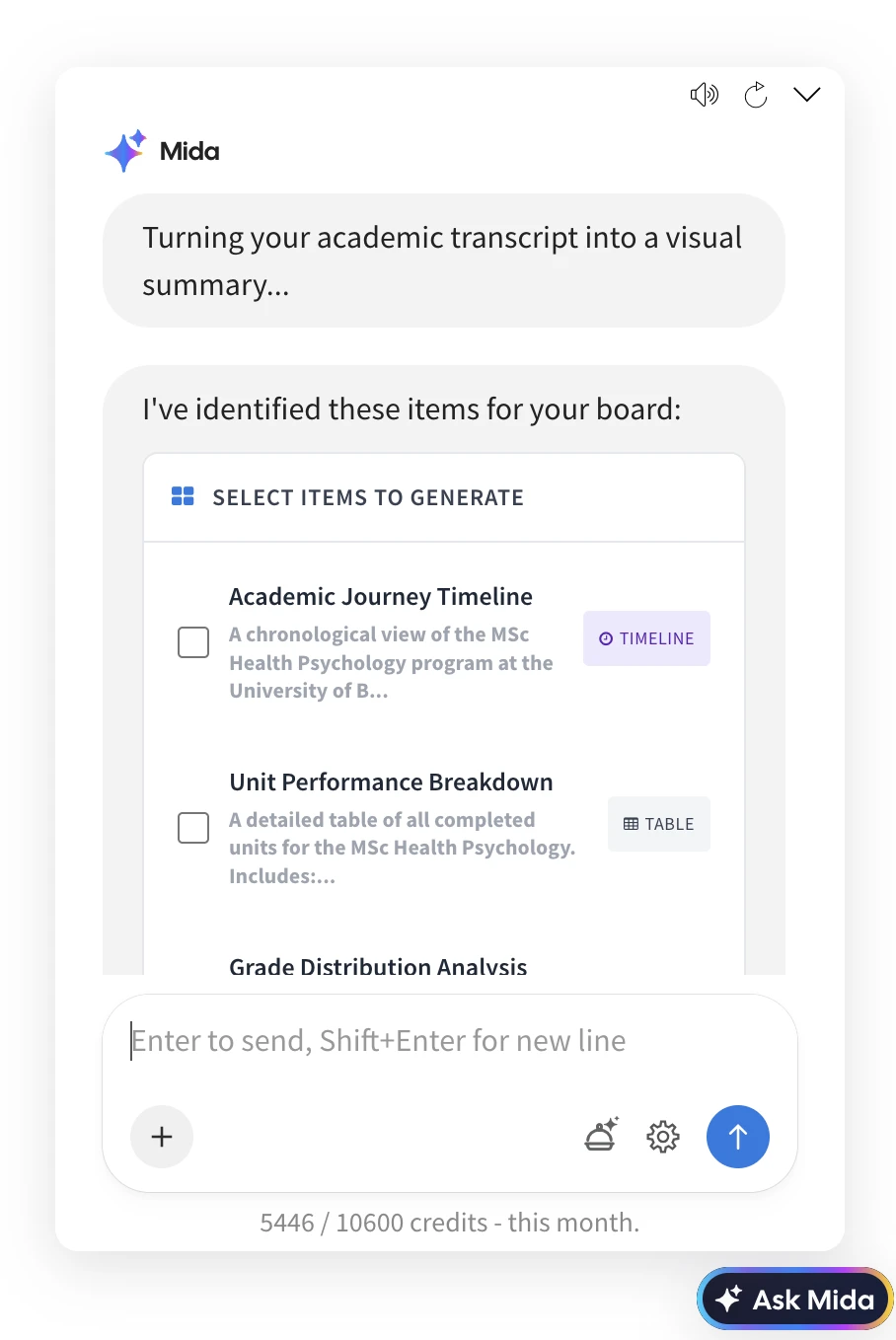
Mida analyzes your input and creates a structured plan for visualization:
Detects intent to determine whether a single component or a multi-component board is needed
Extracts key elements such as tasks, timelines, decisions, risks, and stakeholders
Optionally enriches content using real-time web data when required
Generates a curated plan with multiple visual components tailored to your input
3. Review and Customize
Before generating the board, you can review and refine the plan:
Select or deselect individual components
Modify the plan using natural language instructions
Preview AI credit usage for advanced components
This ensures full control before generation.
4. Generate the Board
With one click, MockFlow Board generates all components and arranges them into a structured layout.
Each board is automatically organized using a bento-style grid, with balanced spacing, aligned sections, and a clear visual hierarchy. The result is a ready-to-use workspace that can be shared and edited collaboratively.
23 Visual Component Types Supported
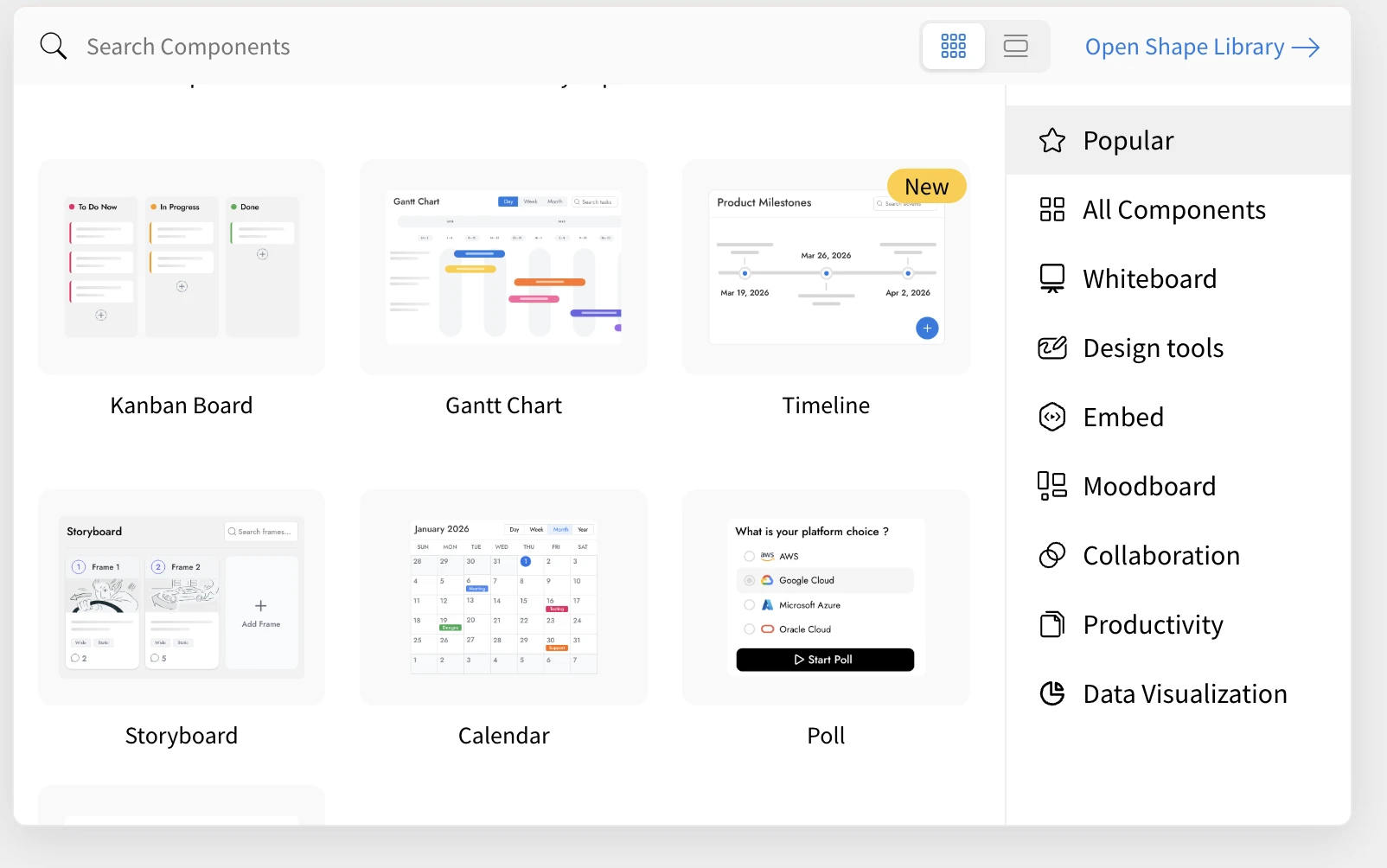
Mida can generate a wide range of visual components within a single board:
Planning and Tracking
Kanban boards, Gantt charts, timelines, calendars, to-do lists
Brainstorming and Ideation
Mind maps, whiteboards, mood boards, voting boards
Data and Analysis
Charts, spreadsheets, tables, polls
Process and Architecture
Flowcharts, swimlane diagrams, cloud architecture diagrams, customer journey maps
Content and Design
Markdown documents, storyboards, graphic layouts, AI-generated visuals
Location and Interactive
Maps with pins, spinning decision wheels
The system selects the most relevant combination based on your input.
Built for Real Workflows
This feature is designed to support practical, everyday use cases across teams:
Meeting transcripts to action plans
Convert discussions into structured boards with tasks, timelines, and ownership
PRDs to project dashboards
Transform product documents into visual execution plans with timelines and tracking
Quick ideas to structured plans
Expand simple prompts into comprehensive multi-component workspaces
Images to organized boards
Convert handwritten notes or whiteboard photos into structured visual layouts
Intelligent Layout Engine
Generated components are automatically arranged using a layout system that:
Organizes components into balanced rows based on size
Optimizes spacing to reduce empty areas
Maintains visual alignment for clarity
Avoids overlap with existing board content
Applies consistent styling with titles and color themes
Conversational Refinement
You can continuously refine your board using natural language:
Add or remove components
Replace one visualization with another
Adjust focus areas such as marketing, product, or operations
Mida updates the board plan dynamically based on your instructions.
Availability
Multi-component board generation is now available in MockFlow Board for all paid plans. Some advanced component types may use additional AI credits, which are shown during the planning stage.