
Virtual Collaboration Tools: Best Options for Remote & Hybrid Teams
Introduction
You’re about to invest in a new set of virtual collaboration tools, and this isn’t a casual decision. The platform you choose will shape how your team communicates, shares information, runs meetings, and executes work every single day. That’s not small.
At this stage, you’re not browsing. You’re comparing. You’re looking at the best tools and asking a sharper question: which one actually fits how my team operates?
There are plenty of collaboration tools for virtual teams that promise smoother communication, better file sharing and team collaboration, and stronger productivity. What matters now is alignment. The right tool should reinforce your workflow, not redesign it.
Let’s break down the top virtual team collaboration software tools by use case, so you can evaluate them with clarity and choose with confidence.
Top Virtual Collaboration Tools (2026) at a Glance
Virtual collaboration tools are software platforms that help teams communicate, share files, manage tasks, and collaborate across remote and hybrid environments. These tools centralize chat, video meetings, document editing, whiteboards, and workflows in one connected workspace.
Virtual collaboration tools reduce email overload, improve visibility, and support async work across time zones. Many platforms include integrations, permissions, audit logs, and AI meeting summaries to improve productivity, security, and coordination for distributed teams.
This table positions the top virtual team collaboration software tools by primary strength and ideal use case.
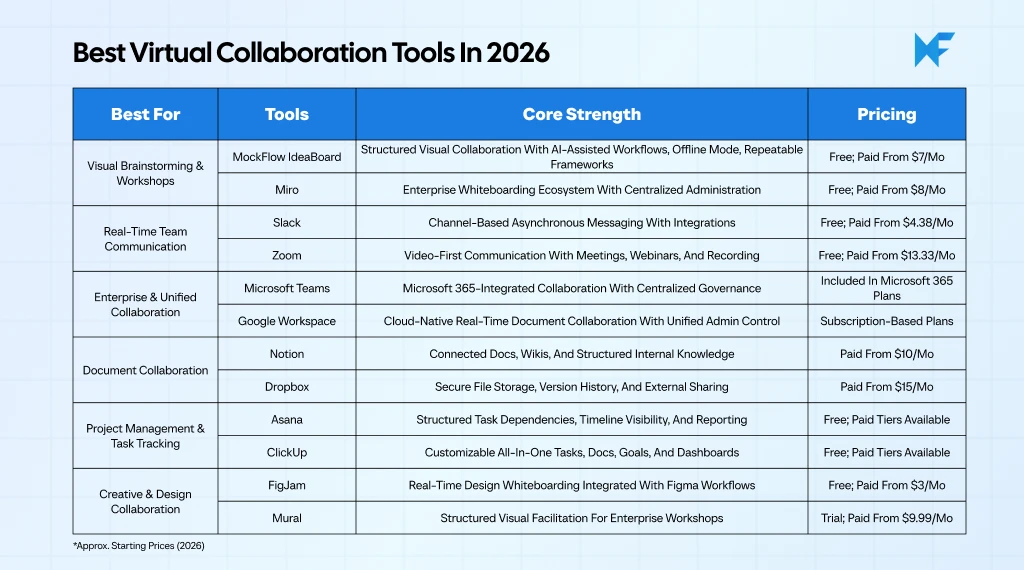
Now let’s break these down by use case so you can evaluate what actually fits your team.
Best Virtual Collaboration Tools for Visual Brainstorming & Workshops
This category is relevant when your team needs shared visual context to think clearly together. Strategy mapping, product planning, and workshop facilitation require more than chat threads. They require a structured visual workspace where ideas can evolve collectively in real time.
1. MockFlow IdeaBoard
Ideal team profile: Product leaders, strategy teams, facilitators, and distributed teams running recurring workshops or structured planning sessions.
Why teams choose it: Teams typically evaluate IdeaBoard when they want more than a blank digital whiteboard. The value lies in structured visual collaboration combined with guided templates and AI-assisted acceleration.
IdeaBoard is particularly useful for organizations that want visual alignment to be repeatable. Strategy sessions, sprint planning, mind mapping, process mapping, and ideation can follow consistent frameworks rather than ad-hoc board layouts.
Key strengths
- The infinite canvas allows teams to map complex strategies, workflows, and diagrams without spatial constraints.
- Real-time multi-user editing ensures that distributed teams can collaborate simultaneously without version conflicts.
- Pre-built templates provide structured starting points for brainstorming, roadmapping, and process mapping.
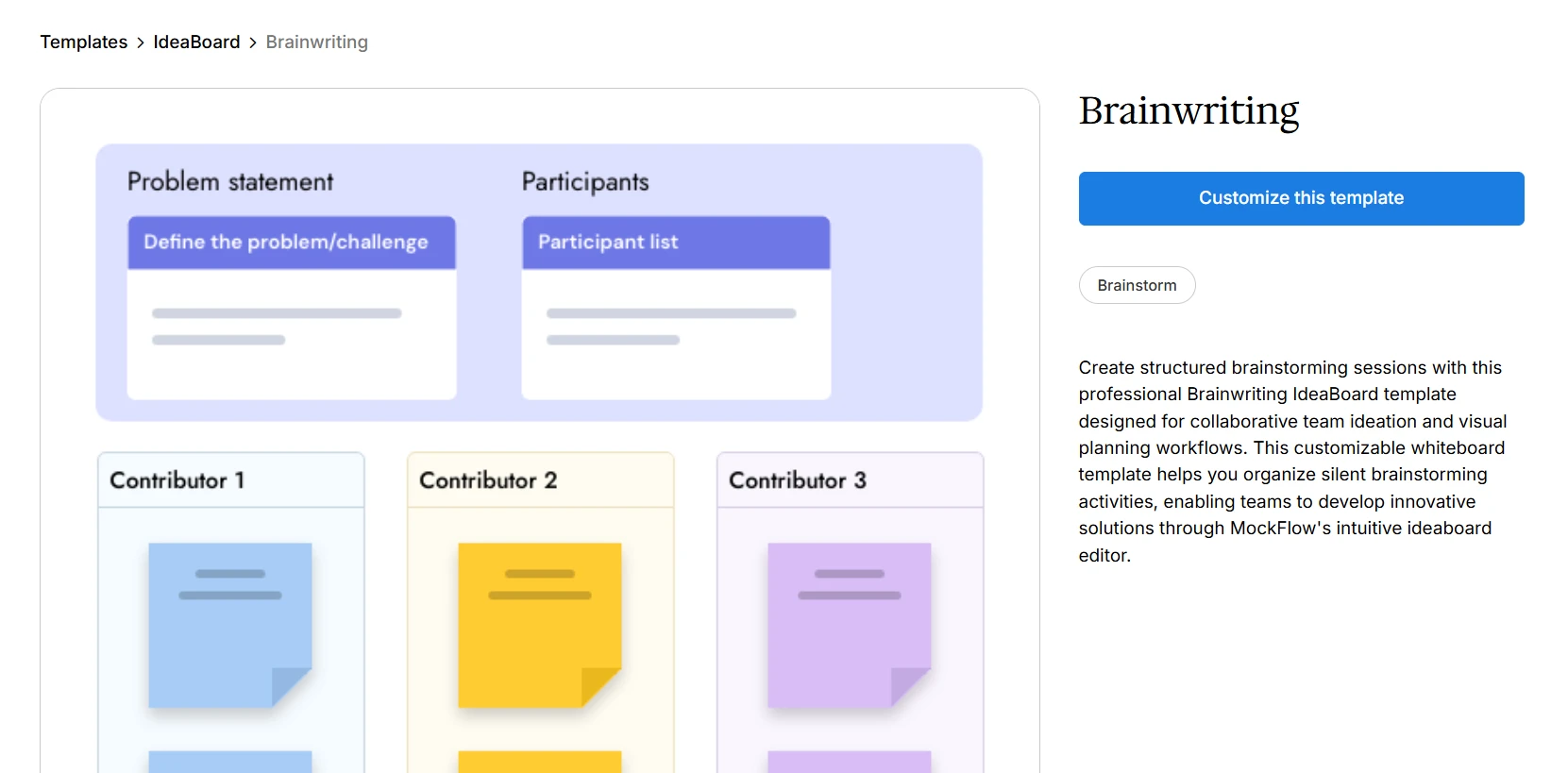
Customize this brainstorming template on IdeaBoard
- The AI Toolbox generates board layouts from text prompts and can reshape existing content into different visual formats.
- Multimedia commenting supports voice and video feedback for asynchronous collaboration.
- Built-in chat and meeting capabilities reduce the need to switch tools during live workshops.
- Offline desktop mode allows teams to continue working without internet access and sync later.
- Native integrations, including Google Meet support and Trello whiteboarding, connect visual collaboration to existing workflows.
- The dedicated ChatGPT app lets teams generate visual maps inside ChatGPT and seamlessly continue refining them in IdeaBoard.
Trade-offs
- The platform does not replace project management systems.
- Teams may need light onboarding to leverage AI and framework features better.
Implementation expectations:
Implementation is lightweight. Teams can begin with templates and expand into AI-assisted workflows gradually without complex IT deployment.
Microsoft’s 2024 Work Trend Index reports that 75% of global knowledge workers now use AI at work, and 90% say it helps them save time. AI-assisted collaboration is quickly becoming an expectation rather than a differentiator.
Pricing positioning:
A free plan is available. Paid tiers start at $7/mo and unlock expanded collaboration, AI credits, and advanced capabilities. Get complete pricing details here → IdeaBoard Pricing
If you want to see how your next strategy session or planning workshop actually feels inside a structured visual workspace, you can start with the free plan and get 100 AI credits.
If you prefer to test it instantly inside your browser, you can install the Chrome extension and open a board in seconds.
2. Miro

Ideal team profile: Enterprise organizations running large-scale workshops, training programs, or cross-functional facilitation across departments.
Why teams choose it: Miro is typically selected when organizations want a widely adopted enterprise whiteboarding ecosystem with strong administrative controls.
Key strengths
- The platform offers an infinite canvas that supports large, distributed workshops.
- A broad template marketplace allows teams to adopt pre-designed workshop formats quickly.
- Enterprise administration tools support centralized governance and user management.
- The integration ecosystem connects whiteboards to other enterprise systems.
- The interface is familiar to many teams due to widespread adoption.
Trade-offs
- Boards can become visually cluttered if internal facilitation standards are not enforced.
- Advanced governance and security features are tied to higher-tier pricing plans.
- Structured workflows depend on internal methodology rather than built-in guidance.
Implementation expectations: Enterprise rollouts often require admin setup and governance planning before scaling across teams.
Pricing positioning: A limited free plan is available. Enterprise features require paid subscriptions that start at $8/mo.
IdeaBoard vs Miro: Direct Comparison Summary
Choose IdeaBoard if you want structured, AI-assisted collaborative workflows with offline flexibility and repeatable workshop frameworks that scale without unnecessary complexity.
Choose Miro if you need large-scale enterprise whiteboarding with centralized administration and broad ecosystem adoption.
Best Virtual Collaboration Tools for Real-Time Team Communication
This category is relevant when your primary need is clear, fast communication across distributed teams.
Gallup data shows that 52% of remote-capable employees now work in hybrid models, while 26% are fully remote. In these mixed environments, communication tools become the backbone of daily coordination because teams are rarely in the same place at the same time.
It’s important to recognize scope here. These tools are built for messaging and meetings. They are not structured workflow systems or visual collaboration environments.
1. Slack
Ideal team profile: Remote or hybrid teams that rely on asynchronous communication and need conversations organized by project, team, or function.
Why teams choose it: Slack becomes the central communication layer when teams want to reduce email dependency and create persistent, searchable conversations connected to their existing tools.
Key strengths
- Conversations can be segmented into channels that reflect team structure, projects, or functional groups, which improves visibility and reduces email fragmentation.
- Direct messaging allows quick alignment without requiring formal meetings, which supports faster day-to-day decisions.
- Integrations connect conversations to project management tools, CRM systems, and development platforms, keeping updates centralized.
- Search functionality allows teams to retrieve historical discussions and decisions without recreating context.
- Notification controls enable individuals to manage attention and prioritize important conversations.
Trade-offs
- High message volume can create noise if channel governance and communication norms are not clearly defined.
- As organizations scale, channel sprawl can dilute clarity without structured oversight.
Implementation expectations: Deployment is straightforward, but long-term clarity depends on establishing channel naming conventions, communication guidelines, and notification policies early.
Pricing positioning: A free plan supports small teams. Advanced compliance controls, retention policies, and enterprise security features are available in paid tiers starting at $4.38/mo.
2. Zoom

Ideal team profile: Organizations that rely heavily on live meetings for coordination, stakeholder presentations, client discussions, or internal alignment.
Why teams choose it: Zoom is typically selected when real-time video communication is central to workflow and decision-making.
Key strengths
- Stable video infrastructure supports large participant groups across distributed locations without significant performance degradation.
- Screen sharing enables live walkthroughs, presentations, and collaborative discussions around documents or dashboards.
- Meeting recording allows sessions to be documented and revisited, which helps preserve institutional knowledge.
- Webinar and event capabilities extend team collaboration to external audiences and structured presentations.
Trade-offs
- Over-reliance on live meetings can reduce focused work time if meeting volume is not managed carefully.
- Video communication alone does not provide task tracking, document management, or structured execution workflows.
Implementation expectations: Technical setup is minimal, but governance typically requires clear policies around meeting security, access controls, and recording practices.
Pricing positioning: A free tier supports shorter meetings. Extended meeting durations, webinar functionality, and enterprise controls require paid plans that start at $13.33/mo.
Slack vs Zoom: Direct Comparison Summary
Choose Slack if your team operates primarily through structured asynchronous messaging and needs deep integration with other systems.
Choose Zoom if your workflow depends on frequent, high-quality video communication and live discussion.
Best Virtual Collaboration Tools for Enterprise & Unified Collaboration
This category is relevant when collaboration decisions are not just about productivity but about governance. Large organizations often prioritize centralized administration, unified login systems, compliance controls, and IT oversight. In these environments, cloud-based remote collaboration tools must align with broader enterprise infrastructure.
1. Microsoft Teams
Ideal team profile: Organizations already operating within the Microsoft 365 ecosystem, particularly those with compliance-heavy requirements or centralized IT governance.
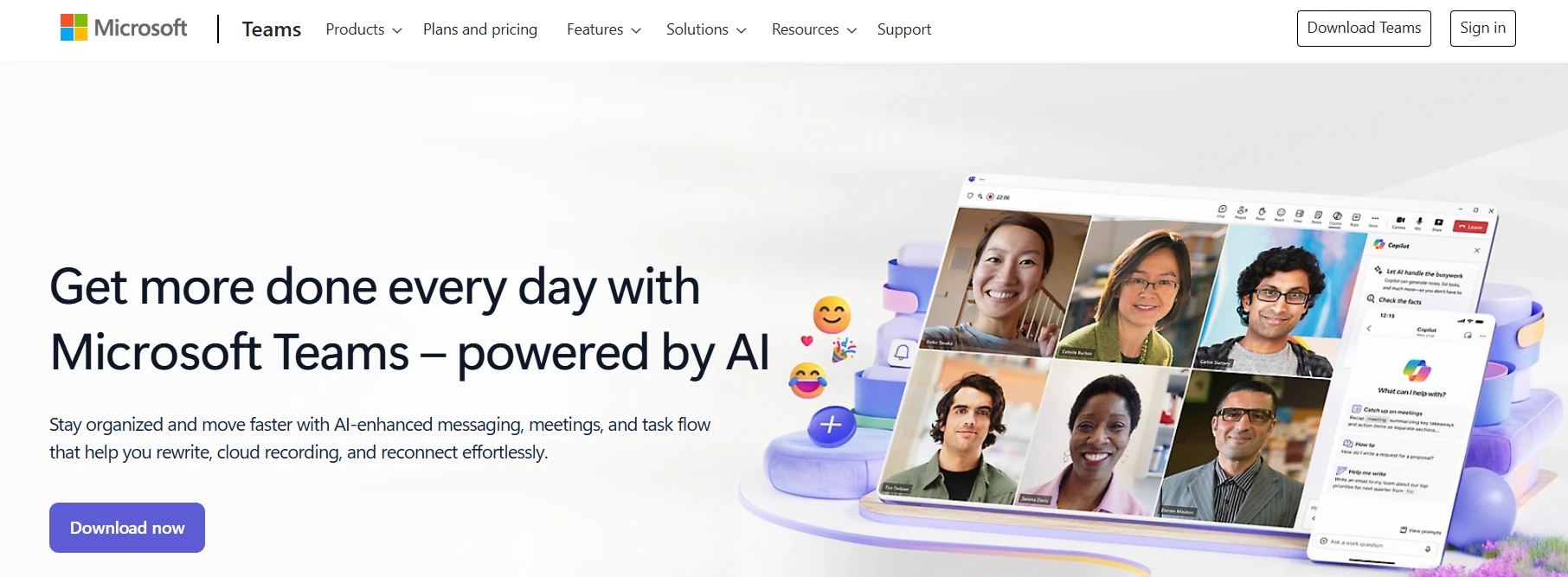
Why teams choose it: Microsoft Teams is positioned as a hub for teamwork within Microsoft 365, combining chat, meetings, file collaboration, and app integration inside the Microsoft ecosystem.
Key strengths
- Collaboration integrates natively with Microsoft 365 applications, which reduces friction for teams already using Word, Excel, and PowerPoint daily.
- Unified login and identity management simplify access control across the organization.
- Centralized administration allows IT teams to enforce security policies, compliance rules, and data retention standards.
- Built-in meeting functionality reduces the need for separate video conferencing systems in Microsoft-native environments.
- File sharing connects directly to SharePoint and OneDrive, which supports structured document management.
Trade-offs
- The full value is realized primarily inside a Microsoft 365 ecosystem.
- The interface can feel layered for smaller teams that do not need full enterprise controls.
Implementation expectations: Deployment often requires IT configuration, identity management setup, and governance planning before organization-wide rollout.
Pricing positioning: Typically bundled within Microsoft 365 enterprise subscriptions, making it cost-efficient for Microsoft-native organizations.
2. Google Workspace
Ideal team profile: Cloud-first organizations that prioritize real-time document collaboration and browser-based productivity across distributed teams.
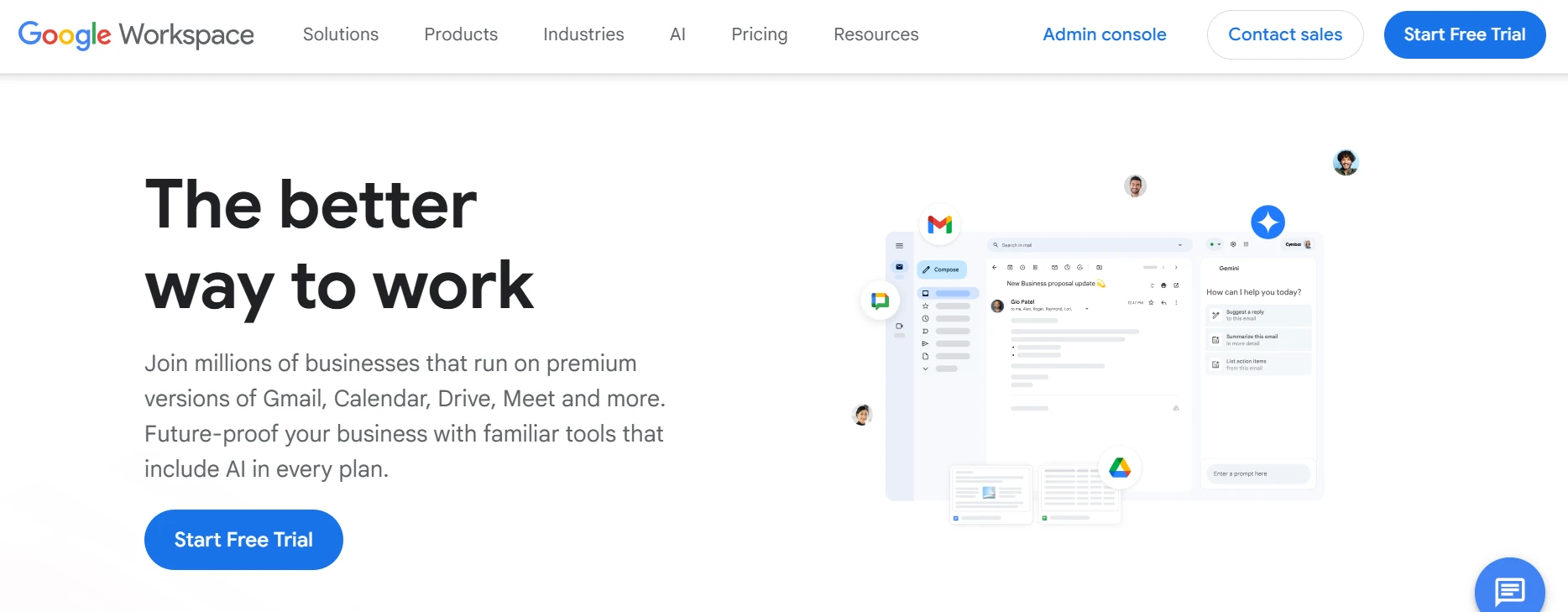
Why teams choose it: Google Workspace is frequently selected when teams require a cloud-based productivity suite combining Gmail, Drive, Docs, Sheets, Meet, and other collaboration services under one unified account.
Key strengths
- Multiple users can edit documents, spreadsheets, and presentations simultaneously with visible cursor tracking.
- Cloud-native architecture reduces dependency on local file storage and version conflicts.
- Unified login through Google accounts simplifies access management across services.
- Admin console allows centralized user management and security policy enforcement.
- Shared drives support structured file ownership at the team or department level.
Trade-offs
- Advanced workflow customization is limited compared to dedicated project management systems.
- Organizations heavily invested in Microsoft desktop software may face transitional friction.
Implementation expectations: Implementation is generally straightforward for cloud-first teams, though enterprise rollouts require admin policy configuration and data migration planning.
Pricing positioning: Operates on a subscription model with tiered plans based on storage, security controls, and enterprise features.
Microsoft Teams vs Google Workspace: Direct Comparison Summary
Choose Microsoft Teams if your organization is deeply integrated into the Microsoft ecosystem and requires centralized compliance, identity control, and structured governance.
Choose Google Workspace if your team prioritizes browser-based real-time document collaboration within a lightweight, cloud-first infrastructure.
Best Virtual Collaboration Tools for Document Collaboration & Knowledge Management
According to Atlassian’s State of Teams 2024 report, leaders and teams waste 25% of their time searching for answers. When knowledge is scattered across tools, productivity loss compounds quickly.
This category fits teams that collaborate primarily through written knowledge and structured docs to avoid such loss.
If decisions live in docs, SOPs, onboarding guides, meeting notes, and searchable internal pages, then online collaboration software needs to make knowledge easy to create, connect, and find.
1. Notion
Ideal team profile: Teams that want a shared workspace for internal documentation, wiki-style knowledge hubs, and connected project context.
Why teams choose it: Notion is often chosen when decision-makers want docs and knowledge to live alongside structured information, so context is not scattered across separate tools. Notion positions this as a “connected workspace” spanning wikis, docs, and projects.
Key strengths
- Teams can build a wiki-style knowledge hub that keeps documentation, standards, and team context in one place.
- Project context can sit alongside documentation, which reduces the back-and-forth between “where the plan lives” and “where the work is tracked.”
- Databases make it possible to structure internal information, such as tasks, meeting notes, and project briefs, so it stays searchable and organized.
Trade-offs
- Knowledge systems need ownership and structure, or they tend to sprawl as teams add more pages over time.
- Teams looking for advanced project controls may still prefer a dedicated project management tool for execution. (Notion supports projects, but many organizations still separate “knowledge hub” from “delivery system.”)
Implementation expectations: Adoption is smooth when you define a simple workspace architecture first (teams, key wikis, naming conventions). Once that skeleton exists, teams can scale documentation quickly with repeatable templates and database patterns.
Pricing positioning: Paid plans start at $10/mo for smaller teams with unlimited collaborative blocks and basic integrations.
2. Dropbox

Ideal team profile: Teams that collaborate through files and folders and need dependable sharing, access control, and recovery across internal and external stakeholders.
Why teams choose it: Dropbox is typically chosen when decision-makers want file sharing and storage reliability to be the core workflow, especially when working with partners or clients outside the organization.
Key strengths
- Files can be shared securely via links, and access can be controlled for who can view or edit shared content.
- Version history supports restoring previous file versions, which matters when teams iterate on important documents or creative assets.
- A free account is available for basic storage and sharing, which helps teams trial real workflows before committing.
Trade-offs
- File-first collaboration does not create a knowledge hub by itself, so teams often pair Dropbox with a documentation tool when “tribal knowledge” needs a home.
- Collaborative editing depends on the document tools your team already uses, since Dropbox’s core value is storage and sharing rather than being a doc editor.
Implementation expectations: Setup is straightforward, but long-term clarity improves when folder structure, access rules, and external-sharing norms are defined early.
Pricing positioning: Paid tiers start at $15/month for teams with expanded storage and stronger recovery and admin controls.
Notion vs Dropbox: Direct Comparison Summary
Choose Notion when you want structured internal knowledge collaboration where docs, wikis, and project context connect in one workspace.
Choose Dropbox when you want reliable file storage, secure sharing, and strong recovery workflows for file-based collaboration.
Best Virtual Collaboration Tools for Project Management & Task Tracking
This category is relevant when collaboration revolves around execution. If your team works against deadlines, manages cross-functional workflows, and depends on task visibility and ownership, then structured project management becomes central to performance.
These tools focus on planning, tracking, and reporting work. They are not communication-first or visual workshop platforms.
1. Asana

Ideal team profile: Teams that require structured task tracking, dependency management, and clear visibility into project timelines.
Why teams choose it: Asana positions itself as a work management platform that helps teams coordinate tasks, manage projects, and track goals in one shared system.
Key strengths
- Tasks can be organized into projects with multiple views, including list, board, timeline, and calendar formats.
- Task dependencies allow teams to define which work must be completed before other tasks begin.
- Timeline view provides visual visibility into how work fits together across deadlines.
- Reporting and dashboards allow teams to track progress and workload at a higher level.
- Goals can be connected to projects, helping teams align execution with company objectives.
Trade-offs
- The platform focuses on structured workflows and may feel rigid for teams seeking heavy customization.
- Teams that need document-centric collaboration may still rely on external tools.
Implementation expectations: Adoption typically involves defining project structures, task ownership norms, and workflow standards before scaling across departments.
Pricing positioning: A free plan is available for small teams. Advanced reporting, portfolio management, and enterprise controls require paid plans.
2. ClickUp
Ideal team profile: Teams seeking a customizable productivity environment that combines tasks, documentation, and tracking inside one system.
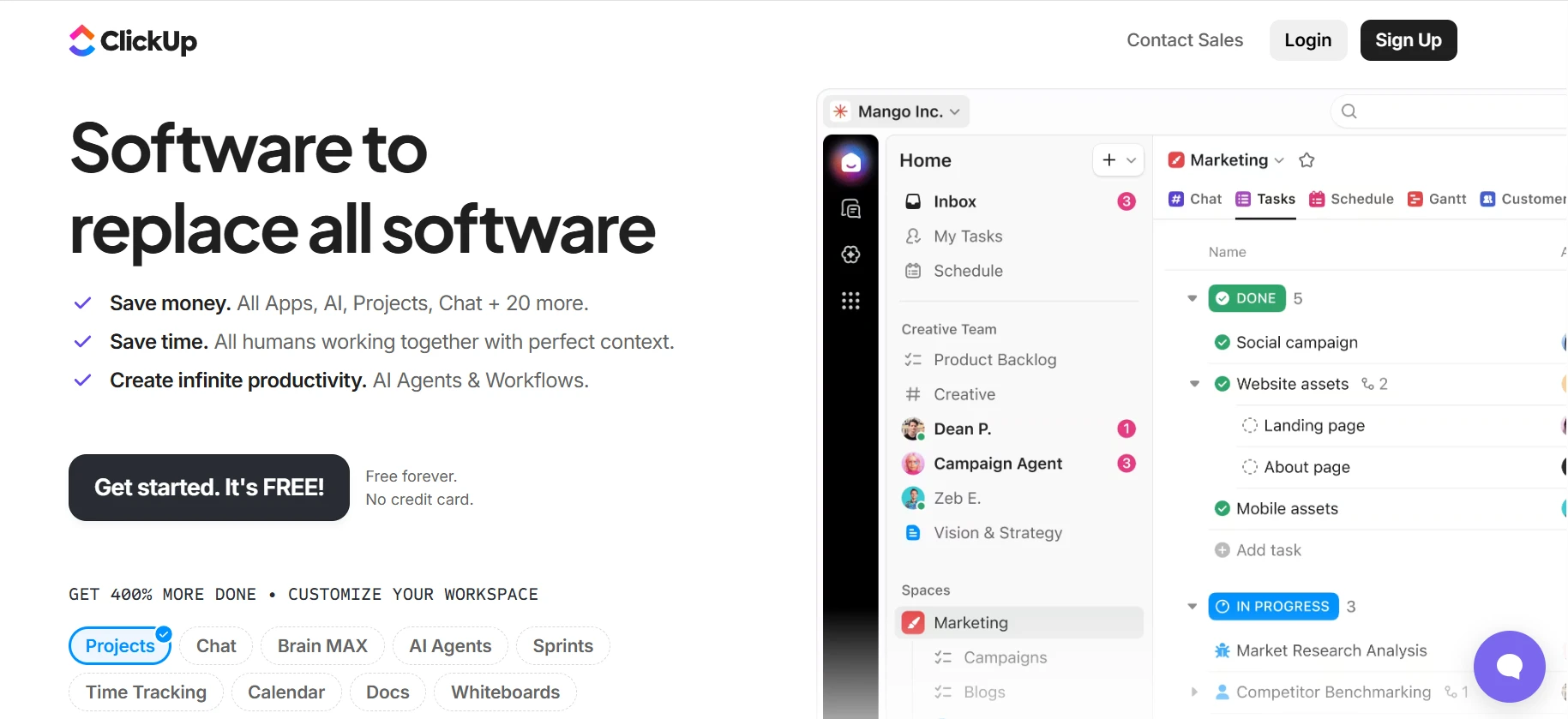
Why teams choose it: ClickUp presents itself as an all-in-one productivity platform that brings tasks, docs, goals, dashboards, and time tracking into a single workspace.
Key strengths
- Tasks can be organized with multiple views, including list, board, calendar, and Gantt-style timelines.
- Built-in Docs allow teams to create and collaborate on written content within the same environment as tasks.
- Goals and dashboards provide visibility into progress and performance metrics.
- Custom fields and workflow customization allow teams to tailor the system to different operational styles.
- Automation capabilities support repetitive workflow actions.
Trade-offs
- The breadth of customization options can introduce a learning curve during setup.
- Teams may need time to standardize workflows to prevent configuration sprawl.
Implementation expectations: Implementation often requires deliberate configuration decisions to avoid over-customization. Once structured, teams can centralize multiple workflows within the platform.
Pricing positioning: A free plan is available. Paid tiers expand storage, automation limits, reporting capabilities, and advanced administrative features.
Asana vs ClickUp: Direct Comparison Summary
Choose Asana if your priority is clean, structured workflow tracking with strong task dependency visibility and executive-level reporting clarity.
Choose ClickUp if your priority is customization and tool consolidation, bringing tasks, docs, goals, and dashboards into one configurable system.
Best Virtual Collaboration Tools for Creative & Design Teams
This category is relevant when collaboration happens visually and iteratively. Design reviews, wireframing sessions, user journey mapping, and workshop facilitation require tools built specifically for creative exploration. These are specialized environments for design and structured visual thinking.
1. FigJam
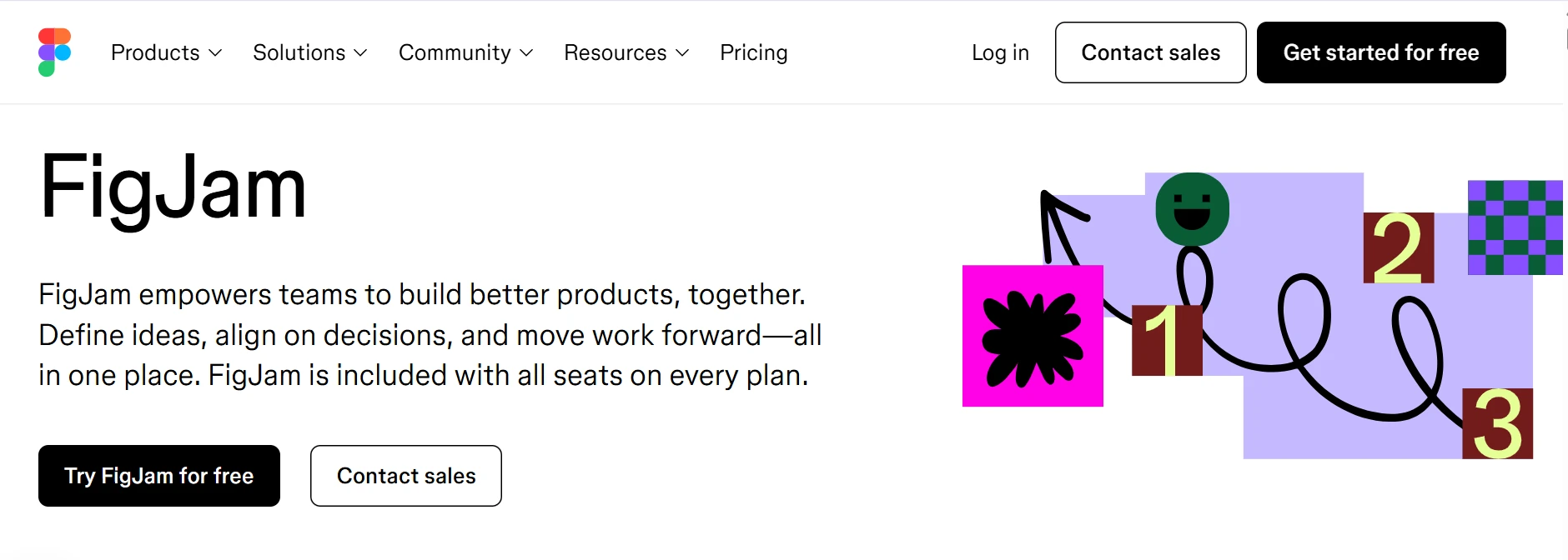
Ideal team profile: Product designers, UI/UX teams, and cross-functional product groups collaborating on interfaces, wireframes, and visual concepts.
Why teams choose it: Figma positions FigJam as an online whiteboard for teams to brainstorm, diagram, and collaborate visually, particularly alongside product design workflows inside Figma.
Key strengths
- Real-time multiplayer design collaboration allows multiple participants to contribute simultaneously on the same board.
- Built-in design ecosystem integration enables teams to move from ideation in FigJam to interface design in Figma without switching platforms.
- Interactive elements such as sticky notes, diagrams, and templates support structured brainstorming sessions.
- Cursor visibility and live collaboration features make feedback sessions more dynamic and transparent.
- Integration with the broader Figma environment supports design-to-delivery workflows.
Trade-offs
- The strongest value is realized within product and design teams already using Figma for interface design.
- It is not built for structured project tracking or enterprise-wide workflow management.
Implementation expectations: Adoption is straightforward for teams already in the Figma ecosystem. Broader organizational rollout may require alignment with existing collaboration tools.
Pricing positioning: A free tier is available. Advanced features and organizational controls are available through paid plans starting at $3/mo.
2. Mural
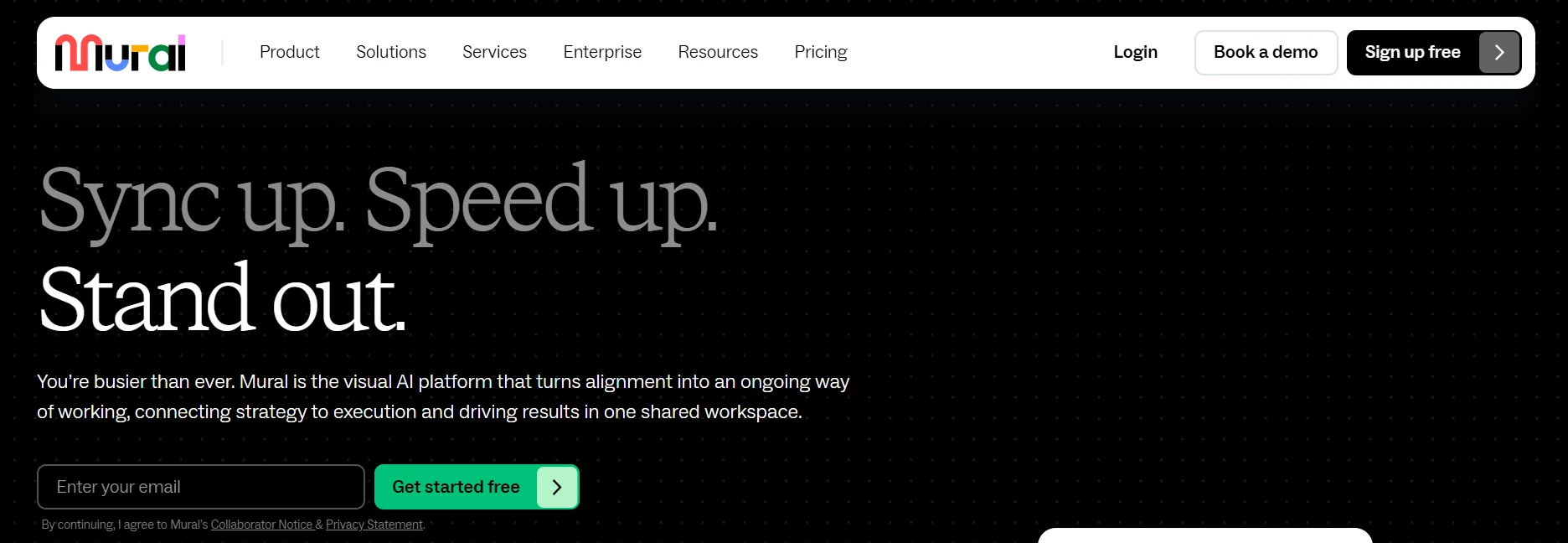
Ideal team profile: Enterprise teams running structured workshops, strategic planning sessions, and facilitated collaboration across departments.
Why teams choose it: Mural positions itself as a visual collaboration platform built to support facilitation, strategic workshops, and structured team alignment.
Key strengths
- The platform provides a shared digital workspace designed specifically for visual collaboration and facilitation.
- Templates and facilitation tools help teams run structured workshops rather than informal brainstorming sessions.
- Real-time collaboration allows distributed participants to contribute simultaneously.
- Enterprise-oriented controls support governance and structured deployment across larger organizations.
- Visual elements such as sticky notes, diagrams, and mapping tools support strategy discussions and ideation.
Trade-offs
- The tool is centered on visual facilitation rather than design prototyping or product interface collaboration.
- Organizations may still require separate tools for task management, document collaboration, or detailed design production.
Implementation expectations: Enterprise deployments may include facilitator training and governance alignment to ensure consistent usage across departments.
Pricing positioning: A limited free trial is available. Full collaboration features and enterprise controls require paid plans starting at $9.99/mo.
Figma vs Mural: Direct Comparison Summary
Choose FigJam if your primary focus is design collaboration and real-time interface ideation connected directly to product design workflows.
Choose Mural if your priority is structured visual facilitation for enterprise strategy sessions and cross-functional workshops.
As the listicle ends, one pattern becomes clear. Each category listed above solves a different layer of how teams work.
An industry analysis from TechRadar highlights that many organizations continue using Zoom alongside Microsoft Teams rather than fully replacing one with the other. This shows that relying on just one type of virtual collaboration tool rarely works in practice, and most teams combine complementary tools to create a stack that supports the full workflow end to end.
How to Choose the Best Virtual Collaboration Tool for Your Team
Choosing between virtual collaboration tools becomes easier when you evaluate them against your operational friction, not their feature list. This framework helps you filter options based on how your team actually works.
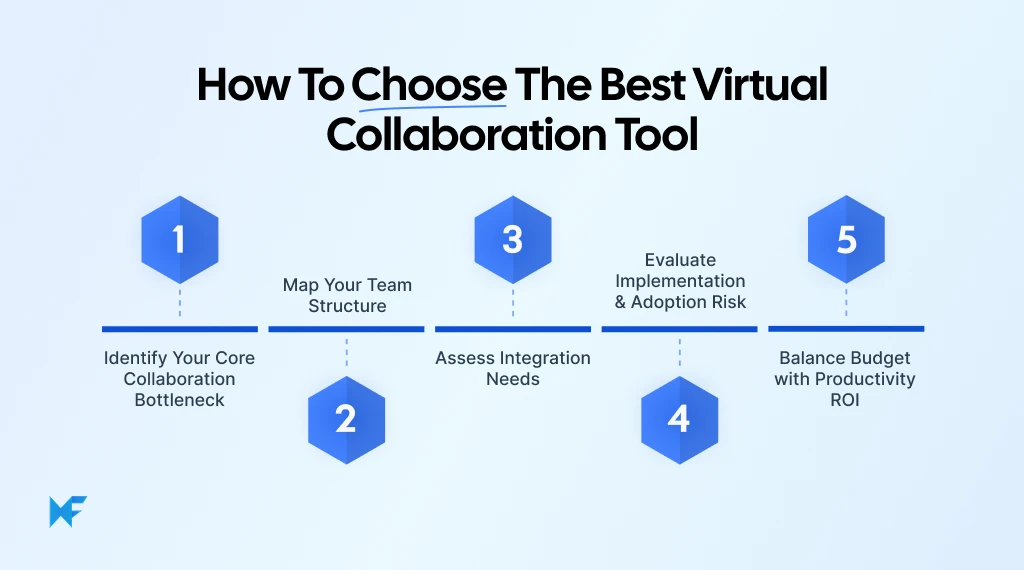
Step 1: Identify Your Core Collaboration Bottleneck
Start by isolating where work slows down.
- If conversations get lost or decisions stall, your issue is communication breakdown.
- If teams leave workshops with different interpretations, you have visual misalignment.
- If deadlines slip because ownership is unclear, you are dealing with task chaos.
- If knowledge lives in scattered documents and tribal memory, you are facing knowledge silos.
The right category of tool depends on which friction point costs you the most.
Step 2: Map Your Team Structure
Tool selection should reflect organizational structure.
- Startups often prioritize flexibility and speed.
- Enterprises prioritize governance and administrative control.
- Async teams require strong documentation and messaging clarity.
- Synchronous teams rely more on meetings and real-time collaboration.
- Technical teams may prefer configurable systems, while non-technical teams often prioritize intuitive interfaces.
A tool that fits one structure may create complexity in another.
Step 3: Assess Integration Needs
Most teams do not operate in a single-tool environment.
- Evaluate whether the tool integrates with your CRM.
- Confirm compatibility with development tools if you run product or engineering workflows.
- Check how it connects with your file systems and document platforms.
- Ensure it complements any whiteboarding or visual collaboration tools you already use.
Integration friction often determines long-term adoption success.
Step 4: Evaluate Implementation & Adoption Risk
Even strong tools fail when adoption is uneven.
- Consider how long setup will realistically take.
- Assess whether IT involvement is required for rollout.
- Evaluate how steep the onboarding curve will be for non-power users.
- Identify whether workflow customization will create configuration sprawl.
Ease of adoption often matters more than feature depth.
Step 5: Balance Budget with Productivity ROI
Cost evaluation should extend beyond subscription pricing.
- Review the limitations of free plans carefully.
- Compare per-user pricing against actual active usage.
- Calculate the hidden cost of tool overlap if multiple systems perform similar functions.
- Consider whether consolidation reduces administrative and training overhead.
Teams that periodically audit overlapping collaboration tools often uncover redundant features across messaging, task tracking, and documentation systems, which makes structured consolidation a practical way to reduce operational friction.
It has been observed that before committing to a paid tier, many teams deliberately run a short pilot using the free plan with real workflows instead of test scenarios, which reveals practical friction points around permissions, usage limits, and collaboration speed.
Price alone does not determine value. Reduced friction does. The best virtual collaboration tool is the one that reduces friction in how your team already works.
Selecting the Right Virtual Collaboration Stack
No single platform solves every collaboration need. Communication, documentation, task tracking, and visual planning often live in different systems. That’s why most teams build a collaboration stack rather than rely on one tool.
What’s frequently missing is visual alignment. Messaging tools handle conversation. Project platforms manage execution. But shared visual thinking often gets overlooked.
That’s where MockFlow IdeaBoard fits. It complements communication and task tools by adding structured, real-time visual collaboration to your workflow.
If you want to test how it fits your stack, you can start for free or install the Chrome extension and try it instantly on your browser.
FAQs about Virtual Collaboration Tools
1. What are virtual collaboration tools?
Virtual collaboration tools are software platforms that help teams communicate, share files, manage tasks, and collaborate in real time or asynchronously. They include chat apps, video platforms, document editors, project management systems, and virtual whiteboards. These tools centralize workflows for remote and hybrid teams.
2. What is the best online collaboration tool?
The best online collaboration tool depends on your workflow. Communication-heavy teams use chat and video tools. Task-driven teams rely on project platforms. Teams focused on planning and alignment benefit from structured visual tools like MockFlow IdeaBoard. Most teams use a combination of tools.
3. What are some virtual collaboration tools examples?
Examples include virtual whiteboards like MockFlow’s IdeaBoard, messaging platforms like Slack, video tools like Zoom, document collaboration tools like Google Workspace, and project management platforms like Asana. Teams often combine tools to support communication, planning, and execution across distributed environments.
4. Are there free virtual collaboration tools available?
Yes. Many collaboration tools offer free plans. MockFlow IdeaBoard provides a free plan with access to templates, up to three editable boards, and up to 100 AI credits. This supports real-time whiteboarding and structured brainstorming for small teams.
5. What are virtual collaboration tools for students?
Students use collaboration tools for group projects, research planning, and presentations. MockFlow IdeaBoard supports visual brainstorming and structured planning for academic work. Document and messaging tools help coordinate assignments.
6. What is the best virtual collaboration tool for remote teams?
Remote teams use chat and project tools for communication and execution. For workshops, brainstorming, and visual alignment, MockFlow IdeaBoard provides an infinite canvas, templates, and real-time editing. Many remote teams combine tools to improve clarity and productivity.

6 Best AI Storyboard Generators for 2026: Compare Features & Pricing
Introduction When the script is ready, but turning it into scenes, frames, camera directions, and visual flow takes time, teams...

10 Best Miro alternatives: Best Whiteboard Tools for 2025
Introduction: Looking for the Best Miro Alternatives? Few tools have changed the way teams brainstorm quite like Miro. For many...

Lucidchart Alternatives: Best Diagramming Tools for Teams in 2026
Lucidchart is a capable cloud-based diagramming platform. But many teams now look for its alternatives that offer more...
