Miro vs Visio: Side-by-Side Comparison of Features, Reviews & Pricing
Introduction
Every team has its own rhythm when it comes to visual collaboration. Some think best when ideas spread loosely across a canvas. Others prefer diagrams that follow a clean, repeatable structure. And in the middle of all this, the whiteboard has quietly become the place where projects take shape long before documentation or design tools come into the picture.
That’s why comparisons between tools like Miro vs Visio keep surfacing. It’s less about ticking feature boxes and more about choosing the kind of visual space your team feels comfortable in, whether that’s freeform exploration or a structured system for mapping workflows.
What we’ve seen is simple: when teams find the right visual environment, conversations move faster, decisions feel clearer, and ideas don’t get lost in translation. And while Miro and Visio represent two very different ends of that spectrum, they aren’t the only ways to collaborate visually.
Tools like MockFlow’s IdeaBoard, now sit alongside them, offering a more focused space for quick thinking without the complexity of full-scale platforms.
So, let’s look at how Miro and Visio actually differ as whiteboarding and diagramming environments, and what an alternative like IdeaBoard would offer to your team’s flow.
Let’s get started.
Miro vs Visio — Feature-by-Feature Comparison
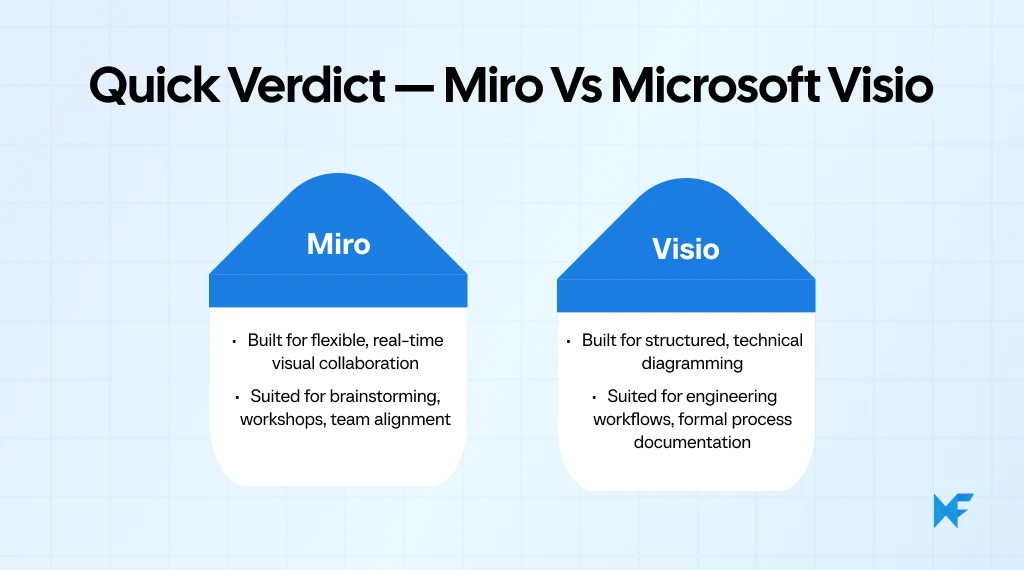
Miro vs Visio compares two leading tools for visual collaboration and diagramming.
Miro offers a flexible, cloud-based whiteboard for real-time teamwork. Visio delivers structured, technical diagramming for precise workflows. Miro supports brainstorming, mapping, and agile planning. Visio supports BPMN, network diagrams, and enterprise documentation. Miro fits teams that need intuitive collaboration. Visio fits teams that need controlled, standardized visuals.
This comparison helps users evaluate features, usability, integrations, pricing, and enterprise needs. Below is a quick table summarizing the core differences before we dive deeper into each category.
Quick Comparison Table: Miro vs Visio
Feature | Miro | Visio |
Canvas Experience | Infinite, flexible whiteboard | Structured, grid-aligned canvas |
Diagramming | Basic flows, mind maps, org charts | Advanced BPMN, network, engineering diagrams |
Collaboration | Real-time editing, facilitation tools | Co-authoring, comments; limited live collaboration |
Templates | Large collaborative template library | Technical, standards-based templates |
Integrations | Jira, Notion, Slack, Figma, Teams | Deep Microsoft 365, Excel, Power BI |
Pricing | Free plan; $8–16/user/month | $5–15/user/month; $309–$579 one-time licenses |
Enterprise Security | SOC 2, SSO/SCIM, admin controls | Microsoft 365 compliance & Azure AD |
Let’s get into the details of each feature for Microsoft Visio vs Miro and compare these online whiteboard and team collaboration software:
1. Canvas and Core Experience
The canvas shapes how naturally teams can explore ideas. Miro encourages open visual thinking, while Visio focuses on structured, precise diagramming.
Miro Features
- Infinite and zoom-friendly canvas built for real-time whiteboarding
- Multi-user collaboration with visible cursors
- Drag-and-drop stickies, shapes, connectors, and media
- Smooth navigation tools for grouping and reorganizing content
Visio Features
- Structured canvas optimized for technical and process diagrams
- Snap-to-grid alignment for consistent, accurate layouts
- Professional connectors and shape controls for formal diagramming
- Strong support for standardized visuals like flowcharts and network maps
Limitations to Note
Miro
- Less suited for highly formal or compliance-driven diagram standards
- Precision controls are lighter than Visio’s technical tooling
Visio
- Not ideal for freeform brainstorming or visual exploration
- Real-time collaboration is limited compared to Miro
2. Diagramming and Visual Structure
Diagramming defines how easily teams can map processes and systems. Miro supports general-purpose visual flows, while Visio focuses on standardized, technical diagram structures.
Miro Features
- Shape libraries for flowcharts, mind maps, org charts, and basic process diagrams
- Smart connectors that adapt when objects are moved
- Easy drag-and-drop interaction for quick visual mapping
- Good for non-technical diagrams where flexibility matters
Visio Features
- Extensive libraries for BPMN, network diagrams, engineering diagrams, and org charts
- Shape data and rules that help maintain diagram accuracy
- Auto-aligned connectors and advanced formatting controls
- Ideal for formal workflows that follow industry standards
Limitations to Note
Miro
- Does not support advanced technical standards like full BPMN or detailed engineering shapes
- Limited options for rule-based or compliance-ready diagrams
Visio
- Can feel rigid for creative or non-linear diagramming sessions
- More complex for users who only need simple visual flows
3. Collaboration and Facilitation Tools
Collaboration determines how smoothly teams can work together in real time. Miro is designed for interactive teamwork, while Visio supports more structured, asynchronous updates.
Miro Features
- Real-time multi-user editing with visible cursors
- Built-in facilitation tools such as timers, voting, and breakout-style organization
- Commenting and @mentions for asynchronous feedback
- Presentation mode for guided walkthroughs during workshops
Visio Features
- Co-authoring support within Microsoft 365 for shared file access
- Comments and annotations for reviewing diagrams
- Integrates with Microsoft Teams for sharing and basic collaboration
- Best suited for sequential updates rather than live group sessions
Limitations to Note
Miro
- Live collaboration features may feel excessive for teams that only need light editing
- Requires consistent internet connectivity for smooth multi-user interaction
Visio
- Limited real-time facilitation features compared to Miro
- Less suited for workshops or fast-paced collaborative activities
4. Templates and Starter Frameworks
Templates influence how quickly teams can begin working. Miro offers a broad set of collaborative templates, while Visio focuses on structured, industry-aligned diagram formats.
Miro Features
- Large template library covering workshops, flows, planning, and research
- Community templates contributed by users for varied use cases
- Quick-start boards for brainstorming, retrospectives, and team alignment
- Easy customization for teams that prefer flexible visual frameworks
Visio Features
- Technical templates for flowcharts, org charts, network diagrams, and BPMN
- Industry-standard structures that maintain formal diagram accuracy
- Predefined shapes and rules aligned with professional documentation needs
- Ideal for teams creating diagrams that follow specific compliance or modeling guidelines
Limitations to Note
Miro
- Templates may feel too open-ended for teams needing rigid standards
- Fewer options for highly technical or rule-based diagram formats
Visio
- Templates cater mostly to structured diagrams rather than creative workflows
- Less variety for workshops, ideation, or cross-functional collaboration sessions
5. Integrations and Workflow Ecosystem
Integrations determine how well each tool fits into existing workflows. Teams often prefer tools that integrate smoothly with their existing task and documentation systems because it helps keep diagrams connected to real work. A tool that doesn’t mirror updates or link cleanly into core platforms often leads to duplicated effort or version drift.
Miro supports a wide ecosystem across modern SaaS tools, while Visio aligns tightly with the Microsoft 365 environment.
Miro Features
- Integrates with Jira, Asana, Notion, Slack, Figma, and Google Workspace
- Deep Microsoft Teams integration for sharing and collaboration
- App Marketplace with connectors, widgets, and workflow add-ons
- API support for custom integrations within enterprise environments
Visio Features
- Seamless alignment with Microsoft 365, including Teams and OneDrive
- Excel data linking for generating data-driven diagrams
- Integration with Power BI for visualizing structured information
- Smooth file compatibility within the Microsoft ecosystem
Limitations to Note
Miro
- Some integrations require higher-tier plans
- May overlap with other SaaS tools, adding to app sprawl for Microsoft-heavy teams
Visio
- Limited integrations outside the Microsoft 365 suite
- Less flexible for teams using diverse non-Microsoft workflows
6. Pricing and Licensing
Pricing affects how easily teams can scale usage across departments. Miro offers a flexible plan structure, while Visio follows Microsoft’s subscription and license-based model.
Miro Pricing
- Free plan: $0 (unlimited members, up to 3 editable boards)
- Starter plan: around $8–10 per user/month, depending on billing/customization
- Business plan: $16 per user/month, billed annually
- Enterprise: Custom pricing
Visio Pricing
- Free plan with Microsoft 365
- Visio Plan 1: $5 per user/month for web-based version.
- Visio Plan 2: $15 per user/month for full web + desktop version.
- Visio Standard 2024 (one-time purchase): $309.99 (US market)
- Visio Professional 2024 (one-time purchase): around $579.99 (US market) for the desktop version.
Limitations to Note
Miro
- Advanced features and larger collaboration needs often require paid tiers
- Costs may increase quickly for large organizations with many active users
Visio
- No free tier, which limits accessibility for small teams
- Licensing can feel restrictive for organizations with mixed tool environments
7. Enterprise Readiness and Security
Enterprise readiness determines how well each tool fits into large, security-focused environments. Mordor Intelligence notes that large enterprises still account for nearly 59% of collaborative whiteboard spending, while SMB adoption is expanding fastest at over 21% CAGR.
Miro offers strong collaboration governance, while Visio benefits from Microsoft’s established compliance framework.
Miro Features
- Enterprise-grade SSO and SCIM provisioning for identity management
- SOC 2 Type II compliance and enterprise admin controls
- Data governance options including content permissions, domain control, and advanced user management
- Integrates with major enterprise systems like Azure AD and Okta
Visio Features
- Inherits Microsoft 365’s security, compliance, and governance capabilities
- Azure Active Directory support for identity and access control
- Data security backed by Microsoft’s enterprise cloud infrastructure
- Advanced compliance options suited for organizations already standardized on Microsoft 365
Limitations to Note
Miro
- Some governance and compliance features are limited to higher enterprise tiers
- May require additional configuration for companies fully aligned with Microsoft 365 standards
Visio
- Security and governance benefits rely heavily on the larger Microsoft 365 ecosystem
- Limited collaborative oversight features compared to Miro’s admin-focused tools
8. Real-World Feedback: Reviews & Ratings
User reviews provide a practical perspective on how Miro and Microsoft Visio perform in actual workflows, beyond feature lists.
Miro
- What users like: Reviewers on G2 report a rating of 4.7/5 for Miro. They highlight Miro’s flexibility, large template library, and strong support for real-time collaboration.
- Where users struggle: Some users mention that boards can become cluttered or overwhelming when many participants contribute simultaneously, which reduces clarity or control.
- Additional limitation: A recurring theme is that advanced features or managing very large, complex boards may require a learning curve or better performance.
Visio
- What users like: According to G2 review summaries, Visio receives praise for ease of use and the ability to create complex diagrams: “creating network diagrams easily with up to date objects.”
- Where users struggle: Users report limitations in modern collaborative features like cloud capabilities.
- Additional limitation: Several reviews point to a learning curve or outdated interface compared to newer diagramming tools, and cost being a drawback.
How to Choose Between Miro and Visio
Choosing between Miro vs Visio depends on the type of work your team does and the level of structure your diagrams require. Miro fits collaborative visual thinking, while Visio is better suited for precise, standardized diagrams. The framework below helps teams decide based on workflows, roles, and collaboration needs.
Decision Table
Team Type | Choose Miro When… | Choose Visio When… |
Product Teams | You need brainstorming, sprint planning, feature mapping, or team alignment sessions | You need process diagrams or specifications that must follow formal documentation standards |
UX and Design Teams | Workshops, journey maps, research walls, and early-stage flows where flexibility matters | You require formal UX diagrams inside a Microsoft 365 environment |
Cross-Functional Teams | High collaboration, async planning, and visually connecting ideas across teams | Collaboration needs are minimal and diagrams must stay clean, structured, and consistent |
Facilitators / Educators | Live workshops, interactive sessions, sticky-note boards, and co-creation | You rarely run visual workshops and mostly need static diagrams |
IT and Engineering Teams | Light workflow mapping or non-technical visual explanations | You create network diagrams, UML, BPMN, or system-level documentation |
When selecting a whiteboarding or diagramming tool, many teams prioritize how quickly new users can get productive. A tool with a steep initial learning curve often slows adoption, especially in cross-functional environments where not everyone uses the canvas daily.
Deloitte’s Productivity+ research found that 68% of employees believe better digital experiences could significantly improve their productivity, making this choice more than just a tooling preference. So, the decision of choosing the best diagramming software and visual design tool should be made as per your team’s needs and requirements to improve productivity.
Also read → The top 8 Mural alternatives for remote teams | 8 best FigJam alternatives for design collaboration
Try MockFlow IdeaBoard — An Alternative to Miro and Visio
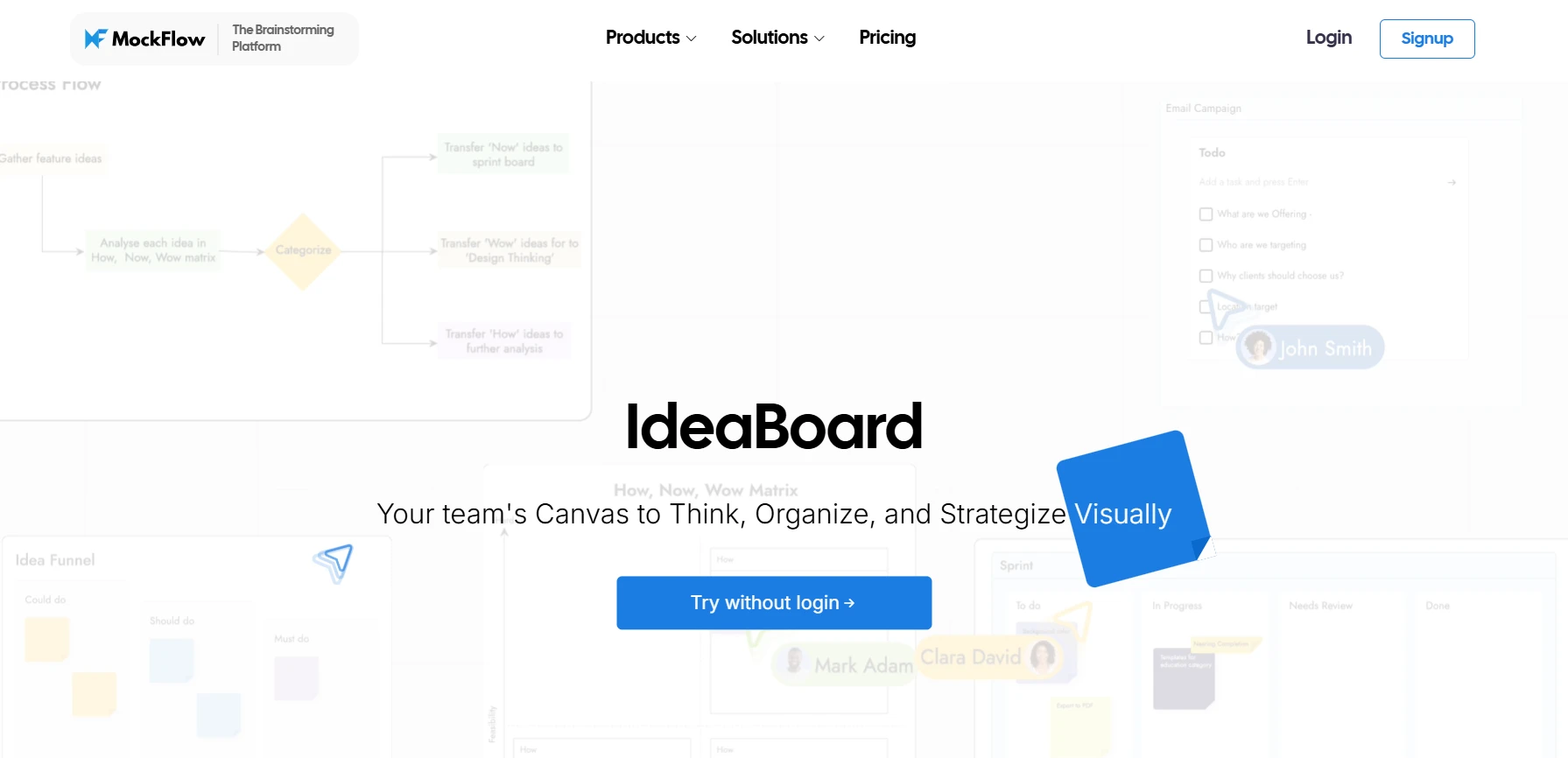
Some teams do not need the complexity of Miro or the technical structure of Visio. They only need a clean canvas for brainstorming, sticky notes, drawing, and quick collaboration.
MockFlow IdeaBoard is the whiteboarding tool of the MockFlow platform, designed to give teams a fast, minimal, and distraction-free space for visual collaboration. Unlike heavier platforms, IdeaBoard focuses on simplicity, offering a fast and focused whiteboarding experience that supports quick ideation without unnecessary complexities. This makes IdeaBoard one of the best choices for teams looking for good Miro alternatives or Visio alternatives.
IdeaBoard Basic Features
- Infinite whiteboard space that feels responsive, even when boards grow with more ideas or visual elements
- Real-time and async collaboration, allowing teammates to join, leave, and contribute without friction
- A basic toolkit with sticky notes, shapes, text blocks, connectors, and drawing tools that work smoothly on desktop and tablet
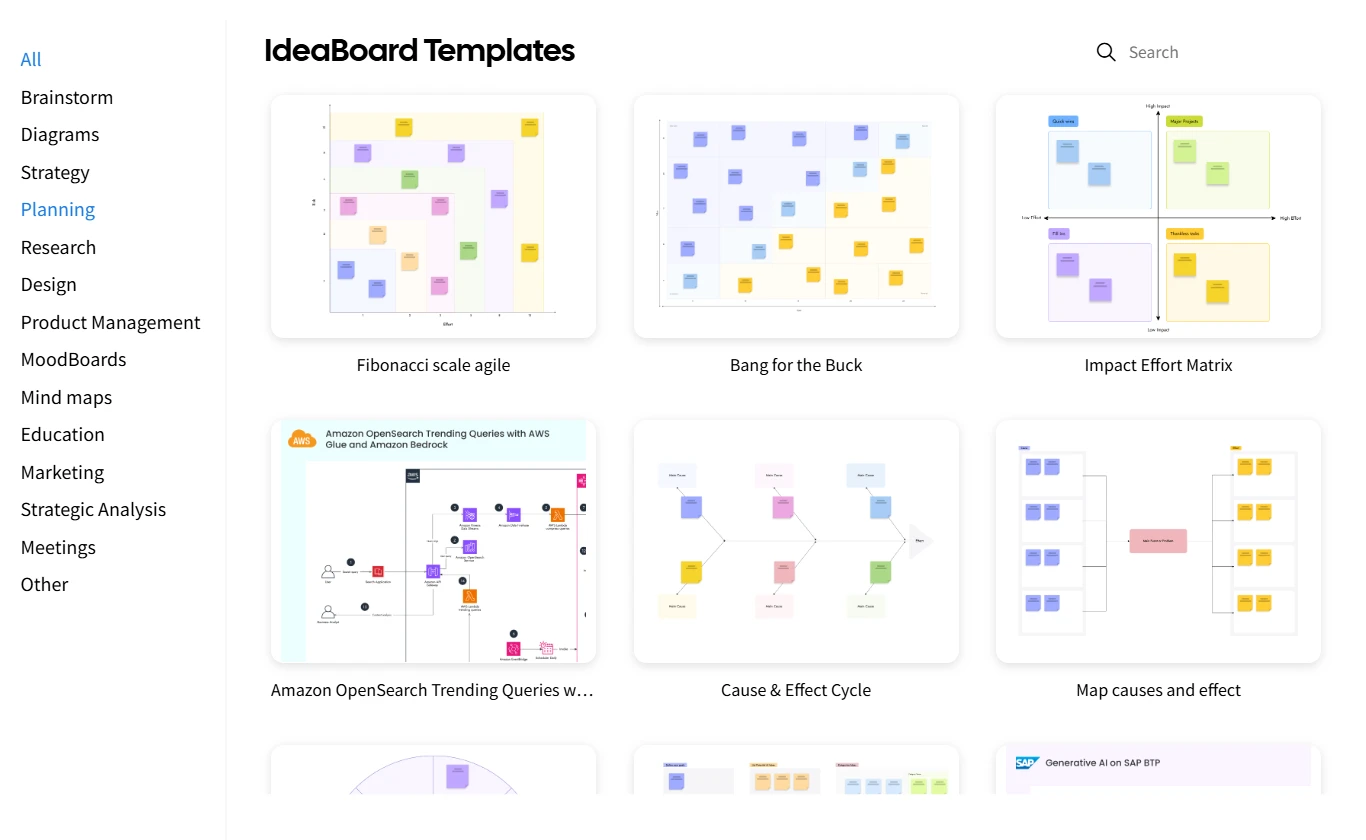
- Built-in templates for common brainstorming activities such as ideation grids, mind maps, and feedback walls, helping teams start faster
- Clean UI that keeps focus on the content rather than menus or complex settings
Advanced Capabilities
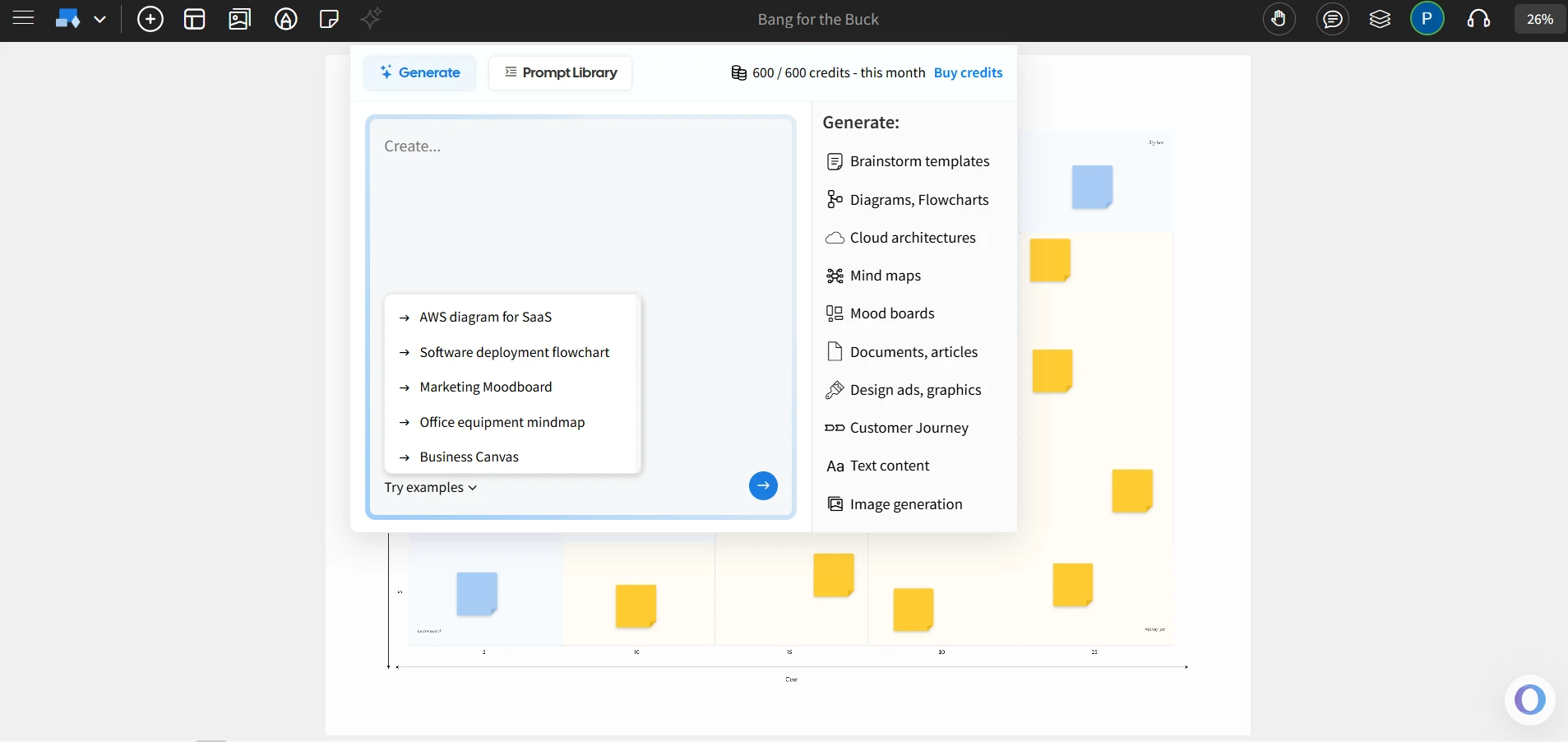
- AI Toolbox that generates brainstorm ideas, initial frameworks, and layout suggestions with one click.
- Non-linear presentations where sections of the board can be linked and navigated interactively, enabling free-flowing storytelling during meetings.
- AI Diagramming that generates architecture diagrams, UML flows, and other structured visuals from a simple text prompt, automatically applying relevant icons and layout patterns
- Offline mode that allows teams to work without the internet, making it reliable during workshops, travel, or low-connectivity environments.
- Multimedia commenting, including voice and video notes, that adds richer context to feedback and discussions.
- Flexible export options such as PDF, PNG, and section-based export, making it easy to share or archive work in any format.
- Trello embedded whiteboards for teams that manage tasks inside Trello and want quick visual spaces within their workflow.
Who IdeaBoard Is Ideal For
- Startups and small teams that want a fast, no-setup whiteboard to sketch ideas, plan features, or align on early concepts.
- Educators, facilitators, and trainers who need simple tools for classroom sessions, workshops, quick discussions, or interactive teaching moments.
This aligns with Mordor Intelligence findings that education contributes more than 30% of collaborative whiteboard spend. To support this, IdeaBoard offers a 50% discount for educators and institutions.
- Agencies and consultants who require seamless brainstorming spaces for client sessions, visual briefs, and project kickoffs.
- Remote and hybrid teams that appreciate tools which load quickly, work in the browser, and keep everyone focused without complexity.
- Non-technical collaborators, including marketing and content teams, who benefit from intuitive whiteboarding without needing onboarding or training.
- Teams looking for cost-effective alternative to Miro and Visio; offers a free plan and pricing starts at $5/user/month.
- Teams overwhelmed by Miro’s depth or Visio’s rigidity, and prefer a minimal, distraction-free workspace.
A Dataintelo report highlights that online whiteboards are now core to both virtual classrooms and remote corporate collaboration, two of the strongest demand drivers in this category. It estimates the online whiteboard software category is projected to reach about $4.8 billion by 2032 at a 13.5% CAGR. This means having visual collaboration tools in their stack is a must-have for teams now.
IdeaBoard offers a clean canvas for brainstorming, sticky notes, drawing, and quick collaboration, all with a minimal interface and almost zero learning curve. Teams can start using IdeaBoard with the free plan or add the Chrome extension for instant browser access.
IdeaBoard vs Miro vs Visio — Side-by-Side Comparison
This comparison highlights how IdeaBoard differs from Miro and Visio in simplicity, learning curve, collaboration depth, and technical capabilities. It helps teams understand where each tool fits based on their visual workflow needs.
Tool | Key Strengths | Considerations |
MockFlow IdeaBoard | Offline whiteboarding, AI Diagramming, Shapes & icons library, minimal UI | Best for simple, fast ideation, brainstorming and diagramming without complex workflows |
Miro | Large template library, deep integrations, real-time collaboration, Smart Meetings | Can feel heavy for small teams or basic brainstorming |
Microsoft Visio | Structured diagramming, technical shape libraries, Microsoft 365 alignment | Not suitable for open-ended ideation or interactive workshops |
A clear comparison like this makes it easier to see where each tool stands among today’s leading diagramming tools. With their strengths and limitations side by side, teams can quickly assess which platform best supports their visual collaboration and workflow needs. Let’s wrap up with the key takeaways.
Conclusion
When we compare Miro vs Visio, the choice often comes down to how our teams work. Miro is a strong fit for flexible collaboration, workshops, and shared visual thinking. Visio is better suited for technical diagrams, structured processes, and Microsoft-aligned environments. Both tools serve different purposes, and many teams use each one at different stages of a project.
For fast brainstorming sessions, seamless planning, or simple boards, IdeaBoard offers a clean alternative without the complexity of larger platforms. If your team values speed, focus, and easy access, you can sign up for IdeaBoard and try it for free or directly use it in your browser through the IdeaBoard Chrome extension.
FAQs About Miro vs Visio
1. What is the difference between Miro and Visio?
Miro vs Visio compares two different approaches to visual work. Miro provides a flexible, real-time whiteboard built for collaboration, brainstorming, workshops, and agile planning. Visio provides a structured diagramming environment designed for precise workflows, technical diagrams, and standardized documentation. Teams choose Miro for creativity and co-creation, while teams choose Visio for accuracy and formal diagrams.
2. Which is better for flowcharts: Miro or Visio?
Miro works well for simple flowcharts created during brainstorming or team sessions. Visio is better for detailed flowcharts that require standardized shapes, compliance-driven diagrams, or engineering-level precision. The right choice depends on whether the team prioritizes collaboration or structured accuracy.
3. Is Miro a replacement for Microsoft Visio?
Miro is not a full replacement for Visio. Miro excels in workshops, ideation, mind maps, and visual planning. Visio excels in BPMN diagrams, network diagrams, UML, ERD, and formal process documentation. Teams with both collaborative and technical workflows often use the two tools together.
4. How does Miro’s real-time collaboration compare to Visio?
Miro offers strong real-time collaboration with shared cursors, multi-user editing, facilitation tools, timers, voting, and live workshops. Visio supports basic co-authoring but is primarily built for asynchronous diagram updates. Miro suits hybrid and remote teams that collaborate frequently.
5. Is MockFlow IdeaBoard suitable for both quick brainstorming and structured planning?
Yes. IdeaBoard is designed primarily for fast brainstorming using sticky notes, shapes, and drawing tools, but it also supports structured planning through built-in templates such as mind maps, grids, flows, and research boards. It offers a simple way to organize ideas without requiring the complexity of full-scale diagramming tools.
6. Does MockFlow IdeaBoard support offline whiteboarding and AI features?
Yes. IdeaBoard includes an offline mode through its desktop app, allowing teams to create and edit boards without internet connectivity. It also offers an AI Toolbox that helps with brainstorming, diagramming, layout suggestions, and quick ideation, making sessions faster and more productive.

8 SaaS Website Design Trends to Watch in 2026
Introduction If your SaaS website is due for a refresh, the hardest part is often knowing which design ideas are worth...

The UI Design Process: 9 Steps to Build Better Interfaces
Think back to your earliest experiences with a digital interface. Can you recall that pivotal moment when you first engaged with...

Round Robin Brainstorming: Steps, Benefits, and Use Cases
Introduction Brainstorming sessions that don't lead to clear, actionable ideas typically have a structure problem, not a lack of...
