Mural vs Microsoft Whiteboard: Which Visual Tool Fits Your Team?
Mural and Microsoft Whiteboard both give teams a shared digital canvas, but they are built for different collaboration needs. Teams comparing them will notice that Mural focuses more on structured workshops, facilitation, visual methods, and external participation. Microsoft Whiteboard is designed for accessible whiteboarding within Microsoft Teams and Microsoft 365.
This comparison covers ease of use, templates, workshop tools, collaboration, AI, integrations, security, support, pricing, and user feedback. By the end, you will have a clearer view of how Microsoft Whiteboard vs Mural compare and which platform fits their team’s workflow.
Mural vs Microsoft Whiteboard at a Glance
Mural is generally better for structured workshops, design thinking, advanced facilitation, and collaboration with external participants. Microsoft Whiteboard is better for quick brainstorming when your organization already works mainly in Microsoft Teams and Microsoft 365.
The Capterra ratings show us that the two tools are closely matched. Mural holds a 4.5 rating with 126 positive reviews, while Microsoft Whiteboard holds a 4.4 rating with 141 positive reviews. Both score 4.4 for ease of use, which suggests that the buying decision depends more on collaboration depth and ecosystem fit than basic usability.
The table below highlights the differences most likely to affect the buying decision.
Comparison Area | Mural | Microsoft Whiteboard |
Best suited for | Structured workshops and visual collaboration | Quick whiteboarding inside Microsoft 365 |
Ease of access | Separate platform and workspace | Familiar to Microsoft users |
Templates | Extensive workshop and visual-method templates | Templates for meetings, planning, and brainstorming |
Facilitation | Advanced facilitator controls | Suitable for lighter sessions |
Microsoft Teams | Integrated | Native |
External collaboration | Detailed guest and visitor controls | More dependent on Microsoft identities and tenant settings |
AI | Mural AI and Microsoft integrations | Copilot in eligible environments |
Integrations | Microsoft and non-Microsoft tools | Strongest inside Microsoft 365 |
Pricing model | Dedicated whiteboard plans | Usually connected to Microsoft licensing |
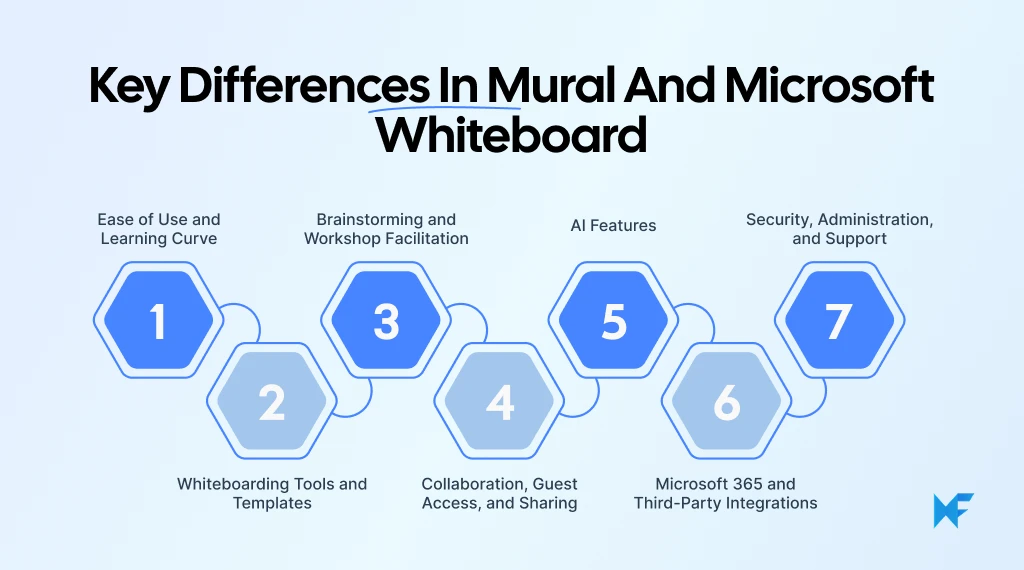
Key Differences Between Mural and Microsoft Whiteboard
The right digital whiteboard should support how your team prepares sessions, involves participants, and follows up afterward. The comparison below focuses on the factors that affect adoption and everyday use. Teams still defining their requirements can also review this guide to whiteboarding tools.
1. Ease of Use and Learning Curve
Users are interrupted every two minutes, and 48% describe work as chaotic and fragmented, according to Microsoft’s 2025 Work Trend Index. An easy-to-use platform helps teams start faster and spend more of the session contributing ideas instead of learning controls. Microsoft Whiteboard may feel more familiar to Microsoft 365 users, while Mural requires more orientation but offers stronger facilitation controls.
- Practical scenario: An internal team can begin an informal discussion faster in Microsoft Whiteboard. A facilitator preparing a full-day planning session may find Mural easier to manage after the board is set up.
- Verdict: Microsoft Whiteboard for quick adoption; Mural for teams prepared to learn a structured workshop platform.
Related Read: Top 8 Microsoft Whiteboard Alternatives for Remote Work & Collaboration
2. Whiteboarding Tools and Templates
Both platforms provide an infinite canvas, sticky notes, text, shapes, images, drawing tools, and templates. Microsoft Whiteboard is well-suited to pen input, touchscreen collaboration, and quick sketching during meetings. It also supports common templates for brainstorming, planning, and team discussions.
Mural provides a more structured visual workspace with templates for strategy, research, customer journey mapping, planning, and design thinking. Teams can also reuse visual content across sessions. The collection of visual collaboration templates shows how different layouts can support workshops, diagrams, and planning exercises.
- Practical scenario: Microsoft Whiteboard works well for sketching a process during a Teams call. Mural is better suited to preparing a multi-stage customer journey workshop with several activities.
- Verdict: Microsoft Whiteboard for quick inking and informal sketching; Mural for structured visual work.
3. Brainstorming and Workshop Facilitation
Facilitation tools matter when a session must move from idea generation to a clear decision. Mural supports this process with timers, anonymous voting, private contribution, hidden content, participant guidance, and controls that help facilitators move the group between activities.
Microsoft Whiteboard supports brainstorming through sticky notes, templates, reactions, collaborative cursors, and real-time editing. Copilot can also help categorize ideas and summarize board content for eligible users. The best results still depend on choosing a brainstorming approach that matches the session goal.
- Practical scenario: In Mural, a facilitator can collect ideas privately, reveal them, group similar notes, run a vote, and confirm priorities. In Microsoft Whiteboard, the team can contribute notes, arrange themes, react to options, and use Copilot to summarize the discussion.
- Verdict: Mural for complex, facilitator-led workshops; Microsoft Whiteboard for straightforward brainstorming.
4. Collaboration, Guest Access, and Sharing
Microsoft Whiteboard is convenient for internal collaboration through Teams meetings, chats, and channels. Team members can return to boards after a meeting, while owners can control whether others can view or edit. External access is more dependent on Microsoft identities, tenant policies, and guest settings.
Mural separates participation into members, guests, and visitors, making it easier to manage temporary attendees and ongoing external collaborators. Workshop facilitators also recommend using Mural to mirror physical workshop content so remote participants can follow the same ideas, making shared visibility as important as editing access in hybrid sessions.
- Practical scenario: Microsoft Whiteboard fits an internal planning session where everyone already belongs to the same Microsoft environment. Mural is usually easier to manage when clients, consultants, and external stakeholders need continued access.
- Verdict: Microsoft Whiteboard for internal Microsoft-based collaboration; Mural for external and multi-stakeholder sessions.
5. AI Features
AI features can reduce the time teams spend generating ideas, grouping notes, and summarizing sessions, with Atlassian’s 2025 AI Collaboration Index reporting 33% higher productivity among AI users.
Mural AI supports idea generation, mind-map creation, note clustering, classification, and content summaries. Availability depends on the selected Mural plan, so teams should confirm which AI functions are included before purchasing.
Copilot inside Microsoft Whiteboard can generate ideas, organize notes into themes, and summarize board content. Access depends on eligible Microsoft licensing and tenant settings. These Whiteboard functions should be assessed separately from the broader Copilot experience across Teams, Word, Outlook, and other Microsoft 365 applications.
- Practical scenario: Both platforms can generate starting ideas, group related notes, identify themes, and summarize a product discovery session. Mural also supports AI-assisted mind mapping, while Microsoft Whiteboard connects more closely with a wider Microsoft 365 Copilot workflow.
- Verdict: The better option depends on the required AI workflow and the licenses your team already holds.
6. Microsoft 365 and Third-Party Integrations
Microsoft Whiteboard is native to the Microsoft ecosystem. Teams can open boards directly within Microsoft Teams, while board storage and administration connect with the organization’s Microsoft environment. This reduces friction for teams working mainly in Teams, Outlook, Office, and OneDrive.
Mural integrates with Microsoft products and also supports platforms such as Jira, Zoom, Figma, Adobe Creative Cloud, Slack, and Asana. This broader integration range can be useful when collaborative work moves between several project, meeting, and design tools.
- Practical scenario: Microsoft Whiteboard suits an organization that conducts most of its work within Microsoft 365. Mural may fit a consultancy that moves regularly between Teams, Zoom, Jira, and Figma.
- Verdict: Microsoft Whiteboard for a Microsoft-first workflow; Mural for a mixed software environment.
Also Read: 8 Best Mural Alternatives for Whiteboarding and Remote Teams
7. Security, Administration, and Support
Microsoft Whiteboard operates within the organization’s existing Microsoft identity and administration environment. Administrators can control access, sharing, and privacy through familiar tenant settings. Boards stored in OneDrive also connect with Microsoft’s existing audit and file-management processes.
Mural offers administration specifically designed for visual collaboration. Depending on the plan, this can include single sign-on, user provisioning, guest governance, audit logs, access controls, data-residency options, onboarding, training, and customer success support.
- Practical scenario: A small team may only need Microsoft’s existing documentation and administration controls. An enterprise rolling out a common workshop platform across departments may benefit from Mural’s dedicated onboarding and governance support.
- Verdict: Microsoft Whiteboard when existing Microsoft administration is the priority; Mural when dedicated visual-collaboration support is required.
How Do Mural and Microsoft Whiteboard Pricing Compare?
Mural pricing follows a dedicated per-member subscription model. Its Mural free plan includes unlimited members, three editable murals, and view-only visitor access. Mural’s Team+ plan costs $12 USD per member per month when billed monthly. Annual billing reduces the rate to $9.99 USD per member per month.
Microsoft Whiteboard pricing works differently because the product is usually accessed through a free Microsoft account or an existing Microsoft 365 environment.
This makes the answer to “is Microsoft Whiteboard free?” dependent on the required features, business setup, and tenant configuration. Copilot in Whiteboard requires an eligible Microsoft 365 Copilot license, which is purchased as an add-on to a qualifying subscription.
The table below shows how the two commercial models affect the overall buying decision.
Pricing Factor | Mural | Microsoft Whiteboard |
Free access | Free plan with limitations | Available in supported Microsoft account contexts |
Paid model | Dedicated per-member plans | Connected to Microsoft licensing |
External collaborators | Depends on guest and visitor rules | Depends on Microsoft identity and tenant setup |
AI | Depends on the Mural plan | Copilot may require an additional license |
Enterprise support | Available on higher plans | Connected to Microsoft support arrangements |
The total cost should account for:
- Existing Microsoft 365 licenses and any Copilot add-ons
- The number of core Mural members who need paid seats
- Guest, visitor, and external collaborator requirements
- Training and facilitator onboarding
- Administration, security configuration, and implementation
For teams already licensed for Microsoft 365, Microsoft Whiteboard may add little immediate cost. Mural requires a separate budget, but that cost supports a more dedicated visual collaboration and facilitation environment.
A Third Option Worth Considering: IdeaBoard
Teams may need another option when they want AI-generated visual structures, product design components, multimedia feedback, and local board control. MockFlow IdeaBoard is an AI-powered workspace for brainstorming, diagramming, planning, and product design collaboration, with an interface designed for quick visual work.
IdeaBoard can also work inside Microsoft Teams as a persistent channel board or a live meeting canvas. Teams can generate and restructure visuals while discussing them, then share visual snapshots in channels for colleagues working asynchronously.
Here’s a walkthrough of how to integrate IdeaBoard into Teams:
What IdeaBoard brings to your team’s workflow:
- Faster session setup: AI-assisted brainstorming layouts turn plain-language prompts into structured boards, helping teams start contributing sooner.
- Quicker visual organization: AI-powered format conversion transforms rough lists into mind maps or flowcharts, reducing manual restructuring.
- Product-focused planning: Dedicated components for customer journeys, Kanban boards, mood boards, and storyboards help teams develop ideas in the right visual format.
- Live team alignment: Real-time multiplayer editing lets participants contribute and refine the same board together, keeping planning sessions active and coordinated.
- Richer asynchronous feedback: Voice and video comments add context directly to visual elements, reducing lengthy follow-up explanations.
- Greater control and flexibility: Offline whiteboarding and editable local board files support work without constant connectivity or cloud-only storage.
Try IdeaBoard today to see how these capabilities fit your team’s brainstorming, planning, and visual collaboration workflow.
Mural, Microsoft Whiteboard, or IdeaBoard: Which Fits Each Use Case?
Mural, Microsoft Whiteboard, and IdeaBoard overlap across brainstorming, planning, and visual collaboration. The better fit depends on your main use case, existing software environment, and the way participants contribute during and after a session.
Use Case | Recommended Tools | Why |
Structured workshops and design thinking | Mural and IdeaBoard | Mural offers deeper facilitation controls. IdeaBoard supports customer journey maps, mood boards, storyboards, and AI-assisted visual creation. |
Quick brainstorming during meetings | Microsoft Whiteboard and IdeaBoard | Both support lightweight ideation. IdeaBoard can open as a live Teams meeting canvas and generate visual structures during the conversation. |
External client collaboration | Mural and IdeaBoard | Mural supports managed guest participation. IdeaBoard can support shared client workshops and reusable visual engagement boards. |
AI-assisted brainstorming and visual creation | IdeaBoard and Mural | Both offer AI support. IdeaBoard can generate layouts and convert content between visual formats. |
Product design and visual planning | IdeaBoard and Mural | Both support visual planning. IdeaBoard includes product-focused components for journeys, flows, storyboards, and mood boards. |
Microsoft-first team collaboration | Microsoft Whiteboard and IdeaBoard | Microsoft Whiteboard provides the native Microsoft 365 experience. IdeaBoard adds a persistent Teams canvas, live meeting collaboration, and channel snapshots. |
The best choice often becomes clearer through hands-on use. If IdeaBoard’s visual planning approach appeals to your team, try the free no-sign-up whiteboard. Use it to see how quickly participants can add ideas, organize content, and collaborate on the canvas.
Final Verdict
Choosing a whiteboarding platform starts with understanding how the team plans sessions, collaborates, and turns ideas into follow-up work. Existing tools, participant needs, and the level of structure required can all shape the decision.
For teams exploring a more flexible option, MockFlow IdeaBoard combines AI-assisted visual creation, product planning components, multimedia feedback, and offline whiteboarding. Try IdeaBoard to see how it supports brainstorming, planning, and visual collaboration in everyday workflows.
FAQs
1. Is Mural better than Microsoft Whiteboard?
Mural is usually the stronger choice for structured workshops, design thinking, and facilitator-led sessions. Microsoft Whiteboard is often more practical for quick internal collaboration when teams already work in Microsoft Teams and the wider Microsoft 365 environment.
2. Is Microsoft Whiteboard free to use?
Microsoft Whiteboard is available through several Microsoft accounts and Microsoft 365 setups. The exact features depend on the user’s subscription, organization, and tenant configuration, while Copilot capabilities may require an additional eligible Microsoft 365 license.
3. Does Mural work with Microsoft Teams?
Yes, Mural integrates with Microsoft Teams and can support visual collaboration within meetings and shared workflows. However, Microsoft Whiteboard provides the more native experience because it is directly connected to the Microsoft 365 ecosystem and existing tenant controls.
4. What is a good alternative to Mural and Microsoft Whiteboard?
MockFlow IdeaBoard is worth considering for teams that need AI-assisted visual creation, product planning components, multimedia feedback, and flexible board access. It can support brainstorming, diagramming, journey mapping, storyboarding, and collaborative planning within one visual workspace.
5. Which Whiteboarding platform is easier for occasional users?
Microsoft Whiteboard may feel easier for occasional contributors who already use Microsoft 365. Mural requires more initial orientation because of its rooms, facilitation tools, and workspace controls, though those features can make complex sessions easier to organize.
6. Which Whiteboarding tool is better for external collaboration?
Mural generally provides more structured options for clients, consultants, and other external participants through guest and visitor controls. Microsoft Whiteboard can support external sharing, but access often depends more heavily on Microsoft identities, tenant settings, and organizational policies.

Sales Process Flow Diagram: Stages, Example, and How to Create One
Sales teams often know their pipeline stages, yet the actual path from first contact to closed deal can still feel...

Functional Block Diagram: Definition, Examples, and Uses
Introduction Sometimes the easiest way to talk through a system is to simply draw it. A few blocks on a canvas, arrows...

5 Storyboard Examples for Film, UX, Animation, and Marketing Teams
TL;DR Storyboard examples show how an idea moves panel by panel before production or execution begins. This guide covers...
