What is a Kanban board? How It Works and How to Use One
TL;DR A Kanban board is a visual workflow management tool that helps you track work from start to finish. It uses cards to represent tasks, columns to show workflow stages, and WIP limits to control how much work is active at once. Teams use Kanban boards to improve visibility, reduce bottlenecks, and manage work more predictably. |
Work gets messy fast when updates live in too many places. One task is in Jira. A campaign note is in Slack. A support request is buried in email. By the time your team meets, priorities have already shifted.
A Kanban board helps bring that scattered work into one clear view. Instead of chasing updates, your team can see what is planned, what is active, what is blocked, and what is done.
In this guide, you will get a Kanban board explained simply, with examples, WIP limits, Kanban cards, and Kanban vs Scrum.
What is a Kanban board?
A Kanban board is a visual workflow management tool that helps you track work through stages such as “To Do”, “Doing”, and “Done”. It uses cards for tasks, columns for workflow stages, and work in progress limits to prevent overload.
Here is a simple way to understand where Kanban boards fit:
Use case | What the board helps you see |
Software development | Which features, bugs, QA tasks, and release items are moving or stuck |
Marketing | Which campaigns, content drafts, designs, and approvals need attention |
Product management | Which ideas, priorities, specs, and delivery tasks are active |
HR and operations | Which onboarding steps, requests, support tickets, and admin tasks are pending |
A Kanban board is useful when:
- You need one shared view of planned, active, blocked, and completed work.
- You want fewer status meetings and less chasing across scattered tools.
- You need a lighter workflow than a strict sprint-based process.
What are the core components of a Kanban board?
Before you build a Kanban board, you need to know what each part is supposed to control. The structure is simple, but each component plays a specific role in keeping work clear, limited, and easy to move forward.
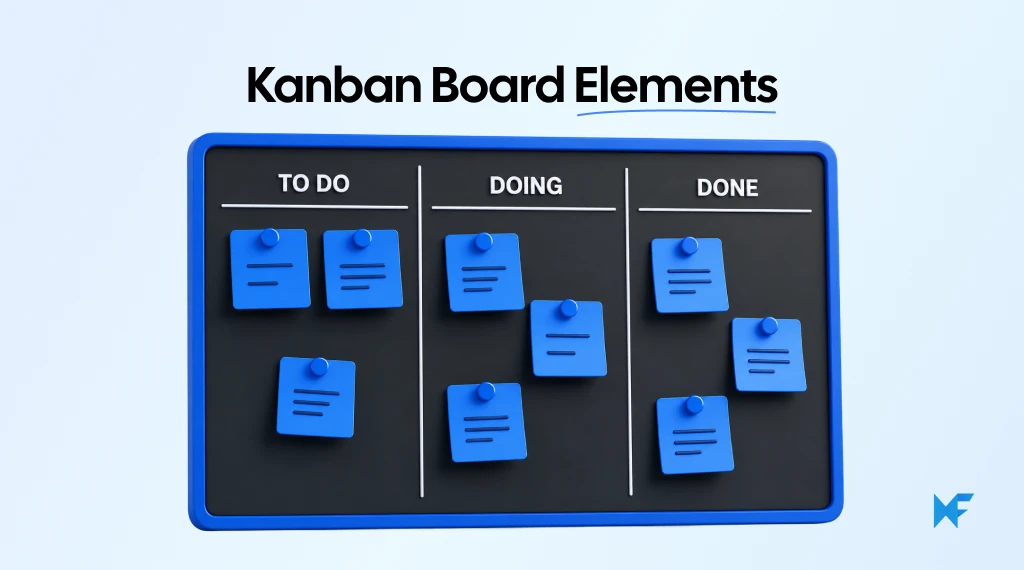
Here are the core components you need to understand before creating one:
- Kanban columns: Columns represent workflow stages. A simple board may use “To Do”, “Doing”, and “Done”. A software team may use: Backlog → In Progress → QA → Released, while a marketing team may use Ideas → Drafting → Review → Published.
- Kanban cards: Cards represent individual work items. Each card can include a title, description, owner, priority, deadline, comments, links, attachments, and acceptance criteria. Keep each card specific. “Write landing page copy” is easier to track than “Launch campaign.”
- Work in progress limits: WIP limits restrict how many cards can stay in one column at the same time. If In Progress has a WIP limit of 3, your team should not start a fourth task until one active task moves forward.
- Swimlanes: Swimlanes organize work horizontally by team, project, priority, client, department, or task type. Marketing teams may use SEO, email, paid ads, and design swimlanes. Product teams may use bugs, features, research, and technical debt.
- Labels and priorities: Labels help you scan the board quickly. You can mark urgent tasks, bugs, content work, design tasks, campaign tasks, onboarding tasks, or feature requests.
- Commitment point: This is where your team officially accepts an item into the active workflow. Before this point, the item may still be a request, idea, or backlog task.
- Delivery point: This is where work exits the workflow. A software task may be released, a support ticket resolved, a campaign asset published, an onboarding task completed, or a design task approved.
How does a Kanban board work?
A Kanban board works by turning each task into a card and moving that card across workflow columns as progress happens. Instead of pushing work onto people, Kanban uses a pull system, where you take up new work only when there is capacity.
Here is how Kanban boards work in practice:
- Work is added to the board: Tasks are captured as cards in the backlog or “To Do” column.
- The team pulls work when ready: A team member moves a card into the active workflow when they can take it on.
- Cards move through each workflow stage: Cards move through stages such as “In Progress”, “Review”, “QA”, “Approval”, “Waiting on Input”, “Published”, or “Done”.
- WIP limits control overload: Work in progress limits restrict how many tasks can be active at once.
- Bottlenecks become visible: If cards pile up in “Review”, you know approval is slowing down. For related workflow thinking, this guide on process mapping can help you see where work slows before you build the board.
- The process improves over time: You adjust limits, rename columns, and improve handoffs to support continuous delivery.
What are the benefits of using a Kanban board?
Once you understand how a Kanban board works, its value becomes easier to see. It is more than a task tracker. It helps you make work visible, reduce delays, improve collaboration, and adjust your process without adopting a heavy framework.
The main benefits show up in everyday team workflows:
- Clearer workflow visibility: A Kanban board gives you one shared view of planned, active, blocked, and completed work. Columns make status easy to scan, so PMs, developers, marketers, designers, HR teams, operations teams, and team leads do not need repeated status updates to understand progress.
- Fewer bottlenecks and better focus: When cards pile up in one column, you can see where work is slowing down. WIP limits help your team avoid starting too many tasks at once, so people focus on finishing active work before pulling in more.
- Better team collaboration: Kanban boards make owners, priorities, dependencies, and next steps easier to understand. This is useful for async teams because updates are visible on the board instead of scattered across meetings, chats, and email threads.
- Continuous improvement without major process changes: You can start with your current workflow, then adjust columns, WIP limits, handoffs, and priorities as patterns appear.
What are the types & examples of Kanban board for teams?
A Kanban board for teams should match the way work actually moves. The columns, cards, labels, and WIP limits will look different for software, HR, support, marketing, or personal planning.
You can explore broader board formats in IdeaBoard templates, but these examples show the common patterns.
1. Bug tracking Kanban board
A bug tracking Kanban board helps you capture issues, prioritize severity, assign ownership, and confirm fixes before closing them. It works well when bugs come from users, QA testers, support teams, and internal product reviews.
- Typical columns: Reported → Triage → In Progress → Code Review → QA Testing → Resolved.
- Best for: Severity labels, affected modules, assigned engineers, test notes, and fix verification.
Use a bug tracking Kanban board template when you want a ready-made structure.
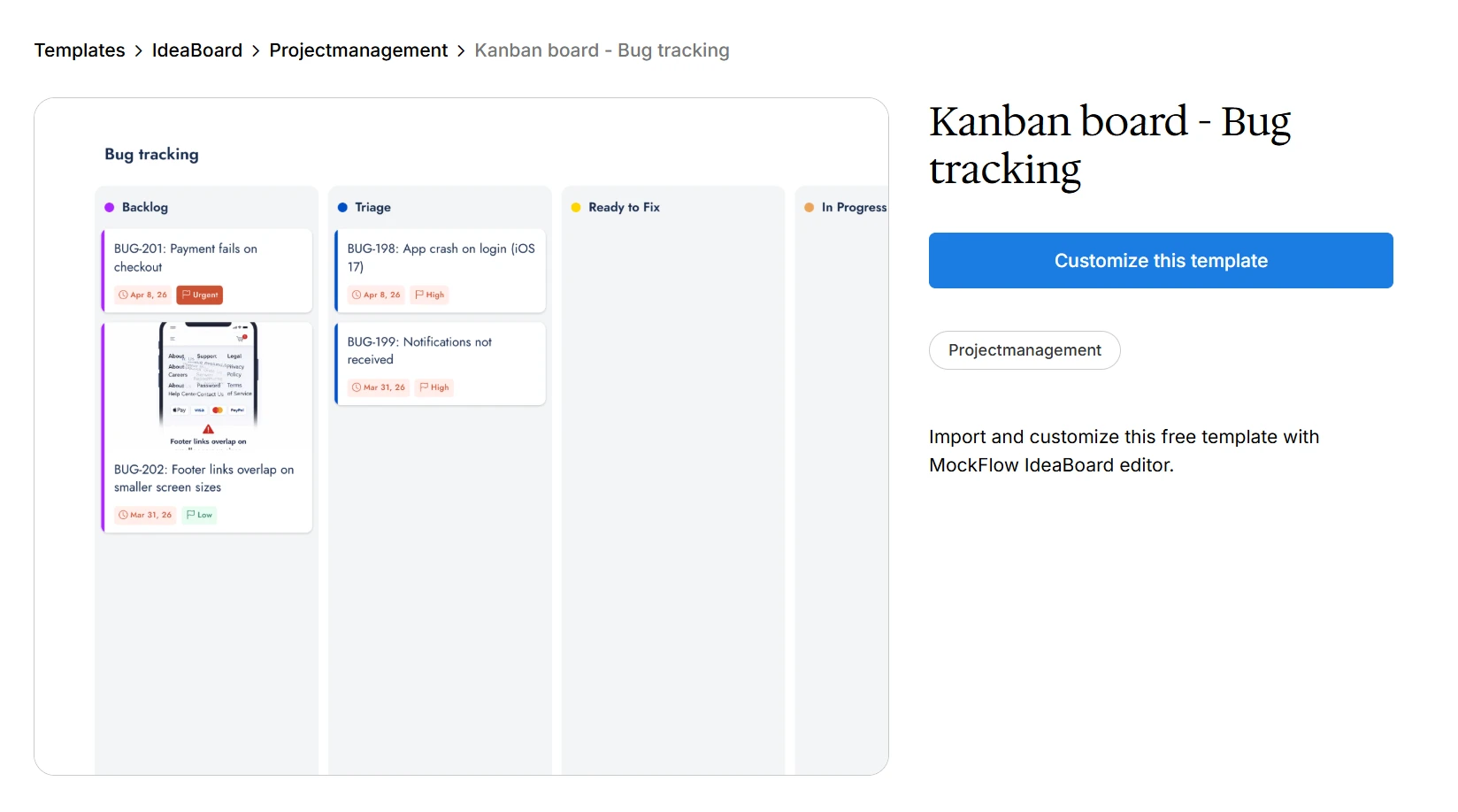
Customize this bug tracking Kanban board template
2. Employee onboarding Kanban board
An employee onboarding Kanban board keeps HR, managers, IT, and new hires aligned. You can track each step from offer acceptance to first-week follow-up.
- Typical columns: Pre-boarding → Documentation → IT Setup → Orientation → Training → First Week Check-in → Completed.
- Best for: Paperwork, laptop setup, account access, intro meetings, training tasks, and manager check-ins.
Start with an employee onboarding Kanban board template and adjust it to your process.
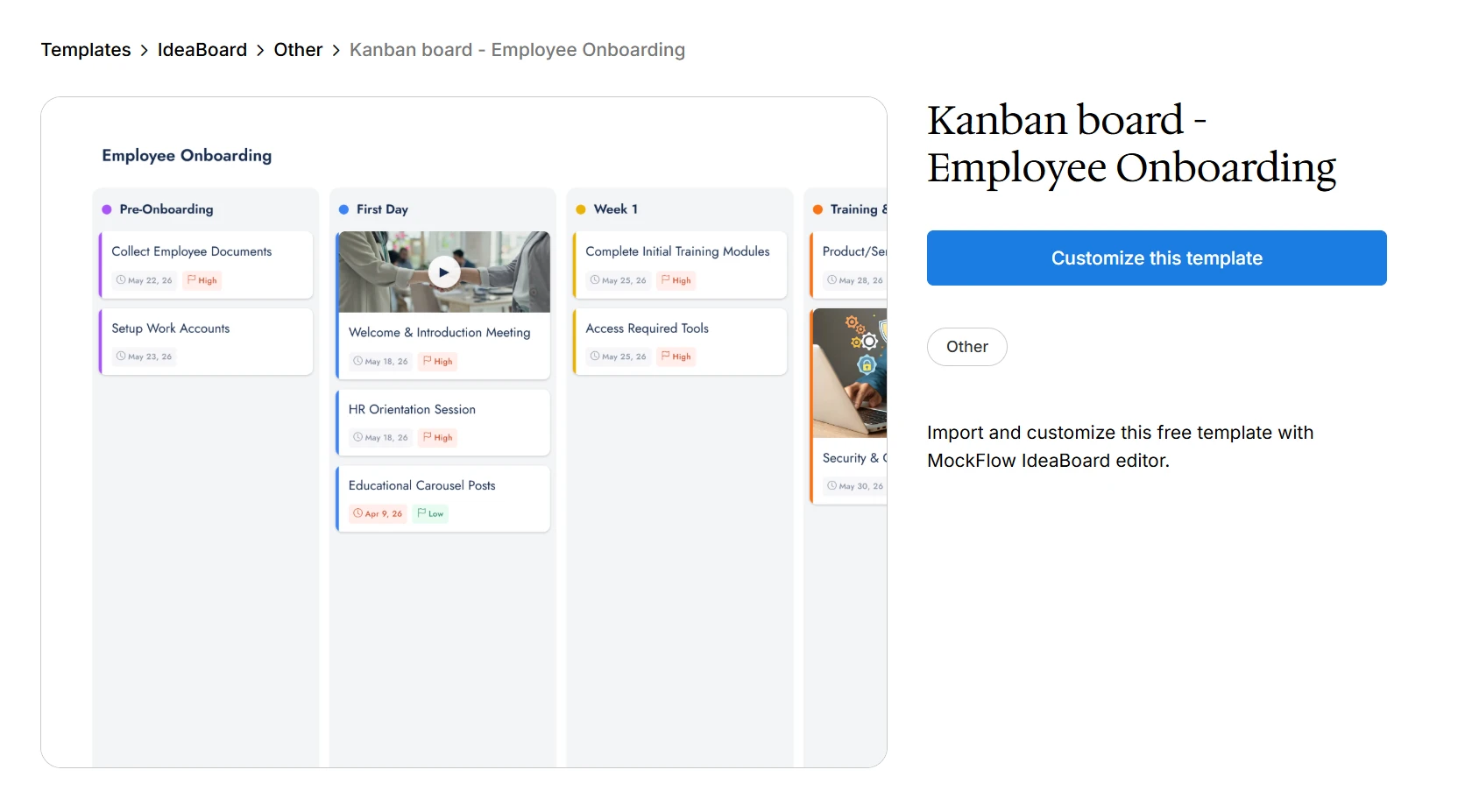
Customize this employee onboarding Kanban board template
3. Software development Kanban board
For a Kanban board for software development, the board helps engineering, product, QA, and Agile teams track work from request to release. It supports agile project management and continuous delivery because work can move forward as soon as capacity opens.
- Typical columns: Backlog → Ready → Development → Code Review → QA → Done.
- Best for: User stories, feature requests, technical debt, QA tasks, release items, and engineering fixes.
- Useful limit: Set WIP limits for Development, Code Review, and QA so unfinished work does not pile up.
4. Simple personal or small team Kanban board
This Kanban board example works best when you only need basic task visibility. It has fewer stages, so it is easier to maintain.
To Do | Doing | Done |
Prepare project brief | Design homepage draft | Send client update |
Create task list | Review copy | Publish landing page |
How to create a Kanban board and how to use it effectively for teams?
The easiest way to create a Kanban board is to start inside a visual collaboration tool where your team can map the workflow, add task cards, move items across stages, and adjust the board together. Instead of building the structure from scratch in a static document, you can use a shared workspace like IdeaBoard to create a working Kanban board faster.
Teams can follow this step-by-step tutorial to create a Kanban board in IdeaBoard:
Once you have the basic board structure in place, here is a detailed breakdown of each step to create and use a Kanban board effectively.
Step 1: Define the workflow you want to manage
Start with one process, such as sprint planning, content production, product launches, support requests, onboarding workflows, bug tracking, or design tasks. Keep the scope narrow so the board does not become a catch-all.
Answer these questions before you create columns:
- Starting point: Where does work begin?
- Workflow steps: What stages does the task pass through?
- Ownership: Who owns each step?
- Done criteria: What must happen before work is complete?
- Stuck points: Where does work usually slow down?
Step 2: Choose the right Kanban board columns
Your columns should reflect the way work actually moves. Start simple, then add columns only when they make the workflow clearer.
Use these examples as a starting point:
Team or workflow | Suggested columns |
Simple board | To Do, Doing, Done |
Software | Backlog, Development, Review, QA, Done |
Bug tracking | Reported, Triage, In Progress, QA Testing, Resolved |
Marketing | Ideas, Drafting, Design, Review, Published |
Product | Discovery, Prioritized, Design, Build, Released |
HR onboarding | Pre-boarding, Documentation, IT Setup, Training, Completed |
Step 3: Create Kanban cards for each work item
Each card should carry enough context so your team does not chase details across tools. Keep one card tied to one clear task.
Add these fields where useful:
- Task title: A clear action, such as “Write product launch email.”.
- Description: What needs to be done.
- Owner: The person responsible.
- Priority and due date: What matters first and when it is needed.
- Checklist and links: Supporting steps, files, or references.
- Definition of done: The condition required to move the card forward.
Step 4: Set work in progress limits
WIP limits help your team finish active work before starting more. When a column reaches its limit, the team should move existing cards forward first.
Example limits:
- In Progress: 3 cards.
- Review: 2 cards.
- QA: 3 cards.
Step 5: Move cards as work progresses
Move a card only when the task truly enters the next stage. This keeps the board accurate and prevents false progress.
Use these rules:
- Content workflow: Move “Writing” to “Review” only when the draft is ready for feedback.
- Bug workflow: Move “QA Testing” to “Resolved” only after the fix is verified.
Step 6: Review the board regularly
Kanban board best practices depend on regular review because the board is only useful when it reflects how work is actually moving. The 17th State of Agile Report shows that teams often track signals like cycle time, throughput, lead time for changes, and blocked time. They tell you whether work is moving, waiting, or quietly piling up. A Kanban board makes those signals easier to see without building a separate reporting process.
Use each review to ask:
- Blocked work: Which cards are stuck?
- Overload: Which column has too many cards?
- Priorities: Are the most important tasks clear?
- Limits: Are WIP limits helping or too loose?
- Handoffs: Where is work waiting too long?
Step 7: Improve the workflow over time
Your board should change as your team learns. Rename columns, adjust limits, clarify ownership, and remove steps that do not help work move forward.
Kanban vs Scrum: What’s the difference between a Kanban and Scrum board?
Kanban and Scrum are both agile project management approaches, but they help you manage work in different ways. Kanban supports continuous delivery and flexible prioritization, while Scrum organizes work into fixed sprint cycles with planned goals, roles, and ceremonies.
The 2024 State of Testing report found that 92% of respondents use Agile or Agile-like processes, including Scrum, Kanban, and XP, so many dev and QA teams already work with these models.
If you work with dev, QA, product, or support teams, you will likely run into Kanban boards in planning, bug tracking, release work, or day-to-day task management. Knowing what Kanban is helps you understand how work is prioritized, when it should move forward, and where delivery is getting stuck.
Here is a practical Kanban vs scrum comparison:
Factor | Kanban Board | Scrum Board |
Work style | Continuous flow | Fixed sprint cycles |
Planning cadence | Ongoing planning | Sprint planning |
Board reset | Usually continuous | Often resets after each sprint |
Roles | Flexible roles | Defined roles like Scrum Master and Product Owner |
Best for | Changing priorities and ongoing work | Planned work with sprint goals |
Delivery model | Continuous delivery | Delivery at the end of a sprint |
Work limits | WIP limits | Sprint capacity |
Common users | Support, product, marketing, engineering, operations, HR | Product and software teams working in sprints |
The main difference between Kanban and Scrum is how work moves. In Kanban, work moves across the board as capacity opens up. In Scrum, work is selected for a sprint and completed within a fixed timebox.
When Kanban works better for teams
Kanban works better when you need flexibility, visual workflow management, and ongoing delivery. It is often easier for cross-functional teams because you can start with simple columns like “Backlog”, “To Do”, “In Progress”, “Review”, and “Done”, then add WIP limits as the workflow matures.
Use Kanban when:
- Work arrives continuously or unpredictably: Support tickets, bugs, requests, and content tasks do not always fit clean sprint cycles.
- Priorities change often: You can reorder work without disrupting a full sprint plan.
- You want gradual process improvement: You can improve flow without changing every role or meeting structure.
- Tasks vary in size and urgency: Small fixes, larger projects, and urgent requests can live on the same board.
- Continuous delivery matters more than sprint commitments: Work moves forward whenever capacity is available.
When to use Scrum instead of Kanban?
Scrum works better when your team can plan work in cycles and benefits from more structure. It is often a strong fit for product and software teams that work from a prioritized backlog and commit to sprint goals.
Use Scrum when:
- Work can be planned in sprint cycles: Two-week or four-week planning gives the team a fixed delivery window.
- Your team needs defined roles: Scrum Master and Product Owner roles help clarify accountability.
- You have a clear product backlog: The team can select work before the sprint starts.
- Stakeholders expect sprint reviews: Reviews, retrospectives, and planned increments are part of the rhythm.
- Timeboxed delivery helps the team focus: Sprint goals keep planning, execution, and review tied to one cycle.
How IdeaBoard helps you create a Kanban board faster
Once you know what a Kanban board should include, the harder part is turning scattered tasks into a clean board your team can use. MockFlow IdeaBoard helps you plan that workflow visually, organize task cards, and refine the board with your team in one shared canvas.
Here is what IdeaBoard gives you for Kanban planning:
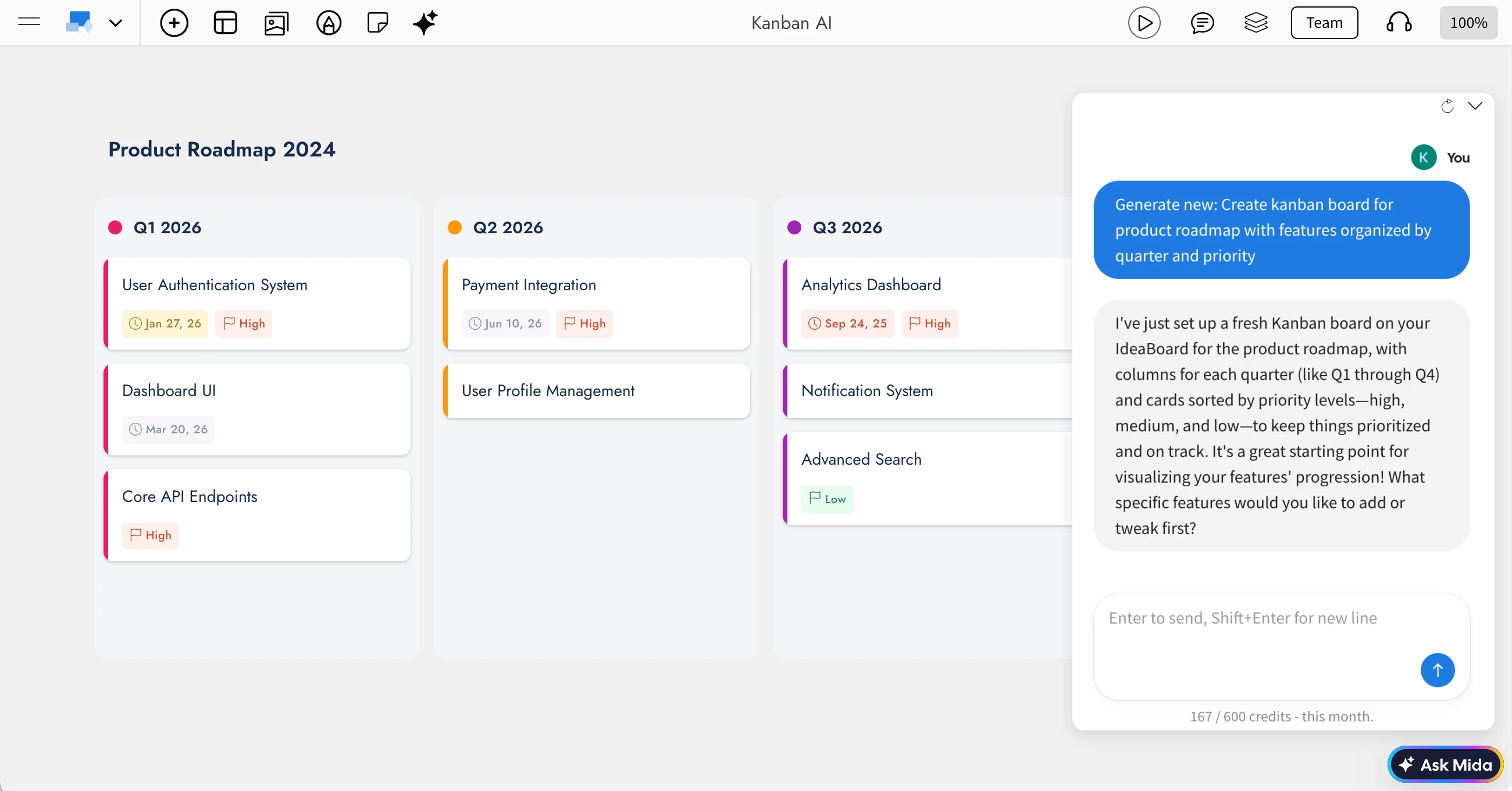
Generate Kanban boards or team planning using this AI
- Generate a board from a prompt: Teams can quickly turn a sprint, launch, campaign, or workflow idea into a usable Kanban board without building it manually. With the AI Kanban Board Generator, they can describe the plan in plain language and generate columns, task cards, priorities, and short descriptions.
- Refine the board conversationally: Teams can keep improving the board as planning discussions evolve. They can ask AI to add a QA column, create more backend tasks, reorganize priorities, update descriptions, or adjust the workflow based on new decisions.
- Turn existing inputs into Kanban: Teams can turn scattered planning inputs into a structured Kanban board. IdeaBoard can convert meeting notes, documents, mind maps, brainstorms, or rough task lists into cards and columns. If stakeholders need a different view later, the same work can also be reshaped into a timeline, calendar, or document.
- Use reusable AI workflows: Teams can make recurring planning processes easier to repeat. With AI recipes, they can create reusable workflows for launches, sprint reviews, bug triage, content pipelines, onboarding, and other regular team processes.
- Plan from the tools your team already uses: Teams can create visual boards from the AI tools they already use for planning. With IdeaBoard MCP, users working in Claude, Cursor, or other MCP-compatible assistants can generate editable boards and diagrams from their AI workspace. Users can also create visuals directly inside ChatGPT.
- Collaborate in one shared space: Teams can move from planning to alignment in one shared space. PMs, marketers, developers, HR teams, operations teams, and support teams can review the same board, move cards, comment, and agree on what should happen next.
Example prompt: “Create a Kanban board for a product launch with columns for planning, design, development, QA, launch, and post-launch follow-up. Add task cards with priorities and short descriptions.”
If you are starting from rough tasks, a meeting transcript, or a messy planning discussion, IdeaBoard helps you turn that input into a usable Kanban workflow and keep refining it with your team. Sign up for IdeaBoard to save and collaborate on boards, or use MockFlow’s free no-signup online whiteboard if you want to start planning immediately.
FAQs
1. What does a Kanban board mean in simple words?
A Kanban board is a visual task board that helps you track work from start to finish. Tasks appear as cards, and workflow stages appear as columns such as To Do, Doing, and Done.
2. What are the key elements of a Kanban system?
The key elements of a Kanban system are columns, cards, and WIP limits. Some boards also use swimlanes, labels, priorities, due dates, and assignees to make work easier to scan.
3. What are the six-six rules of Kanban?
The “six-six rules of Kanban” usually refer to six core practices and six change principles. These include visualizing work, limiting WIP, managing flow, using feedback loops, improving collaboratively, and changing processes gradually.
4. What are the 4 rules of Kanban?
The four common rules of Kanban are to visualize the workflow, limit work in progress, manage flow, and improve continuously. In practice, this helps you avoid overload and fix slow handoffs.
5. What is the purpose of a Kanban board?
The purpose of a Kanban board is to make work visible and easier to manage. It shows what is planned, active, blocked, and complete, helping teams reduce bottlenecks and manage priorities clearly.

How to Run a Team Huddle for Better Team Collaboration
Keeping teams aligned has become harder as projects move faster, priorities shift frequently, and remote collaboration becomes...
Network Topology Diagram: Types, Examples, And How To Create One
Introduction When documentation is outdated or missing, troubleshooting slows down, changes feel risky, and small issues...
Team Planning Process Guide: Steps & Best Practices in 2026
Team planning often starts when the team already feels the pressure. A new quarter is approaching. A major project is about to...
