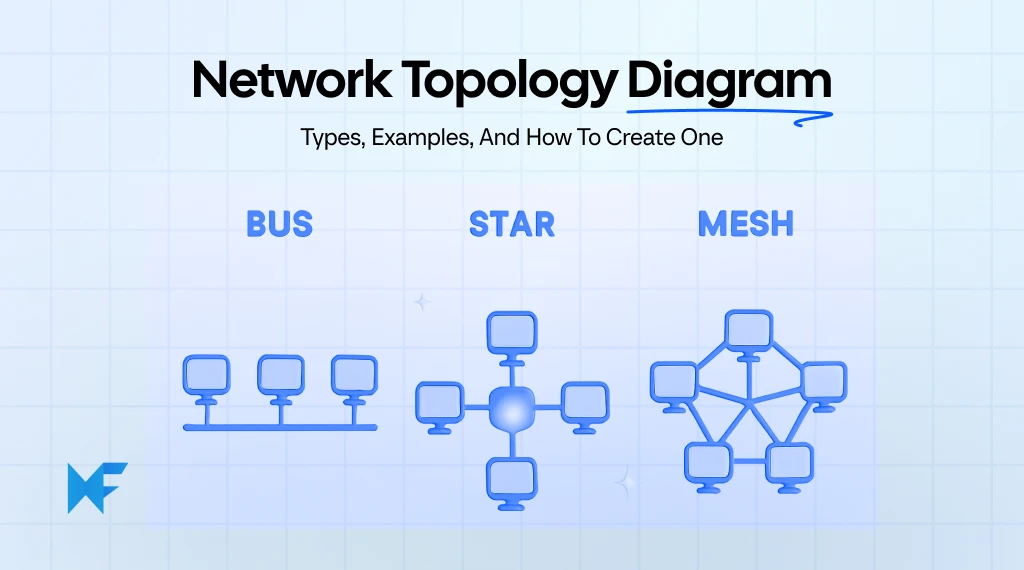
Network Topology Diagram: Types, Examples, And How To Create One
Introduction
When documentation is outdated or missing, troubleshooting slows down, changes feel risky, and small issues escalate into bigger outages. In this scenario, what most teams lack is visibility.
That visibility starts with a network topology diagram.
A network topology diagram gives you a clear, visual map of how devices connect, how data flows, and how your infrastructure is structured. It transforms scattered components into a readable, actionable network architecture map.
The demand for structured diagramming is also growing rapidly. The global diagramming software market is projected to reach $1.26B in 2026, and is forecasted to hit $1.82B by 2029. As network complexity increases, structured visualization is becoming a business necessity, not just a documentation task.
In this guide, we’ll walk you through what a network topology diagram is, the different topology types, real-world examples, and how to create one step by step.
What is a Network Topology Diagram?
A network topology diagram is a visual map of network devices and the connections between them. It shows how nodes such as routers, switches, servers, and endpoints connect and how data flows across LAN, WAN, or cloud environments.
A physical topology diagram displays hardware, ports, and cabling. A logical topology diagram displays subnets, VLANs, routing paths, and policies.
Teams use network topology diagrams to plan layouts, document infrastructure, troubleshoot outages, and validate security zones. Clear diagrams improve visibility, support change management, and reduce risk.
Visibility at the infrastructure level directly impacts business outcomes. Cisco’s Global Networking Trends report found that organizations investing in networking capabilities reported a 17% increase in employee productivity, a 19% increase in customer satisfaction, and 10% revenue growth over the prior 12 months.
Structured network documentation plays a critical role in enabling those improvements by supporting faster troubleshooting and smarter change planning.
A network topology diagram typically shows:
- Devices such as routers, switches, servers, and firewalls
- Node connectivity paths between network components
- Physical cable or wireless links
- Logical data routing paths
- Layer 2 and Layer 3 relationships
- VLAN segmentation and subnet structures
- Internet and cloud connections
You may hear it referred to as a network architecture map, LAN topology chart, IT infrastructure diagram, logical network diagram, or physical network diagram. While terminology varies, the goal remains the same: create a clear, structured view of how everything connects to boost team collaboration.
Now that we understand what it is, let’s explore the different types of network topology diagrams.
Types of Network Topology Diagrams
Every network does not need the same structure. The way you arrange devices directly impacts performance, fault tolerance, and how easy your network is to manage over time. Understanding different network topology types helps you choose a design that aligns with your infrastructure goals instead of forcing your architecture to adapt later.
Star Topology
Star topology is one of the most widely used network structures, especially in office LAN environments. In this design, all devices connect to a central hub, typically a core switch or router, which manages communication between endpoints. Because every device connects through the central node, troubleshooting becomes straightforward, and device failures are easier to isolate.
To visualize this structure clearly, you can use the Star Topology template in IdeaBoard. This template already provides a structured layout with a central node and branching connections, making it easy to map workstations, printers, and other devices around a core network component.

Click on the image to access the Star Topology template
Star topology works particularly well when you need:
- Office LAN and small business network diagrams
- Clear centralized network control
- Easy expansion as new devices are added
Mesh Topology
Mesh topology takes reliability to another level by allowing devices to connect with multiple nodes rather than relying on a single central point. This redundancy improves resilience because data can travel through alternative paths if one connection fails.
For networks where uptime is critical, such as data centers or high-availability infrastructure, mesh topology provides stronger fault tolerance and better load distribution.
The Mesh Topology template in IdeaBoard helps visualize these complex connections. It allows you to clearly map multiple node-to-node relationships while keeping the diagram readable, which is essential when documenting redundant routing paths.
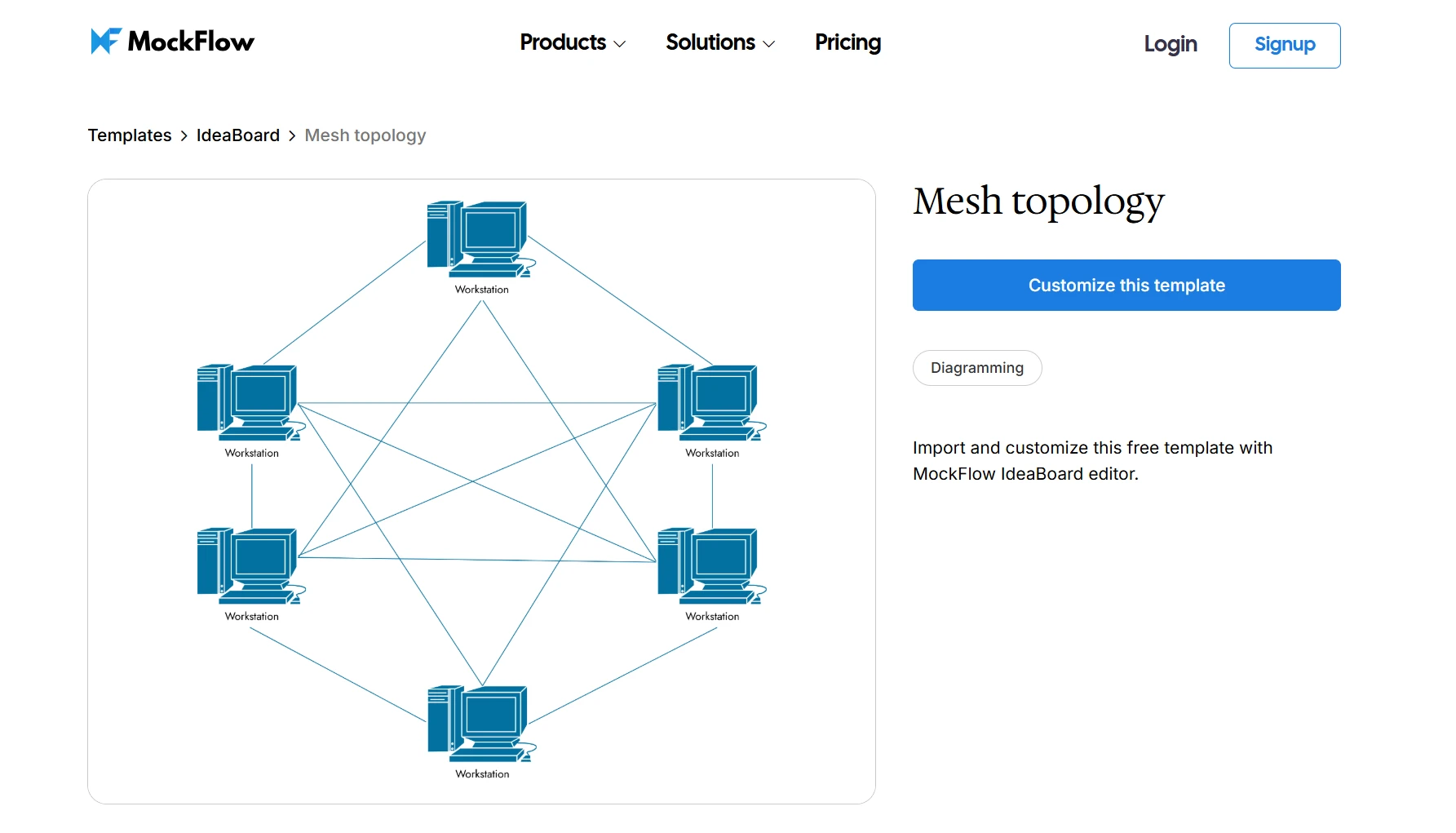
Try out the Mesh Topology template in IdeaBoard
Mesh topology is commonly used for:
- Data center network architecture
- High-availability systems
- Infrastructure requiring redundant routing paths
Bus Topology
Bus topology connects devices along a single backbone cable. Every device taps into this shared communication line, which makes the structure simple but also limits scalability and redundancy.
Although bus topology is less common in modern enterprise environments, it still appears in legacy networks and smaller systems where simplicity and cost control are priorities.
To represent this structure clearly, the Bus Topology template provides a linear layout that mirrors how devices connect to the backbone cable. This makes it easier to document signal flow and device dependencies along the shared communication line.
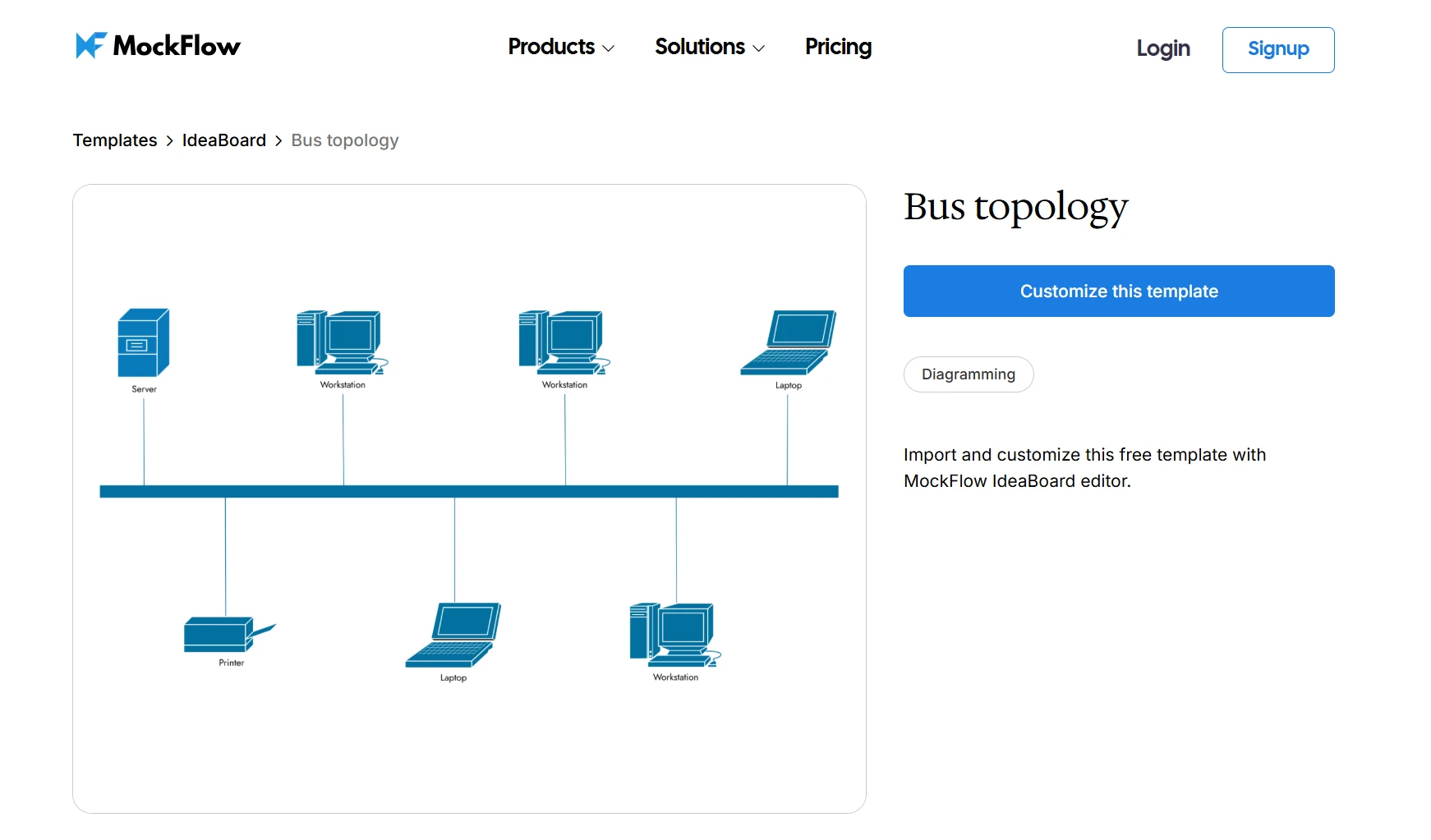
Customize this Bus Topology template using IdeaBoard
Bus topology typically fits:
- Small or legacy network environments
- Cost-sensitive infrastructure setups
- Simple device communication structures
Ring Topology
Ring topology organizes devices in a closed loop where each node connects to two others. Data travels around the ring in a defined direction, passing through each device until it reaches its destination.
This structure creates predictable communication paths and is often used in industrial networks or specialized environments where controlled data flow is required.
The Ring Topology template in IdeaBoard helps visualize this circular structure clearly. By arranging devices in a loop and connecting them sequentially, the diagram highlights how data moves through the network without relying on a central hub.
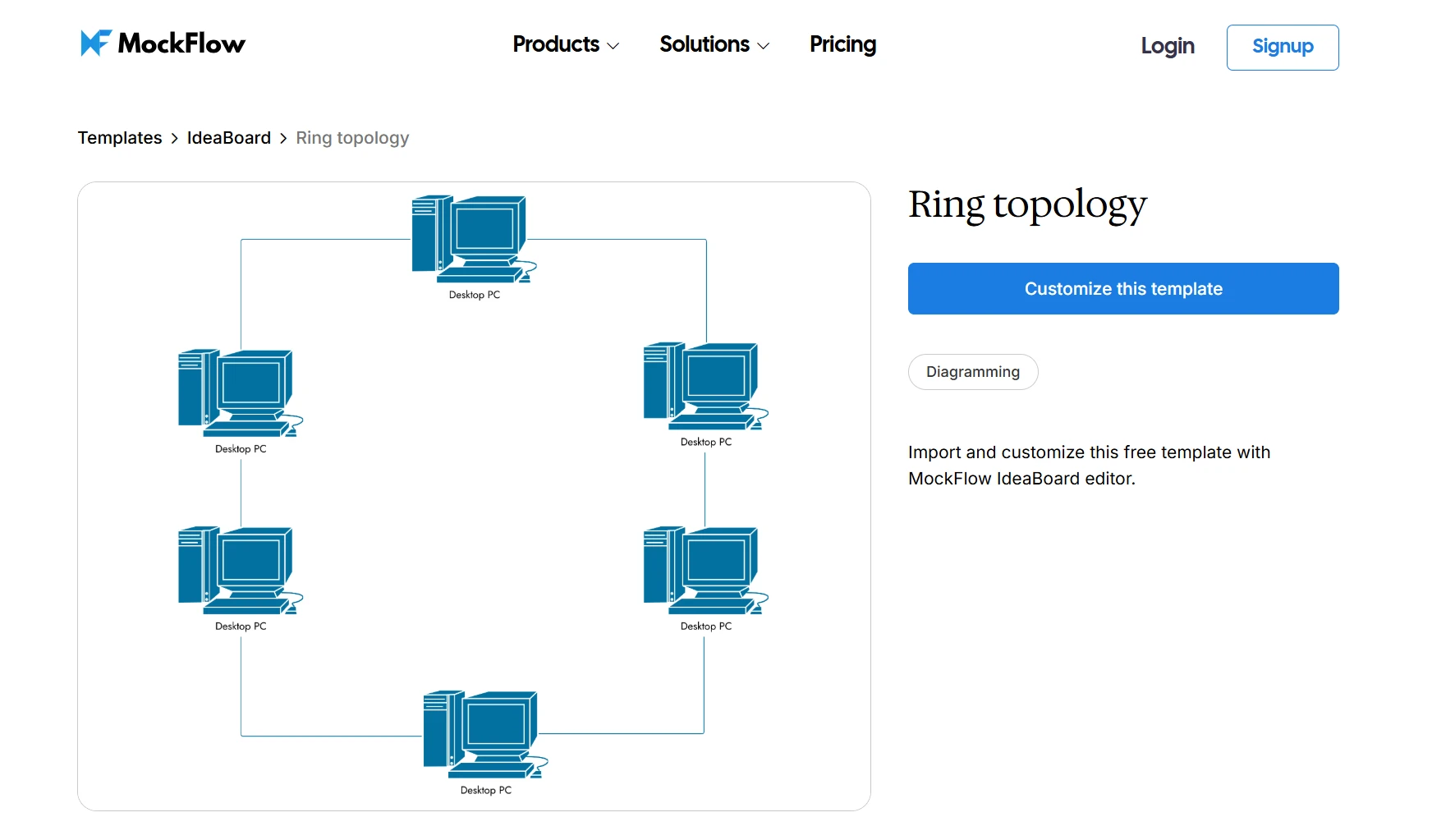
Test the Ring Topology template in IdeaBoard
Ring topology works well for:
- Industrial and manufacturing networks
- Structured communication environments
- Systems that rely on predictable traffic paths
Each topology has strengths and trade-offs depending on scale, reliability requirements, and operational complexity. Choosing the right network topologies diagram is less about preference and more about aligning architecture with business needs.
Let’s now compare these topology types side by side to better understand where each one fits.
Topology Type | Best For | Complexity | Reliability |
Star | Office LAN and small business networks | Low | Medium |
Mesh | Data centers and high-availability systems | High | High |
Bus | Small or legacy networks | Low | Low |
Ring | Industrial or specialized network environments | Medium | Medium |
The right topology gives your network structure, but structure alone does not make it useful. What truly brings clarity is seeing how these designs play out in real-world environments.
Network Topology Diagram Examples
Understanding topology structures is helpful, but seeing how they apply in real infrastructure environments makes them much easier to implement. The following examples show how teams translate real network scenarios into structured topology diagrams.
Example 1: Small Office LAN Network
Many small and mid-sized organizations use a centralized LAN architecture where all workstations connect through a core switch or router. This structure keeps the network simple to manage while allowing new devices to be added without redesigning the entire environment.
To create this type of network topology diagram:
- Start by placing a central router or core switch at the center of the diagram.
- Add connected devices such as employee workstations, printers, access points, and servers around the central node.
- Draw connections between each device and the core switch to represent the communication path.
- Label device groups to show departments, VLAN segments, or functional zones if needed.
- Add an internet gateway or firewall connection to illustrate external connectivity.
This structure clearly shows how traffic flows through the central network component and helps teams quickly identify where issues might occur.
To visualize this architecture efficiently, the Star Topology template in IdeaBoard works best. It already provides a central node with branching connections, making it easy to map office devices around the main switch or router.
Example 2: Data Center Redundant Network Architecture
In high-availability environments such as data centers or cloud infrastructure, networks often include redundant connections between devices to prevent downtime if a link fails. Instead of relying on a single central device, systems are interconnected so traffic can take multiple paths.
To create this type of network topology diagram:
- Add the core switches or routers that act as the backbone of the infrastructure.
- Place key infrastructure components such as application servers, database clusters, load balancers, and firewalls.
- Draw multiple connections between devices to represent redundant routing paths.
- Show how traffic can move through alternative routes if a connection fails.
- Label critical infrastructure layers such as compute, storage, and network tiers.
This type of diagram helps infrastructure teams document redundancy strategies and understand how systems remain operational during failures.
For this scenario, the Mesh Topology template in IdeaBoard works well. It allows you to map multiple node-to-node connections clearly, making complex redundancy patterns easier to understand.
These examples show how the right layout depends on what you are documenting, whether it is connectivity, security boundaries, or infrastructure dependencies. Once the use case is clear, building the diagram becomes much more structured and intentional.
How to Create a Network Topology Diagram with IdeaBoard
Once you understand the structure you need, the next step is translating that structure into a clear, usable diagram. The goal is to create a network topology diagram that your team can understand, maintain, and rely on during critical moments. It also results in an added bonus of improvement in your team’s collaboration skills.
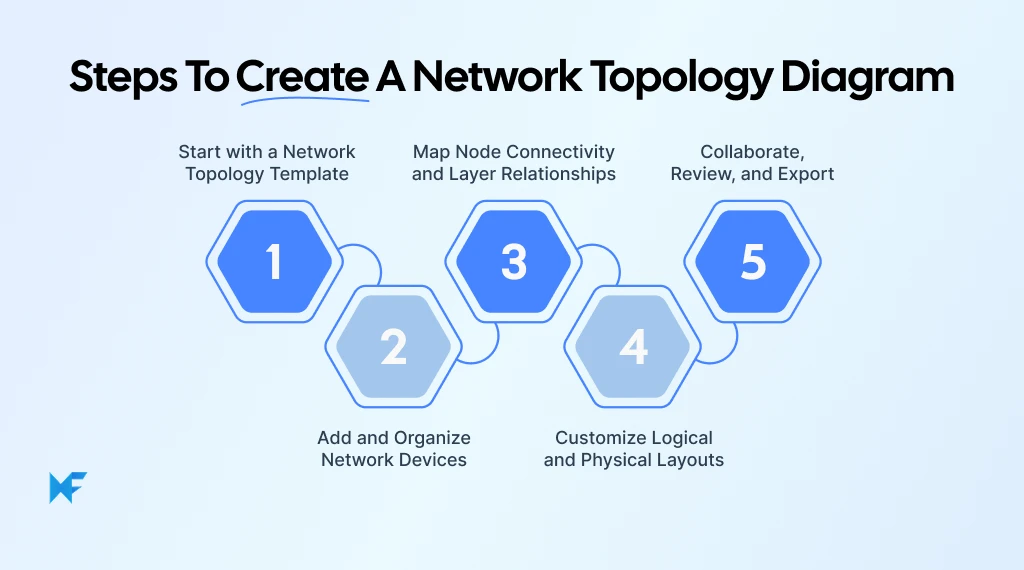
Step 1: Start With A Network Topology Template
Begin by opening MockFlow IdeaBoard and choosing either a blank canvas or a relevant template from the template library. Starting with a structured base saves time and reduces layout confusion, especially when you are mapping larger environments.
The pre-built diagram components allow you to drag and drop network elements into place instead of building everything from scratch. If you are working with a complex architecture, AI-assisted layout generation can help you structure the foundation quickly. The infinite canvas gives you the flexibility to map extensive infrastructures without worrying about space constraints.
Step 2: Add And Organize Network Devices
Now start placing your routers, switches, servers, firewalls, and endpoints onto the board. As you add devices, label them clearly so anyone reviewing the diagram can immediately understand their role.
Engineers point out that diagrams stay useful longer when they remain conceptual (roles, zones, key uplinks, traffic flow), and teams pull volatile details like host/IP inventories from a separate source of truth. This is exactly why clear labeling and logical grouping in IdeaBoard matters more than trying to cram every attribute into the diagram itself.
Group related devices by subnet or VLAN to reflect logical segmentation. If your environment includes firewall zones or security boundaries, visually separate those areas to avoid confusion later. Customizable shapes and connectors make it easy to adapt the diagram to match your IT infrastructure rather than forcing your infrastructure into a rigid layout.
Step 3: Map Node Connectivity And Layer Relationships
With devices in place, begin connecting them to show node connectivity. Use lines and arrows to represent physical cable or wireless links, and clearly distinguish logical routing paths.
Separating Layer 2 and Layer 3 mapping visually improves readability. For example, you might use one color for physical connections and another for logical routes. This simple visual differentiation makes troubleshooting and planning significantly easier because traffic flow becomes immediately visible.
If you try to capture racks, cabling, power, VLANs, routing, and multi-site WAN paths in one mega-diagram, it becomes unreadable fast.
Multiple engineers recommend splitting diagrams by purpose, for example, one high-level topology view and separate diagrams for rack/Layer 1, and logical (Layer 2/3) views, so the diagram stays usable instead of becoming a “zoom-and-guess” poster.
Step 4: Customize Logical And Physical Layouts
In many cases, it helps to create separate logical and physical diagram views. The physical network diagram may focus on device placement and cabling, while the logical network diagram highlights VLANs, subnets, and routing paths.
You can also add notes to document SNMP discovery data or insights gathered from automated device discovery tools. Clearly organizing cloud systems alongside on-prem infrastructure ensures your network architecture map reflects reality, not assumptions. As your network evolves, the infinite canvas makes it easy to rearrange components without rebuilding the entire diagram.
Step 5: Collaborate, Review, And Export
A network topology diagram becomes far more valuable when it is shared and reviewed collaboratively. Invite your IT team to work on the board in real time, leave comments and audio notes during infrastructure reviews, and validate accuracy before finalizing documentation.
The payoff is measurable when teams treat visibility artifacts seriously. An IDC Business Value summary reports outcomes like 55% faster time to resolve unplanned downtime and 44% faster problem identification and resolution for customers using network “digital twin” visibility approaches.
Collaboration and consistent documentation are not the only drivers, but they are core enablers of repeatable incident response and change reviews.
Once complete, export the diagram as a PDF or image for internal documentation, audits, or stakeholder sharing. Maintain version updates as changes occur so the diagram remains a trusted source of truth. Offline desktop support also ensures secure environments can maintain documentation without external exposure.
A well-structured network topology diagram does more than visualize connections; it creates alignment across teams. When documentation is clear, updates become easier, troubleshooting becomes faster, and infrastructure decisions become more confident.
Conclusion
Network problems start with confusion. The longer you rely on outdated diagrams or scattered notes, the harder troubleshooting, scaling, and audits become.
A structured network topology diagram removes that uncertainty, and the right tool makes creating and maintaining it far easier. MockFlow's IdeaBoard helps you:
- Turn complex networks into clear visual maps
- Use ready-made templates for star, mesh, bus, and ring topologies
- Separate logical and physical views without rebuilding layouts
- Generate layered infrastructure diagrams with AI assistance
- Collaborate with your IT team in real time
- Export documentation for audits, reviews, and compliance
Instead of reacting to outages with guesswork, you can operate with clarity and confidence.
If your current documentation feels outdated or incomplete, this is the right moment to fix it. Sign up for a demo of IdeaBoard and see how quickly you can build a network topology diagram your entire team can trust.
FAQs
1. What is a network topology diagram, and what does it show?
A network topology diagram is a visual map of network devices and the connections between them. It shows how routers, switches, firewalls, servers, and endpoints connect and how data flows across LAN, WAN, cloud, or hybrid environments. It can represent both physical hardware layout and logical routing paths.
2. What is the difference between a physical network diagram and a logical topology diagram?
A physical network diagram shows hardware components such as cables, ports, racks, and device placement. A logical topology diagram shows subnets, VLANs, IP ranges, routing paths, and traffic flow. Physical diagrams focus on infrastructure layout, while logical diagrams focus on how data moves across the network.
3. How do I create a network topology diagram step by step?
Start with a clear layout or template. Add network devices such as routers, switches, and servers. Connect devices to map node relationships. Label VLANs, subnets, and IP ranges where needed. Separate physical and logical views if required. Review for clarity and accuracy before sharing or exporting.
4. How do I document VLANs, subnets, IP ranges, and routing in a diagram?
Use clear labels for VLAN IDs, subnet masks, and IP ranges. Group related devices within defined segments. Show routing paths between subnets using directional links. Keep Layer 2 and Layer 3 information visually distinct to improve readability and troubleshooting accuracy.
5. How can a network topology diagram help troubleshoot network issues?
A network topology diagram helps trace data paths between endpoints, identify bottlenecks, and isolate failure points. It allows teams to visualize dependencies between devices and segments. Clear topology mapping speeds up root cause analysis during outages or performance degradation.
6. What are common mistakes that make network topology diagrams hard to use?
Common mistakes include overcrowded layouts, missing labels, inconsistent symbols, and mixing physical and logical views without separation. Outdated diagrams also reduce reliability. Clear structure, consistent formatting, and regular updates improve usability and accuracy.

How to Run a Team Huddle for Better Team Collaboration
Keeping teams aligned has become harder as projects move faster, priorities shift frequently, and remote collaboration becomes...

Virtual Team Building Games: 14 Ideas for Remote & Hybrid Teams
Introduction Remote teams are now the norm, not the exception. For all the benefits of flexibility and location freedom, remote...

Trello Whiteboard Guide: How to Add Visual Collaboration to Trello
Trello already gives us a clear way to organize work, track progress, and keep projects moving. But when a discussion shifts...
