
Workflow Diagram: Types, Examples, Templates & How to Create
Introduction
When we sit down to map a process, it usually starts off simple. A few steps, a couple of decisions, nothing complicated. But as we begin laying it out, more details show up, more dependencies appear, and suddenly the flow isn’t as straightforward as we thought.
That’s where visual clarity starts to matter. Instead of explaining things repeatedly or keeping everything in our heads, we need a way to lay it all out so it actually makes sense at a glance.
In this guide, we’ll walk through how teams approach workflow diagrams, the different ways to structure them, and how to build one that’s easy to follow and practical to use. We’ll also look at ready-to-use templates so you don’t have to start from scratch.
Why use workflow diagrams in business processes?
When processes are not clearly defined, teams often rely on assumptions. This leads to delays, repeated work, and confusion around who is responsible for what.
A workflow diagram is a visual representation of a process that shows the sequence of tasks, decision points, and flow from start to finish. It maps steps, inputs, and outputs using standard symbols and connections.
Teams use workflow diagrams to document processes, identify bottlenecks, and improve efficiency. Businesses use them to standardize operations, support collaboration, and enable automation. Tools and templates help create workflow diagrams quickly for business, project, and system workflows.
Here’s why teams consistently rely on workflow diagrams:
- Visualize processes clearly so everyone understands how tasks move from start to finish
- Identify bottlenecks where delays or inefficiencies occur
- Standardize workflows to ensure consistency across teams
- Improve collaboration by clarifying ownership and handoffs
- Support automation by mapping processes before digitizing them
This becomes even more important as work becomes more distributed. For example, Eurostat reports that a growing share of enterprises rely on online collaboration and remote access systems, increasing the need for clearly defined workflows.
As workflows grow more complex, structure becomes critical. That’s where symbols and notation play a key role in making diagrams easy to read and use.
Workflow diagram symbols and notation
To make a workflow flowchart easy to understand, we rely on standardized symbols. These symbols create a consistent visual language so anyone can interpret the process without confusion.
Common workflow diagram symbols
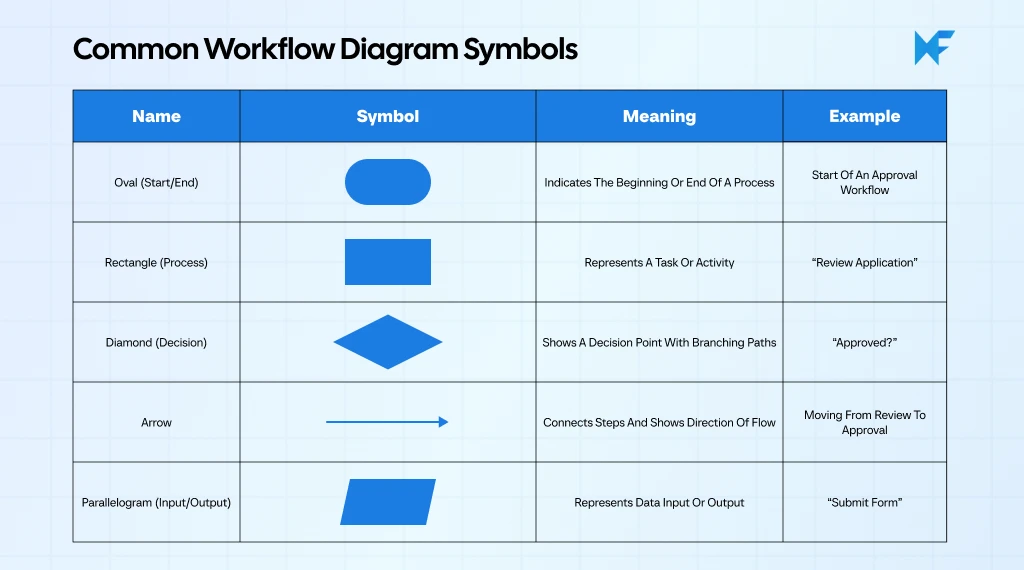
These are the standard flowchart symbols used across most workflow diagrams, whether you’re creating a simple workflow chart or a detailed business process map.
This structured clarity becomes critical as systems scale. A Springer research study highlights that standardized visual representations improve process understanding and reduce ambiguity in complex digital workflows.
How symbols define process flow
Symbols alone don’t create clarity. It’s how they connect that defines the process.
Arrows link each step to show sequence, while decision points introduce branching paths based on conditions. This structure helps us break down complex workflows into manageable paths.
For example, a single decision point can split a process into multiple outcomes, making it easier to visualize exceptions and alternate flows. Over time, this structure becomes essential for identifying inefficiencies and improving process mapping.
As we move forward, these symbols become even more powerful when applied across different types of workflow diagrams, each designed for specific use cases.
Types of workflow diagrams
Not every process looks the same, so a single format doesn’t always work. Depending on what you’re trying to map, you’ll need a different type of workflow diagram to capture the right level of detail and context.
Below are the most commonly used types, along with when they make the most sense and how you can get started with ready-to-use templates.
1. Process flowchart workflow diagram
This is the most straightforward type of workflow flowchart. It lays out steps in a linear, sequential order, making it easy to follow how a process moves from start to finish.
Teams typically use this for structured processes like approvals, operational workflows, or issue resolution where the path is mostly predictable.
For structured business processes like procurement or issue resolution, you can use templates like the procurement workflow or the business analysis process flowchart to map the sequence clearly.
You can customize these by:
- Adding approval hierarchies
- Defining alternate decision paths
- Including exception handling steps
The focus here is on keeping the flow clear and ensuring every step follows a logical order, with decision nodes guiding the direction.
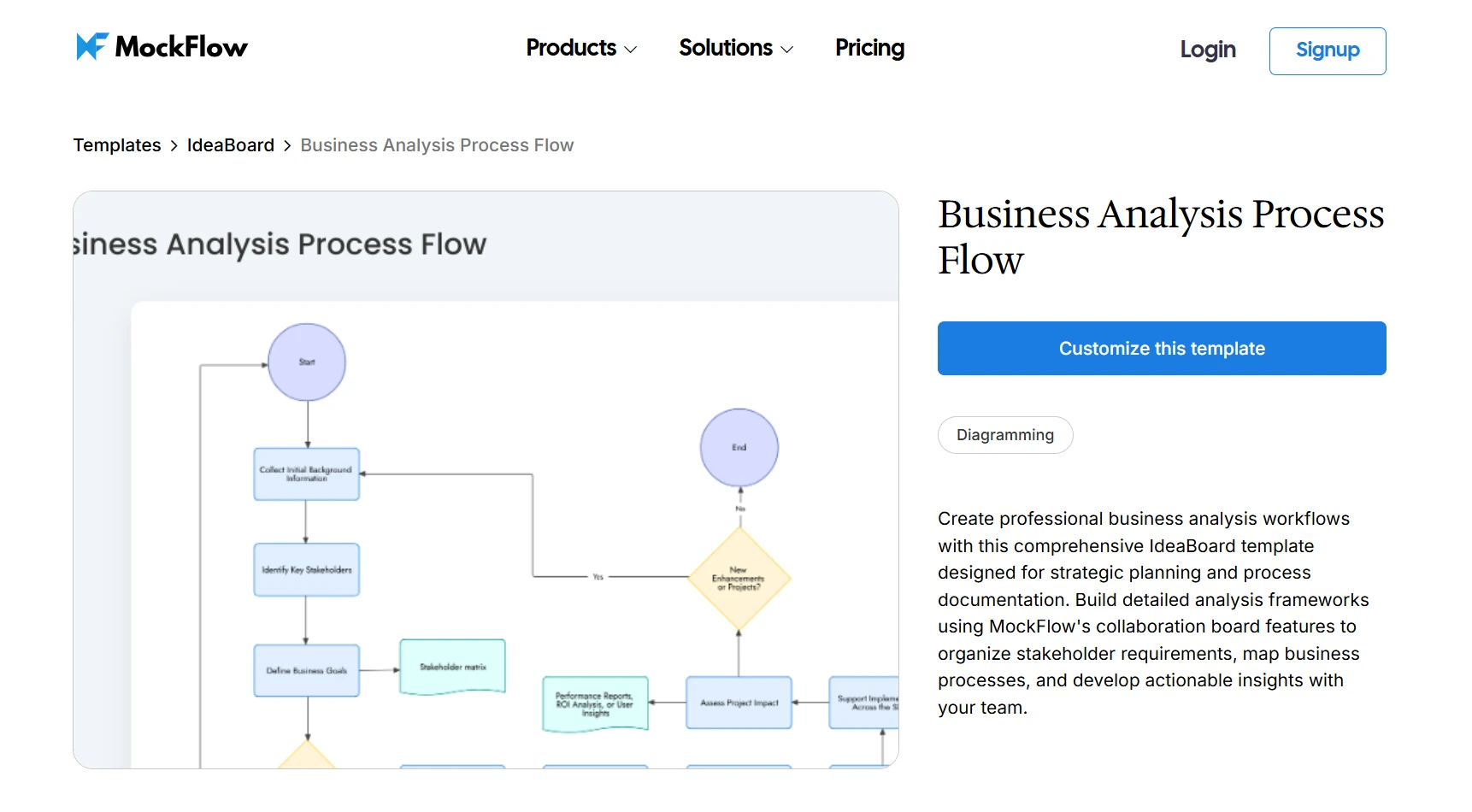
Customize this business analysis process flowchart diagram
2. Swimlane workflow diagram
When multiple teams or roles are involved, a simple flowchart often isn’t enough. A swimlane diagram divides the workflow into lanes, each representing a role, team, or department.
This makes it much easier to understand ownership and handoffs across functions.
For workflows involving multiple teams like legal, finance, and operations, you can use a swimlane-based document approval workflow template.
You can adapt it by:
- Adding or removing roles based on your structure
- Defining approval loops
- Mapping escalation paths
The key benefit here is clarity around who does what and where delays might happen between teams.
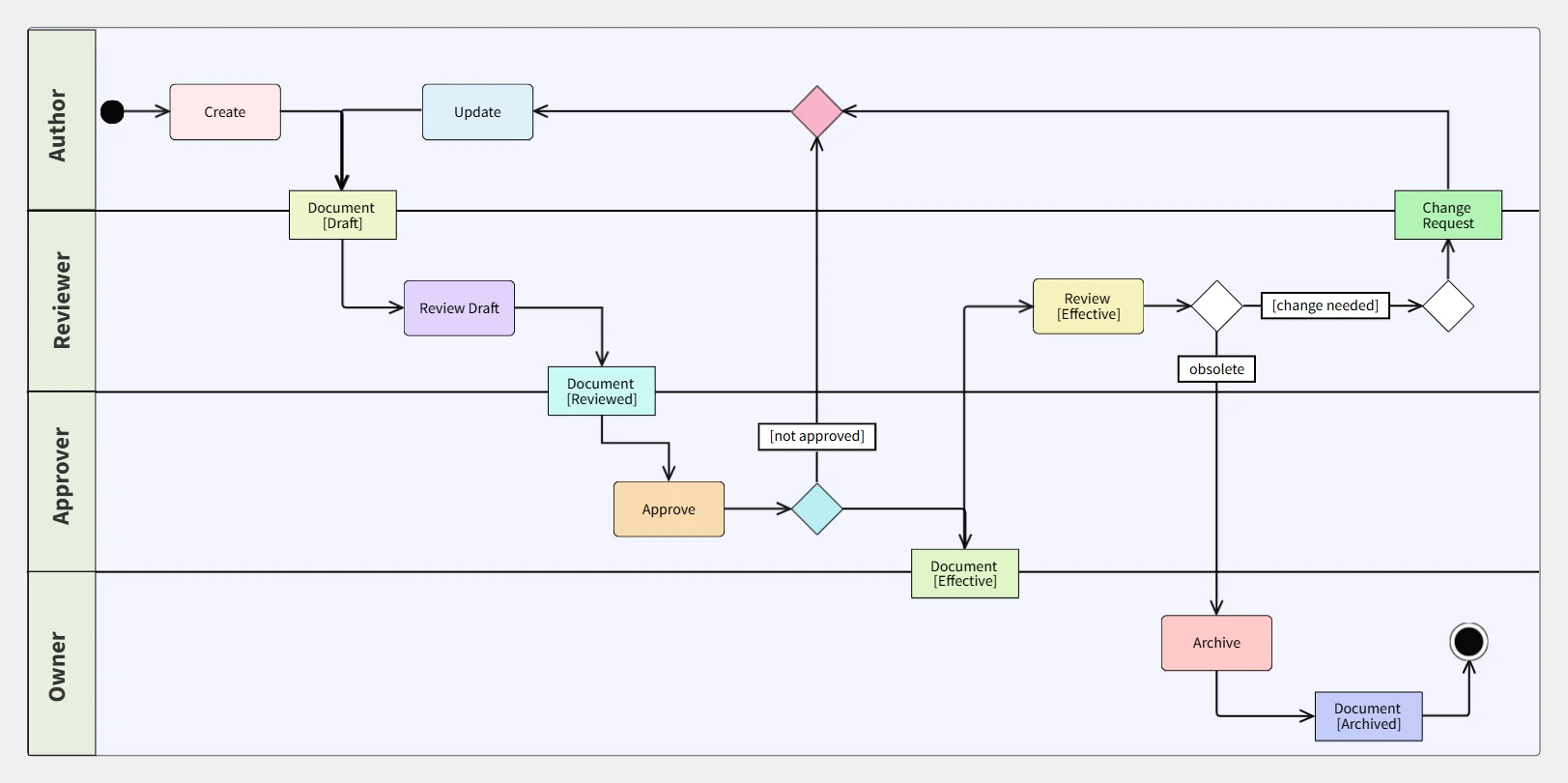
Customize this document approval workflow template on IdeaBoard
3. Spaghetti workflow diagram
Some processes aren’t linear at all. They involve movement across systems, locations, or steps that loop back frequently. That’s where a spaghetti-style workflow diagram comes in.
This type is often used in Lean process analysis to track movement and identify inefficiencies.
In production environments, you can use an electronics assembly spaghetti diagram to track how tasks move across stations. For IT workflows, a network troubleshooting spaghetti diagram helps visualize diagnostic paths.
You can customize these by:
- Marking bottlenecks or delays
- Reducing unnecessary loops
- Optimizing movement paths
The goal here is to highlight inefficiencies that aren’t obvious in traditional diagrams.
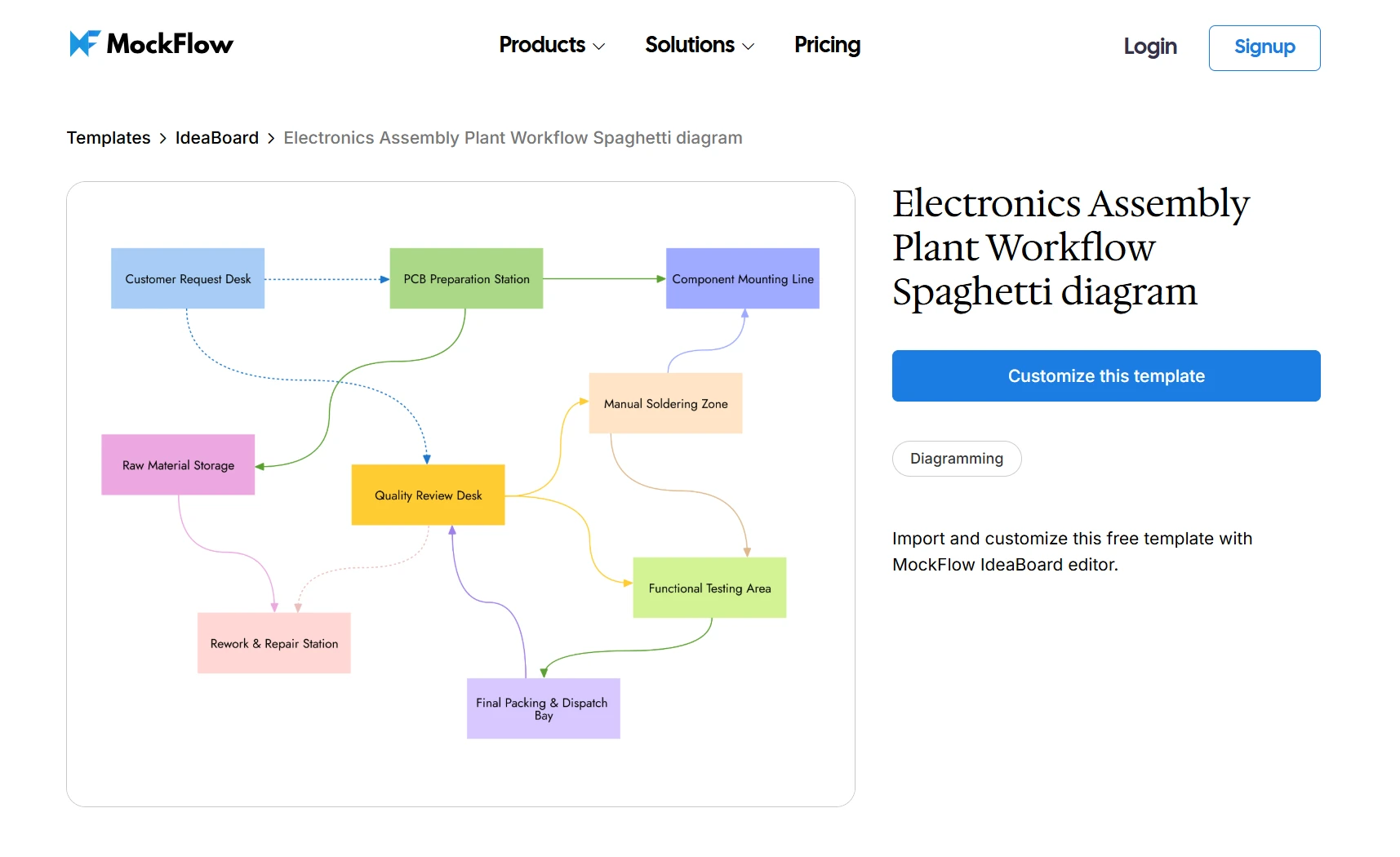
Customize this electronics assembly plant workflow spaghetti diagram template
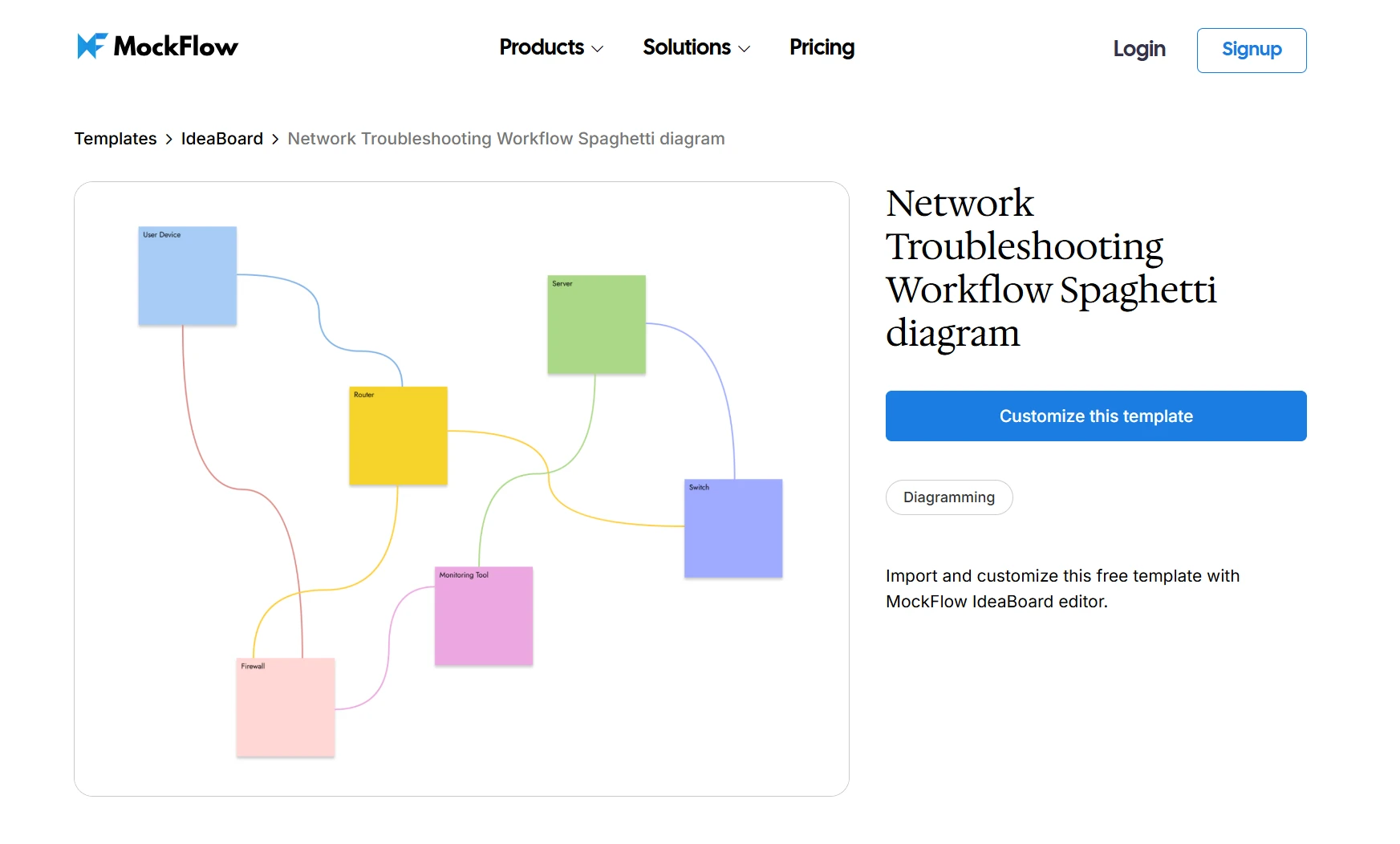
Customize this network troubleshooting workflow spaghetti diagram template
4. System and architecture workflow diagram
When workflows involve systems rather than just people, we need a different view. This type focuses on how applications, services, and components interact.
It’s commonly used for IT systems, cloud architecture design, and API-driven processes.
When mapping system interactions or integrations, you can use templates like the smart delivery hub context diagram or the SAP integration architecture diagram.
These can be customized by:
- Adding services, APIs, or components
- Mapping data exchanges between systems
- Identifying dependencies across layers
This approach gives you system-level visibility, which is critical for understanding how workflows operate behind the scenes.
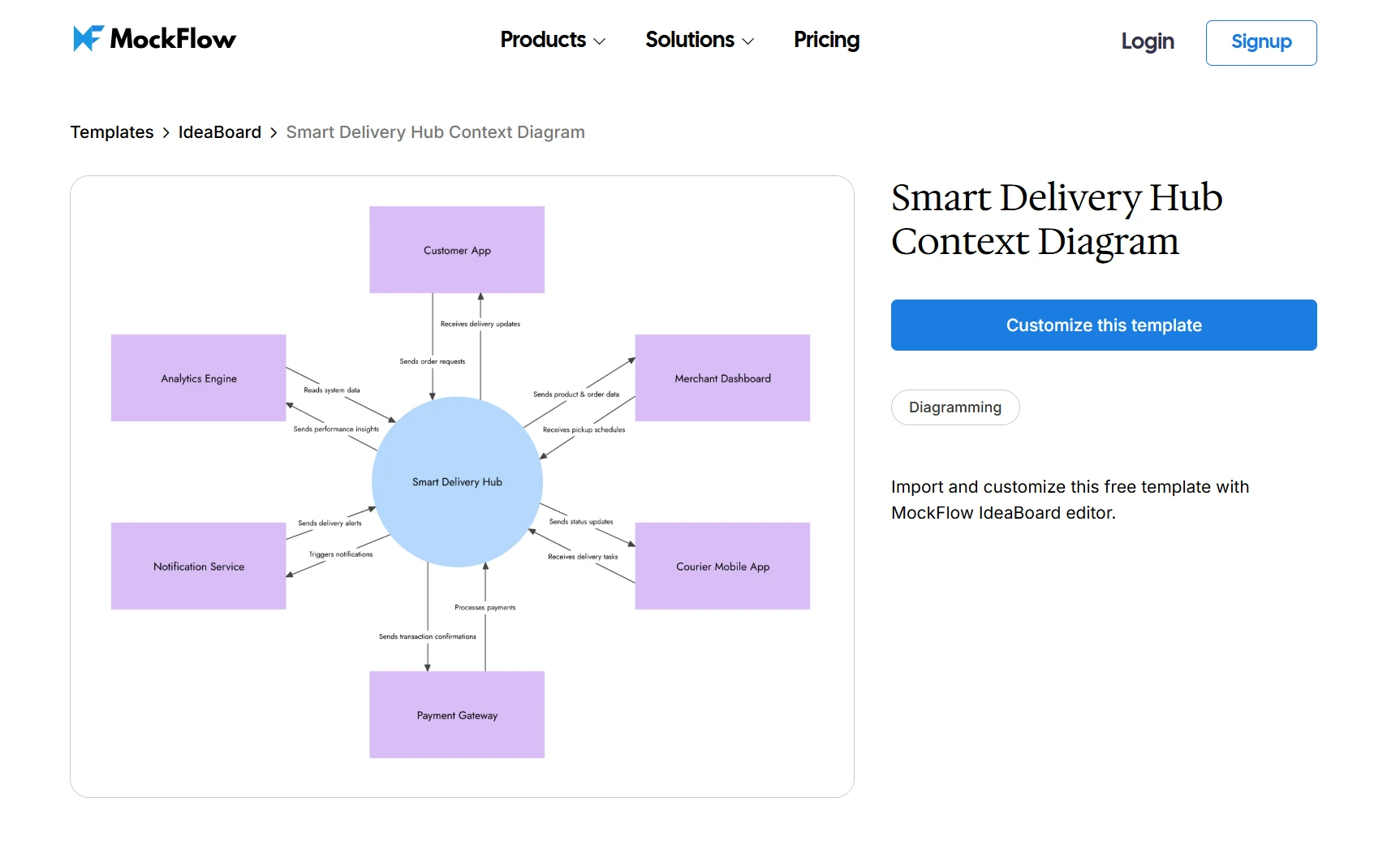
Customize this context diagram template
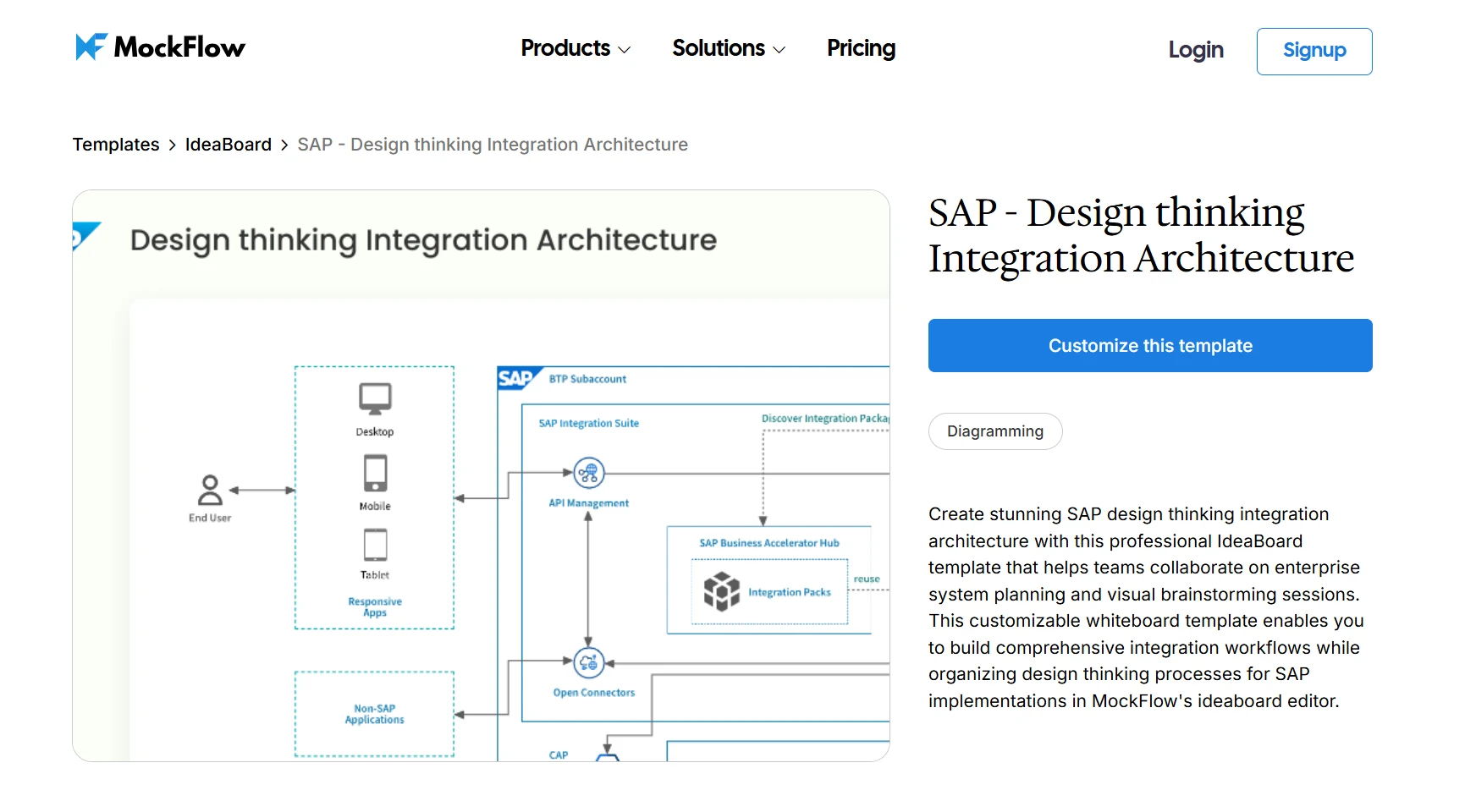
Customize this architecture diagram template
5. Data flow workflow diagram
Some workflows are less about tasks and more about how data moves. A data flow workflow diagram focuses on inputs, outputs, and transformations across systems.
This is especially useful for analytics pipelines, ETL processes, and API integrations.
For data-heavy workflows, you can use IdeaBoard tools like the AI-powered data flow diagram generator to quickly map how information moves between systems. You can also customize the ready-to-use data flow diagram template on IdeaBoard for a quick start.
You can refine these diagrams by:
- Defining inputs and outputs clearly
- Mapping data stores and sources
- Tracking transformations across steps
The emphasis here is on understanding data movement, not just process steps.
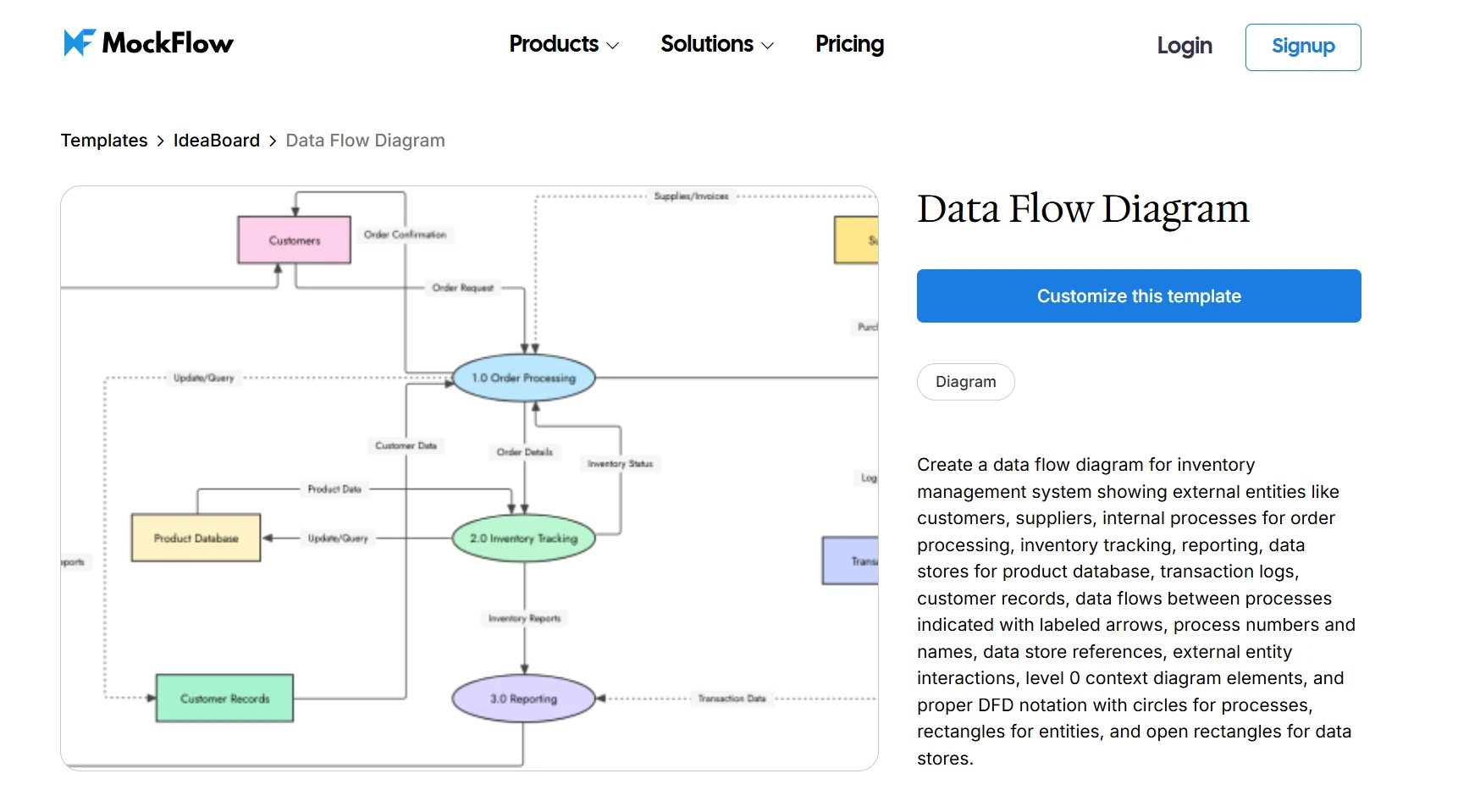
Customize this data flow diagram template
6. UML and technical workflow diagrams
In more technical environments, especially software development, workflows often need to capture system behavior and logic. That’s where UML-based diagrams come in.
These diagrams are used to model interactions, system states, and execution paths with precision.
In software workflows, you can use templates like the UML shopping order activity diagram or the UML interaction overview diagram.
You can tailor these by:
- Modeling system states and transitions
- Defining interactions between components
- Mapping execution flows
These diagrams are more detailed and are typically used when accuracy and technical clarity are critical.
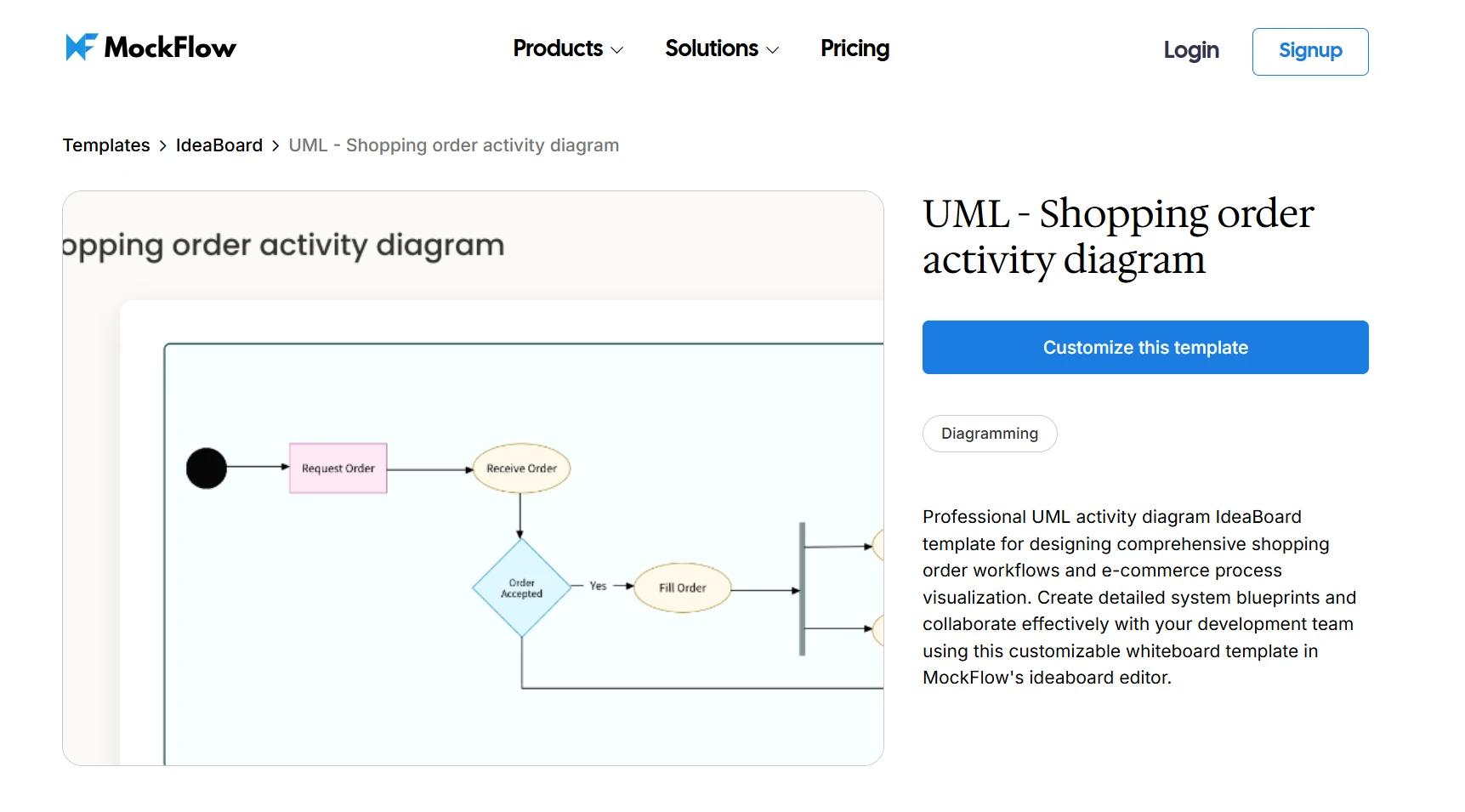
Customize this UML shopping order activity diagram template
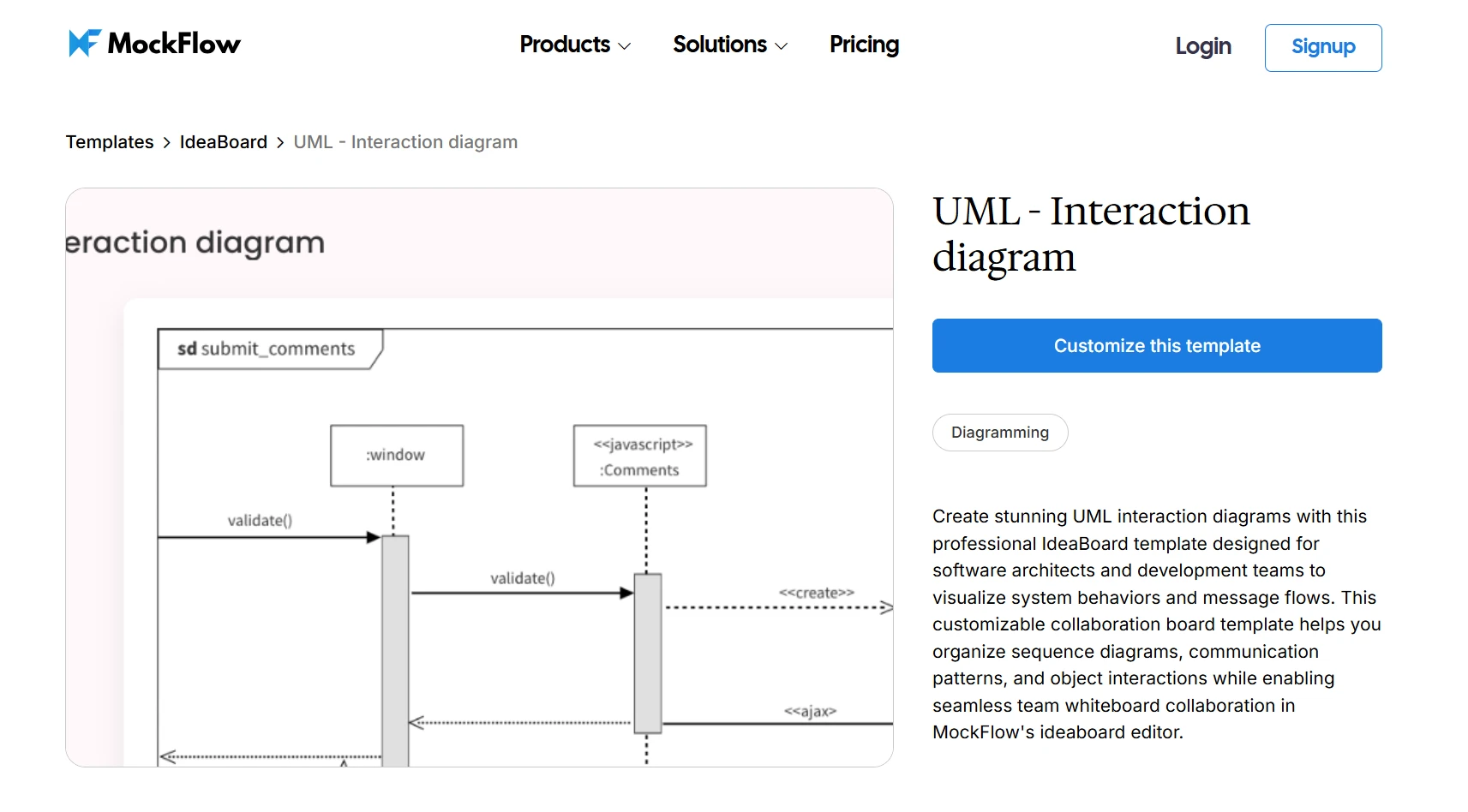
Customize this UML interaction diagram template
When to use a workflow diagram
Workflow diagrams are most useful when processes become difficult to track, scale, or optimize. As workflows grow, even small gaps can lead to delays or inconsistent outcomes, especially when multiple teams or systems are involved.
A Deloitte workplace systems report emphasizes this growing complexity of digital work environments, where multiple systems and workflows need to operate in sync. As systems become more interconnected, understanding these interactions becomes essential.
Common use cases
Teams usually turn to a workflow diagram when they need clarity across recurring processes.
- Onboarding processes where multiple steps and approvals need to be standardized
- Approval workflows across departments like finance, legal, or HR
- Customer support flows to handle tickets consistently
- Operational SOPs to document repeatable business processes
- Product or engineering workflows involving multiple dependencies
In each of these cases, a workflow chart helps make the process visible so teams can align on how work should move.
Signs you need a workflow diagram
Sometimes the need isn’t obvious until patterns start showing up in day-to-day work.
- Inconsistent outcomes across similar tasks
- Repeated delays without a clear cause
- Unclear ownership between teams
- Too many manual handoffs slowing things down
A Gallup workplace report shows that unclear expectations and poor process clarity significantly impact employee productivity and engagement.
When the above signals appear, mapping the process as a workflow process diagram helps bring structure and clarity.
Once you know when to use it, the next step is building one in a way that’s actually usable and easy to maintain.
How to create a workflow diagram using IdeaBoard
Once the structure is clear, creating a workflow diagram becomes much easier with a visual collaboration tool that gives you flexibility without adding friction. According to a DataIntelo market report, the demand for collaborative digital tools continues to grow as teams rely more on shared workspaces for coordination and execution.
IdeaBoard’s infinite whiteboard canvas allows us to map even complex processes in one place, without worrying about space or structure limitations.
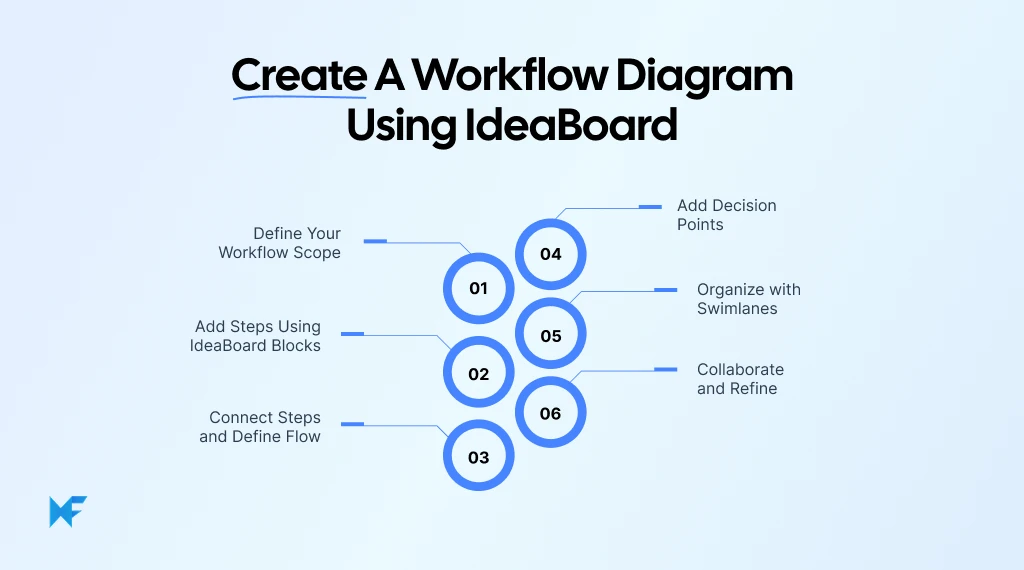
Step 1: Define your workflow scope
Before adding anything to the board, we need to define what we’re mapping. That includes identifying the start and end points, along with the objective of the process.
For example, in an approval flow, the process may start with a request submission and end with final approval or rejection. Keeping this scope tight ensures your workflow process diagram stays focused.
For this, teams can either start with a blank canvas or use a pre-built template like this customizable online course development workflow diagram to get started quickly.
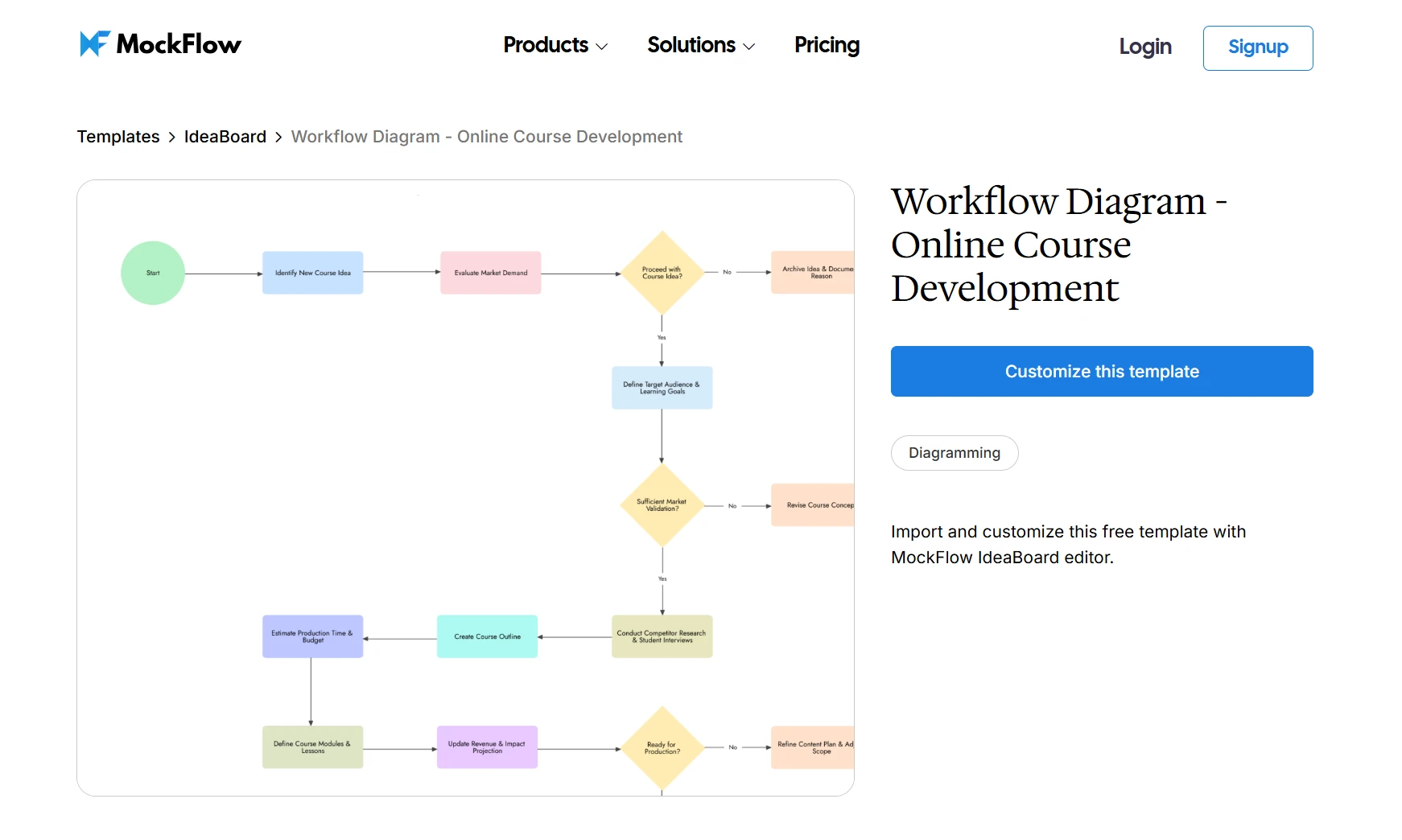
Customize this workflow diagram as per your use case on IdeaBoard
Step 2: Add steps using IdeaBoard blocks
Once the scope is clear, we can start placing steps on the board. IdeaBoard’s drag-and-drop interface makes this straightforward.
Using visual components like shapes, text blocks, sticky notes, and containers, we can:
- Map each task clearly
- Group related steps together
- Build a structured workflow chart quickly
Because everything is visual and editable, you can easily rearrange steps as the process evolves. You can also explore ready-made layouts from the IdeaBoard templates library to speed things up.
Step 3: Connect steps and define flow
After placing the steps, the next step is to connect them. This is where the workflow flowchart starts to take shape.
IdeaBoard allows you to use connectors and arrows to:
- Define the sequence of steps
- Show dependencies between actions
- Create a clear directional flow
These connectors help transform a list of tasks into a complete flow diagram that shows how work actually moves.
Step 4: Add decision points
Most real workflows include decisions. These could be approvals, validations, or conditional paths.
By adding decision nodes, we can:
- Introduce branching logic
- Represent alternate outcomes
- Capture exceptions within the process
This makes the diagram more realistic and easier to analyze when identifying gaps or inefficiencies.
Step 5: Organize with swimlanes
When multiple teams or roles are involved, organizing the workflow becomes important. Swimlanes help separate responsibilities visually.
With IdeaBoard, you can:
- Group tasks by team or role
- Track handoffs between functions
- Improve clarity in cross-functional workflows
This is especially useful when building a workflow diagram example that involves multiple stakeholders.
Step 6: Collaborate and refine
Once the initial diagram is ready, refining it with your team makes a big difference. IdeaBoard supports real-time remote collaboration directly on the board.
Teams can:
- Edit diagrams together simultaneously
- Add feedback using voice or video comments via multimedia comments
- Run live sessions using Google Meet integration
To speed things up further, IdeaBoard also includes an AI toolbox that can generate diagrams from prompts or restructure existing ones. You can also explore the prompt library to quickly create structured diagrams without starting from scratch.
Finally, once your diagram is ready, you can export it as a PDF or image using IdeaBoard’s export options, making it easy to share with stakeholders or include in documentation.
At this point, your workflow diagram is not just created, but also aligned, collaborative, and ready to use.
Use workflow diagram templates to get started faster
Creating a workflow diagram from scratch takes time, especially when you’re still figuring out structure. Templates give you a starting point so you can focus on the process instead of the layout.
IdeaBoard’s template library includes ready-made flowcharts, process diagrams, and workflow structures that you can quickly adapt to your use case.
Here’s how templates help:
- Reduce setup time for recurring workflows
- Provide a clear structure to build on
- Help standardize processes across teams
If you’re working with rough ideas, you don’t have to manually structure everything. IdeaBoard’s AI workflow diagram generator tools can generate workflow layouts from simple prompts.
You can also use the AI prompt box directly inside the board to turn ideas into structured diagrams or refine existing templates without starting over. For faster setup, the prompt library gives you ready-to-use prompts for different diagram types.
Once a template is loaded, it remains flexible. You can adjust steps, add decision points, and reshape the flow as your process evolves.
If you want to move quickly while keeping structure intact, templates combined with AI make it much easier to build a usable workflow diagram. You can quickly sketch ideas on the online whiteboard without any signup, and then refine them further in IdeaBoard.
To get started, you can try IdeaBoard directly from the Chrome extension or create your workspace with free sign up and start building your workflow diagrams right away.
FAQs about workflow diagram
1. What is a workflow diagram?
A workflow diagram is a visual representation of a process that shows the sequence of tasks, decision points, and flow of activities from start to finish. It uses standard symbols, connections, and structure to help teams understand, document, and optimize workflows.
2. What is the difference between a workflow diagram and a flowchart?
A workflow diagram focuses on the sequence of tasks, roles, and process flow across teams or systems. A flowchart focuses on logical steps and decision paths within a process. Workflow diagrams often include ownership, collaboration, and real-world execution context, while flowcharts emphasize step logic.
3. Can I create a workflow diagram online without signing up?
Yes, tools like IdeaBoard allow you to create workflow diagrams online without sign-up. IdeaBoard provides instant access to a whiteboard-style canvas where you can add steps, connect flows, and export diagrams quickly without account setup.
4. What are real-world examples of workflow diagrams across industries?
Workflow diagrams are used across industries for different purposes. Businesses use them for approval workflows, IT teams use them for system and troubleshooting flows, manufacturing teams use them to identify inefficiencies, and product teams use them to map user journeys and feature processes.
5. What is the best workflow diagram for project management?
For project management, process flow diagrams and swimlane workflow diagrams work best. Process flow diagrams help track task sequences, while swimlane diagrams define responsibilities across teams, making it easier to manage dependencies, ownership, and execution flow.
6. Are there free workflow diagram templates available?
Yes, tools like IdeaBoard provide ready-to-use workflow diagram templates that help teams get started quickly. These templates allow users to map processes, customize steps, add decision paths, and collaborate without building diagrams from scratch.

How to Run a Sailboat Retrospective Step by Step (With Template)
Retrospectives can start to feel predictable after a while. We ask similar questions, collect familiar feedback, and sometimes...

How to Use Reverse Brainstorming for Creative Problem-Solving in 2026
Introduction So, reverse brainstorming. It’s not exactly your usual “let’s come up with solutions” kind of brainstorming....

MoSCoW Method Explained: Categories, Examples, and Use Cases
When every task feels important, prioritization can become the hardest part of the work. A team may be balancing stakeholder...
