Draw and post annotations in Jira.
 Add MockFlow AnnotatePro to your Atlassian Jira account.
Follow the below steps on how to install, draw and post annotations in Jira.
 Install to Jira
Install AnnotatePro add-on for Jira.
Click on the above 'Install to Jira' button to install AnnotatePro add-on to your Jira instance from Atlassian Marketplace. After installation, start free 30-day trial of AnnotatePro add-on for your team.
 Install to Jira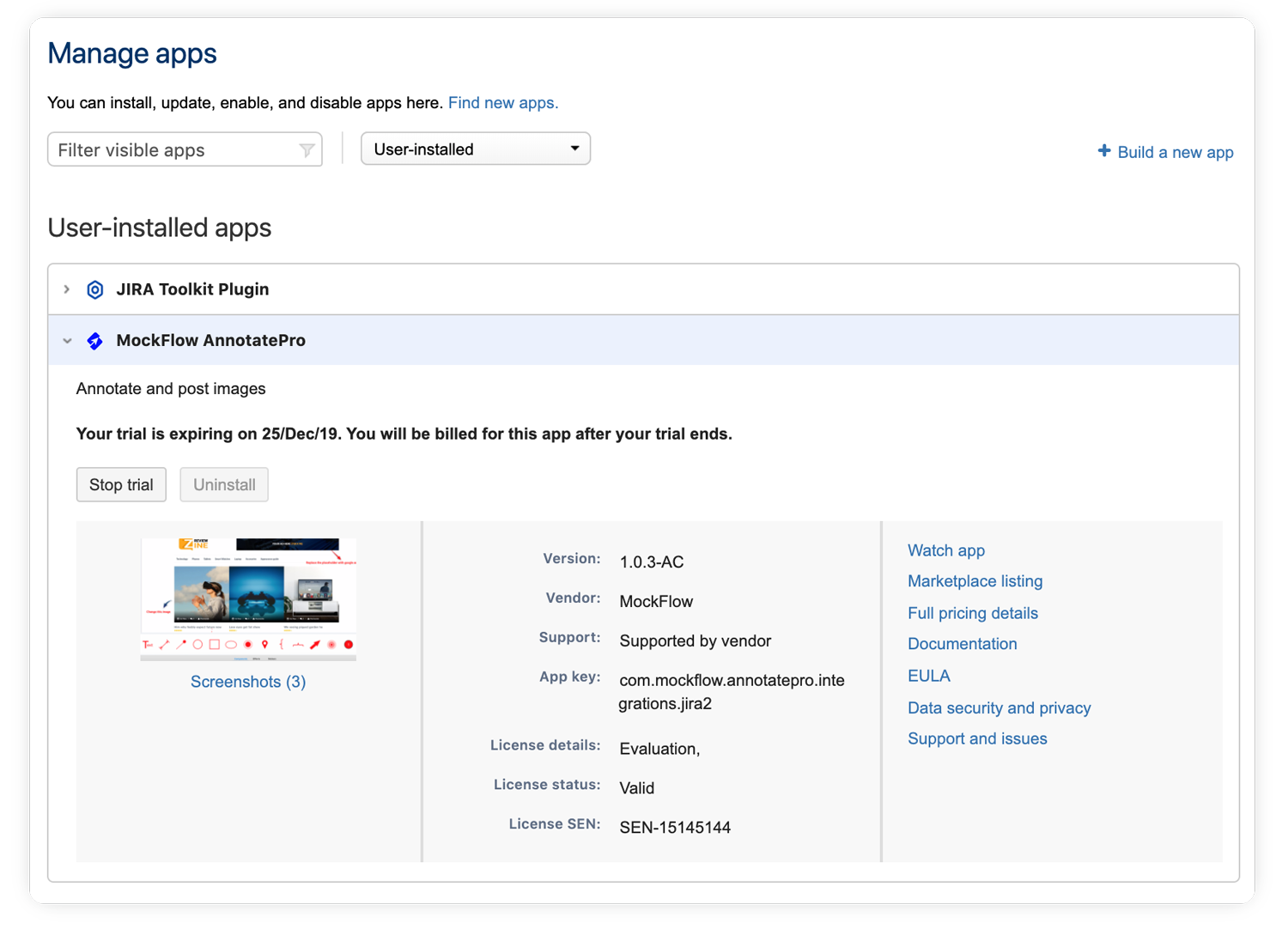
Open an issue in Jira to attach annotated image.
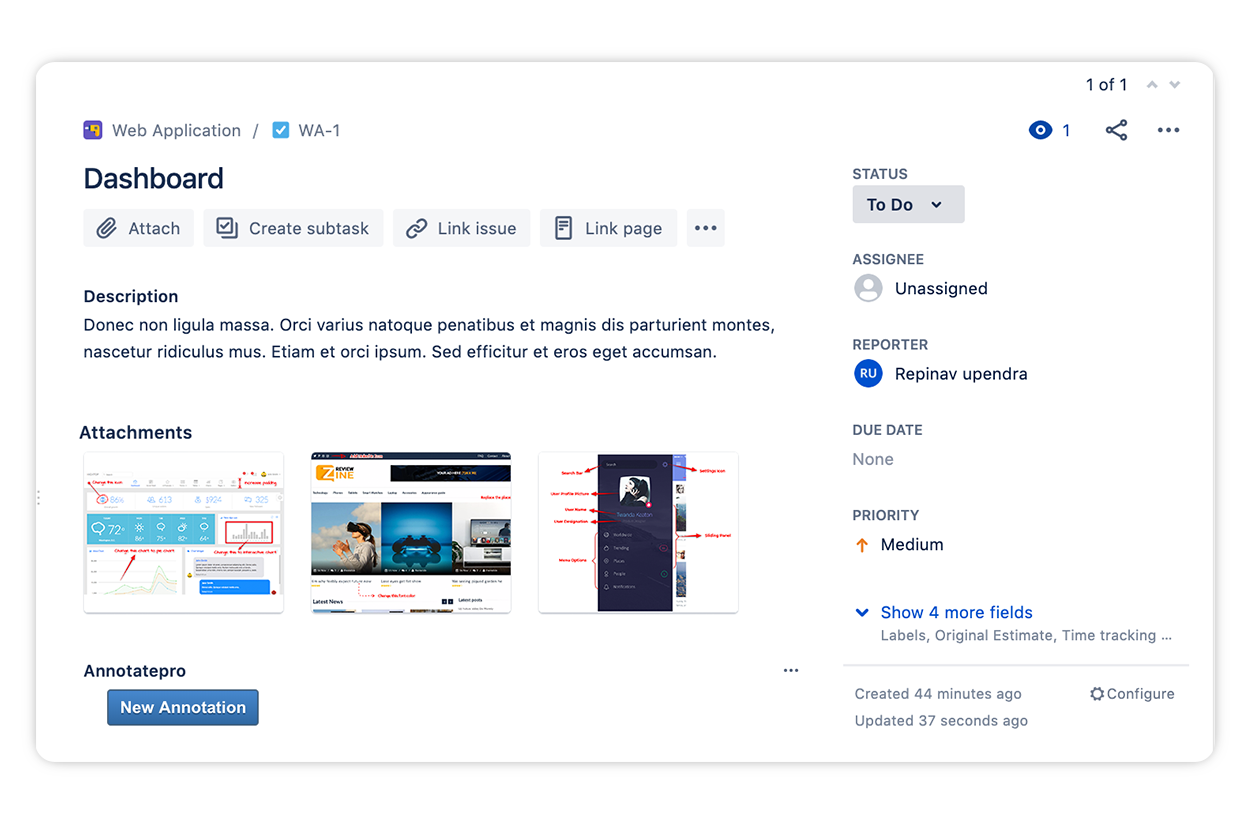
After installation, a new section for AnnotatePro will appear in all Jira issues automatically. This section contains the button to open the AnnotatePro editor within Jira.
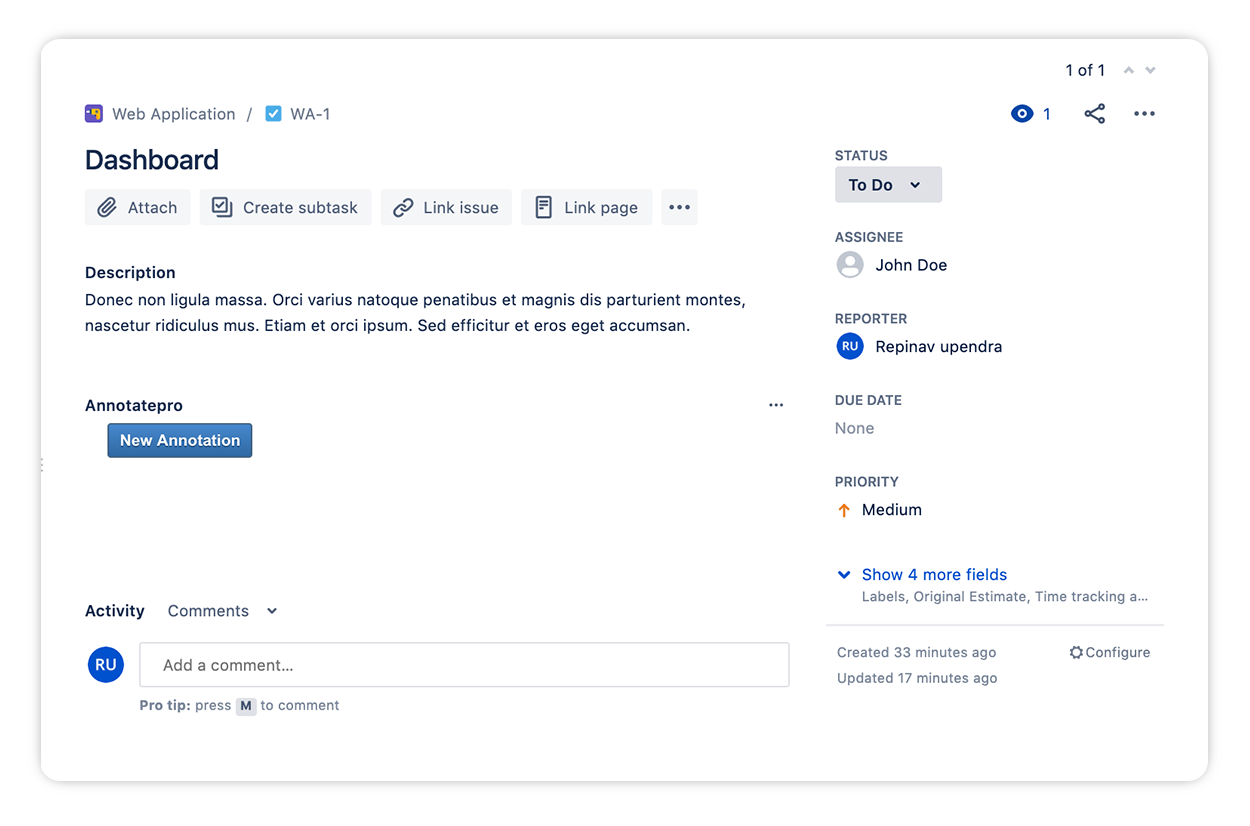
Open editor to annotate images.
On clicking the "New Annotation" button, it opens the editor within Jira. You can upload a new image to annotate or open from existing projects.

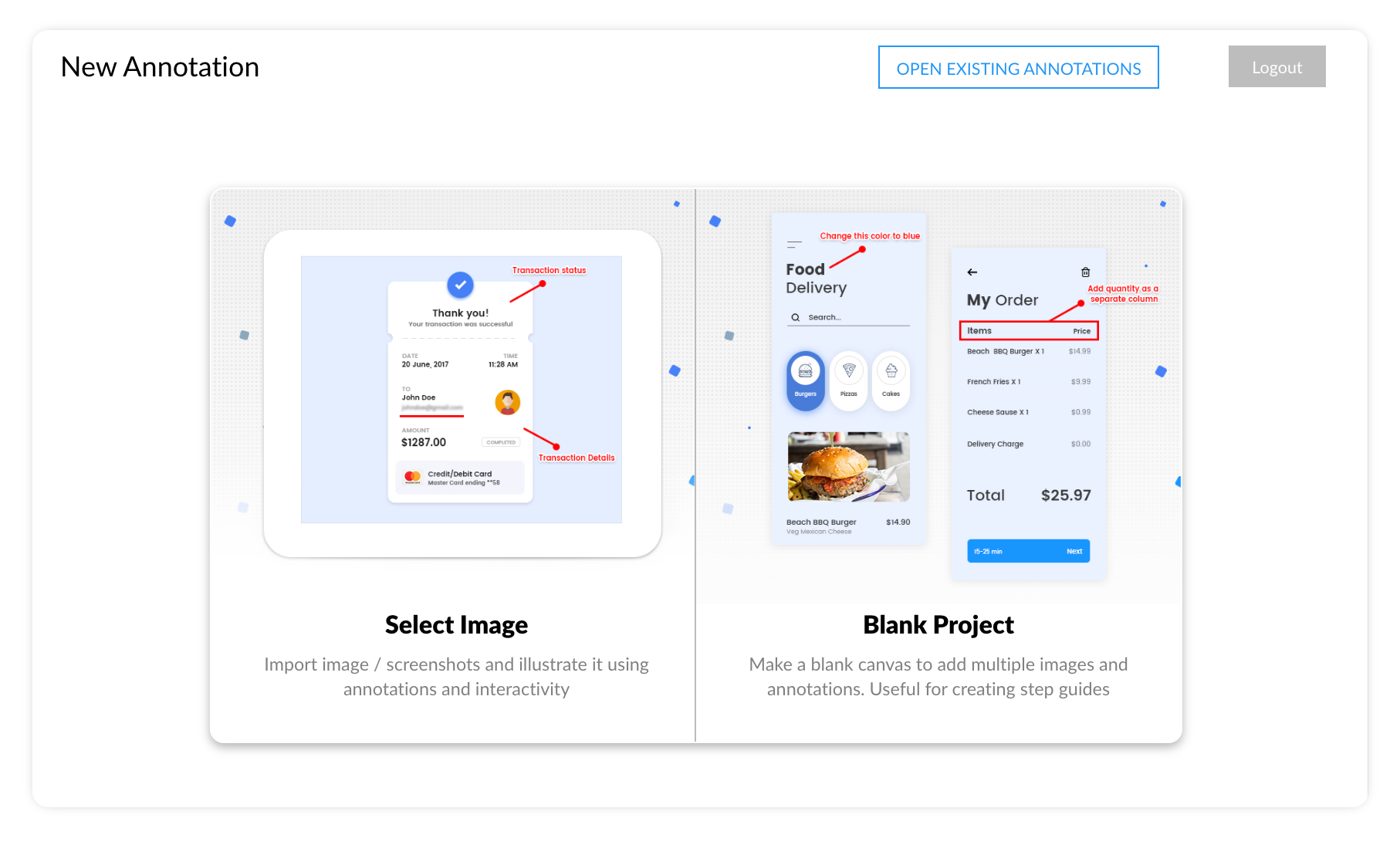
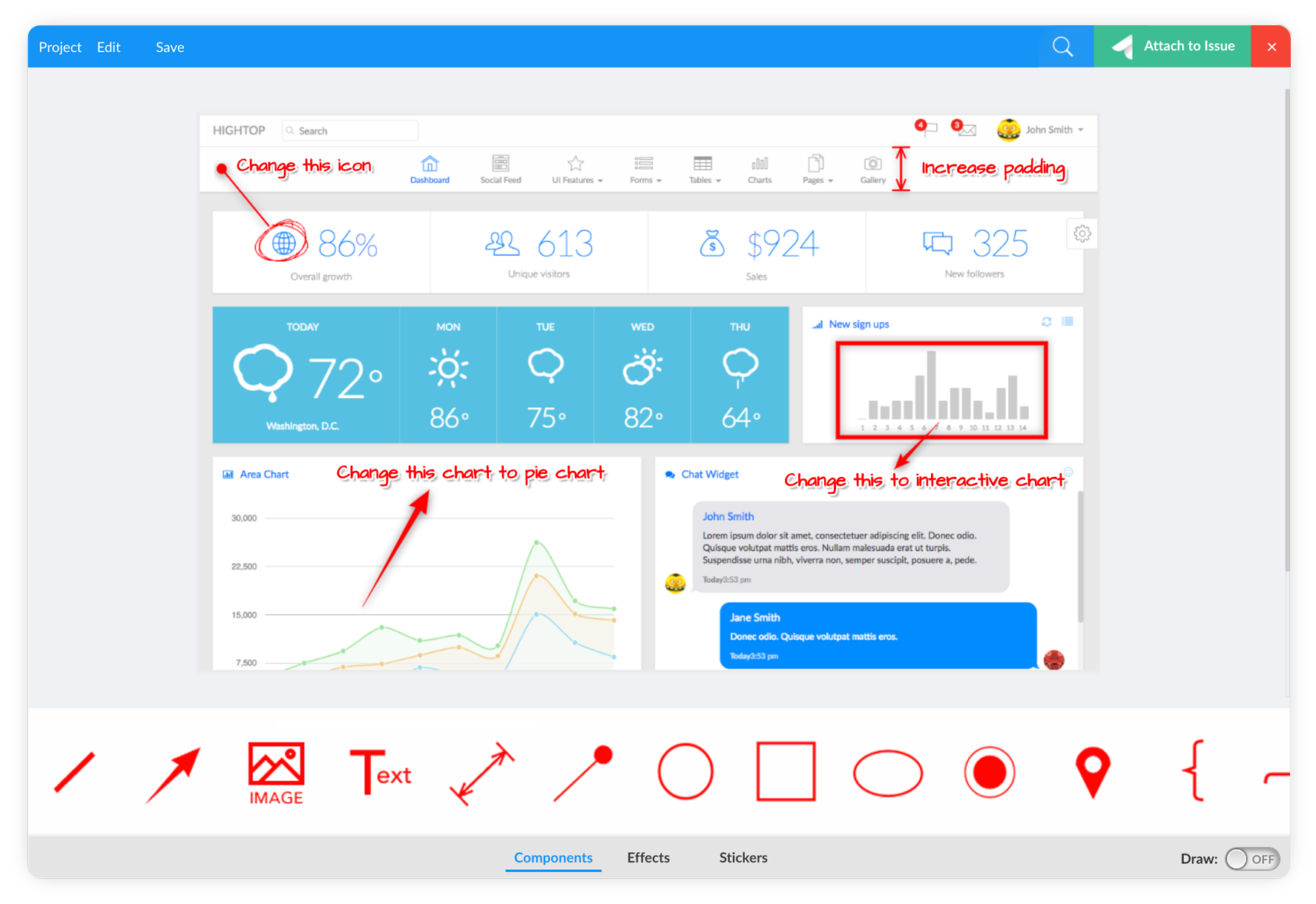
Attach annotated image to your Jira issue.
After annotating the image, you can directly attach the image to the current Jira issue.
Note: The image is added to the attachments section of the issue. Reload the page to view the attachment.
Check annotated images attached in your Jira issue.
The annotated images were posted to the attachment section of the Jira issue.
Add AnnotatePro to Jira.
Install from the Atlassian Marketplace and start a free trial for your team.
Learn how to use the AnnotatePro editor in the support portal, or contact us at support@mockflow.com.




 Brainstorm with MockFlow MCP