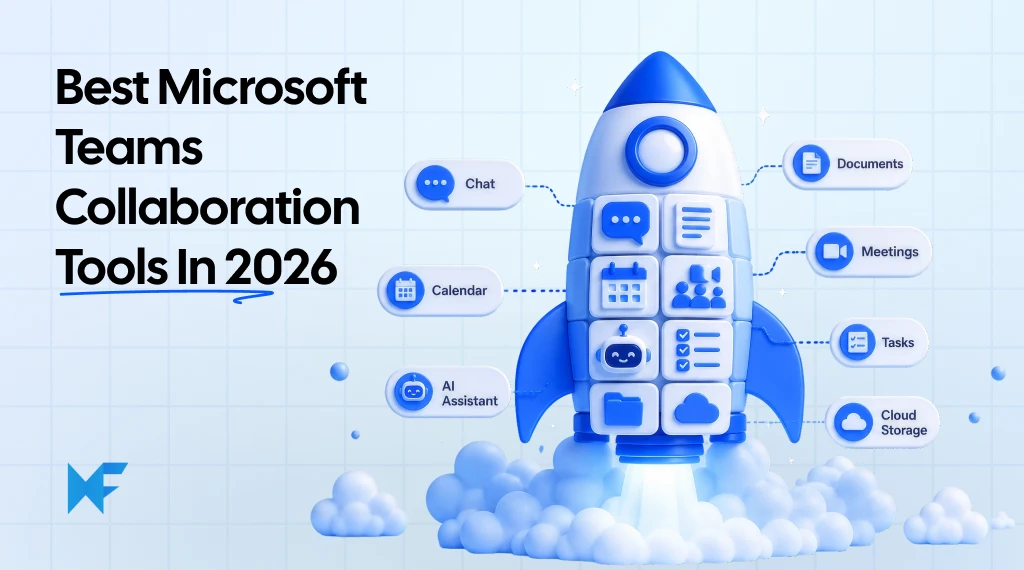
6 Best Microsoft Teams Collaboration Tools for Cross-Functional Teams
Microsoft Teams has become the central workspace for conversations, meetings, and day-to-day coordination. Yet many teams still need specialist apps to handle work that goes beyond chat and video calls.
Microsoft Teams collaboration tools can add visual planning, project tracking, employee engagement, knowledge management, and cross-platform communication to the Teams environment. The right choice depends on the collaboration gap we need to solve and how closely the tool fits into existing workflows.
In this guide, we compare six tools based on the job each one handles, how it works inside or alongside Teams, and the buying questions we should consider before adding it.
Quick comparison of the best Microsoft Teams collaboration tools
Microsoft Teams collaboration tools are apps and integrations that add visual planning, task tracking, employee engagement, knowledge sharing, and cross-platform communication to Microsoft Teams. In order to choose one, focus on the specific collaboration problem the tool needs to solve.
Tool | Primary collaboration job | Teams experience | Best for | Main decision question |
MockFlow IdeaBoard | AI-assisted visual collaboration | Channel tabs, live meeting canvas, and visual snapshots | Teams creating diagrams, plans, maps, and workshop outputs | Do we need visual work inside the Teams conversation? |
Trello | Visual task tracking | Boards, cards, links, actions, and updates | Teams using simple Kanban workflows | Do we need a task board or a broader project system? |
Polly | Polls, surveys, and engagement | Polls, check-ins, Q&A, quizzes, and surveys | Managers, HR teams, trainers, and facilitators | Do we need occasional voting or ongoing engagement workflows? |
Miro | Broad visual workshops | Boards connected to meetings and tabs | Organizations running large facilitated workshops | Do we need an extensive workshop ecosystem? |
Notion | Knowledge and documentation | Links, notifications, search, and connector-based access | Teams maintaining wikis and operational knowledge | Do we need a separate knowledge platform? |
Conclude Connect | Teams and Slack communication | Two-way cross-platform conversations | Organizations working across both platforms | Do Teams and Slack users need shared conversations? |
6 best Microsoft Teams collaboration tools
Gartner research found that 84% of marketing leaders and employees experience high collaboration drag when working with other functions, often because of excessive meetings, feedback, and unclear decision authority. The best Microsoft Teams collaboration tools solve these defined collaboration problems.
This list covers the best tools for visual planning, task tracking, employee engagement, workshop facilitation, knowledge management, and cross-platform messaging.
1. MockFlow IdeaBoard
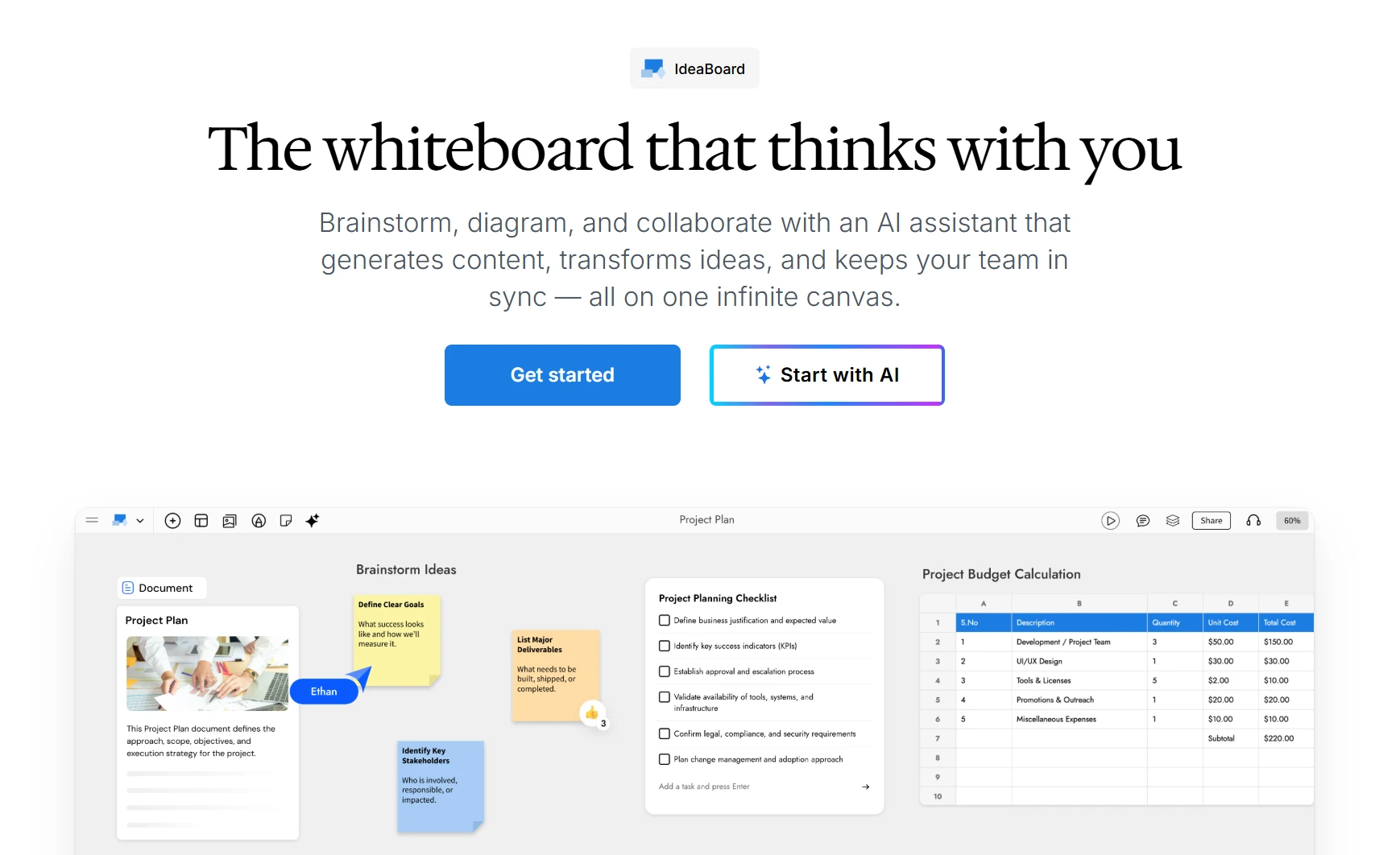
MockFlow IdeaBoard is an AI-powered visual workspace built to run directly inside Microsoft Teams. It helps teams turn conversations, meetings, and shared inputs into structured visual outputs without leaving Teams.
Unlike tools that rely on external links or limited previews, IdeaBoard provides a fully interactive canvas within Teams. Participants can create, edit, and refine diagrams, plans, and workshop outputs in real time during discussions.
Its built-in AI agent, Mida, generates structured visuals from prompts, documents, or meeting content. It can also reorganize existing boards or convert content into different formats, reducing manual rework during collaboration.
Core capabilities inside Microsoft Teams
IdeaBoard extends Teams from a communication tool into a visual workspace. Key capabilities include:
- Live collaboration during meetings: Open a board in a call and co-create diagrams, plans, or workshop outputs in real time.
- Persistent channel workspaces: Pin boards as tabs in channels to maintain shared visual context across discussions.
- AI-assisted creation and restructuring: Mida generates diagrams, mind maps, flows, and structured boards from prompts or uploaded content.
- Multi-format support: Work with diagrams, mind maps, flows, timelines, and structured layouts within a single board.
- Asynchronous visibility: Share boards or snapshots in channels so others can quickly understand outcomes without reviewing long threads.
- Real-time editing: Multiple participants can contribute simultaneously.
These features help teams move from discussion to structured output without switching tools.
The Teams integration supports three working patterns:
- Pinned channel tab: Add a persistent board to a channel so participants can return to the same workspace across meetings.
- Live meeting canvas: Open a new or existing board during a Teams call and allow participants to edit it together.
- Channel snapshots: Post a visual update in a channel so asynchronous colleagues can understand the outcome without reading a long chat thread.
Each board includes real-time collaboration and access to IdeaBoard’s component library. Mida remains available during the session, allowing participants to generate or restructure visuals as the conversation develops.
IdeaBoard suits teams that use Microsoft Teams as their primary collaboration hub and need to convert discussions into structured visuals quickly, especially when multiple roles must align in real time.
Typical team use cases
- Product teams: Map user flows, define features, align on decisions
- Engineering teams: Visualize architecture, dependencies, workflows
- Marketing teams: Plan campaigns, messaging, customer journeys
- Project teams: Organize timelines, milestones, coordination
- Consultants: Structure discovery sessions and workshops
- Leadership teams: Clarify strategy and priorities
IdeaBoard is most useful when teams need to turn unstructured inputs into clear visual outputs within Teams.
Mida AI processes prompts, documents, transcripts, notes, screenshots, and handwritten inputs, organizing them into structured boards with appropriate visual formats.
For repeat workflows, teams can use reusable AI Prompt Boxes to standardize outputs during sessions like design sprints or planning meetings. Prompt activity is tracked for transparency.
Teams can also start with visual templates for brainstorming, planning, diagramming, meetings, research, and project management. The prompt library provides ready-made instructions for common outputs such as mind maps, diagrams, and customer journeys.
IdeaBoard works best when Teams is the central collaboration platform and visual outputs need to be created without switching tools.
Before rollout, define board ownership, editing permissions, and how outputs will be archived or transferred into project or documentation systems.
Additional considerations:
- No Microsoft Graph access required
- Available across MockFlow plans
- Plan limits affect boards, users, AI credits, and collaboration features
- Review AI usage policies before uploading internal content
The pricing plans include a free option for testing, with paid plans offering expanded capabilities. Evaluate the broader AI features if AI-assisted workflows are central.
Choose it when: Choose IdeaBoard when diagrams, workshop outputs, and visual decisions need to be created directly inside Microsoft Teams. Teams can create an account and test the workflow with an active project.
2. Trello
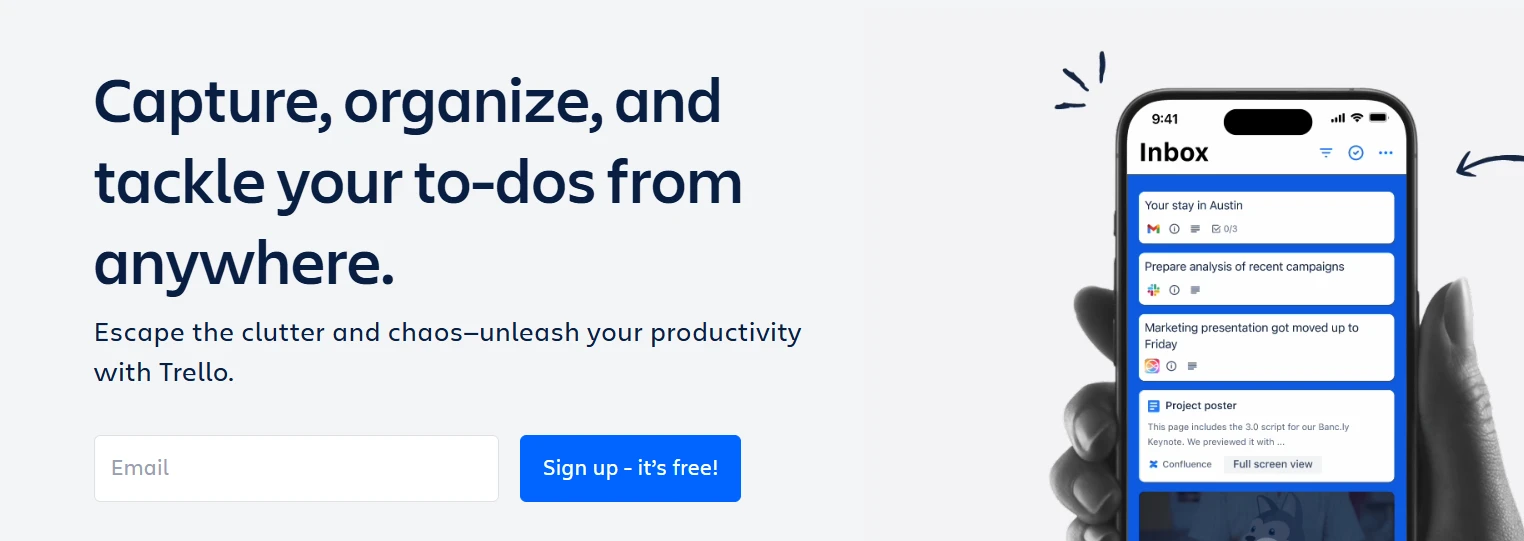
Trello organizes work through boards, lists, and cards. Its Microsoft Teams app supports teams that use a straightforward Kanban system to assign work, track progress, and turn conversations into tasks.
Best fit
Trello fits teams with clear, repeatable workflows where each task can move through defined stages.
Typical uses include:
- Content and campaign tracking
- Team request queues
- Simple project handoffs
- Action items from meetings
- Department-level task boards
Teams experience
The Trello app supports three main actions inside Microsoft Teams:
- Add a Trello board as a channel tab and work with its lists and cards inside Teams.
- Convert a Teams message into a card in the Trello Inbox.
- Receive channel or personal notifications when boards, lists, or cards change.
Trello can also summarize a Teams message with AI when creating a card. The summary can extract a due date, create a title, add action items to a checklist, and attach the original message for reference.
Decision factors
A user must belong to a Trello board before adding it to Teams or configuring notifications for it. Administrators may also need to allow third-party tabs in Microsoft Teams.
Key questions include:
- Will Trello become the main system for task ownership?
- Do existing Planner or project tools already serve the same purpose?
- Which Teams channels need board notifications?
- Who controls Trello workspace membership and permissions?
Choose it when: Choose Trello when a team needs a simple visual task board and wants to turn Microsoft Teams messages into trackable cards.
3. Polly
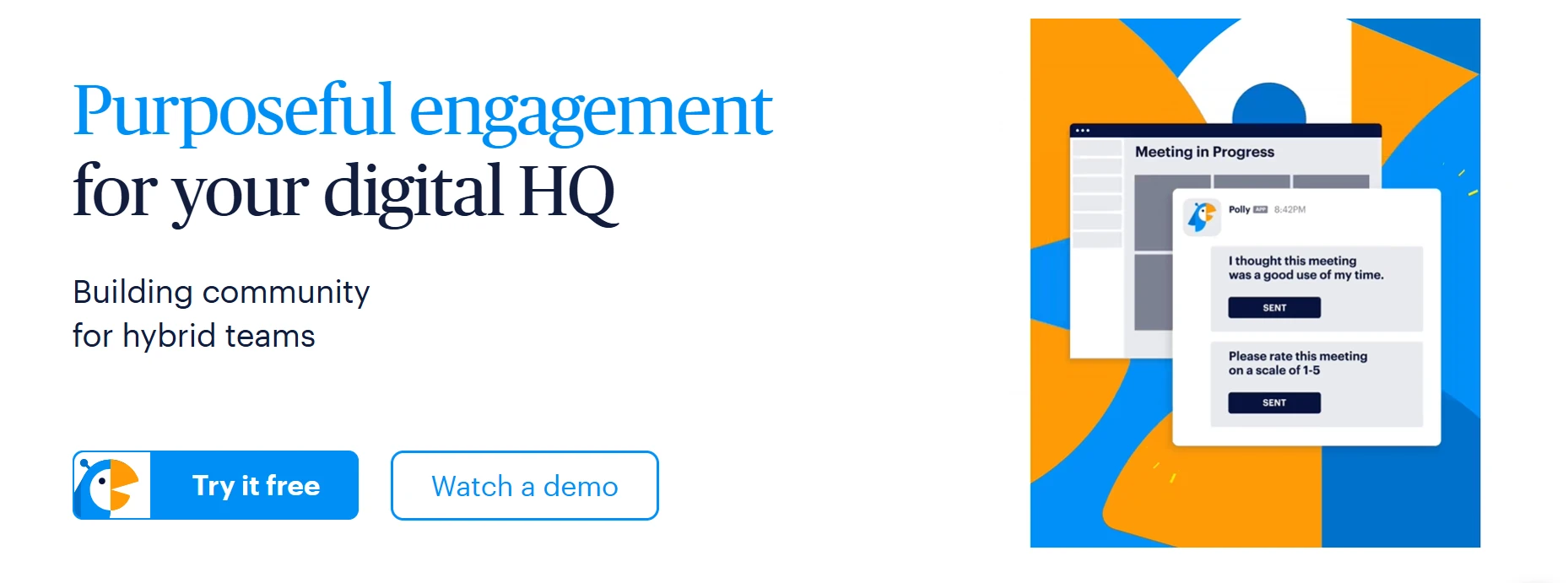
Polly is a Microsoft Teams engagement tool for creating polls, surveys, recurring check-ins, quizzes, and live Q&A. It collects responses within Teams chats, channels, and meetings instead of sending participants to a separate survey workflow.
Best fit
Polly suits workflows where participation and feedback need to happen regularly.
Typical users include:
- Managers running team check-ins
- HR teams collecting pulse feedback
- Trainers checking understanding
- Meeting facilitators gathering questions
- Leaders polling employees during all-hands meetings
Teams experience
Users can create a quick poll from a Teams chat with the @polly command or open the Poll Builder for more options. Available controls include scheduling, question types, anonymous responses, result visibility, reminders, recurring polls, and multiple-question surveys.
For Teams meetings, organizers can prepare questions in advance and release them during the session. Polly also supports live quizzes, Q&A, and trivia in the meeting interface. Results can appear in real time, after the poll closes, or remain visible only to the author.
Decision factors
Some settings and engagement workflows require a paid Polly plan. Licensing should be reviewed based on the number of poll creators, required administrative controls, and whether recurring surveys or tenant-wide management are needed.
Before rollout, define:
- Who can create organization-wide surveys
- When anonymous responses are appropriate
- Who can access results
- How long survey data should be retained
- Whether Polly overlaps with Microsoft Forms or another feedback platform
Choose it when: Choose Polly when Microsoft Teams needs a repeatable system for surveys, meeting participation, and employee feedback.
4. Miro
Miro is a visual collaboration platform for workshops, brainstorming sessions, diagrams, and planning activities. Its Microsoft Teams app connects Miro boards to Teams meetings, channels, and calendar invitations.
Best fit
Miro suits organizations that run large or highly facilitated visual sessions.
Typical use cases include:
- Strategy workshops
- Design sprints
- Research synthesis
- Retrospectives
- Cross-department planning
Teams experience
The Teams app allows users to:
- Open a new or existing Miro board during a meeting
- Add a board to a Teams calendar invitation
- Embed a board as a channel tab
- Receive board activity notifications through the Miro bot
Participants can use board elements such as sticky notes, arrows, voting, and timers inside the Teams meeting experience. Work that relies on Miro’s wider platform features may still require an active Miro account and access to the full product.
Decision factors
The Microsoft Teams app is available across Miro plans, although some advanced capabilities require a paid plan. A Teams administrator may also need to approve the app before users can add boards to meetings or channels.
Before adoption, check:
- Which users need full Miro accounts
- Whether Microsoft Whiteboard or another visual tool already overlaps
- Who owns boards created for cross-functional workshops
- Which content remains in Teams and which content is stored in Miro
Choose it when: Choose Miro when the organization needs a broad workshop environment and already manages visual collaboration through Miro.
Also read → Best Miro alternatives for virtual collaboration in 2026
5. Notion
Notion is a workspace for documentation, wikis, projects, and operational knowledge. Its current Microsoft Teams connection focuses on making Teams conversations searchable from Notion rather than providing a fully editable Notion workspace inside Teams.
Best fit
Notion suits teams that need a maintained knowledge system for information that should remain accessible after a conversation ends.
Typical use cases include:
- Internal wikis
- Process documentation
- Project briefs
- Meeting records
- Team handbooks
- Operational reference material
Teams experience
The Notion AI Connector can search Microsoft Teams chats and channels from within Notion. Users can ask questions about project updates, summarize discussions, and retrieve decisions from public or private channels where they already have permission.
This is a search and knowledge connection. Teams conversations remain in Microsoft Teams, while Notion acts as the place where users search, summarize, and connect that information with existing documentation.
Decision factors
The connector requires a Notion Business or Enterprise plan. Setup must be completed by a Notion workspace owner who is also working with a Microsoft Teams administrator.
Review:
- Whether Notion or SharePoint will own long-term knowledge
- Which Teams channels can be indexed
- How existing Microsoft permissions are applied
- Whether the organization needs search access or editable content inside Teams
- The cost of maintaining a separate knowledge platform
Choose it when: Choose Notion when the main requirement is to preserve organizational knowledge and search Microsoft Teams discussions from a separate documentation workspace.
6. Conclude Connect
Conclude Connect connects Microsoft Teams and Slack through two-way message and file synchronization. It is designed for organizations where departments, clients, vendors, or partner companies use different messaging platforms.
Best fit
Conclude Connect fits environments where moving every participant onto one messaging platform is impractical.
Common scenarios include:
- Teams-based departments working with Slack-based teams
- Agencies communicating with clients
- Support teams working with external partners
- Companies managing multiple workspaces
- Organizations involved in mergers or partner ecosystems
Teams experience
Administrators can connect Microsoft Teams channels or chats with Slack channels. Once connected, messages and files sync between the two platforms, allowing each participant to remain in the tool already used by their team.
Conclude offers separate setups for:
- Internal collaboration between departments
- External collaboration with clients or vendors
- Multi-company connections through Conclude Bridge
The tool focuses on cross-platform communication. It does not replace project management, documentation, or visual planning software.
Decision factors
Before connecting workspaces, define:
- Which channels and chats should be synchronized
- Who can create or approve connections
- Which file types may cross platform boundaries
- How guest and external access will be governed
- Whether a connection is temporary or long term
Organizations with many partner companies or channel connections should also assess whether individual channel links or a wider workspace-level bridge is more suitable.
Choose it when: Choose Conclude Connect when Microsoft Teams and Slack users need to participate in the same conversations without changing their primary messaging platform.
How to evaluate collaboration tools in Microsoft Teams
The right tool should solve a defined collaboration problem without duplicating existing systems. Evaluate each option by integration depth, information ownership, access, governance, and cost before adding it to Microsoft Teams.
Step 1. Identify the collaboration problem
Start with the work that is currently difficult to complete in Teams.
Common gaps include:
- Visual planning and diagramming
- Task tracking
- Employee feedback
- Workshop facilitation
- Knowledge management
- Communication across Teams and Slack
Assign one primary tool to each collaboration job. For example, use a visual workspace for diagrams and workshop outputs, then keep task execution in the approved project system.
This prevents duplicate boards, repeated updates, and uncertainty about where work should continue after a meeting.
Step 2. Check how deeply the tool works inside Teams
Microsoft Teams integrations provide different levels of access. A tool listed in the Teams app store may still move most work into an external browser tab.
Compare these four integration levels:
- Full workspace inside Teams: Users can create, edit, and collaborate without leaving a channel or meeting.
- Editable artifact inside Teams: Users can work on a board, document, or task view, but some features open externally.
- Notification or message connection: The tool posts updates, creates actions from messages, or supports search.
- External link: Teams provides a route to the tool, while the actual work happens elsewhere.
Each level can be useful. The decision depends on how often the tool is used and how much context switching the workflow can tolerate.
For frequent workshops or planning sessions, a full in-Teams workspace may improve participation. For occasional updates, notifications or links may be enough.
Step 3. Define where information will live
Choose a system of record before rollout.
Define where each type of information belongs:
- Tasks
- Visual boards
- Survey results
- Documents
- Meeting decisions
- Final approvals
Avoid maintaining the same project in Planner, Trello, and another project platform. The same principle applies to knowledge systems. Running parallel wikis in SharePoint and Notion creates version conflicts and weakens search reliability.
Set clear rules for:
- Workspace ownership
- Naming
- Archival
- Handoffs
- Final decision records
A Teams channel can host the conversation while a specialist tool owns the working artifact. That division should be clear to every participant.
Step 4. Review access, governance, and cost
A tool may fit the workflow but still create administrative or adoption problems.
Review the following before approval:
- Licensing: Check who needs a creator license and who can participate as a guest or reviewer.
- Permissions: Confirm whether the app requires administrator approval, Microsoft Graph access, or access to messages and files.
- External access: Test how clients, agencies, and partner organizations will join the workspace.
- Data storage: Identify where content is stored and how long it is retained.
- AI handling: Review how uploaded documents, prompts, and generated content are processed.
- Ownership: Decide what happens to boards and records when an employee leaves.
- Training: Estimate the effort required for users to adopt the tool consistently.
- Total cost: Include paid seats, administration, migration, training, and overlap with current software.
AI governance deserves the same scrutiny. Microsoft’s Work Trend Index found that 78% of AI users bring their own AI tools to work, which can create unapproved data flows when usage rules are unclear.
The strongest choice is usually the tool that solves one important gap, works at the required depth inside Teams, and has a clearly defined place in the wider Microsoft 365 environment.
Try IdeaBoard for visual collaboration inside Microsoft Teams
Choose IdeaBoard when Teams conversations regularly lead to diagrams, plans, workshops, or decisions that need a clear visual workspace.
The decision is straightforward. Use IdeaBoard when the visual work should stay close to the conversation, participants need to contribute without switching tools, and the final board must remain available after the meeting.
- Start with one active workflow instead of a broad rollout.
- Pick a planning session, architecture review, campaign workshop, or project kickoff where chat alone is slowing the team down.
- Add the Teams integration, run the session inside the channel or meeting, and review whether the board improves clarity and follow-through.
Take a real Teams conversation and transform it into a clear, visual plan using IdeaBoard. Create an account and start now.
FAQs
1. What are the best collaboration tools for Microsoft Teams?
IdeaBoard supports visual planning, Trello manages tasks, Polly handles engagement, Miro supports workshops, Notion stores knowledge, and Conclude Connect links Teams with Slack. The best choice depends on the specific collaboration gap.
2. Which Microsoft Teams collaboration tool is best for cross-functional teams?
IdeaBoard is a strong fit when cross-functional teams need to map plans, dependencies, journeys, or decisions visually. Trello can manage execution, Polly can collect input, and Notion can preserve documentation.
3. What is the best whiteboard app for Microsoft Teams?
IdeaBoard is suited to AI-assisted visual collaboration directly inside Teams. Miro may fit broader workshop programs, while Microsoft Whiteboard covers basic native whiteboarding.
4. Can Microsoft Teams integrate with third-party collaboration tools?
Yes, Microsoft Teams supports third-party apps through channel tabs, meeting apps, editable boards, notifications, message actions, search connectors, and external links. Integration depth varies by tool.
5. How do Microsoft Teams collaboration tools work together?
Teams can host the conversation, IdeaBoard can capture the visual plan, Trello can track actions, Polly can gather feedback, Notion can store knowledge, and Conclude Connect can include Slack users. Clear ownership prevents duplicate work.
6. How do you choose the right Microsoft Teams collaboration tool?
Start with the collaboration problem, then compare integration depth, access, permissions, information ownership, adoption effort, and total cost. Choose one primary tool for each collaboration job.
12 Best Brainstorming Tools for Effective Idea Generation in 2026
Introduction Looking for the best brainstorming tools? You’ve come to the right place. Brainstorming should be exciting, but...
8 Best Zoom Whiteboard Alternatives: Smarter Visual Collaboration for 2025
Introduction: Looking for a Zoom Whiteboard Alternative? We’ve all been there: trying to capture fast-moving ideas on a Zoom...
Virtual Collaboration Tools: Best Options for Remote & Hybrid Teams
Introduction You’re about to invest in a new set of virtual collaboration tools, and this isn’t a casual decision. The platform...
