
How to Use Visio in Teams: Setup, Editing & Collaboration Guide
Diagrams often sit apart from the conversations they are meant to support. A team may discuss a workflow in a Microsoft Teams channel, review changes during a meeting, and then switch to another application to find or update the actual file. This separation can slow decisions and make it harder to confirm which version is current.
Visio in Teams is a diagramming experience within Microsoft Teams. It allows eligible Microsoft 365 users to create, open, edit, share, and collaborate on supported Visio diagrams without leaving the Teams workspace.
This guide explains what you need to use the Visio app in Teams, how to create and edit diagrams, and how to collaborate without producing conflicting file versions.
What do you need to use Visio in Microsoft Teams?
To use Visio in Microsoft Teams, you generally need a Microsoft 365 work or school account, access to Teams, an eligible Microsoft 365 or Visio subscription, and permission to open or edit the diagram. Files used in Teams are normally stored in OneDrive for work or school or in the SharePoint site connected to a Teams channel.
“Using Visio in Teams” can refer to several workflows:
- One person may only need to review a diagram.
- Another may need to create a basic flowchart or coauthor a process map.
- You may need to open a complex technical drawing in the Windows desktop application.
The right setup depends on the diagram type and the level of editing required.
Microsoft offers three main levels of Visio access.
Subscription | Main Visio access | Typical use in Teams |
Visio in Microsoft 365 | Lightweight web-based Visio experience included with eligible commercial Microsoft 365 plans | View, create, edit, share, and collaborate on supported basic diagrams |
Visio Plan 1 | Expanded Visio web experience with more shapes, templates, and diagram types | Create and edit a broader range of diagrams through Teams or a browser |
Visio Plan 2 | Visio for the web plus the Windows desktop application | Work with advanced technical diagrams, desktop-only features, local files, and complex Visio workflows |
Understanding these plan levels is becoming relevant to a growing Microsoft 365 user base. Microsoft reported that Microsoft 365 Commercial cloud revenue increased 15% in FY2025, while the number of paid commercial seats grew 6%.
Each level builds on the one before it, so a separate Visio subscription may not be necessary for every Teams user.
- Microsoft describes Visio in Microsoft 365 as a core diagramming experience included with eligible commercial plans. It supports common visual formats such as basic flowcharts, block diagrams, Venn diagrams, and basic network diagrams. This may be enough for teams that need straightforward diagram creation and cloud-based collaboration.
- Visio Plan 1 is suitable when you need a broader web-based toolset. It adds more templates, stencils, shapes, layout options, and support for diagram types that are unavailable or limited in the lightweight Microsoft 365 experience.
- Visio Plan 2 is intended for people who need the Windows desktop application. It supports advanced process and technical diagrams, local file editing, desktop-only functions, and more specialized workflows.
An IT practitioner described reserving Visio licences for users who required its specialist functionality while supporting simpler diagramming needs with lighter tools. The practical takeaway is to match the licence to the work each user performs.
Account, storage, and permission requirements
Your account, file location, and permissions determine what you can do with Visio in Teams.
1. Account requirements: Use a Microsoft 365 work or school account linked to the organization that owns or shares the diagram because personal accounts may not include the same Visio features. The Visio app must also be enabled by your Teams administrator. Access to Teams alone does not guarantee access to Visio editing.
2. Storage requirements: Visio collaboration in Teams depends on cloud-hosted files. The Shared tab, which may appear as Files in some Teams interfaces, provides access to these files. Adding a diagram to Teams usually does not create another copy, and everyone continues working from the original OneDrive or SharePoint file.
How the diagram is used | Typical storage location |
Stored in a Teams channel | The channel’s SharePoint document library |
Created in a personal workspace | OneDrive for work or school |
Shared in a Teams chat | Usually the sender’s OneDrive |
Added as a channel tab | The original OneDrive or SharePoint file |
3. Permission requirements: Diagram permissions may allow users to view the file, comment, review, edit the diagram, and share it with others. But before opening or editing Visio in Teams, confirm that:
- You are signed into the correct work or school account
- The Visio app is available
- The file is stored in OneDrive or SharePoint
- You have the required permission
- Your Visio license supports the diagram type
- The file uses a supported format
- A desktop editing session is not locking the file
How to create a new Visio diagram in Teams
There are several ways to create a Visio diagram in Teams, depending on where you want to access and store the file.

To create a new Visio diagram in Teams:
- Open Microsoft Teams.
- Find and open the Visio app.
- Select a blank drawing or supported template.
- Name the diagram.
- Add shapes, text, and connectors.
- Save the file to OneDrive or a Teams channel.
- Share it with collaborators.
You can create a diagram from the Visio app in Teams or from the file area of a Teams channel as well. The options available may vary based on your Microsoft 365 or Visio license.
To create one from the Visio app:
- Open Teams in the desktop app or browser.
- Select Apps or View more apps.
- Search for Visio, then add or open the app.
- Pin the app to the Teams navigation bar if you use it often.
- Select New.
- Choose a blank drawing or a supported template.
- Enter a descriptive filename and confirm the save location.
- Add the required shapes, labels, and connectors.
You may see templates for basic flowcharts, block diagrams, organization charts, process diagrams, and network diagrams. The available template library depends on your license.
You can also create a drawing from a Teams channel:
- Open the relevant team and channel.
- Go to the Shared or Files area.
- Select New.
- Choose a Visio drawing if the option is available.
- Name the file and open it for editing.
Microsoft Teams may label the channel file area as either Shared or Files, depending on the interface version.
For example, an HR team documenting employee onboarding could choose a basic flowchart, name it “Employee Onboarding Workflow,” and save it in the HR channel. HR, IT, and department managers can then access the same cloud-hosted diagram instead of maintaining separate copies.
How to edit a Visio diagram in Teams
You can edit a supported Visio diagram in Teams by opening the file and selecting Edit Diagram, Edit in Teams, or Edit in Browser, depending on the interface shown. Visio then opens the web editor, where you can update the diagram without downloading a separate copy.
To edit Visio in Teams:
- Open the diagram from the Visio app, a chat, a channel, or a pinned channel tab.
- Select the available editing option.
- Click the shape, connector, or text you want to change.
- Update the labels, colors, formatting, alignment, or layout.
- Add or remove diagram elements as needed.
- Let AutoSave complete before closing the file.
- Return to the reading view when you finish.
Teams and Visio for the web work well for everyday changes such as updating shapes, editing labels and connectors, leaving comments, and collaborating with colleagues. AutoSave is enabled by default for diagrams in Visio for the web, which helps keep the shared cloud file current.
However, some files require the Visio desktop app. This is more likely when the diagram contains advanced technical features, complex data connections, unsupported shapes, desktop-only diagram types, or functions that are unavailable in the web editor. Microsoft documents several features and file properties that can limit web-based editing.
Pro tip: For cleaner version control, ask your team to edit the same file stored in OneDrive or SharePoint. Avoid downloading copies and editing them separately while others update the cloud version. Let AutoSave finish before closing, and use version history when you need to review or restore an earlier state. A desktop editing session may also temporarily affect web-based editing, so check whether another user has the file open if editing becomes unavailable. |
How to collaborate on Visio in Teams
To collaborate on Visio in Teams, store the diagram in OneDrive or SharePoint, give the right people edit access, and have everyone open the same cloud-hosted file. Supported users can then coauthor the diagram, add comments, and discuss changes without creating separate copies.
A few simple habits make live collaboration easier:
- Check presence indicators to see who is editing.
- Avoid changing the same shape or connector at the same time.
- Attach comments to the relevant part of the diagram.
- Mention teammates when a response is needed.
- Use Teams chat or a meeting for broader decisions.
- Give view-only access to stakeholders who should not edit.
- Check Microsoft 365 and SharePoint policies before inviting guests.
OneDrive or SharePoint permissions continue to control who can open, edit, and share the diagram.
Pro tip: Assign one person to own the diagram and keep one approved cloud version. Add frequently used files as clearly named channel tabs, review permissions when team membership changes, and use version history instead of creating filenames such as “final-final-v3.” |
Need a live visual canvas in Teams? Use IdeaBoard alongside Visio
Visio works well for structured diagram files within Microsoft 365. However, workshops, sprint meetings, and discovery sessions often need a flexible space where ideas can be added and reorganized as the conversation develops.
MockFlow's IdeaBoard brings an AI-powered visual canvas into Microsoft Teams. Teams can use it in channels, meetings, and personal workspaces.
See how IdeaBoard brings shared visual boards directly into Microsoft Teams, keeping the canvas close to the conversations and decisions it supports.
IdeaBoard for Microsoft Teams includes:
- Real-time multiplayer collaboration
- Mida, a built-in AI agent for generating visual content
- One-click conversion between visual formats
- Components for flowcharts, mind maps, Kanban boards, journey maps, and more
- Persistent channel boards, meeting canvases, and asynchronous snapshots
The app does not require Microsoft Graph access and is available on all IdeaBoard plans. The wider collaboration market reflects the growing demand for tools that keep work connected. IDC expects the worldwide collaborative applications market to more than double to $83 billion by 2029.
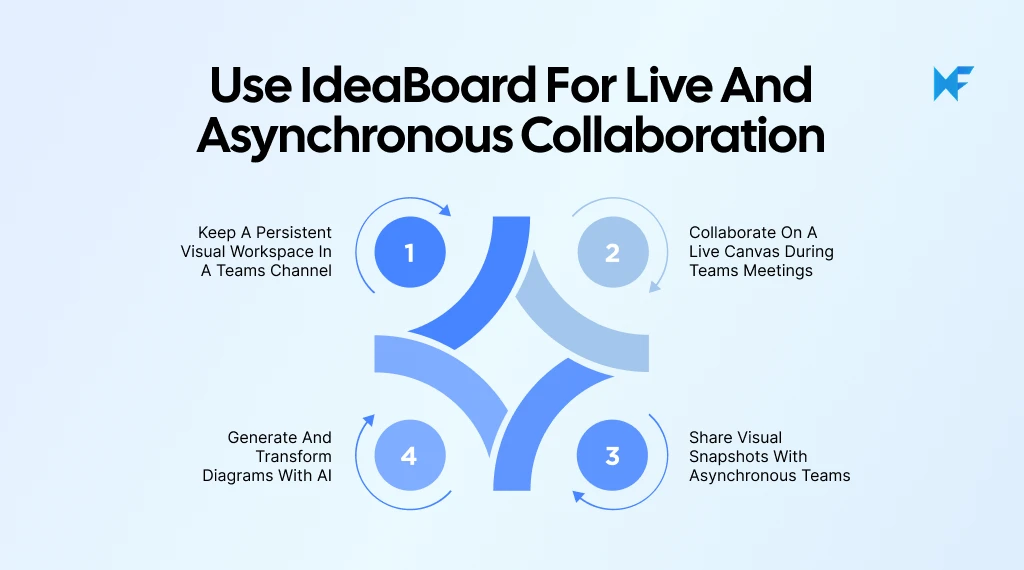
1. Keep a persistent visual workspace in a Teams channel
IdeaBoard can be pinned as a Teams channel tab, giving everyone with access a shared canvas they can revisit and update.
Teams can use the same board for recurring sprint retrospectives, project roadmaps, customer journey maps, architecture discussions, onboarding journeys, or strategy planning. IdeaBoard's template library provides a structured starting point when the team does not want to build the board from scratch.
2. Collaborate on a live canvas during Teams meetings
Participants can open IdeaBoard from the Teams meeting apps panel and create a board or select an existing one. Everyone can add, move, and organize content while the discussion is happening.
Mida, its built-in AI agent, can also generate or restructure visuals during the call. This makes the canvas useful for sprint planning, product discovery, architecture reviews, campaign brainstorming, SWOT workshops, and client discovery sessions.
The board remains available after the meeting, so the team can continue working from the same visual record.
3. Share visual snapshots with asynchronous Teams
Teams can export a board, diagram, mind map, or status view and post it as a visual snapshot in a channel. The snapshot can also link back to the editable board. This becomes especially useful for globally distributed teams.
Microsoft’s 2025 Work Trend Index reports that 30% of meetings now span multiple time zones. A visual snapshot gives people the context they need without requiring another meeting across regions.
This works well for:
- Project and campaign updates
- Incident or bug-triage maps
- Architecture changes
- Research summaries
- Client deliverables
- Handoffs between time zones
Visual snapshots give absent teammates useful context without requiring another meeting or a long written recap.
4. Generate and transform diagrams with AI
Mida can generate flowcharts, mind maps, architecture diagrams, Kanban boards, customer journey maps, storyboards, mood boards, and brainstorming layouts from plain-language prompts.
During a product planning meeting, for example, the team could ask Mida to “Create a flowchart for a customer feature-request process from submission to release.” Participants can then adjust the steps and add decision points together.
The IdeaBoard prompt library offers starting prompts for teams that need help structuring a visual. This gives non-designers a faster way to begin while keeping the board open for collaborative refinement inside Teams.
Visio and IdeaBoard in Teams: What does each offer?
The right option depends on whether we need basic Visio file editing, expanded browser-based diagramming, advanced technical functionality, or a flexible AI-powered canvas for live visual collaboration.
Capability | Visio in Microsoft 365 | Visio Plan 1 | Visio Plan 2 | IdeaBoard in Teams |
Main experience | Lightweight Visio web and Teams experience | Expanded Visio web experience | Visio web plus the Windows desktop app | AI-powered visual canvas inside Teams |
Create basic diagrams | Yes, for supported diagram types | Yes | Yes | Yes |
Edit inside Teams | Supported basic Visio diagrams | Supported Visio diagrams | Supported Visio diagrams | Yes, using IdeaBoard boards |
Advanced technical diagrams | Limited | Broader web support | Advanced technical capabilities | Architecture and process visuals for collaborative planning |
Real-time collaboration | Yes, on supported cloud files | Yes | Yes | Yes, on a shared multiplayer canvas |
Live meeting use | Open, discuss, and coauthor a file | Open, discuss, and coauthor a file | Open, discuss, and coauthor a file | Open a dedicated live canvas from the Teams meeting apps panel |
AI-generated visual layouts | Not a core lightweight workflow | Depends on current Microsoft features | Depends on current Microsoft features | Mida generates diagrams and brainstorming layouts from prompts |
Visual library | Basic shapes and templates | Expanded web shapes and templates | Full desktop and web Visio capabilities | Flowcharts, mind maps, Kanban boards, journey maps, storyboards, mood boards, and architecture diagrams |
Microsoft Graph access | Managed within Microsoft 365 | Managed within Microsoft 365 | Managed within Microsoft 365 | Does not require Microsoft Graph access |
Best suited for | Basic Visio diagrams and cloud collaboration | Broader browser-based Visio work | Advanced and technical Visio workflows | Live workshops, collaborative planning, AI-assisted diagramming, and visual updates |
Access model | Included with eligible Microsoft 365 commercial plans | Separate Visio subscription | Separate Visio subscription | Available on all MockFlow plans |
The table shows how each option supports a different part of the visual workflow inside Teams. With those roles clear, teams can move from live discussion and idea development to structured diagrams without losing the context behind the work.
Try IdeaBoard for live visual collaboration in Teams
When your team already knows what needs to be documented and the goal is to create or maintain a structured diagram file, Visio is a good option. It works well for formal process maps, technical diagrams, and Microsoft 365 documentation workflows.
But when the work is still taking shape, MockFlow’s IdeaBoard is a stronger choice. It is well suited to workshops, planning sessions, live discussions, and visual collaboration where people need to add ideas, rearrange content, and build the structure together.
Inside Teams, IdeaBoard can:
- Stay pinned to a channel
- Open as a live meeting canvas
- Support asynchronous updates through visual snapshots
Mida can also generate and transform diagrams from prompts, helping teams move from a rough conversation to a clearer visual without starting from a blank canvas.
Sign up for a free IdeaBoard trial and start turning Teams conversations into visual workspaces your team can keep using after the meeting ends.
FAQs
1. What is Visio in Teams?
Visio in Teams allows eligible Microsoft 365 users to create, open, edit, comment on, and collaborate on supported Visio diagrams within Microsoft Teams. Diagrams can be accessed through the Visio app, a channel, a chat, or a channel tab.
2. Is Visio free with Microsoft Teams?
Visio is not universally free with Teams. A lightweight diagramming experience is included with eligible Microsoft 365 commercial subscriptions. Broader browser-based features require Visio Plan 1, while advanced desktop functionality requires Visio Plan 2.
3. How do I add Visio to Microsoft Teams?
Open Microsoft Teams, select Apps or View more apps, and search for Visio. Add or open the app, then pin it for easier access. Availability may depend on your Microsoft 365 license and your organization’s Teams app policies.
4. Can I edit a Visio diagram directly in Teams?
Yes. Open the diagram in Teams and select the available editing option. Supported files can be edited through the Visio web interface. Diagrams with advanced features, unsupported shapes, or technical elements may require the Visio desktop application.
5. Can multiple people edit a Visio diagram at the same time?
Yes. Store the diagram in OneDrive or SharePoint, give collaborators edit permission, and have everyone open the same cloud file. Supported users can coauthor the diagram, add comments, and see when other participants are editing.
6. What can I use instead of Visio in Teams?
IdeaBoard is a useful option when you need a live visual canvas rather than a formal Visio file. It supports collaborative planning, workshops, AI-generated diagrams, pinned channel boards, live meeting canvases, and visual updates for asynchronous teams.

What Is an Activity Diagram? Symbols, Examples & How to Create One
Introduction If you’ve ever tried to map out a process or explain how something works in a project, you know how quickly things...

UX Design Tools by Stage: How to Choose the Right Type
TL;DR Choose UX design tools by workflow stage, not popularity. Use whiteboarding tools for ideas and mapping. Use wireframing...

Miro vs FigJam Comparison: Features, Pricing & Use Cases Explained
Introduction If you’ve been exploring digital whiteboarding tools, Miro and FigJam are likely two names you’ve come across...
