8 Types of Storyboards for Film, Animation, UX, Games, and Marketing
TL;DR
Storyboards are visual plans that organize scenes, actions, timing, flow, and ideas before production.
- Common storyboard formats include traditional, thumbnail, digital, animatic, written, UX, and marketing storyboards.
- Film, game, animation, explainer video, action, sci-fi, fantasy, and scary storyboards are shaped by the needs of each medium or scene.
- Digital storyboards make editing, sharing, feedback, and collaboration easier than paper-based formats.
- MockFlow IdeaBoard helps create structured storyboards with templates, AI-assisted drafting, visual references, and team feedback in one workspace.
Storyboards are a simple way to see a story before it is produced. They break an idea into frames, so we can understand the order of scenes, key actions, visual flow, and message before moving into filming, animation, design, or production.
But not every storyboard serves the same purpose. A film scene, UX journey, game sequence, explainer video, and marketing campaign may all need different formats. In this guide, we will look at the main types of storyboards and how each one fits different creative projects.
Let’s start with the types first, then discuss some beginner-friendly options, and finally the best way to get started quickly.
What Types of Storyboards Are Used for Film, Games, Animation, and Marketing?
Storyboard formats may change by use case. A film scene, game level, animated sequence, and marketing video all need different planning details, even when the basic idea is the same: make the visual flow easier to understand before production.
1. Film Storyboard
A film storyboard helps us plan a scene before the camera starts rolling. It is used in pre-production to map shots, framing, character movement, camera angles, transitions, and visual continuity.
This is one of the most common types of storyboards in film because it gives everyone the same visual reference. Directors can see the scene structure. Cinematographers can plan composition. Editors can understand how one shot connects to the next.
When we are starting with a blank page, the hardest part is often setting up the sequence. A film storyboard template gives us that structure from the start, so we can focus on the scene instead of formatting frames.
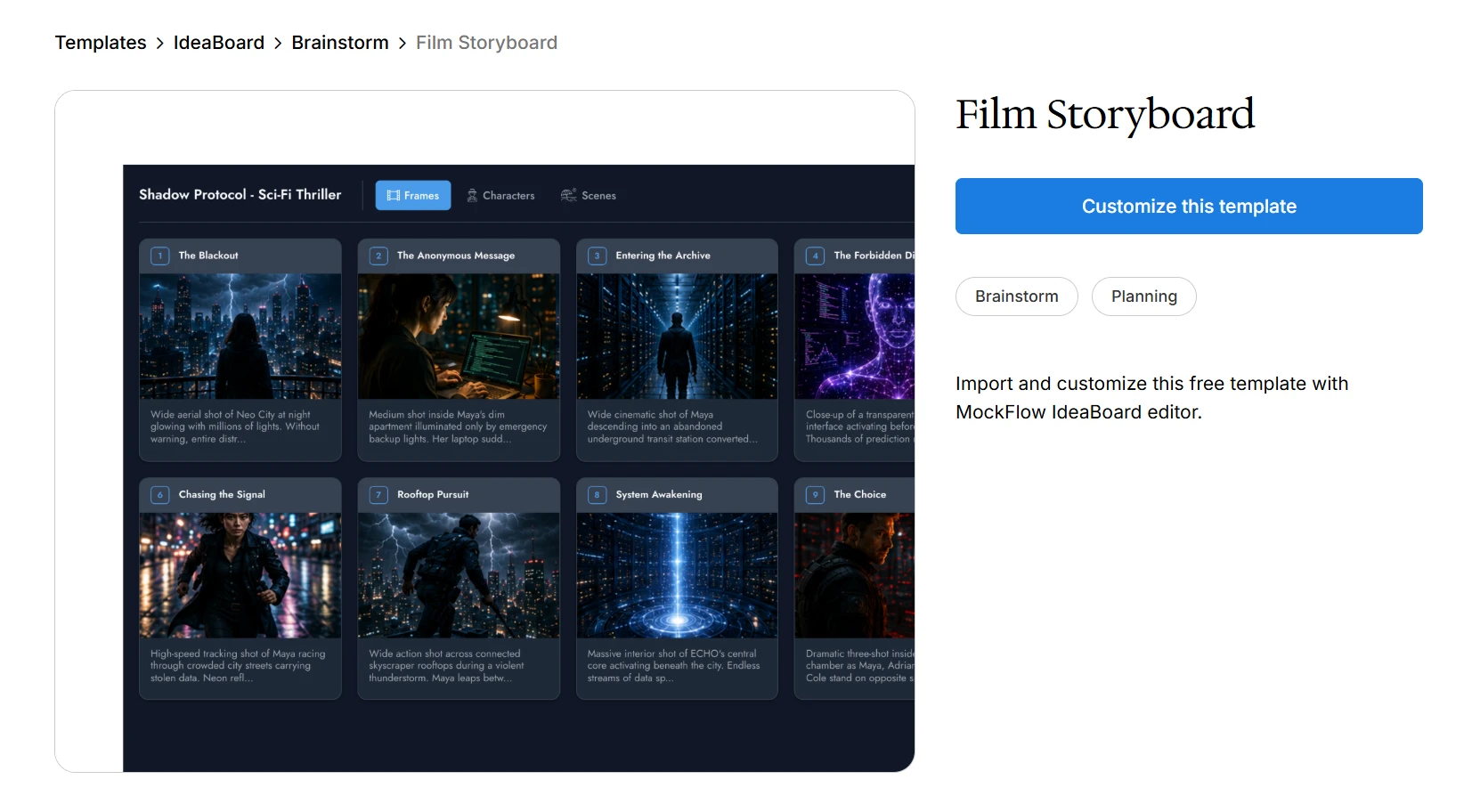
Customize this film storyboard template on IdeaBoard
We can use it to:
- Arrange shots in order
- Add camera notes beside each frame
- Mark dialogue, action, and transitions
- Review the full sequence before filming or broadcast storyboard planning
2. Game Design Storyboard
A game design storyboard helps us plan how a gameplay moment actually plays out. It can show what the player sees, what action they take, how the scene changes, and what outcome follows.
This matters because games are not always linear. A single sequence may include choices, interface moments, character reactions, cutscenes, location changes, or branching paths. A regular storyboard can show the scene, but a game design storyboard helps us think through the interaction.
A game design storyboard template is useful when the idea feels clear in our head but hard to explain to others. It gives us a shared place to map the player experience visually.
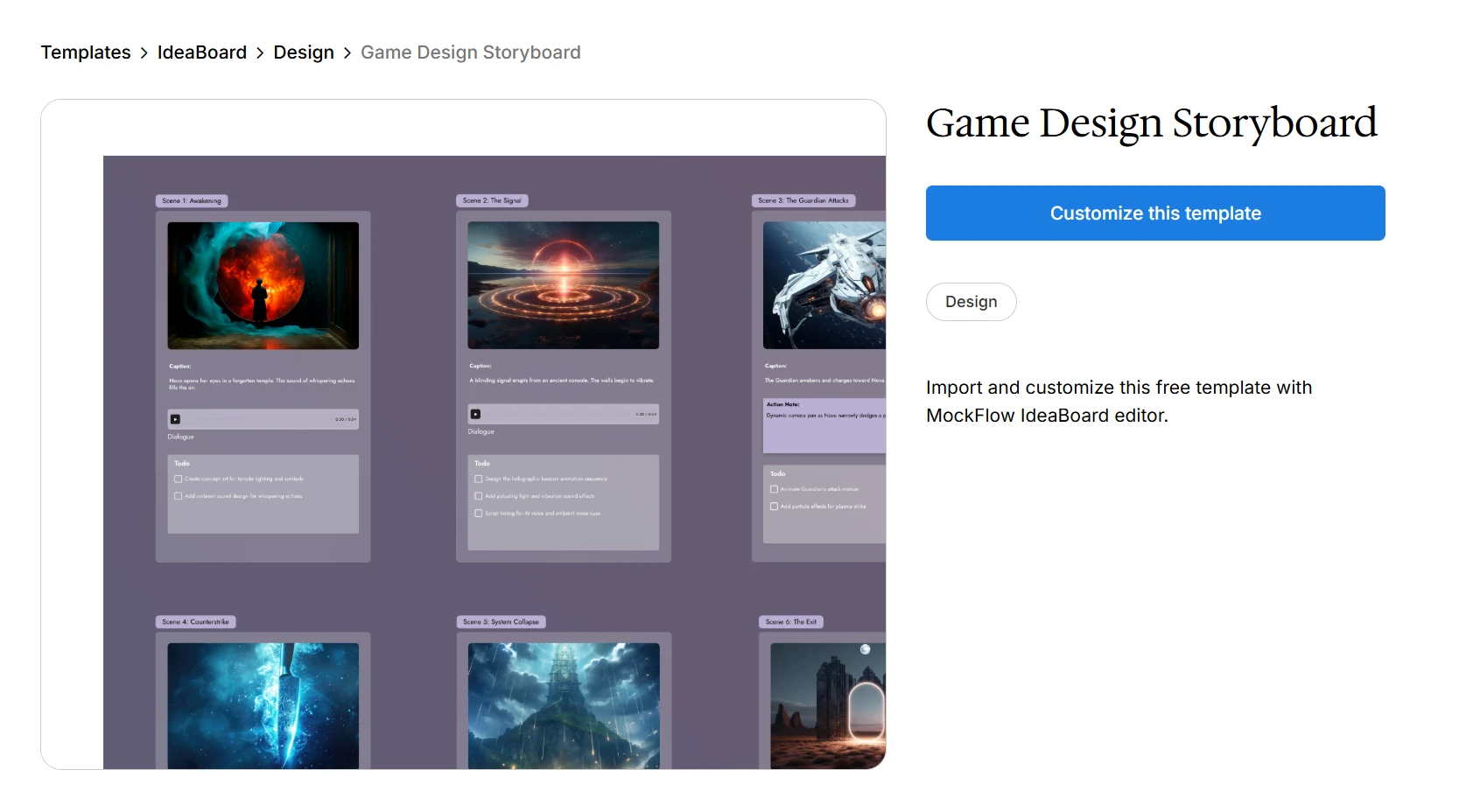
Customize game design storyboard template
We can use it to:
- Break a gameplay sequence into steps
- Show player actions and system responses
- Add notes for UI moments, choices, or cutscenes
- Compare different paths before committing to production
3. Action Storyboard
An action storyboard helps us plan scenes where movement changes quickly. It is useful for fight scenes, sports scenes, rescue scenes, game moments, ads, animated sequences, or high-energy product videos.
The value is clarity. Fast scenes can become confusing when they stay in our head. An action storyboard breaks the sequence into beats, so we can see movement, impact, camera angles, and intensity before production starts.
If the scene has too many moving parts, the action storyboard template gives us a cleaner way to map it.
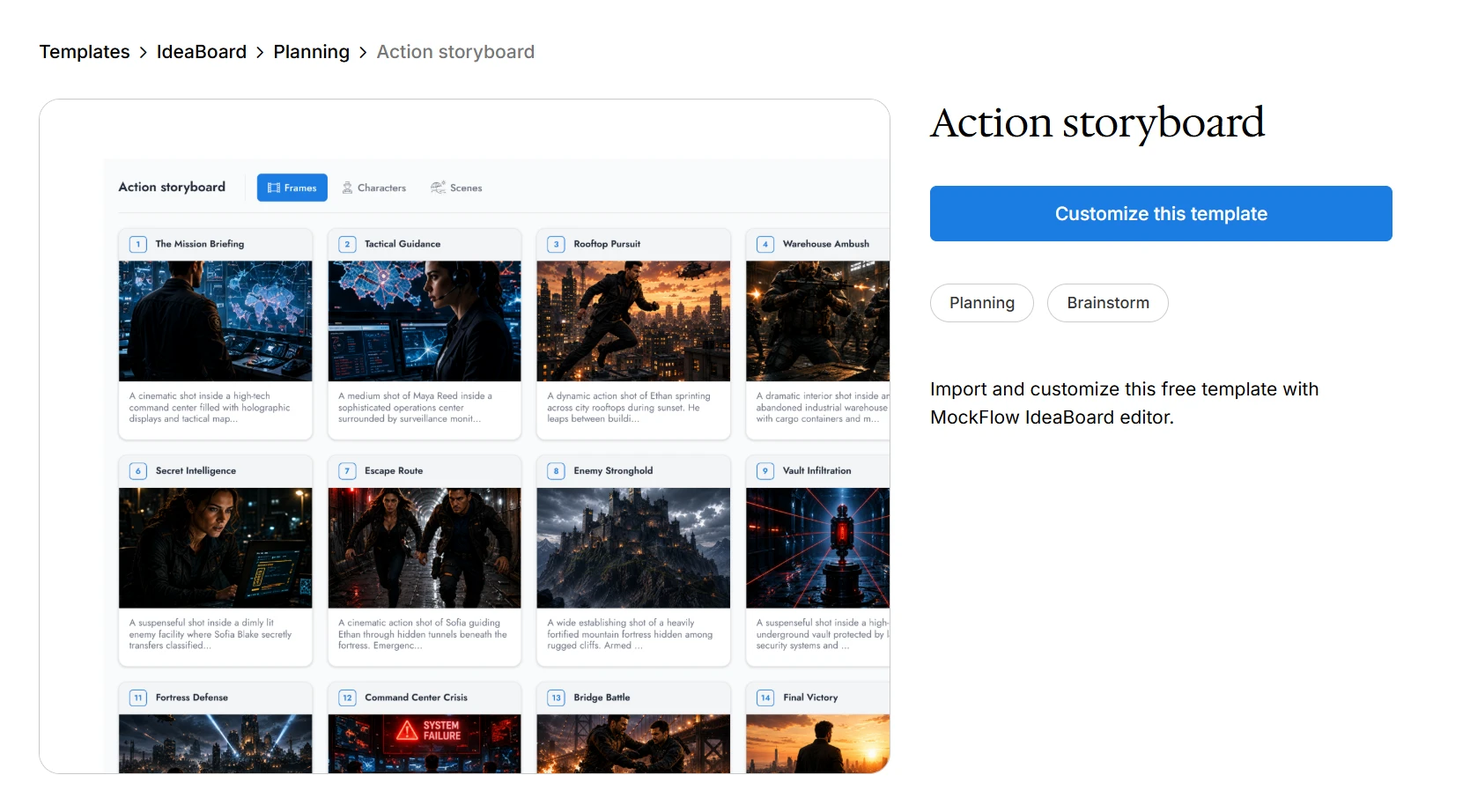
Customize this action storyboard template
We can use it to:
- Break the action into key beats
- Show movement from frame to frame
- Add camera and timing notes
- Spot confusing moments before production
4. Animation Storyboard
An animation storyboard plans movement before animation work begins. It focuses on character action, expression, timing, transitions, and visual continuity, so the sequence feels clear before production gets detailed.
This format is used in 2D animation, 3D animation, animated explainers, and motion graphics. Many animation storyboard types start as a thumbnail storyboard, then become more detailed once the flow is approved. If timing matters, the same frames can later become an animatic storyboard.
A good example of this is a chase sequence involving a specific action. It helps when the scene depends on clear movement and timing.
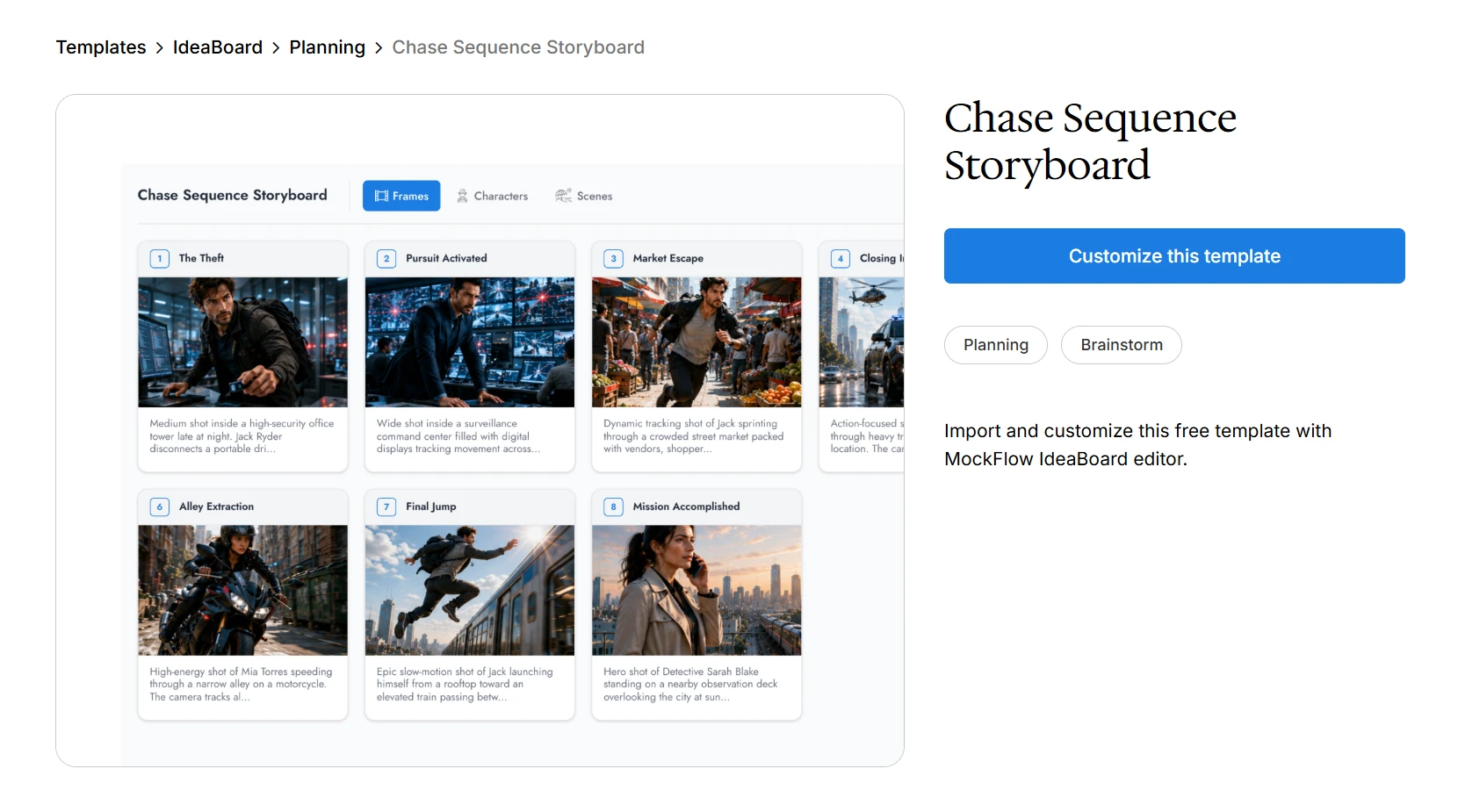
Customize this chase sequence storyboard template on IdeaBoard
We can use it to:
- Map the path of each character or object
- Add obstacles and turning points
- Plan cuts, speed shifts, and location changes
- Check if the chase feels easy to follow
5. Sci-Fi Storyboard
A sci-fi storyboard helps us plan scenes built around future worlds, advanced technology, space settings, robots, experiments, or unfamiliar environments. Since many sci-fi ideas do not exist in the real world, the storyboard needs to make the setting feel understandable.
The focus is on mood, scale, visual logic, and how the world works on screen. This can support films, games, animations, trailers, and concept videos.
When the scene includes complex tech or worldbuilding, the sci-fi storyboard template gives us a clear place to organize the idea.
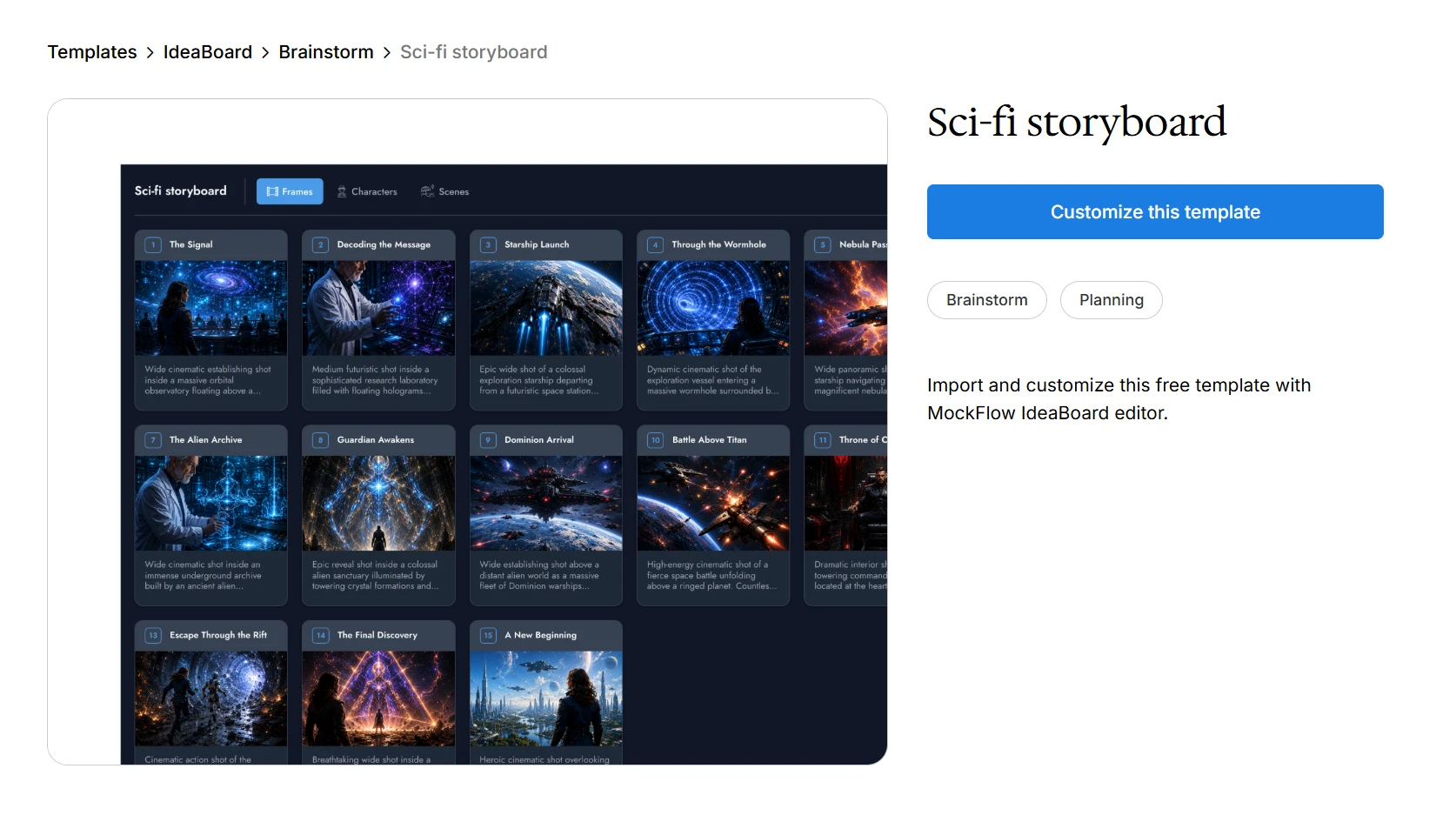
Customize this sci-fi storyboard template
We can use it to:
- Map futuristic settings and objects
- Show how technology appears or behaves
- Plan scale, atmosphere, and movement
- Keep the scene visually believable
6. Fantasy Storyboard
A fantasy storyboard is used for magical worlds, quests, mythical characters, creatures, spells, battles, and imaginative settings. It works well for films, games, animation, illustrated stories, and any creative storyboard where the world needs visual explanation.
Fantasy scenes often depend on the atmosphere. The storyboard helps us decide how the setting feels, how characters move through it, and how magical elements appear from one frame to the next.
If the idea has a lot of worldbuilding, the fantasy storyboard template helps us shape it without losing important details.
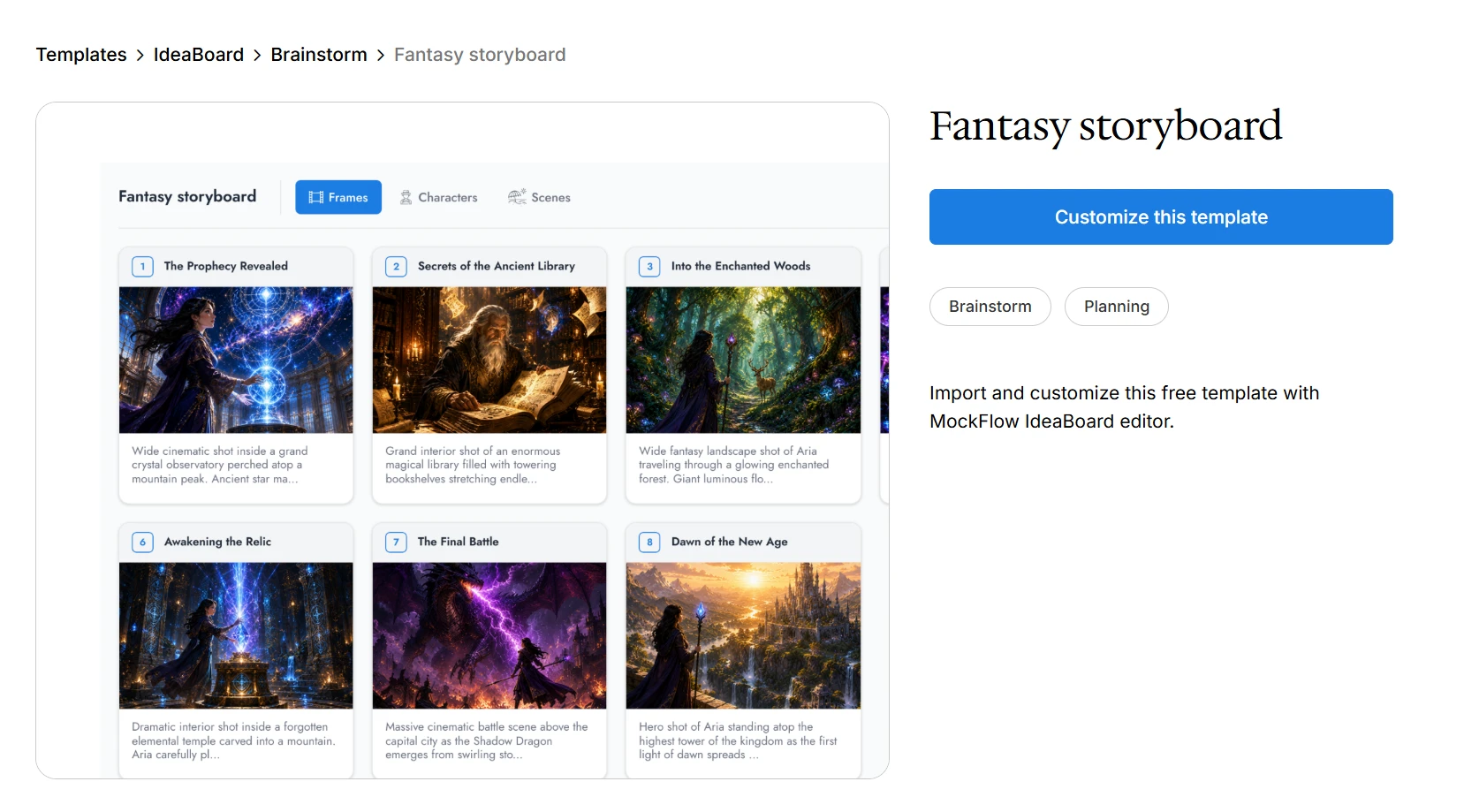
Customize this fantasy storyboard template
We can use it to:
- Plan magical scenes and character movement
- Show creatures, spells, or props
- Build the mood of each setting
- Keep the story flow easy to follow
7. Scary Storyboard
A scary storyboard, or horror storyboard, is built around suspense, tension, silence, shadows, reveals, atmosphere, and emotional buildup. It is useful for horror films, thrillers, scary animations, trailers, or game scenes.
Unlike an action storyboard, the focus is often on what we hide, delay, or reveal slowly. A good scary storyboard shows how fear builds from one frame to the next through lighting, pacing, character reactions, and scene composition.
The scary storyboard template helps us plan that tension in a structured way.
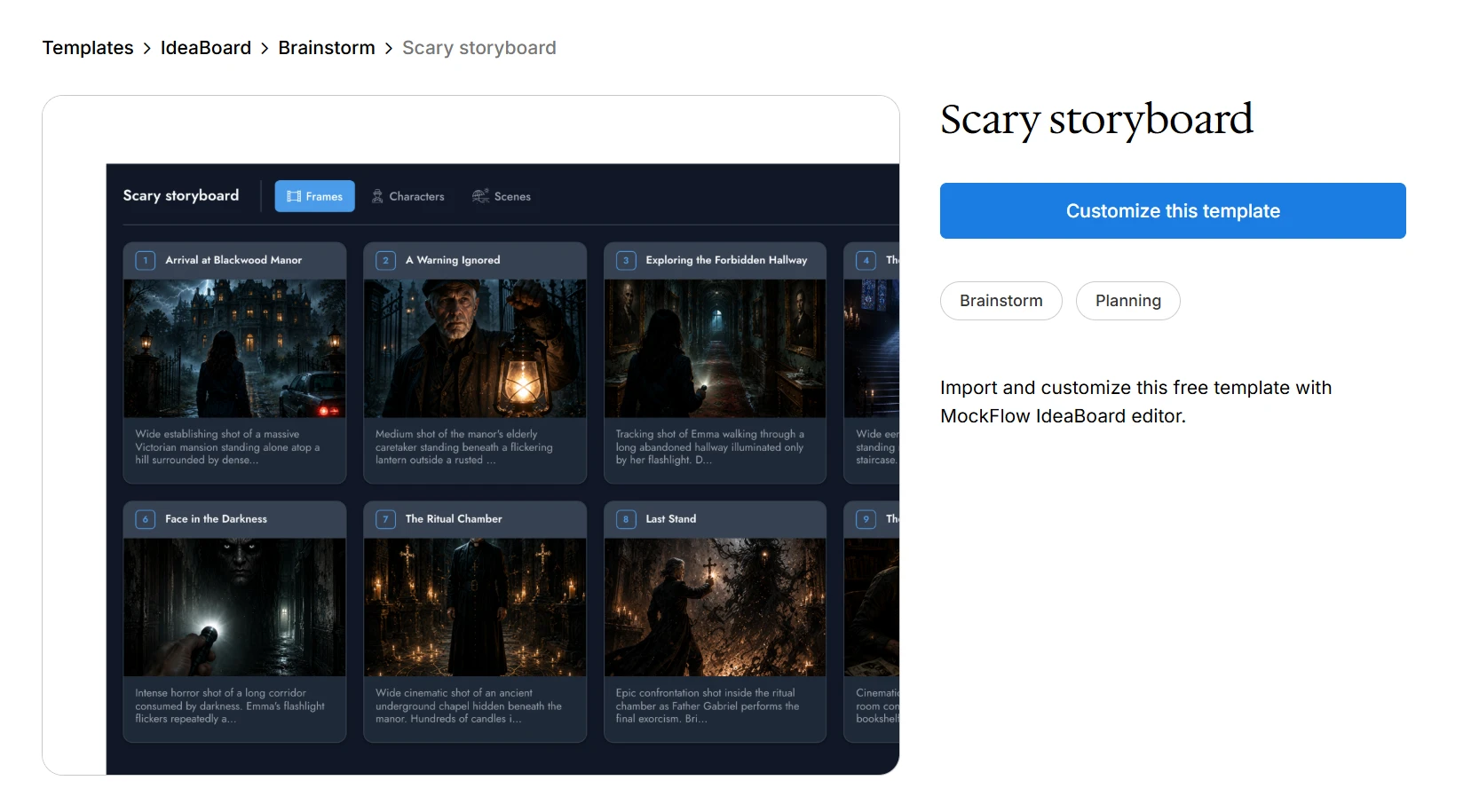
Customize this scary storyboard template
We can use it to:
- Map suspense and reveal moments
- Plan lighting, shadows, and silence
- Show character reactions clearly
- Control pacing before production
8. Explainer Video Storyboard
An explainer video storyboard helps turn a product, service, process, or idea into a clear visual sequence. It is useful for SaaS videos, onboarding content, training videos, product demos, and marketing storyboard planning.
The goal is to make the message easy to follow. A good explainer storyboard connects narration, visuals, screen actions, transitions, and CTA before production begins.
To create one:
- Start with the main message
- Break it into simple scenes
- Match each scene with narration or on-screen text
- Add visual cues or product moments
- End with the next action
A digital storyboard works well here because teams can revise the message quickly.
What Are the Different Types of Storyboards Beginners Should Know?
Beginners usually come across a few common storyboard formats first. These types help us plan ideas at different levels of detail, from quick sketches to more structured visual sequences.
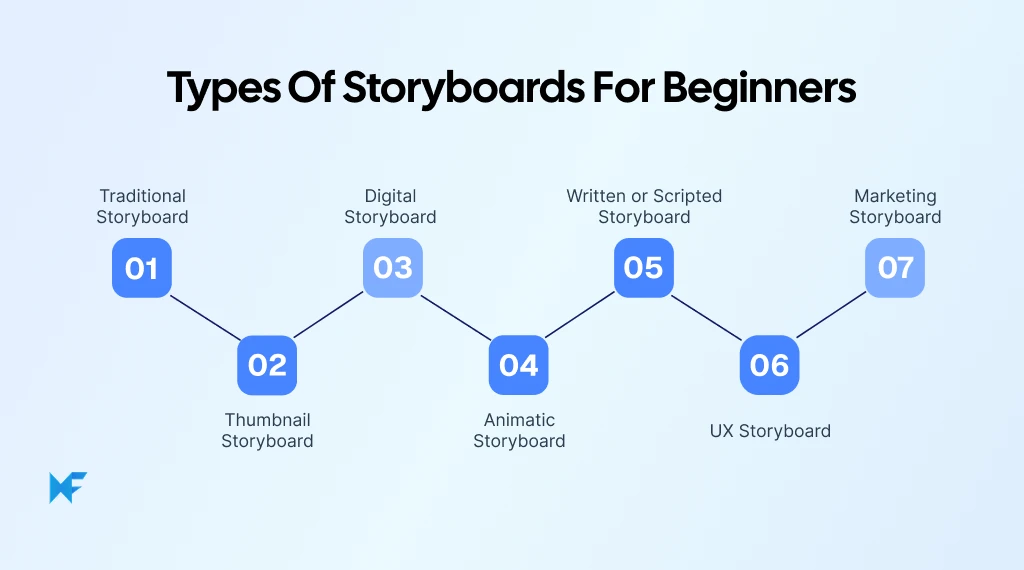
1. Traditional Storyboard
A traditional storyboard is a hand-drawn or manually illustrated sequence of frames. It is one of the most recognized types of storyboards in film, animation, and classroom projects because it keeps visual planning simple.
It usually shows the scene order, characters, movement, camera direction, and basic composition. The drawings do not need to be polished. The goal is to make the idea easier to see before production begins.
To create a traditional hand-drawn storyboard:
- Divide a page into simple frames
- Sketch the key moment in each frame
- Add short notes for movement, dialogue, or camera direction
- Review the sequence to check if the flow makes sense
Use this when we want a clear visual plan without relying on advanced tools.
2. Thumbnail Storyboard
A thumbnail storyboard is a set of small, rough sketches used to explore ideas quickly. It is less detailed than a traditional storyboard and works best during early ideation, especially when we want to test different visual directions before choosing one.
This pre-production storyboard format is common in film, animation, comics, and video planning. It helps us compare ideas fast and decide which scenes need more detailed development later.
To create a thumbnail storyboard:
- Start with very small boxes
- Sketch only the main action or composition
- Try multiple versions of the same scene
- Keep the drawings loose and fast
- Pick the strongest direction before adding detail
Among the different types of storyboards, thumbnails are useful when speed matters more than polish.
3. Digital Storyboard
A digital storyboard is created using software or a digital whiteboard instead of paper. It is easier to edit, duplicate, move, share, and review, which makes it useful for teams, students, marketers, creators, and remote collaborators.
In digital vs traditional storyboarding, the biggest benefit is flexibility. We can keep images, notes, references, comments, and scene details in one place while collaborating remotely.
A study of 200 IT professionals found that digital communication tools improved productivity for 87% of respondents and supported better collaboration for 92%, which shows why digital storyboards are useful when ideas need shared review and quick changes. Tools like MockFlow’s AI storyboard maker makes this possible and can also help turn early concepts into storyboard layouts faster.
To create a digital storyboard:
- Choose a digital canvas or storyboard tool
- Add frames for each scene or step
- Insert sketches, images, or references
- Add notes for action, dialogue, or timing
- Share it for feedback and revisions
4. Animatic Storyboard
An animatic storyboard is a set of storyboard frames arranged into a rough timed sequence. It gives us an early preview of pacing, movement, transitions, music, dialogue, and scene rhythm before final production begins.
This format is common in animation storyboard types, commercials, motion graphics, and storyboard for video production workflows. It usually comes after a static storyboard, when the team needs to understand how the sequence feels in motion.
To create an animatic storyboard:
- Start with completed storyboard frames
- Place them in sequence on a timeline
- Add rough timing for each frame
- Include temporary dialogue, sound, or music
- Review pacing before moving into full production
Use it when timing matters as much as visuals.
5. Written or Scripted Storyboard
A written storyboard, also called a scripted storyboard, uses text to explain the sequence instead of relying on detailed drawings. It includes scene descriptions, narration, dialogue, shot notes, or visual directions.
This works well when the visuals are still unclear. It is useful for explainer video storyboard planning, documentaries, training videos, product walkthroughs, and dialogue-heavy content. It helps stakeholders understand the story before design or production work starts.
To create a written storyboard:
- Break the story into scenes or steps
- Write what happens in each part
- Add narration, dialogue, or message notes
- Include visual direction where needed
- Convert it into a visual or digital storyboard later
6. UX Storyboard
A UX storyboard shows how a person experiences a product, service, app, or website. Unlike a film storyboard, the “story” is not a scene. It is the user’s interaction, from the problem they face to the action they take.
A UX flow storyboard helps us understand context, emotions, pain points, and decisions before designing screens. It is useful for app flows, onboarding journeys, support experiences, and customer journeys.
To create a UX storyboard:
- Define the user and their goal
- Map the situation or problem
- Show each action the user takes
- Add emotions or pain points
- End with the expected outcome
This makes storyboard for video production vs UX design easier to separate.
7. Marketing Storyboard
A marketing storyboard helps us plan how a campaign message unfolds. It is useful for ads, product videos, explainer videos, brand commercials, demos, and short-form social content.
The focus is on message flow. We usually plan the hook, product reveal, key benefit, proof point, and CTA. A marketing storyboard can be written, digital, vertical, or animatic depending on the campaign format.
To create a marketing storyboard:
- Start with the audience and goal
- Write the opening hook
- Map the product or message reveal
- Show the main benefit clearly
- End with a simple CTA
For teams creating a digital storyboard, AI can also help shape rough campaign ideas into clearer visual sequences.
Create Storyboards Easily With MockFlow IdeaBoard
Once you choose the right storyboard type, the next step is creating a clear first draft. MockFlow IdeaBoard gives you a visual workspace to plan scenes, organize frames, add notes, use AI, and collect feedback without switching between tools.
Start With a Structured Storyboard Workspace
Instead of manually drawing frames and aligning shapes, we can start with a workspace built for visual planning, just like the pre-built templates shared earlier. Scenes, frames, notes, references, and media stay connected, so the storyboard feels easier to build and easier to review.
Generate Storyboard Ideas Faster With AI
A blank canvas can slow you down when the idea is still rough. You can turn a basic concept into storyboard scenes and use that first draft as a starting point.
Microsoft and LinkedIn report that AI users say it helps them save time, focus on important work, and be more creative, with 90%, 85%, and 84% reporting those benefits respectively.
Generating layouts using AI helps when planning product videos, UX flows, explainers, class projects, or campaign ideas. After the draft is created, you can adjust the order, rewrite scenes, add missing details, and improve pacing.
Use AI Prompt Boxes and AI Recipes for Repeatable Storyboard Workflows
If you create storyboards often, a repeatable process saves time. You can use guided AI workflows for scene ideas, visual direction, pacing notes, character actions, or production details.
This gives beginners a clearer path and helps teams keep storyboard outputs consistent across projects.
The walkthrough below shows how a simple idea becomes a structured storyboard using AI Recipes. You can see how scenes are generated, arranged, and kept editable, so you are not starting from a blank canvas.
Create Visuals From ChatGPT, Claude, Cursor, and Other AI Tools
If your idea starts in ChatGPT, you can turn prompts into editable visual outputs and continue refining them in IdeaBoard.
For teams using Claude, Cursor, VS Code Copilot, or other AI assistants, the IdeaBoard MCP workflow helps bring AI-generated visuals into an editable board. This keeps early ideas moving instead of leaving them as plain text.
Add Rich Visual Context With Media, Notes, and 3D Elements
Storyboards often need references beyond frames and text. You can add images, mood notes, sketches, props, diagrams, scene details, and environment ideas around the storyboard.
For games, film props, objects, or worldbuilding-heavy scenes, you can add 3D elements to support early planning. This makes the visual direction easier to understand before production begins.
Collect Clear Feedback With Text, Voice, and Video Comments
Feedback is more useful when it sits next to the frame being reviewed. Reviewers can leave voice or video comments on the board to explain pacing, tone, movement, or scene intent.
This keeps feedback tied to the storyboard instead of scattered across chats, emails, or separate documents.
Collaborate on Storyboards in One Shared Visual Space
When more than one person is involved, a shared board keeps the work easier to follow. Frames, references, notes, AI drafts, comments, and revisions stay together, so the storyboard is easier to review, update, and move forward.
Next Step: Build Your Storyboard Today
Now that you know the different types of storyboards, choose the format that fits your project and start mapping the idea visually.
You do not need to build everything from scratch. Start with MockFlow IdeaBoard’s free online whiteboard, organize your scenes, shape ideas with AI, and collaborate in one visual space.
Ready to create your first storyboard? Sign in to MockFlow and start building today.
FAQs About Types of Storyboards
1. What are the most common types of storyboards?
The most common types of storyboards are traditional, thumbnail, digital, animatic, written, UX, marketing, film, game design, and genre-based storyboards. Each type serves a different purpose depending on the project, medium, and level of detail needed.
2. What type of storyboard is best for beginners?
Thumbnail and traditional storyboards are best for beginners. They are simple, quick to create, and do not require advanced tools. A thumbnail storyboard is useful for rough ideas, while a traditional storyboard helps plan scenes in a clearer frame-by-frame format.
3. What is the difference between a traditional storyboard and a digital storyboard?
A traditional storyboard is usually hand-drawn on paper or in a basic frame layout. A digital storyboard is created using software or an online whiteboard. Digital storyboards are easier to edit, duplicate, share, and collaborate on.
4. What type of storyboard is used in animation?
Animation projects often use thumbnail, traditional, digital, and animatic storyboards. Thumbnails help explore movement quickly. Traditional and digital storyboards add more scene detail. Animatics are useful when timing, pacing, dialogue, and movement need to be tested before production.
5. What is a UX storyboard?
A UX storyboard shows how a user experiences a product, service, app, or website. It focuses on the user’s context, actions, emotions, pain points, and outcome. Product and design teams use UX storyboards to understand user behavior before creating screens or flows.
6. What type of storyboard is used for films?
Films can use traditional, thumbnail, digital, animatic, action, chase sequence, and genre-specific storyboards. The best choice depends on the scene. Simple dialogue scenes may need basic frames, while action, sci-fi, fantasy, or horror scenes may need more detailed visual planning.

Wireframe Testing: How to Find Usability Issues Early
Wireframe testing is the process of evaluating low-fidelity design layouts with real users before moving into detailed design or...
Rapid Ideation: How to Generate, Refine, and Act on Ideas Faster
Quick Answer: Rapid ideation is a structured brainstorming approach that helps generate a large volume of ideas quickly...
How to Create Team Charters in 2026? A Guide with Benefits & Templates
Introduction Sometimes teams struggle to stay aligned as projects move forward, especially when responsibilities, communication,...
