Miro vs Microsoft Whiteboard: A Breakdown of Features, Pricing & Fit
Choosing between digital whiteboard tools often comes down to how much structure your team needs. A simple canvas may work well for meeting notes, while workshops, product planning, and workflow mapping usually require more advanced collaboration features.
Both Miro and Microsoft Whiteboard support sticky notes, shared canvases, brainstorming, and remote teamwork. Their strengths differ when we compare their templates, integrations, diagramming capabilities, facilitation tools, pricing, and enterprise features.
This guide compares Miro vs Microsoft Whiteboard based on features and pricing. We will also look at how alternatives like IdeaBoard combine brainstorming, visual planning, wireframing, product design workflows, and AI-assisted ideation in one workspace.
Miro vs Microsoft Whiteboard: Quick Comparison
Miro is generally the stronger choice for teams that need structured workshops, detailed visual planning, and advanced collaboration workflows. Microsoft Whiteboard is better suited to organizations that want a simple digital whiteboard within Microsoft Teams and Microsoft 365.
Feature | Miro | Microsoft Whiteboard |
Best for | Advanced workshops, planning, and visual collaboration | Simple whiteboarding within Microsoft 365 |
Templates and workflows | Extensive templates and structured frameworks | Simpler templates for meetings and ideation |
Integrations | Broad third-party integration ecosystem | Deep Microsoft Teams and Microsoft 365 integration |
Ease of use | More powerful, with a broader learning curve | Simple, familiar, and easy to adopt |
Overall fit | Teams needing advanced collaboration capabilities | Microsoft-first teams needing lightweight whiteboarding |
The main difference in the Miro vs Microsoft Whiteboard comparison is depth. Miro provides a broader visual workspace for teams that run complex planning sessions and collaborative workshops. Microsoft Whiteboard focuses on accessible meeting collaboration within the Microsoft ecosystem.
What Is Miro?
Miro is an online visual collaboration platform built for teams that need more structure than a basic digital whiteboard. It supports a wide range of planning and facilitation workflows on an infinite canvas.
Teams commonly use it for:
- Brainstorming and workshops
- Product and agile planning
- Customer journey mapping
- Diagramming and mind mapping
- Remote collaboration
Its templates, sticky notes, and facilitation features make it a strong fit for teams running detailed or recurring collaborative sessions.
What Is Microsoft Whiteboard?
Microsoft Whiteboard is a digital whiteboard designed for quick cloud collaboration within Microsoft 365. Its close Microsoft Teams integration makes it especially convenient during meetings.
It is commonly used for:
- Capturing ideas with sticky notes
- Drawing and visual explanations
- Lightweight brainstorming
- Meeting collaboration
- Simple planning activities
It is best suited to Microsoft-first teams that need an accessible online whiteboard without a complex setup.
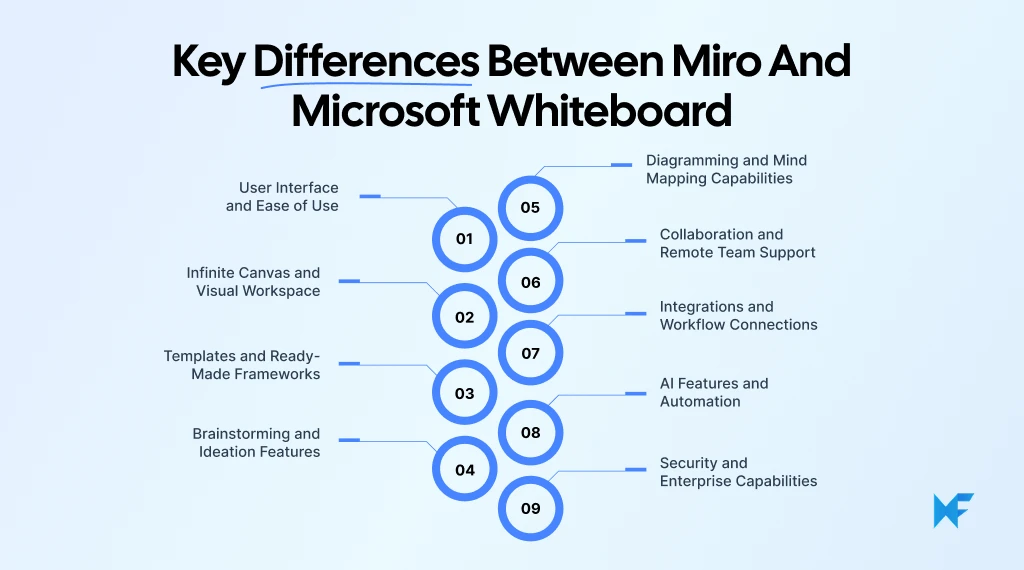
Key Differences Between Miro and Microsoft Whiteboard
The differences between Miro and Microsoft Whiteboard become most visible when teams move beyond basic note-taking and start running structured workshops, planning sessions, or collaborative workflows.
1. User Interface and Ease of Use
Both tools are accessible, but they prioritize different user needs.
Microsoft Whiteboard keeps the interface simple with familiar tools such as pens, sticky notes, shapes, and text. This makes it easier for casual users and Microsoft 365 teams to get started quickly.
Miro offers more controls for diagramming, facilitation, templates, and advanced workflows. That added flexibility supports more complex work, but it also creates a steeper learning curve.
2. Infinite Canvas and Visual Workspace
Microsoft Whiteboard works well for quick explanations, meeting collaboration, and lightweight brainstorming. Miro is better suited to large strategy sessions, workflow mapping, and projects that combine several frameworks on one board.
Teams planning detailed workflows will get more structure from Miro, while teams using the canvas mainly during meetings may find Microsoft Whiteboard sufficient.
3. Templates and Ready-Made Frameworks
Both tools help teams avoid starting from a blank canvas. However, Miro offers more depth when workshops need a repeatable structure.
Its template ecosystem covers:
- Brainstorming and retrospectives
- Agile and project planning
- Customer journey mapping
- Business strategy
On the other hand, Microsoft Whiteboard provides simpler templates for meetings, brainstorming, project planning, and problem-solving. These are easier to use, but they offer fewer options for specialized workflows.
Clear frameworks become even more valuable when teams use AI during planning. Experienced developers describe AI-generated technical plans as difficult to review when they lack focus and consistent structure, and emphasized that templates, human editing, and collaborative review are still needed to turn generated content into useful working material.
4. Brainstorming and Ideation Features
Both platforms support sticky notes, drawing, and shared idea capture. The difference appears when teams need to guide a session from idea generation to prioritization.
Miro adds timers, voting, private contribution modes, live reactions, and structured brainstorming frameworks. These tools give facilitators more control over innovation sessions and product workshops.
Microsoft Whiteboard is better suited to informal brainstorming during meetings, where participants need to capture and discuss ideas without a detailed facilitation process.
5. Diagramming and Mind Mapping Capabilities
Miro supports mind maps, flowcharts, process diagrams, and technical architecture diagrams with dedicated shapes and connectors. Microsoft Whiteboard is better suited to simple flows drawn with shapes, lines, text, and ink.
When it comes to workflow planning, process mapping, and detailed product planning, Miro may offer better support. But if the diagram only needs to support a conversation, Microsoft Whiteboard will work well.
Developers often debate how to explain complex application design without relying on repeated calls or long written exchanges. They also note that diagrams can make system structure easier to communicate, document, and revisit.
6. Collaboration and Remote Team Support
Miro gives facilitators more control across distributed teams, while Microsoft Whiteboard offers a more convenient meeting workflow for organizations already using Teams.
ActivTrak’s 2026 State of the Workplace report found that collaboration time increased by 34% while multitasking rose by 12%. Teams may therefore need to consider how well a whiteboard keeps complex sessions organized, rather than focusing only on real-time access.
Their strengths depend on how the session is run:
- Miro: Better for structured remote workshops that use facilitation tools, several activities, and ongoing boards.
- Microsoft Whiteboard: Better for live collaboration during Teams meetings, where participants can open a board without leaving the call.
7. Integrations and Workflow Connections
The right choice here depends heavily on the tools your team already uses.
Miro connects with a broad ecosystem of project management, communication, and productivity platforms. This helps teams move board content into wider workflows without relying on one software vendor.
Microsoft Whiteboard integrates more closely with Microsoft Teams and Microsoft 365. Boards can be opened inside meetings, chats, and channels, while Loop components can remain editable across supported Microsoft applications.
8. AI Features and Automation
The platforms use AI to reduce the effort involved in generating and organizing ideas.
McKinsey found that 13% of employees already use generative AI for at least 30% of their daily tasks, while C-suite leaders estimated that only 4% of employees had reached that level of use. This gap makes accessibility and practical workflow support important when comparing built-in AI features.
Miro’s AI capabilities extend across brainstorming, diagrams, visual workflows, and content creation. This makes it useful when teams want AI to support several stages of planning on the same canvas.
Copilot in Microsoft Whiteboard can:
- Generate ideas from a prompt
- Group sticky notes into themes
- Summarize board content
These features require an eligible Microsoft 365 subscription or Copilot license.
9. Security and Enterprise Capabilities
Both tools support enterprise use, although they fit different administrative environments.
Miro provides enterprise controls for large-scale collaboration, including access management and data residency options. Its platform is designed for organizations managing visual workflows across multiple teams.
Microsoft Whiteboard operates within Microsoft 365, allowing administrators to manage access, privacy settings, and connected experiences through existing Microsoft controls. This can simplify adoption for organizations that already manage users and compliance through the Microsoft ecosystem.
What Do Miro and Microsoft Whiteboard Cost?
The better value depends on your existing software stack and how extensively your team plans to use the whiteboard.
Miro uses a per-user pricing model:
- The Free plan supports small teams testing the platform, with up to three editable boards.
- The Starter plan begins at $8 per member per month when billed annually and adds unlimited private boards and broader collaboration options.
- Business and Enterprise plans provide more advanced workflow, administration, security, and AI capabilities. Enterprise pricing is customized.
Microsoft Whiteboard does not usually require a separate purchase. It is included with applicable Microsoft 365 and Teams plans, which can make it the more economical choice for organizations already paying for that ecosystem.
Microsoft Whiteboard offers stronger immediate value when a team needs lightweight meeting collaboration within Microsoft 365. Miro may justify its additional per-user cost when advanced workshops, diagramming, integrations, and structured visual workflows are regular parts of the team’s work.
Why IdeaBoard May Work Better for Your Team
MockFlow’s IdeaBoard may be a better fit when a team needs to move beyond general whiteboarding into structured visual planning, including workflows that run directly inside Microsoft Teams.
It brings brainstorming, diagramming, product-focused workflows, and AI-assisted ideation onto the same canvas.
1. AI-Powered Brainstorming and Visual Ideation
IdeaBoard can generate editable boards, flowcharts, architecture diagrams, and planning frameworks from a prompt. Teams can also use the prompt library to adapt ready-made prompts instead of preparing every session from a blank canvas.
For example, the video below shows how a simple prompt can become an editable business mind map in under two minutes.
This makes its AI-assisted creation tools useful when you need to start an ideation session quickly or turn early thoughts into a clearer visual structure.
2. Product Design-Focused Visual Collaboration
IdeaBoard is built for work that often follows brainstorming, such as customer journey mapping, product planning, system architecture, and design concept development. Teams can keep these activities in one visual workspace instead of treating the whiteboard as a temporary meeting surface.
This focus can be especially useful for product, design, engineering, and business teams that need to develop an idea before moving it into execution.
3. Templates for Brainstorming, Planning, and Diagramming
IdeaBoard’s template library covers several types of visual work:
- Brainstorming frameworks and mind maps
- Product and project planning boards
- Process flows and technical diagrams
- Strategy and customer journey templates
These templates reduce setup time while giving teams a repeatable structure for workshops and planning sessions.
4. Microsoft Teams Integration
IdeaBoard works directly inside Microsoft Teams, allowing teams to collaborate visually without leaving their existing meeting or channel workflow. It can be used as:
- A persistent board pinned to a Teams channel
- A live canvas during Teams meetings
- A visual snapshot shared in a channel for asynchronous updates
Participants can edit the same board in real time while also using IdeaBoard’s AI and visual components to create or restructure diagrams. The integration does not require Microsoft Graph access, which can make internal approval easier for IT teams.
This gives Microsoft-first organizations a way to keep the convenience of Teams while adding more advanced brainstorming, diagramming, and visual planning capabilities.
5. Offline Mode and Flexible Collaboration Options
The MockFlow desktop app supports local, file-based IdeaBoard workflows on Mac and Windows. Teams can save projects as .board files, store them through their preferred system, and manage versions through local backups or Git.
This gives organizations more flexibility when cloud-only storage does not suit their workflow. Real-time editing and other online collaboration features, such as the option of adding voice and video notes along with comments, remain part of the cloud experience, while file mode supports local ownership and offline access.
Which Visual Collaboration Tool Is Right for Your Team?
The right choice depends on how your team collaborates, the tools already in your workflow, and how far ideas need to develop on the canvas.
AI capabilities are also becoming a more established part of enterprise software planning. NVIDIA’s 2026 State of AI research found that 86% of respondents expected their organization’s AI budget to increase during the year, with nearly 40% planning an increase of at least 10%.
This makes it worth considering whether a visual collaboration tool offers AI features that teams can use within their existing workflows, rather than treating AI as a separate add-on.
Choose Miro when:
- You regularly facilitate large or multi-stage workshops.
- You need a broad selection of templates and third-party integrations.
- Your team is comfortable learning a feature-rich platform.
- Structured facilitation is central to your brainstorming and planning process.
Miro is well suited to teams that run detailed workshops and need greater control over how participants contribute, organize ideas, and reach decisions.
Choose Microsoft Whiteboard when:
- Most collaboration already happens in Microsoft Teams and Microsoft 365.
- You need a simple canvas for meetings and visual explanations.
- Your team mainly uses sticky notes, drawing tools, and quick idea capture.
- Fast access within the Microsoft ecosystem is a priority.
Microsoft Whiteboard is the practical option for lightweight collaboration. It fits naturally into Teams meetings and requires little setup for existing Microsoft users.
Choose IdeaBoard when:
- You want brainstorming, diagramming, product planning, and visual strategy in one workspace.
- You need AI assistance to generate, organize, modify, or transform visual content.
- Product, design, engineering, and business teams need to contribute to the same board.
- You value visual templates, multimedia feedback, and online or offline workflows.
- You work in Microsoft Teams but need more advanced brainstorming, diagramming, and visual planning than a lightweight meeting whiteboard provides.
IdeaBoard offers a more rounded workspace for teams that need to develop early ideas into structured diagrams, product workflows, and actionable visual plans. This can reduce the need to move work between separate brainstorming, diagramming, and planning tools.
To explore the experience without signing up for free, you can try IdeaBoard's no-signup online whiteboard. It supports brainstorming, flowcharts, mind maps, process diagrams, and real-time collaboration in the browser. Teams that need the full AI-assisted experience can then create a free IdeaBoard account.
Try IdeaBoard for Your Next Diagramming Session
Whiteboard tools are most valuable when they help teams move from scattered ideas to clear next steps.
IdeaBoard gives teams a flexible workspace for visual collaboration, diagramming, product planning, and AI-assisted ideation, so ideas can develop into clearer workflows and actionable plans.
Whether you are mapping a process, organizing a brainstorming session, or planning a product workflow, IdeaBoard helps keep the work in one shared visual space.
Sign up for a free demo of IdeaBoard and create your next diagram, mind map, or planning board.
FAQs
1. Is Miro better than Microsoft Whiteboard?
Miro is generally better for complex workshops, diagramming, and structured visual workflows. Microsoft Whiteboard is a stronger fit for simple meeting collaboration inside Microsoft 365. The better choice depends on whether your team prioritizes workflow depth or immediate access within its existing ecosystem.
2. Can Microsoft Whiteboard replace Miro?
Microsoft Whiteboard can replace Miro for basic meeting notes, drawing, sticky-note brainstorming, and quick explanations. It is less suitable when teams depend on advanced workshop facilitation, large template libraries, broad integrations, or detailed diagramming across complex planning workflows.
3. Is Microsoft Whiteboard free?
Microsoft Whiteboard can be used with a free Microsoft account, while business collaboration in Teams is tied to eligible Teams or Microsoft 365 licensing. Organizations should check their plan because meeting access, administration, storage, and Copilot features can vary.
4. What is a good alternative to Miro and Microsoft Whiteboard?
IdeaBoard is a strong alternative for teams that need AI-assisted brainstorming, diagramming, product planning, visual templates, and flexible online or offline workflows. It is especially useful when ideas need to develop into structured diagrams and actionable visual plans.
5. Does IdeaBoard integrate with Microsoft Teams?
Yes. IdeaBoard works inside Microsoft Teams as a pinned channel tab, a live meeting canvas, or a shared visual update. Teams can collaborate in real time, use AI-assisted diagramming, and keep boards accessible without leaving Teams.
6. Is Miro more expensive than Microsoft Whiteboard and IdeaBoard?
Miro can cost more as teams add paid seats and advanced collaboration features. Microsoft Whiteboard may already be included with an eligible Microsoft 365 plan, while IdeaBoard offers free access and paid plans for expanded boards, AI, templates, and offline workflows.
How to Create Team Charters in 2026? A Guide with Benefits & Templates
Introduction Sometimes teams struggle to stay aligned as projects move forward, especially when responsibilities, communication,...

Dot Voting: How to Prioritize Ideas and Make Team Decisions
Your brainstorming session has produced more ideas than the team can realistically pursue. Now you need a clear way to decide...

How to Create a Wireframe: Step-by-Step Guide
Every idea in this world begins with a thought. Whether it's a groundbreaking app, an intuitive website, or a user-friendly...
