
UI Design Principles: A Practical Guide for Better Interfaces
Introduction
You can usually tell when a screen is making things harder than it should. The main action is buried. The labels feel vague. The layout looks polished, but you still have to pause and figure out what to do next.
That is usually a sign that the interface needs stronger UI design principles behind it. These principles help us make design choices that support the user’s task instead of relying on personal taste or visual trends.
In this guide, we will walk through practical principles you can apply to improve clarity, visual hierarchy, consistency, navigation, accessibility, feedback, and the overall user flow.
How UI Design Principles Improve Interface Usability
UI design principles are practical guidelines that help structure screens, organize information, design interactions, and guide users through a product experience. They make interfaces easier to understand by improving clarity, consistency, navigation, accessibility, and the way users complete tasks.
Think of user interface design principles as a filter for better decisions. They help move design reviews away from “I like this” or “this looks clean” and toward more useful questions about how the interface performs.
That shift matters because customer experience quality is getting harder to improve. Forrester’s 2025 Global Customer Experience Index found that globally, 21% of brands declined, only 6% improved, and 73% remained unchanged, which shows how difficult it is to create experiences that feel meaningfully better to users.
A strong set of UI design guidelines helps check whether:
- The layout supports the user’s main task
- The most important action is easy to find
- Information appears in the right order
- Similar patterns behave the same way across screens
- The design works for different users, devices, and states
This is where the principles of good UI design become practical. They turn broad UI design rules into everyday checks for clarity, consistency, accessibility, and task completion.
Without them, teams can spend too much time debating visual preferences. With them, clarity in UI design becomes easier to evaluate before the product reaches users.
9 UI Design Principles to Create Better Interfaces
The best UI design principles are useful because they turn broad design goals into practical decisions. We can use them to review each screen, improve weak spots, and make the interface easier to understand before users ever see it.
Principle 1: Prioritize Clarity
Clarity in UI design means the user should understand the screen without stopping to decode it. A clear screen quickly tells them where they are, what they can do, which action matters most, and what happens after they act.
To improve clarity:
- Use direct headings that explain the screen’s purpose
- Write labels that match what users expect to see
- Make the primary action easy to find
- Avoid vague button copy like “Submit” when a specific label works better
- Remove elements that do not support the task
- Use spacing to separate content, actions, and navigation
This keeps the interface focused and helps users move forward with less hesitation.
Principle 2: Create a Strong Visual Hierarchy
Visual hierarchy in UI design helps users understand what matters most on a screen. It guides attention through size, contrast, spacing, alignment, grouping, and placement, so users can scan the interface without treating every element as equally important.
To create a stronger hierarchy:
- Make the primary action visually dominant
- Use heading sizes consistently
- Group related elements together
- Use contrast to highlight key information
- Keep secondary actions visually quieter
- Avoid giving every element the same visual weight
Low-fidelity wireframes help us test hierarchy early, before color, imagery, and branding make the screen harder to judge objectively.
Principle 3: Keep the Interface Consistent
Consistency makes an interface predictable. When similar elements look and behave the same way across screens, users do not have to relearn the product each time they move through a flow.
To keep the interface consistent:
- Reuse components for repeated actions and layouts
- Keep button styles consistent across similar tasks
- Use the same pattern for forms, filters, and navigation
- Maintain steady spacing and alignment
- Keep terminology predictable across screens
- Make icons and interaction behavior consistent
MockFlow WireframePro’s UI kits and reusable components can help teams keep interface patterns consistent while the design is still easy to revise. Instead of rebuilding buttons, forms, cards, or navigation elements from scratch, teams can reuse the same components across screens and spot inconsistencies earlier.
Principle 4: Make Navigation Easy to Follow
Navigation should help users understand where they are, where they can go, and how to move forward or back without confusion. When navigation is unclear, even a well-designed screen can feel difficult to use.
McKinsey makes a similar point in its analysis of mobile banking apps, noting that overly complex apps with too many layers and screens can deter customers, while simpler, design-led experiences make it easier to search, navigate, and reach the right product or service.
To make navigation easier to follow:
- Use clear menu labels that match user expectations
- Keep navigation placement predictable across screens
- Show active states so users know where they are
- Group pages in a logical way
- Use breadcrumbs or step indicators when the flow has multiple levels
- Avoid hiding important actions inside menus
Wireframes help us map navigation and page flows before interface styling begins, making gaps easier to catch early.
Principle 5: Reduce Cognitive Load
A good interface should not make users work too hard to understand what to do next. Reducing cognitive load means simplifying how information, actions, and choices are presented so users can focus on the task.
To reduce cognitive load:
- Break complex tasks into smaller steps
- Avoid showing too many competing actions at once
- Use progressive disclosure for advanced options
- Keep forms short where possible
- Use familiar UI patterns
- Group related content visually
Low-fidelity wireframes make clutter easier to spot because the focus stays on structure, flow, and task completion instead of visual polish.
Principle 6: Design for Accessibility
Accessibility helps make interfaces usable for more people, including users with visual, motor, cognitive, or situational limitations. It is one of the most practical UI UX design principles because it improves the experience for everyone, not only users with specific needs.
To design with accessibility in mind:
- Use readable text sizes
- Maintain strong color contrast
- Support keyboard-friendly interactions
- Write clear labels and instructions
- Make error messages helpful
- Avoid using color as the only way to communicate meaning
- Keep tap targets easy to select
Good accessibility starts with simple choices that make the interface clearer, easier to navigate, and more forgiving.
Principle 7: Give Clear Feedback for User Actions
Feedback tells users whether an action worked, failed, is loading, or needs more input. Without it, users may click again, leave the page, or assume the product is broken.
This kind of friction shows up in user behavior. Contentsquare’s 2025 Digital Experience Benchmarks are based on 90 billion user sessions and track frustration signals such as rage clicks, slow-loading pages, and excessive hovering.
Useful feedback can include:
- Hover and active states
- Loading indicators
- Success messages
- Error messages
- Form validation
- Empty states
- Confirmation messages
Keep feedback close to the action so users do not have to search for it. Make error messages specific and avoid silent failures. Important actions should be confirmed clearly.
WireframePro also lets you prototype key interactions and feedback states before development begins, so teams can check whether loading, validation, success, and error responses feel clear in the flow.
Principle 8: Design for Real Content and UI States
Interfaces should work beyond the perfect version we often see in early mockups. Real users bring long names, incomplete profiles, slow connections, wrong inputs, and different paths through the product.
Use this checklist before finalizing a screen:
- Add empty states for pages with no data yet
- Plan error states for failed actions or invalid inputs
- Show loading states when content takes time to appear
- Include success states after key actions
- Test long names, labels, and button text
- Use realistic form data instead of placeholder text
- Check how the layout responds on different screen sizes
This helps us avoid fragile designs that look clean in one scenario but break when real content appears.
Principle 9: Wireframe and Test Before Final Design
Wireframing helps validate UI design principles before we invest in high-fidelity visuals. It gives us a faster way to test layout, hierarchy, navigation, content placement, and user flow while changes are still easy to make.
A practical wireframing process looks like this:
- Start with low-fidelity layouts
- Review the goal of each screen before adding visual detail
- Test whether users can move through the main task
- Check if navigation, actions, and content placement feel clear
- Collect feedback from stakeholders and developers
- Iterate before moving into final design
This keeps the design focused on usability first, then visual polish.
How Wireframing Tools Help Apply UI Design Principles
Wireframing tools make UI design principles easier to apply because they turn broad rules into visible screen decisions. Instead of discussing clarity, hierarchy, or navigation as abstract ideas, a wireframe shows how those principles work on an actual layout.
They help with practical UI decisions such as:
- Turning interface ideas into screen layouts quickly
- Testing clarity, hierarchy, and navigation early
- Comparing different layout options before choosing a direction
- Using templates to speed up common interface patterns
- Collecting feedback from teammates and stakeholders
- Prototyping key interactions before development
- Keeping screens, flows, and design decisions easier to review
A tool like MockFlow WireframePro fits this early-stage UI design process well. Designers can create rough layouts quickly, review whether the screen goal is clear, and revise the structure before visual details start influencing decisions.
When a layout needs input from others, teams can use design collaboration workflows to comment directly on screens, discuss changes, and resolve questions around hierarchy, navigation, or content placement. Ready-made wireframe templates also help teams start with familiar layouts instead of building every screen from a blank canvas.
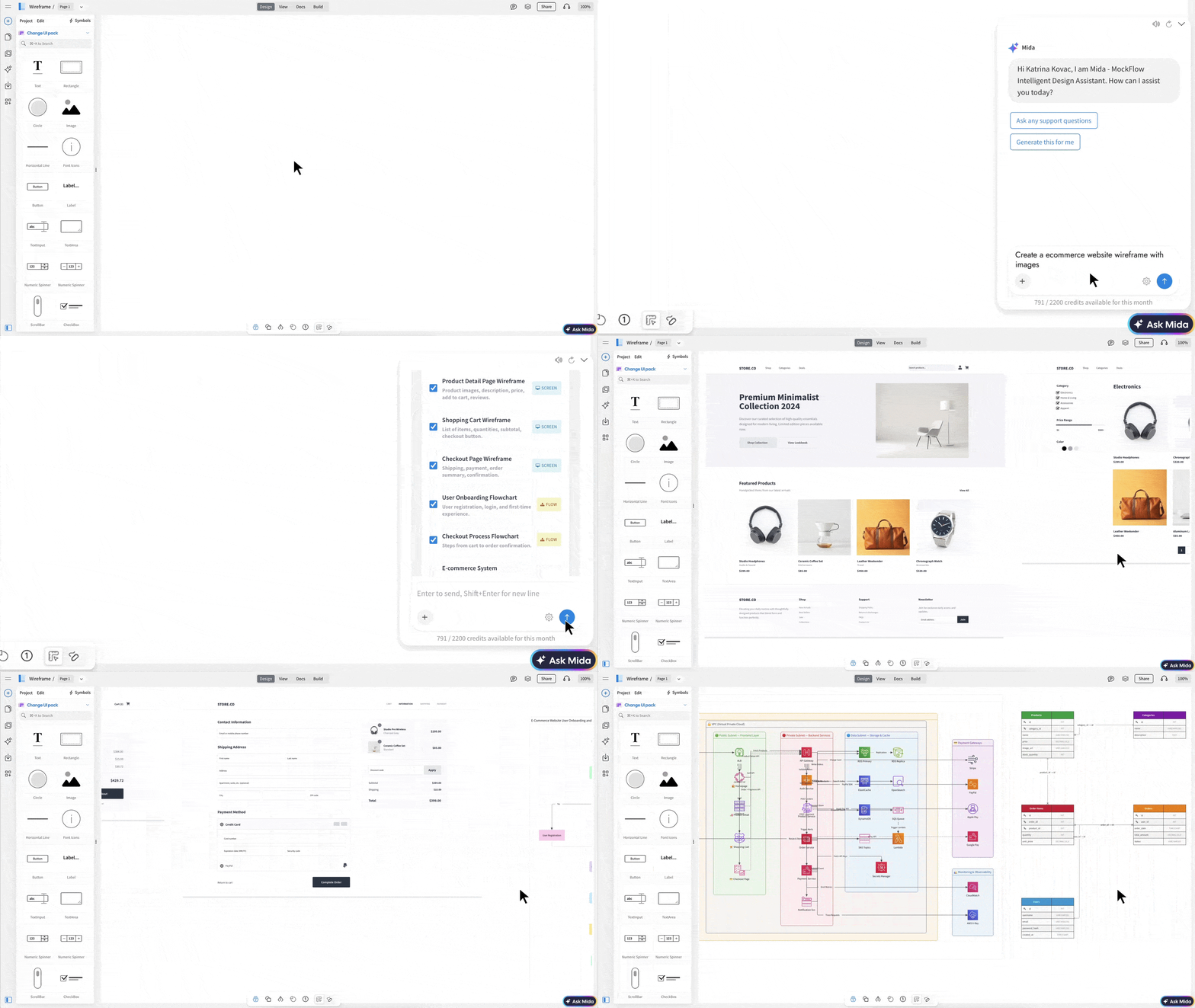
For faster starting points, AI wireframing can turn prompts or screenshots into editable wireframes. WireframePro also supports multi-screen AI generation, which helps create a connected design plan that can be reviewed for structure, flow, and consistency before moving ahead.
Conclusion
Good UI design is not only about how polished an interface looks. It is about making each screen easier to understand, navigate, and use. Strong UI design principles help bring clarity to layouts, consistency to patterns, accessibility to interactions, and better feedback to every user action.
The real value comes from applying these principles early, before the design becomes hard to change. That is where wireframing helps.
MockFlow WireframePro can help turn these UI design principles into practical interface decisions through quick wireframes, reusable UI components, collaborative reviews, and interactive prototypes. You can sign up to start building clearer interface ideas faster.
FAQs
1. What are UI design principles?
UI design principles are practical guidelines for creating interfaces that are clear, consistent, accessible, and easy to use. They help shape how screens are structured, how actions are presented, and how users move through a product experience.
2. Why are UI design principles important?
UI design principles reduce guesswork during design decisions. They help make interfaces easier to understand, navigate, and interact with, which can improve task completion and reduce user frustration.
3. What are the main UI design principles?
The main UI design principles include clarity, visual hierarchy, consistency, navigation, reduced cognitive load, accessibility, feedback, real content and states, and testing through wireframes. Together, they help create interfaces that feel easier to use.
4. What is the most important UI design principle?
Clarity is often the most important UI design principle because users should quickly understand what a screen is for, what action to take, and what happens next. Without clarity, even a visually polished interface can feel confusing.
5. How can beginners apply UI design principles?
Beginners can start with simple wireframes, familiar UI patterns, clear labels, and consistent components. It also helps to test navigation and task flow before adding colors, images, or detailed visual styling.
6. How do wireframing tools help with UI design?
Wireframing tools help test layout, hierarchy, navigation, content structure, and user flow before high-fidelity design or development. They make it easier to spot unclear screens, compare layout options, and collect feedback early.

Best UI Kits for Designers: Compare 14 UI Kits for Design Workflows
Every designer has a slightly different relationship with UI kits. Sometimes we need one because a blank canvas is slowing us...

How to Make a Flowchart: Symbols, Types, Steps, and Templates
When a process has too many steps, decisions, or handoffs, it becomes harder to explain and even harder to improve. A flowchart...

How to Give and Receive Design Feedback in Product Design
Design feedback is how teams catch problems before they become expensive mistakes. It's the difference between a design that...
